

Connect the Plivo trunks
- Copy your Famulor SIP URI from Settings → Phone numbers → Add a number → Add SIP integration.
- In the Plivo console, go to Zentrunk → Inbound Trunks → Create New Inbound Trunk. Add the Famulor destination as Primary URI. Enable Authentication on that URI if you will use Digest for calls into Famulor. Under Phone Numbers, edit your number and assign it to this inbound trunk.
- Under Zentrunk → Outbound Trunks → Create New Outbound Trunk, create a separate trunk with a Credentials List. Copy the Termination URI Plivo issues for that trunk. Plivo trunk setup.
- In Famulor, enter the Plivo DID, use the Plivo termination hostname for Termination address, and enter its credentials under Outbound authentication. If the Plivo Primary URI has its own inbound login, use separate credentials in Famulor. Save and assign the DID to an assistant.
Recommended profile
In Plivo, create an Origination URI pointing to the platform SIP FQDN and assign the DID. Plivo explicitly supportsauthentication_needed, username, and password on the Origination URI. Therefore SIP username/password is the preferred platform inbound mode when those same credentials are configured in Plivo.
Use the exact DID in +E.164. Use TCP for standard signaling. For TLS use 5061 and enable SRTP at both ends.
If digest is not enabled, select Provider source IPs and allow all current Plivo signaling ranges for failover:
What to enter in Famulor
The screenshots use the English app labels.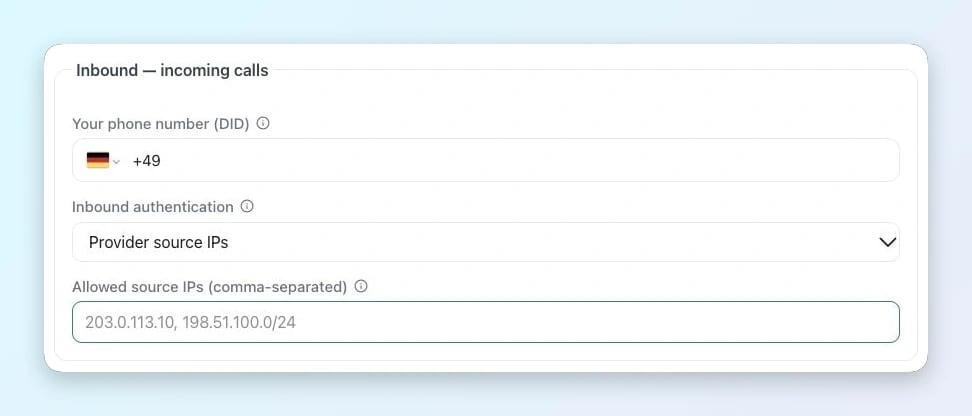
Incoming calls in Famulor
- Your phone number (DID) · Enter the exact number delivered by Plivo Zentrunk, with its country code and leading + for an E.164 DID.
- Inbound authentication / Allowed source IPs · Choose Provider source IPs and enter the complete SIP signaling list for Plivo Zentrunk and the selected route.
- If the provider sends Digest authentication to Famulor, select SIP username/password and use the same inbound credentials configured on the provider side.
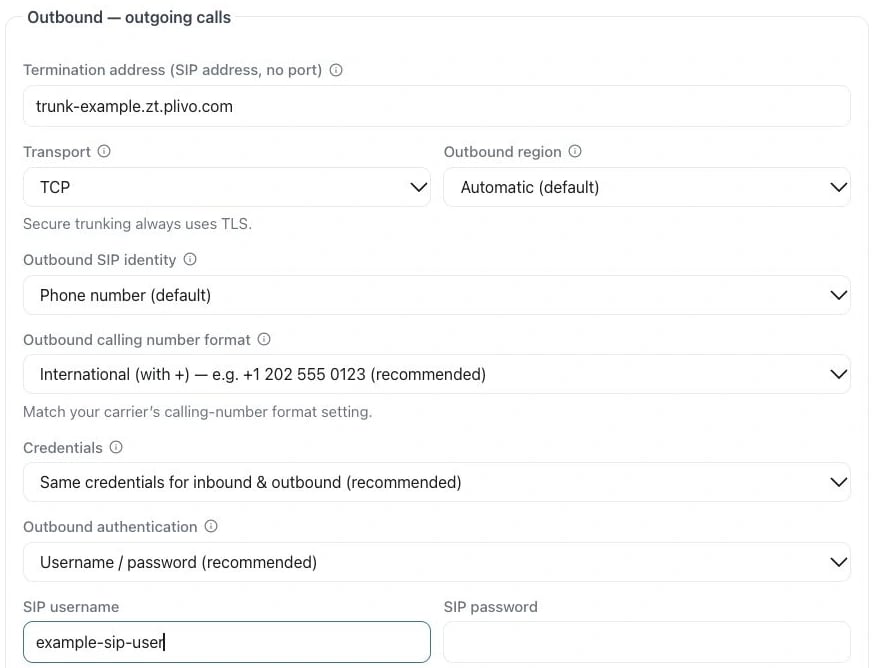
Example in the English app
- Termination address · Use the provider hostname from the setup above (Termination URI). Enter only the hostname, without a SIP prefix or port.
- Outbound authentication / SIP username / SIP password · Select Username / password when using Digest. Enter the SIP login and password from Credentials List.