

Customer locations
The Workspace locations map at the top of your reseller dashboard shows where your customer workspaces are based, using the country selected in each workspace’s settings. Each workspace counts once. Workspaces without a country appear under Country not set (all time). The workspace count, country count, and top location above the map follow the selected period and count workspaces created during that period. The map and its country values continue to show all current customer workspaces. The map does not show visitor IP locations.What you can customise
- Domain — app, login, public API (
/api/v1), and MCP use your verified domain. - Branding, logos, currency, legal pages, email, retention limits, and bot protection — see White Label Setup for the full walkthrough of every setting.
- Plans and pricing — customer-facing plans, included minutes, limits, and add-ons.
- Billing — customer checkout, subscriptions, top-ups, and invoices through your connected billing account.
Customer workspaces
When a person registers on your white-label domain, Famulor creates a separate customer workspace owned by that person. The customer does not become a member of your reseller workspace. Open Whitelabel Admin → Users → Create user. Enter the customer email and optional name, choose Creation mode, and review the details before selecting Create user. The screenshot shows an unsaved form with example placeholders; no customer or invitation was created.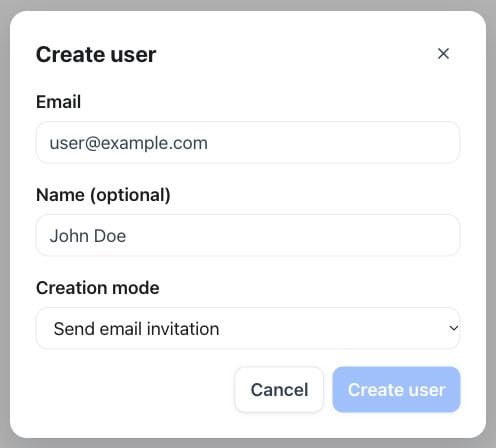
Create user — email, optional name and creation mode before submission
- Custom User Appearance hides specific navigation pages or product features from that customer, independent of your global white-label branding and navigation.
- Custom User Limits overrides individual plan-limit values — such as the number of assistants or campaigns — for that one workspace. An override here takes priority over whatever the customer’s subscribed plan specifies.
Cross-customer history and live monitoring
Your admin console has its own History and Live monitoring views that aggregate every customer workspace into one place, so support and quality checks do not mean opening each workspace in turn. They are separate from the single-workspace History and Live monitoring your customers use inside the product. Admin History lists calls, email, and messaging conversations from every customer workspace in one grid, with a Workspace column identifying which customer each conversation belongs to, and opens the same detail views as the customer-facing History. Admin Live monitoring shows the active calls across all your customer workspaces. On any of them you can listen in, whisper to the assistant, take over the conversation, or hang up — the same controls as a single workspace’s own Live monitoring — alongside response-latency percentiles from the last 24 hours. This view is gated by your own reseller plan’s Live monitoring capability, not by any individual customer’s plan.Connect a custom domain
Open Whitelabel Admin → Settings → Domains and add the full hostname you want to use. Open Whitelabel Admin → Settings → Domains, enter your hostname in Custom domain, then select Add domain. The screenshot shows the form before a domain has been added; the DNS records appear in the next step.
Domains — add your hostname before publishing and verifying DNS records
- Publish the ownership TXT record shown in the setup.
- Publish the recommended A or CNAME record for routing.
- Wait for DNS propagation, then choose Check DNS.
GET, POST, and DELETE /api/v1/custom-domain, POST /api/v1/custom-domain/verify, and the matching MCP tools.