

{{customer_name}} and supply the value per call — from your API request, a campaign lead, an inbound enrichment webhook, or the platform’s built-in system context.
Variable reference syntax
Reference a variable with double braces — the preferred, JSON-safe form:{customer_name} is also resolved, but only for keys that are actually known (a defined or system variable). This keeps literal braces — for example JSON in a tool body — intact. Unknown single-brace text is left untouched; unknown double-brace placeholders become empty.
Defining variables on an assistant
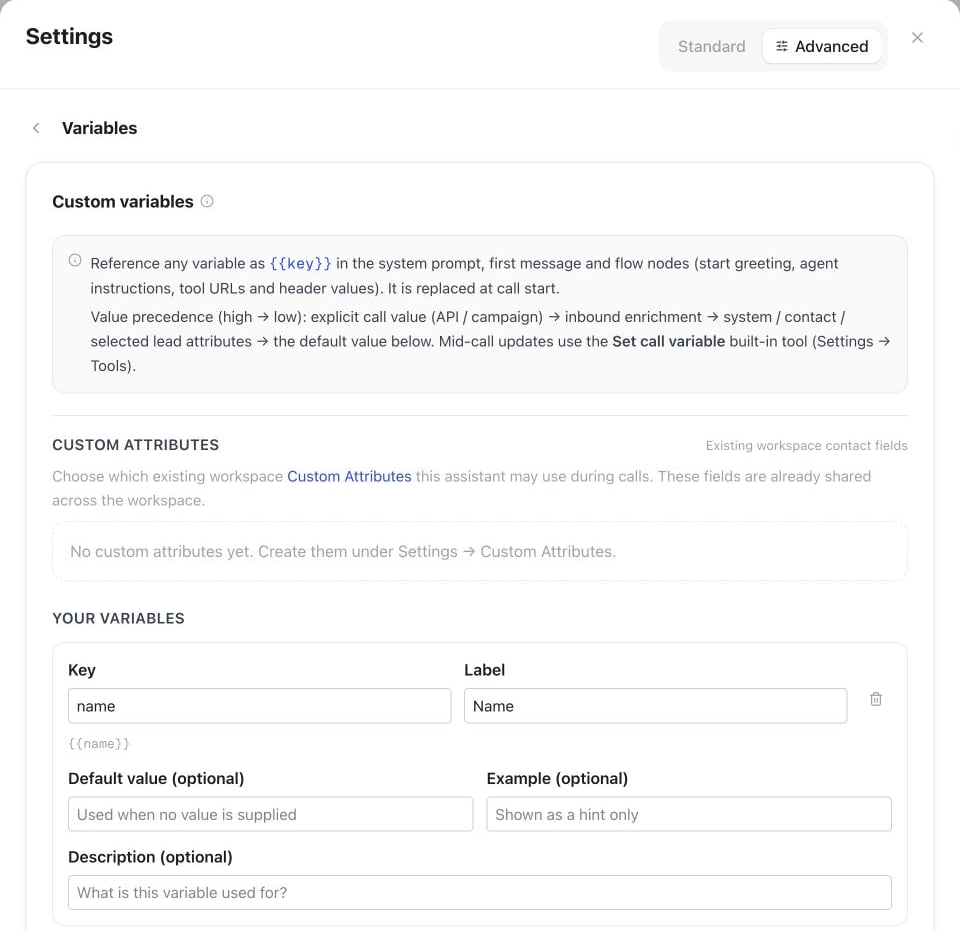
Assistant Settings → Advanced → Automations → Variables: define Key and Label, then add an optional default value, example and description.
Keys are validated on save: invalid format, a collision with a reserved system variable, a duplicate key, or a missing label are all rejected.
Where variables are substituted
Values are substituted at call start, before the model or flow runs, in these fields:- Assistant system prompt
- Assistant first message (greeting)
- Flow node
start.greeting - Flow node
agent.instructions - Flow tool node request URL and header values
- API tool request URL, header values, and static parameter values — substituted at the moment the tool runs
- Flow transfer node destination number and announcement
- Flow warm transfer node destination number, caller announcement, and briefing instructions
- Built-in tool texts — tool description, transfer announcement, warm-transfer hold message, connected message, briefing first message, summary instructions, end-call farewell, assistant-transfer pre-transfer message, and payment-collection prompt
{{handover_number}}, supplied via campaign lead fields, the API call’s variables, or the inbound variable-webhook — and a warm-transfer briefing can open with Hallo, hier {{assistant_name}} von {{company}} — Anrufer {{caller_name}}. See the Node reference for what each flow field controls.
Spoken tool texts are substituted twice: once at call start with the resolved input variables, and again at the moment the tool runs — so values collected during the conversation (via set_variable or collect steps) are included and take precedence.
When Transfer to assistant hands the call to another assistant, that assistant’s system prompt, first message, flow texts and built-in tool texts are filled the same way, with the call’s current values, including values collected so far. {{assistant_name}} then names the receiving assistant, and its own default values fill any variable the call has no value for. Missing keys may use the receiving assistant’s defaults; explicitly cleared values stay empty. Variables remain available even when no conversation messages are passed. API actions that save data externally must map returned values to call variables if later assistants should use them.
For example, a tool node can call https://api.example.com/orders/{{order_id}} or send Authorization: Bearer {{api_token}} with per-call values.
Value sources & precedence
A value can arrive from several places. At call start the platform uses this precedence, highest first:- Explicit — values passed with the call, such as API
make-callvariables. - Inbound variable-webhook — enrichment fetched at call start (see below).
- Current contact and system values — selected Custom Attributes and values filled by the platform from this call’s context.
- Remembered caller variable — the last consented value kept in the configured Shared or Private scope.
- Default — the definition’s
default_value.
Explicit values via the API
variables, including values for Manual variables. Putting the same key in lead does not grant access to that contact field. This request does not edit the assistant or contact; retention follows each variable’s Caller memory setting. Values must be a flat object with lowercase snake_case keys (up to 64 characters). Strings accept up to 2000 characters; numbers and booleans become text. Nested objects, arrays and null values are rejected. Control characters, invisible formatting and role-marker prefixes are removed before use.
After a call starts, use MCP get_call with expected_variables, or send POST /api/v1/calls/{id}/verify-inputs with { "expected_variables": { "auftrag": "Book a consultation" } }. The read-only response reports only the requested keys: matched, missing, different, or not_available. A missing snapshot is not a failed or passed test; check again after the call starts. Matching inputs verifies delivery, not the scenario outcome. A capacity-queued MCP call retains its inputs.
Outbound calls also prefill call-only defaults and selected contact values before call-start enrichment; those prefilled values can take precedence over a later webhook. An explicit per-call value has the highest priority.
Campaign leads → variables
In a campaign, each lead can include free-form custom fields. At dial time, a custom field is mapped onto a variable with the same key, so a CSV column becomes a variable:company_name and appointment_date populate {{company_name}} and {{appointment_date}} only after those fields exist as workspace Custom Attributes and are selected for this assistant. That selection creates a definition with source: "lead"; arbitrary or deleted lead fields are not exposed. Contact name is separate identity data and is available through the built-in {{customer_name}} system variable.
System variables
These keys are always available at call start. They are reserved — you cannot define a custom variable with one of these keys.Inbound variable-webhook
For inbound calls you often don’t know the caller in advance. Configure a variable webhook on the assistant and Famulor calls it at call start to enrich variables — for example, to look up a customer by their caller number. This fires before the call starts; see Post-call webhooks for what Famulor sends after one ends.Request
Famulor sends aPOST with a JSON body:
Response
Return the variables to merge:Native automation (alternative)
Instead of a custom webhook, you can create an Automation with the Inject input variables trigger and bind it to the assistant. Add a Return variables action using the same{ variables: {…} } response shape. If no matching automation is active, the configured webhook is used.
Verifying the signature
Example request
API & MCP
GET /api/v1/assistants/{id}/variables— read the assistant’s variable definitions; scopeassistants:read.PATCH /api/v1/assistants/{id}/variables— replace the variable definitions; scopeassistants:write.- MCP tools:
get_assistant_variables,set_assistant_variables.