

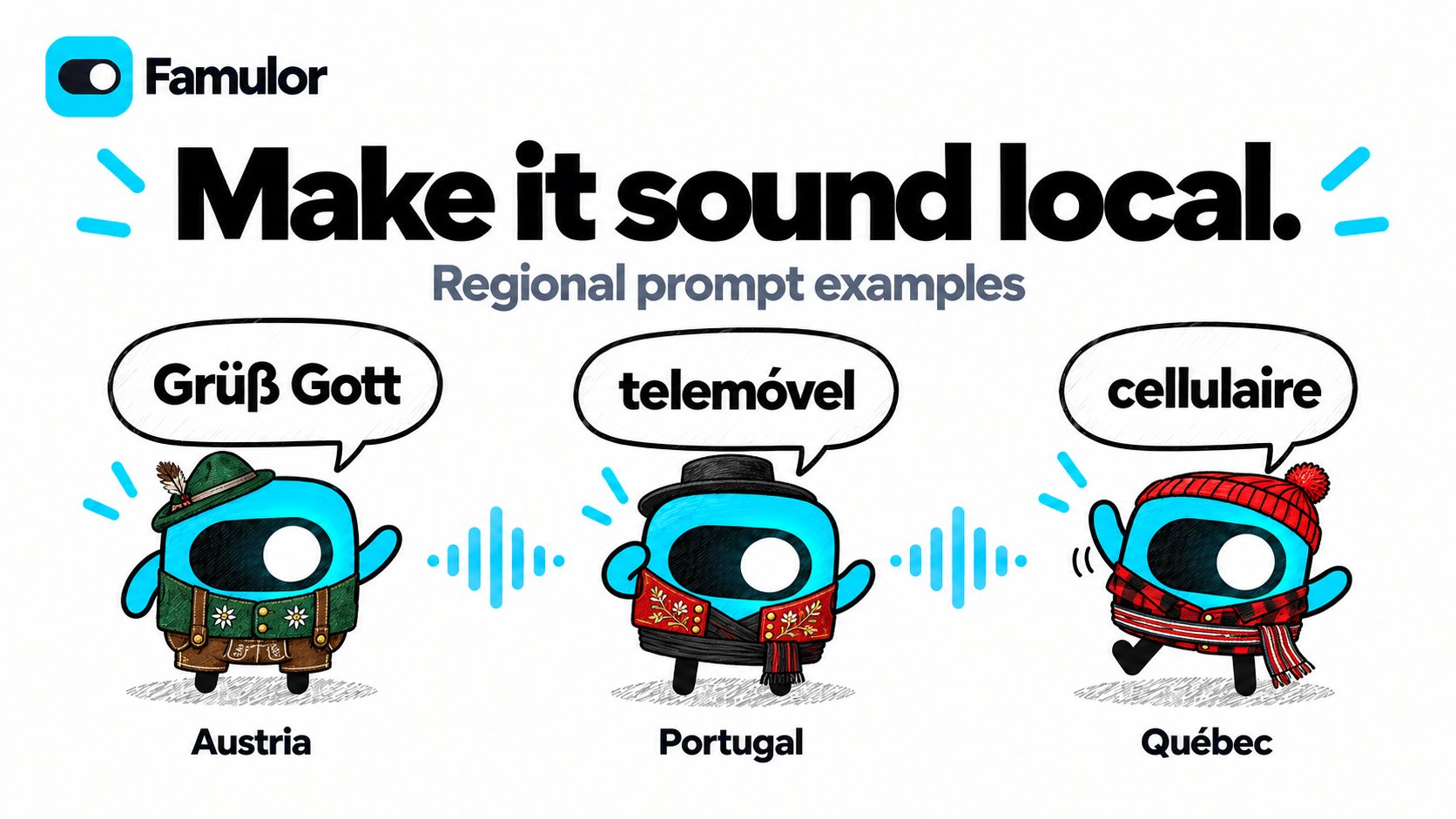
Grüezi, Schweiz: your assistant speaks Swiss German

- Local conversations: Use Swiss German as the primary language or add it as a secondary language alongside other supported languages, such as English. Standard German and Swiss German cannot be selected together.
- Your preferred dialect: Add a regional preference, such as Bernese German, to your assistant’s instructions when needed.
- Choose the right voice: In Pipeline and Half-cascade, pronunciation also depends on the selected voice. Listen to a test conversation before publishing.
Regional prompt examples for familiar conversations
Turn texts into conversations
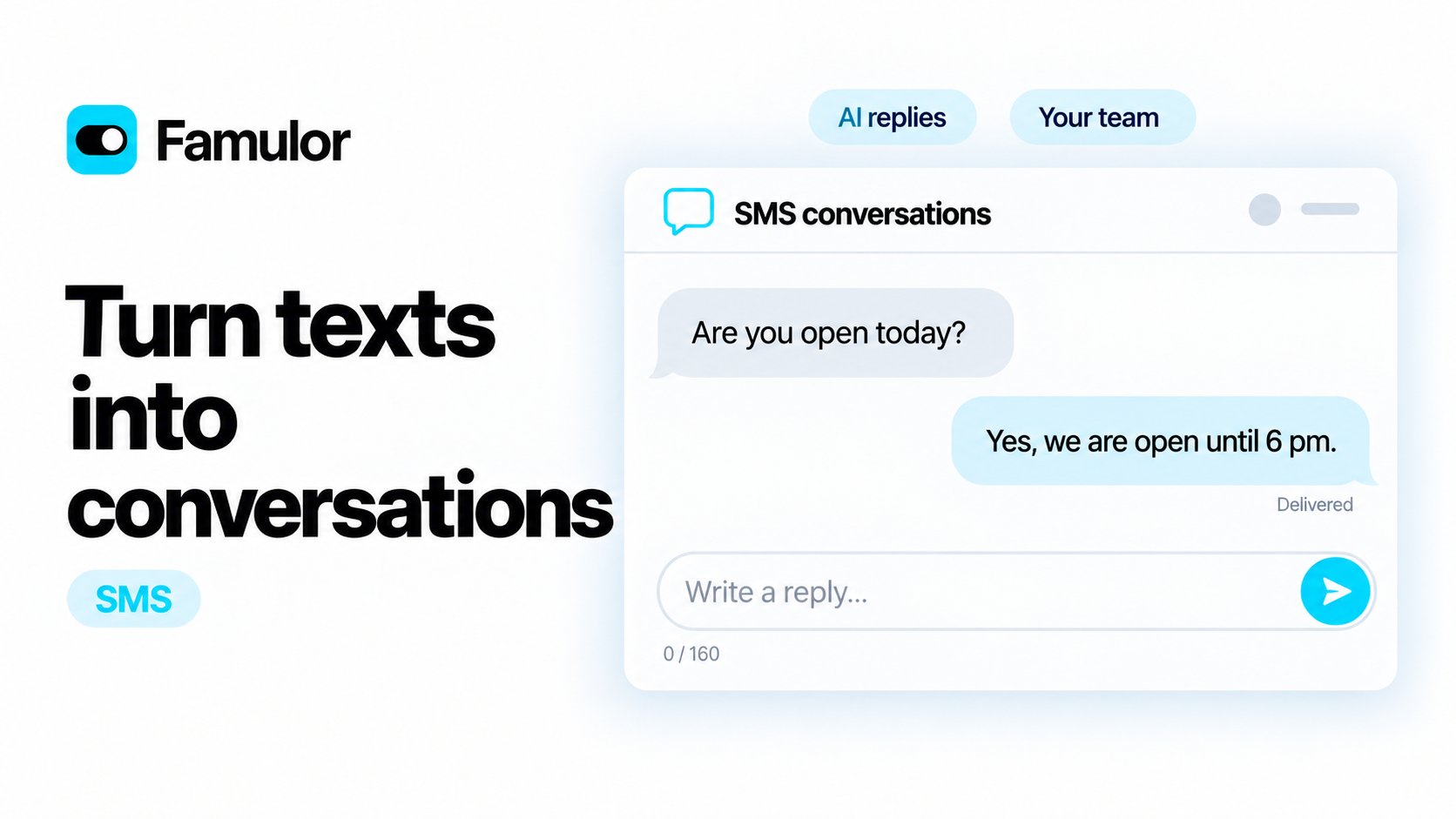
- One conversation view: Read incoming messages, AI replies and manual replies in History → SMS, with delivery status and charged credits.
- Reply yourself: Type directly in the conversation, just like chat. Sending a manual reply pauses AI for that conversation; resume it when ready. SMS replies are text only, with no file attachments.
- Keep it to one SMS: The composer counts up to 160 GSM-7 units or 70 Unicode units. Special characters can use more than one unit. Overlong replies cannot be sent, and assistant replies stay within the same limit.
- Simple setup: Twilio imports have an optional Enable SMS conversations checkbox, off by default. Eligible numbers show the same registration badge as Phone numbers; click it to open that number’s registration form.
Show your screen, get better help
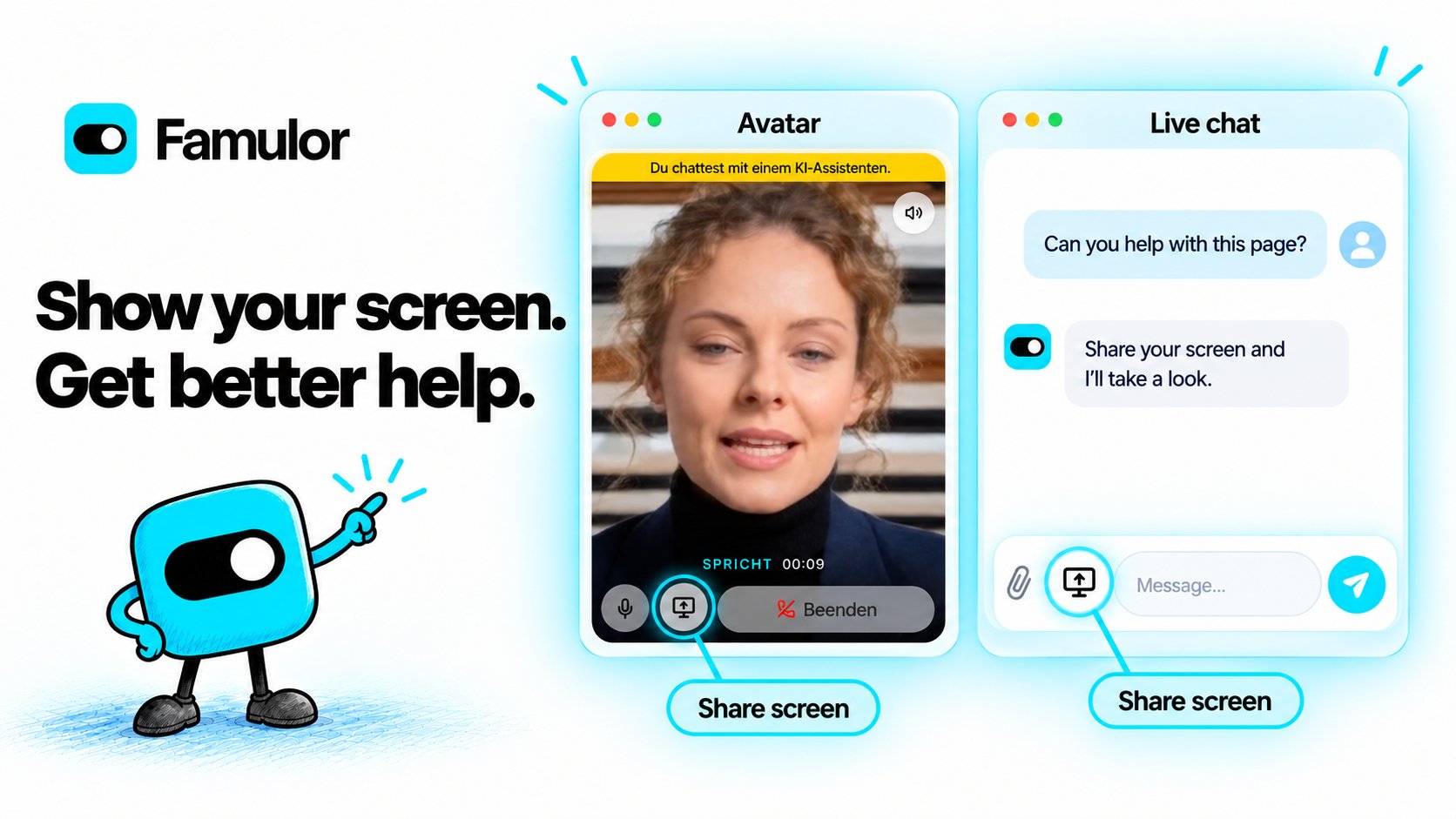
Screen sharing in web widgets
Visitors can now share a screen, window or browser tab with your AI assistant during chat or voice conversations. Enable General → Screen sharing in the widget editor, then visitors choose what to share in their browser using the screen icon next to the microphone or paperclip. The feature is off by default and requires a workspace plan with Web widgets.Sharing requires the visitor’s explicit selection and can be stopped with the same icon. Closing the widget, changing its tab or ending the session also stops sharing. Use a supported desktop browser on HTTPS; phones do not show the icon. The assistant can explain visible content, but cannot click or control the device. System and tab audio are not shared, and screenshots are processed on demand without being saved as attachments.Configure widget screen sharingFresher screen help and simpler Milian controls (Beta)
Milian now requests a current view whenever a question needs the shared screen, helping it follow changes in the screen or window you selected. Voice mode keeps a compact input row and toolbar: page context, screen sharing and microphone controls are icon toggles. The eye icon pauses or resumes page context and dims while screen sharing is active. New voice messages also arrive without a flashing scrollbar. Enable Beta Features in your workspace to use Milian voice.Learn about Milian voice and screen helpWhat you can use it for
- Customer support: Visitors can show an error message or the step where they are stuck. The assistant can explain what is visible and suggest the next step.
- Onboarding: New users can share a setup page and ask where to find a setting or how to complete a step, without describing the whole screen.
- Shopping assistance: Customers can show a product page or comparison table and ask the assistant to explain the visible options, alongside information from your knowledge base.
- Booking help: Visitors can share a booking page and ask for help understanding the available dates or completing the next step themselves.
- Workspace guidance with Milian (Beta): Share your assistant settings, flow editor or dashboard and ask Milian to explain the visible configuration or help you find the relevant controls.
Famulor launches on Product Hunt

A smoother workspace
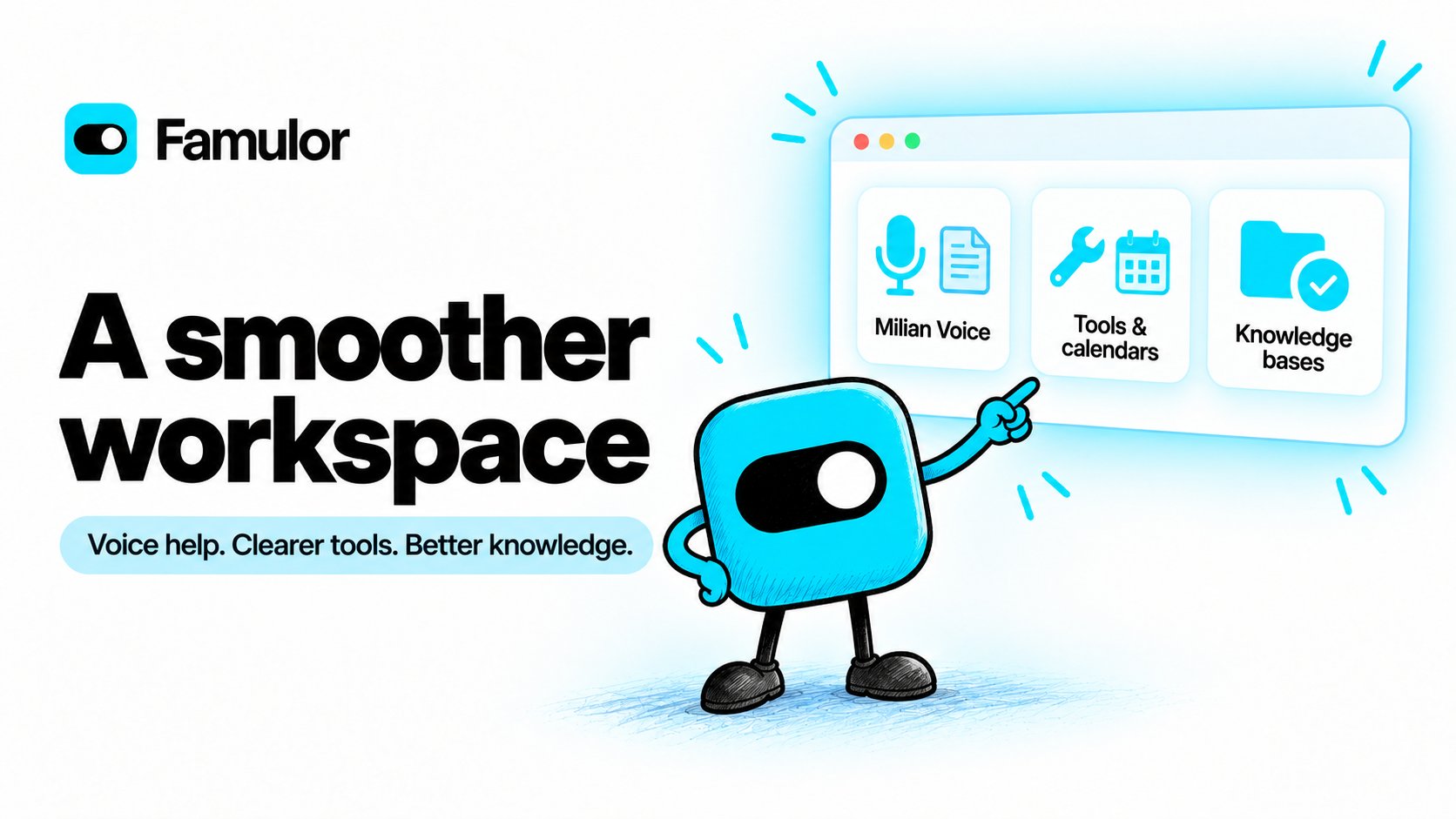
Milian Voice understands the page you are on (Beta)
Starting a voice chat now shares the visible text and controls of your current app page with Milian. Page context follows navigation within your workspace, so you can ask for help with what you are looking at without opening a screen-sharing dialog. Form values, editable text, images and embedded pages are excluded. You can pause or resume page context at any time; it pauses while the tab is hidden and stops when voice chat ends. Enable Beta Features in your workspace to use voice chat.Learn about Milian voice and page contextClearer tools and calendars
Assistant settings now show tools in readable rows with descriptions, badges and channel labels. Edit and remove actions are easier to find, calendar instructions are easier to configure, and the layout fits better on phones. End-call farewell settings include a clearer explanation of single-language and multilingual wording.More reliable knowledge base switching
Switching between knowledge bases now clears the previous selection’s documents, website sources and cloud-drive sources. Late responses from the previous knowledge base no longer replace the current list, preventing stale sources from causing cloud-drive deletion failures.21 newly available models
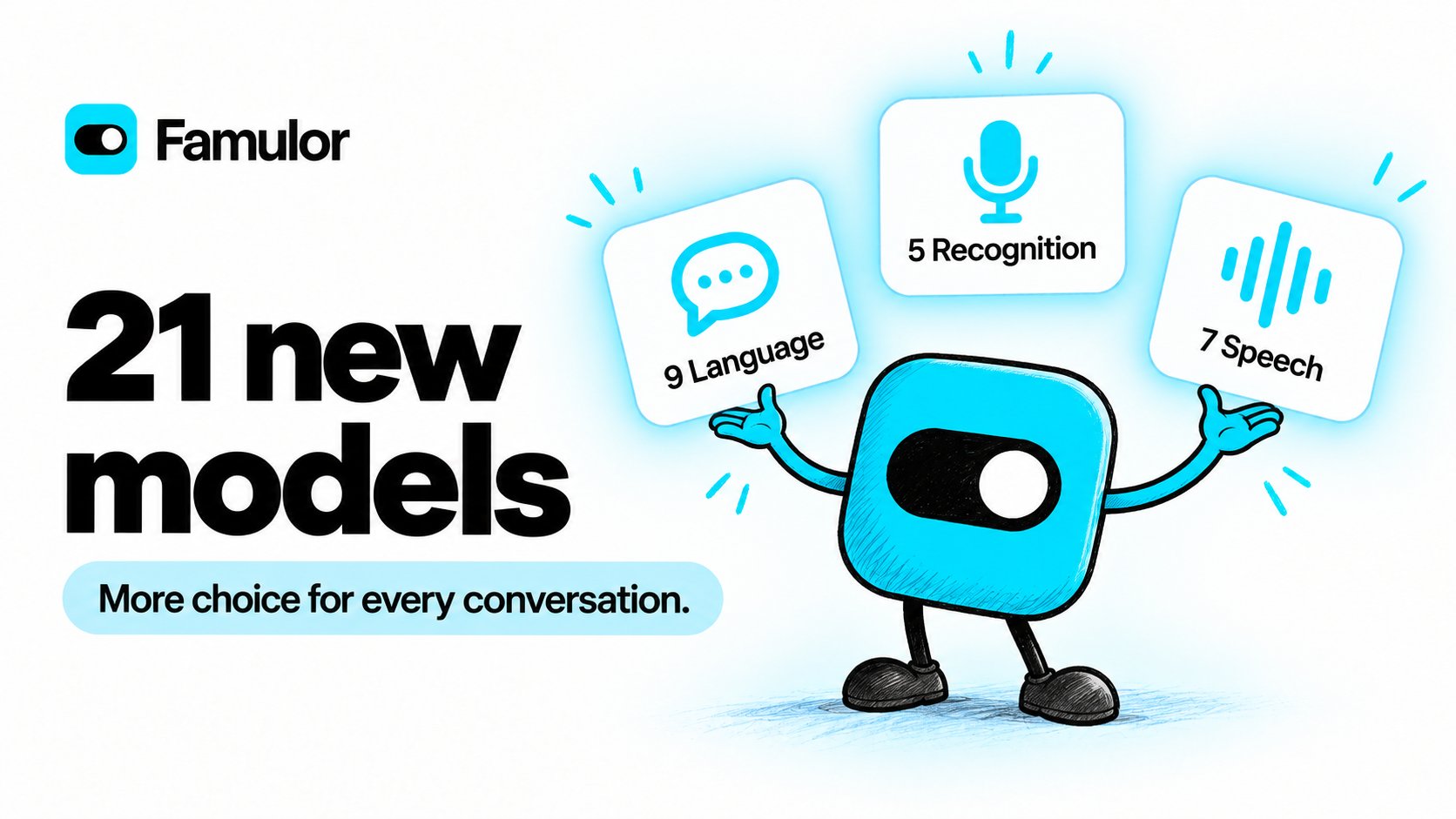
Language models (LLM)
Speech recognition (STT)
Speech generation (TTS)
Supported Models
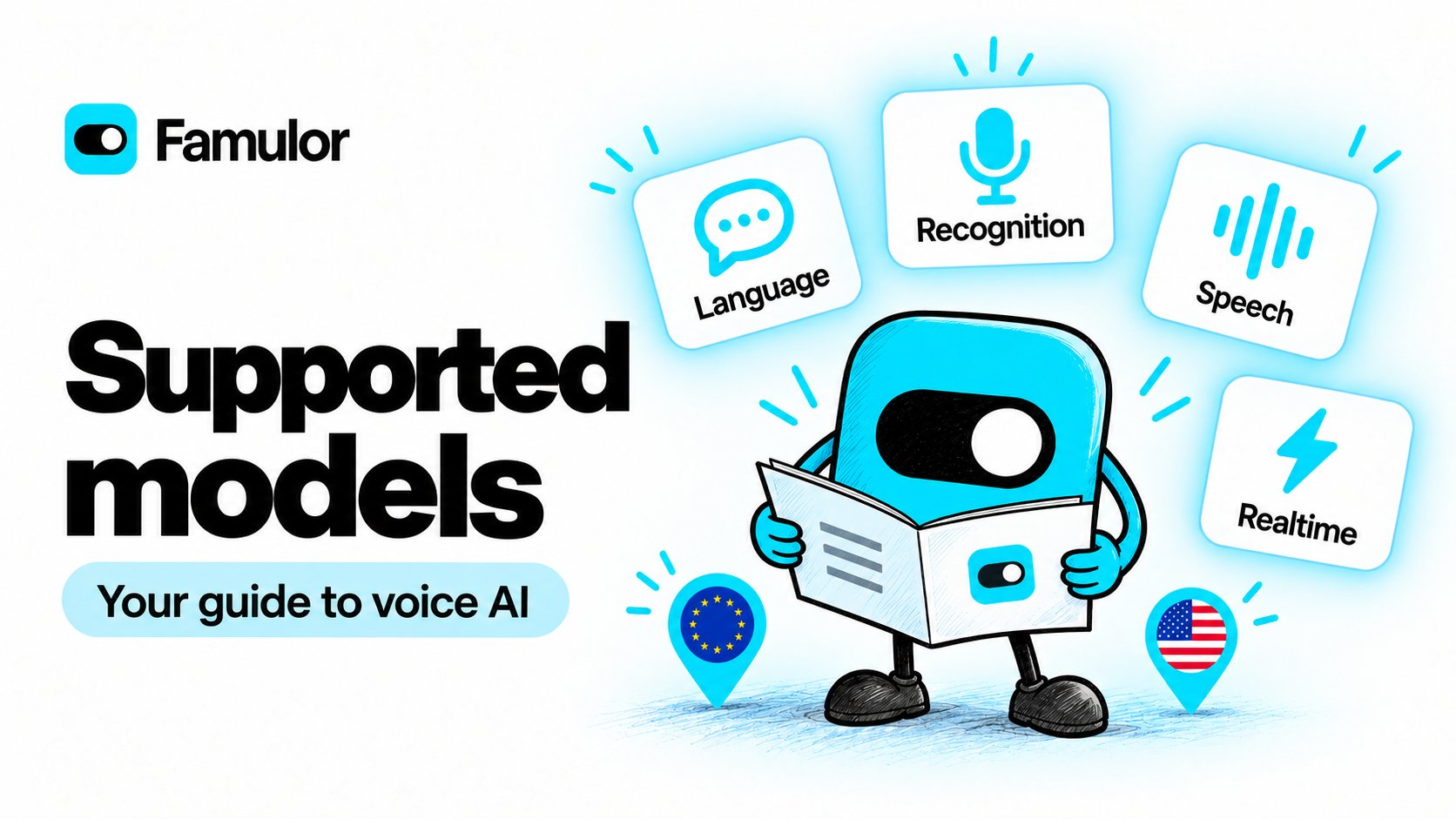
Language models (LLM) · 28
Language models (LLM) · 28
Speech recognition (STT) · 21
Speech recognition (STT) · 21
Speech generation (TTS) · 28
Speech generation (TTS) · 28
Realtime speech · 9
Realtime speech · 9
Better answers from your website
Website imports now keep the content your assistants need and leave out what gets in the way.- No more cookie banners or menus in your knowledge base. Consent banners and dialogs, navigation and footers are removed before a page is indexed; prices, opening hours, allergens and other details stay.
- Every passage knows where it belongs. Pages are split along their headings, and each passage starts with the page title and section name, for example
Pizza Hawaii › Ingredients. Assistants find the ingredient list, allergens or baking time of the right product instead of a similar one. - Less noise. Error pages, pages without readable content and pages with identical content are skipped and use no credits. An error page never replaces a page that was indexed before.
The same structure for files and texts
PDFs, Word files, Markdown and text files, typed text and HTML files are now prepared like websites:- Every passage starts with the document name, so even a passage from the middle of a catalog says which document it comes from.
- Word and Markdown headings split a document into sections, for example
Speisekarte › Pizza Hawaii › Zutaten. - PDF page numbers disappear, and headers or footers that repeat on almost every page are kept only once.
- HTML files lose their cookie banners, like websites.
Choose exactly which pages to import
- Tick individual pages in the page preview. Each checkbox adds an entry for exactly that page (ending in
$, for example/impressum$); a path without$still covers every page below it. - The page limit follows your selection. Maximum pages rises automatically so every include path and ticked page fits, and you can type an exact number. The dialog and the Auto Refresh cards warn you when a source has more include paths than its page limit.
- Refresh less often when content rarely changes. Auto Refresh for websites and auto-sync for cloud drives now run from every 6 hours up to every 6 months.
- Privacy, cookie and accessibility pages are suggested as exclusions; the imprint and terms are never suggested.
Delete several documents at once
Hover over a document and tick its checkbox, then use Select all or Delete selected in the bar above the list. Deleting also removes the indexed passages, so assistants stop using that content right away.- API:
DELETE /knowledge-bases/{id}/documents/{docId}for one document,POST /knowledge-bases/{id}/documents/deletefor up to 200 - MCP:
delete_documents - CLI:
famulor delete-knowledge-base-documentandfamulor delete-knowledge-base-documents
The Famulor CLI
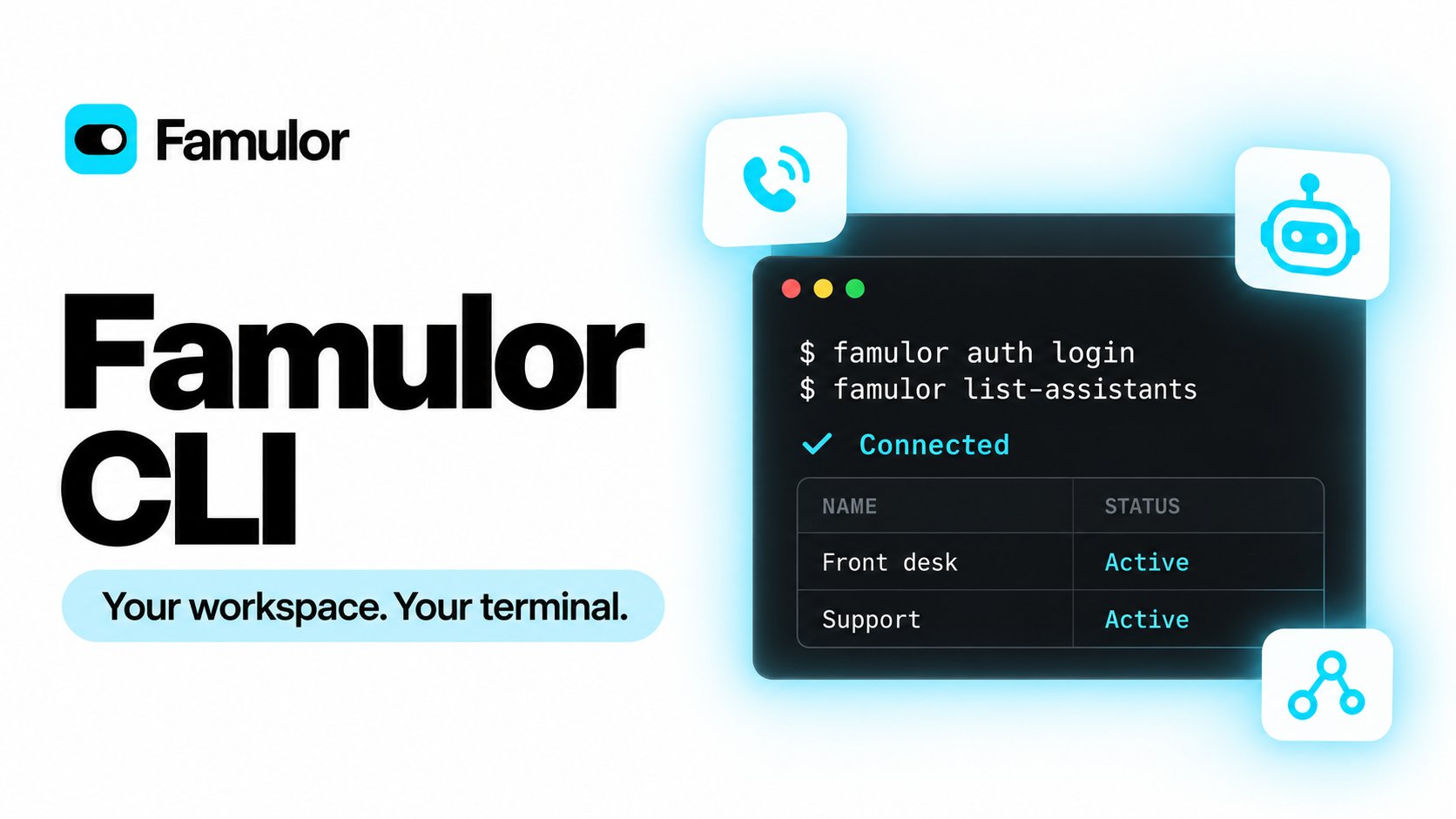
- Log in once with an API key from Settings → API & MCP. The key is stored in your system keychain, with one profile per workspace and support for white-label domains.
- Tables, JSON or JSON Lines, with
--allto fetch every page of a list. - Safe for scripts and CI: deletes and irreversible actions need confirmation,
--dry-runshows a request before it is sent, rate limits are retried automatically, and in scripts a failure ends with one JSON error line on stderr. - Made for coding agents:
famulor commands <topic>finds the right command andfamulor <command> --help --output jsondescribes it, so Claude Code, Codex or Cursor can use Famulor directly.
Sign in with a passkey
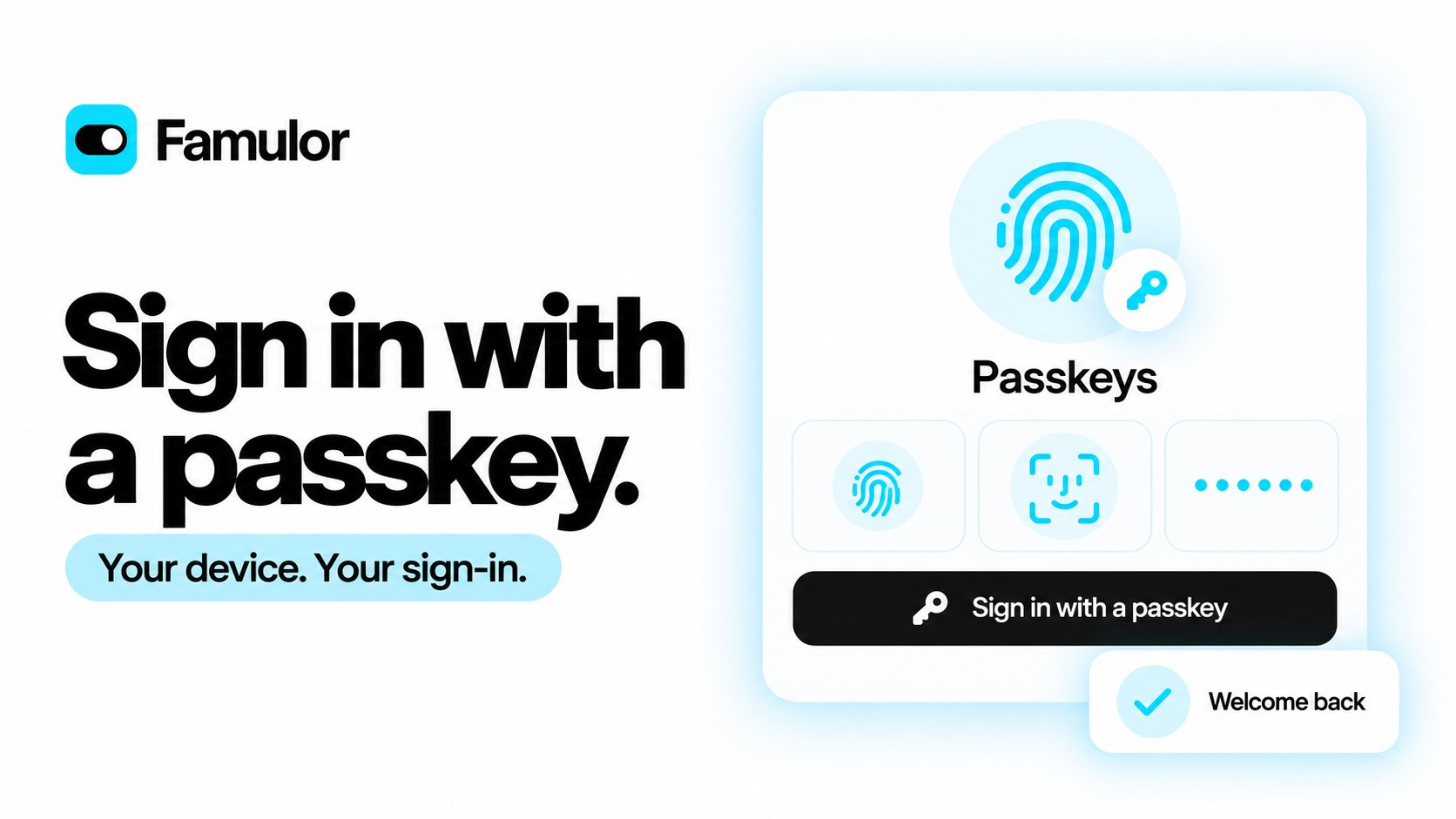
- Add several passkeys, see when each was last used and remove one when you no longer need it.
- Your other sign-in methods remain available. If you have two-factor authentication enabled, it still applies after passkey sign-in.
- Available on app.famulor.io in supported browsers and devices. Passkeys are not offered on white-label domains.
Help is together in the Support menu
Open your profile menu → Support to find documentation, the community, feedback and help from Milian. Milian can check your workspace context and help diagnose a problem. If your workspace has Priority Support, you can escalate an unresolved issue with the collected context instead of describing everything again.How support worksClearer US SMS registration, before you pay
Compare low-volume and standard registration with the applicable setup fees, monthly fees and limits before choosing. Milian can review your details and message examples for common rejection reasons before payment. The review separates issues to fix from suggestions and takes you back to the relevant fields.Registration progress now explains review stages and estimated waiting times. A verified-business indicator identifies a confirmed business identity; it does not mean the messaging campaign is approved. Address validation, temporary-request retries and the form layout have also been improved.The pre-check provides guidance; final approval remains with the registration reviewers.SMS registration guideA more consistent History and smoother Milian
- Email and messaging use the same tabbed detail layout as calls. The WhatsApp reply window updates when a new message arrives.
- Milian introduces itself after workspace setup, with smoother transitions between the welcome screen, chat and side panel.
- Tables have a slimmer pagination footer, leaving more space for the content.
More reliable calls, bookings and connected apps
- Improved recovery around recording-consent conversations and call greetings, with clearer failed-start statuses and fewer duplicate or misplaced caller transcript lines.
- Assistant setup rejects voice and language combinations that cannot be used together.
- Turning off guest booking emails also prevents guest invitations from the connected calendar.
- Automation permission errors give clearer guidance about the selected connection and the account that needs access.
- Connected apps must ask for approval again when requesting broader access. The consent screen also makes unverified app names and their destination easier to recognise.
Call insights: understand every conversation
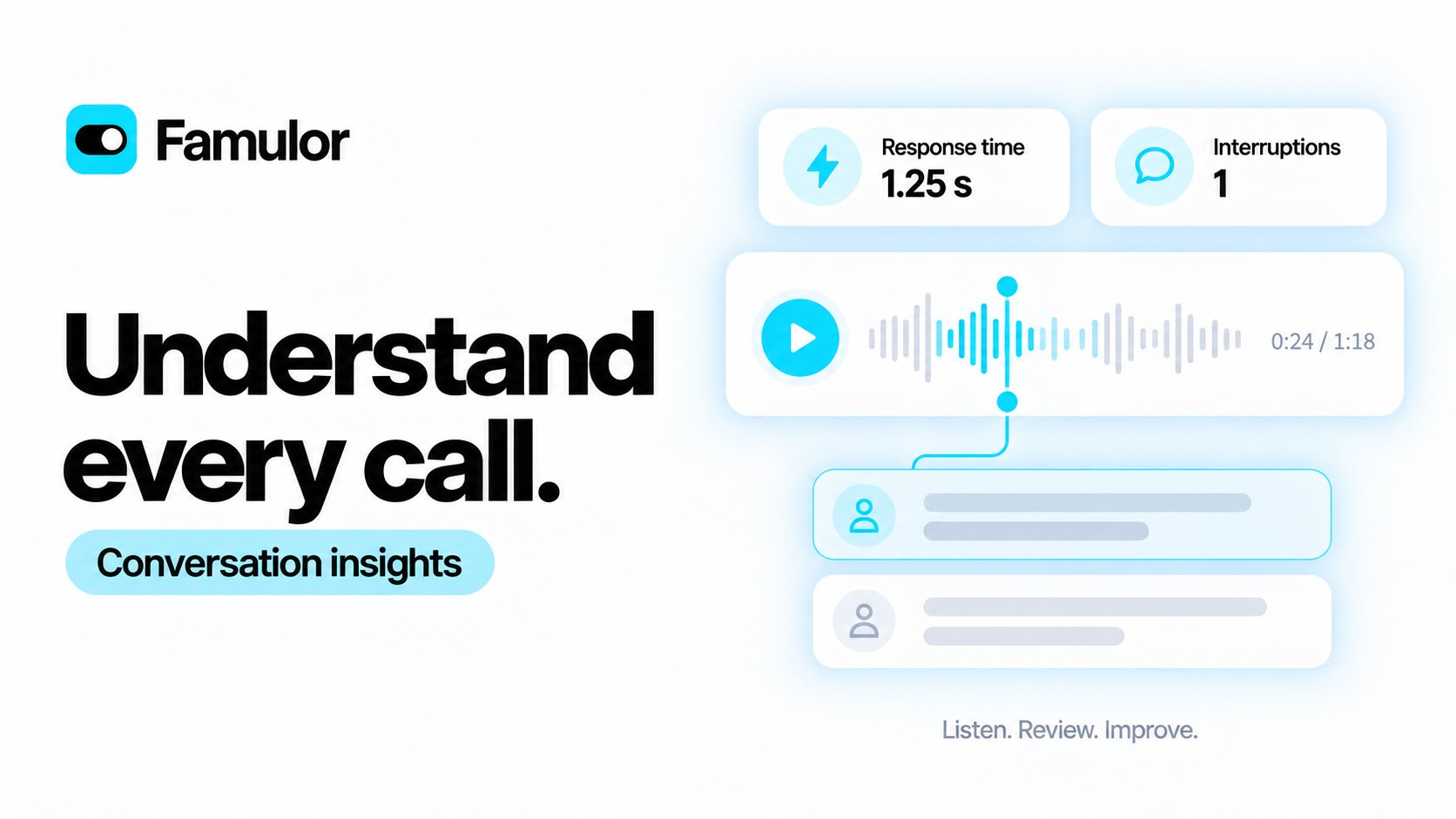
- See where time goes. Explore available measurements for speech recognition, waiting after recognition, response generation, speech generation and audio output delay.
- Find moments worth reviewing. Transcript and recording markers help you revisit interruptions, low recognition scores and late final transcripts when these events were captured.
- Review with less scrolling. A compact player keeps download and playback speed together. The transcript uses the full right column; simulation and FAQ shortcuts join the other actions at the bottom.
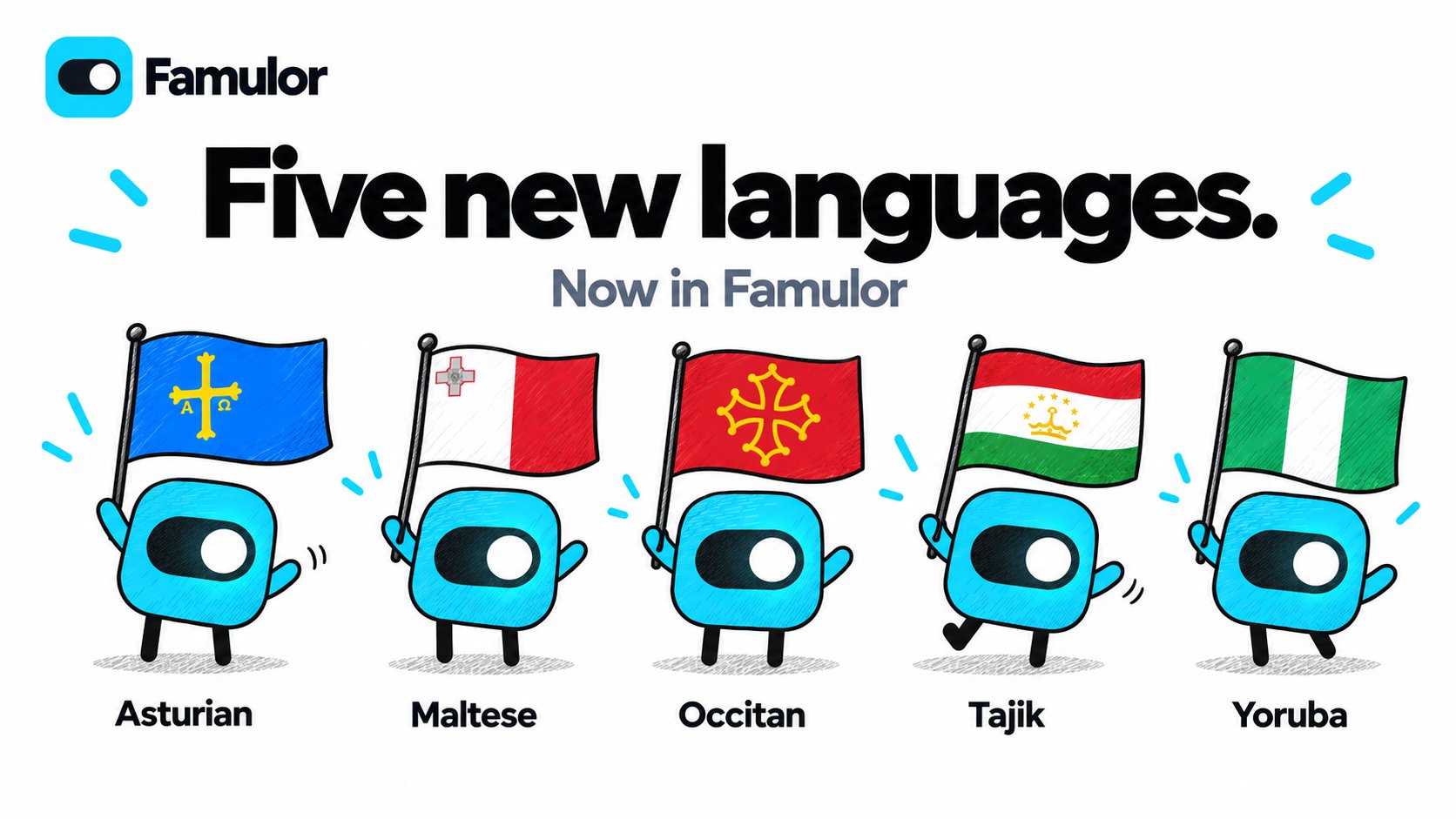
Five new languages for your assistants
ElevenLabs V4 is now supported

Reschedule and cancel Cal.com appointments in conversation
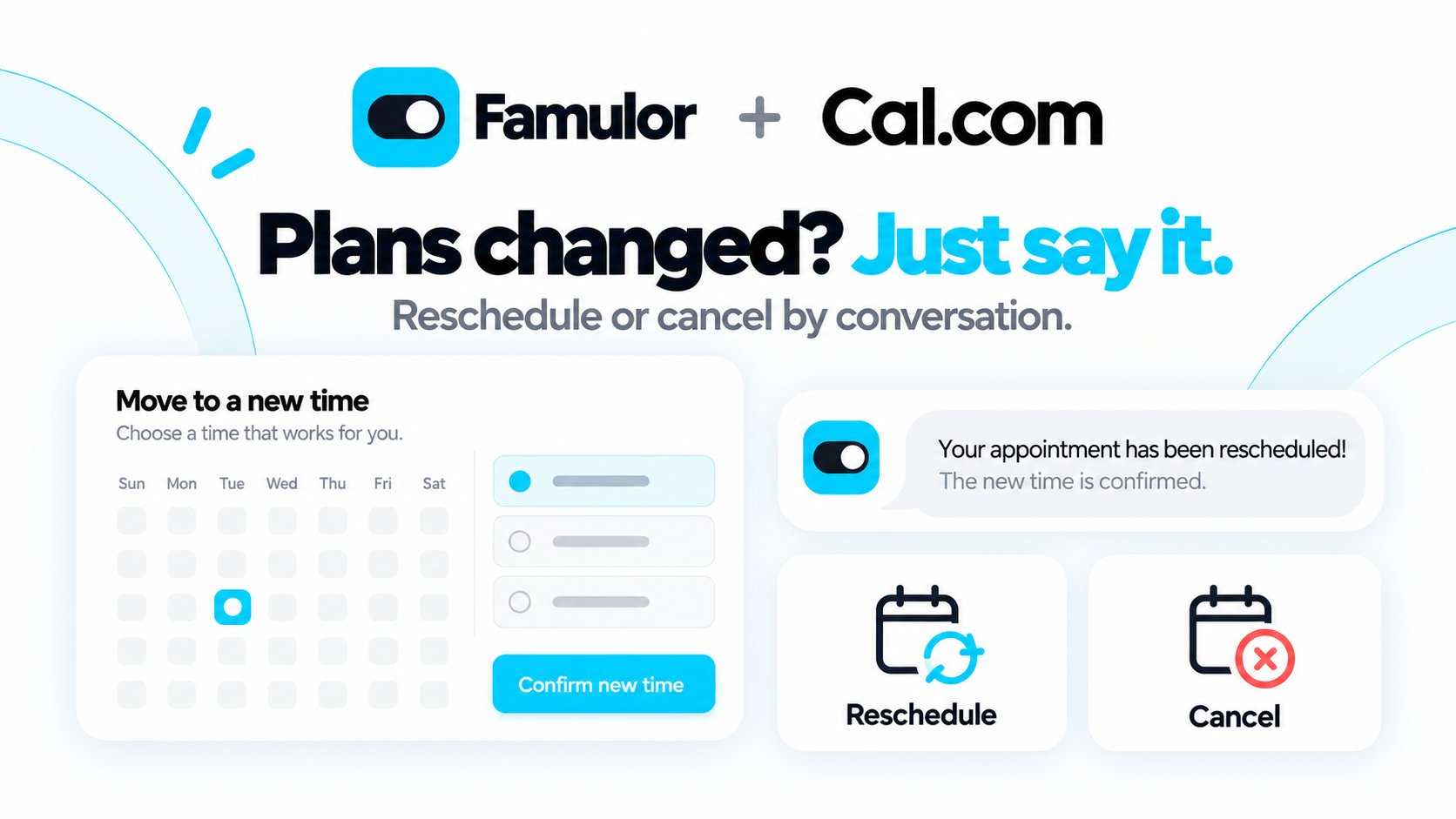
- Change plans naturally. Customers can say “I need to move my appointment” or “Please cancel my appointment.” They do not need a booking ID or a cancellation link.
- Find the right appointment. The assistant uses the customer’s available phone number, or asks for the booking email address and full name. It reads back the appointment and asks for confirmation before changing it.
- Stay in control. Enable Cancel and Reschedule separately on the Cal.com connection. The assistant checks available times before a move and confirms completion only after the calendar accepts the change.
More reliable saving during assistant handoffs
Improved how assistants process multiple requested actions during a handoff, reducing cases where saving a value and transferring a call interfere with each other. Successfully saved information remains available to the receiving assistant under your configured conversation settings.The improvement applies automatically to existing assistants. No settings change is needed.Assistant transfersNative meetergo booking in Famulor
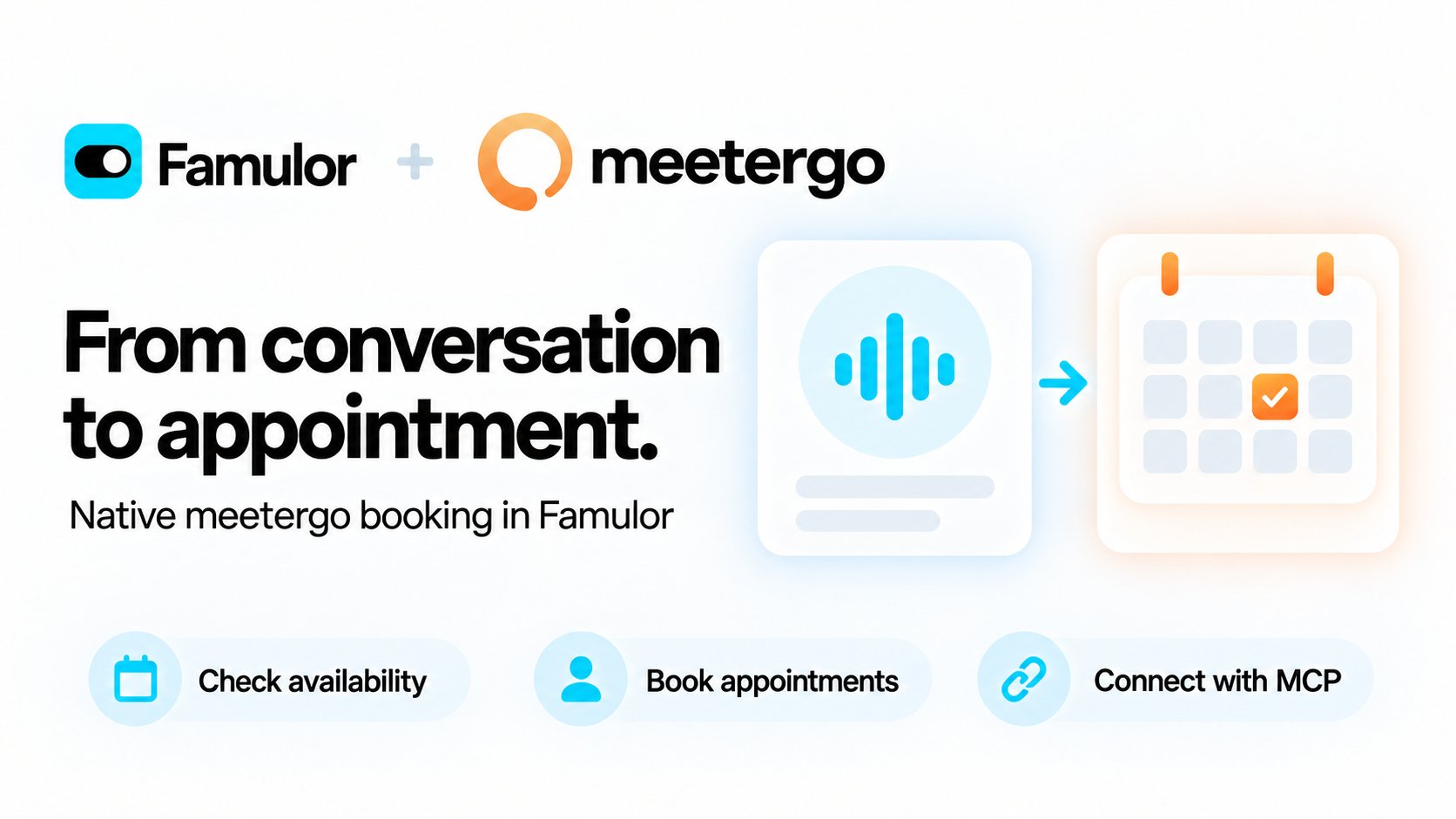
- Set up your calendar. Add your personal token, load your meeting types, choose a timezone and assign the saved connection to an assistant. Booking can be enabled separately from availability checks.
- Offer bookable times. Assistants use the meeting type’s available slots and check the selected time again before booking. A request awaiting confirmation is reported as pending.
- Add more connections. In the App Store, Add connection opens a new setup form; Manage connections opens your saved calendar integrations.
- Connect through MCP too. The separate meetergo MCP app provides access to meetergo’s scheduling tools, including rescheduling and cancellation. Select the tools your assistant needs.
Automation alerts reach your workspace team
Failed-run emails now default to the owners and admins of the affected workspace. To notify a different inbox, set it explicitly in Automations → Alert settings. Automatic copies to platform or reseller support have been removed. Existing custom recipients and alert switches keep their behavior.Automation alertsCall details stay with your assistants
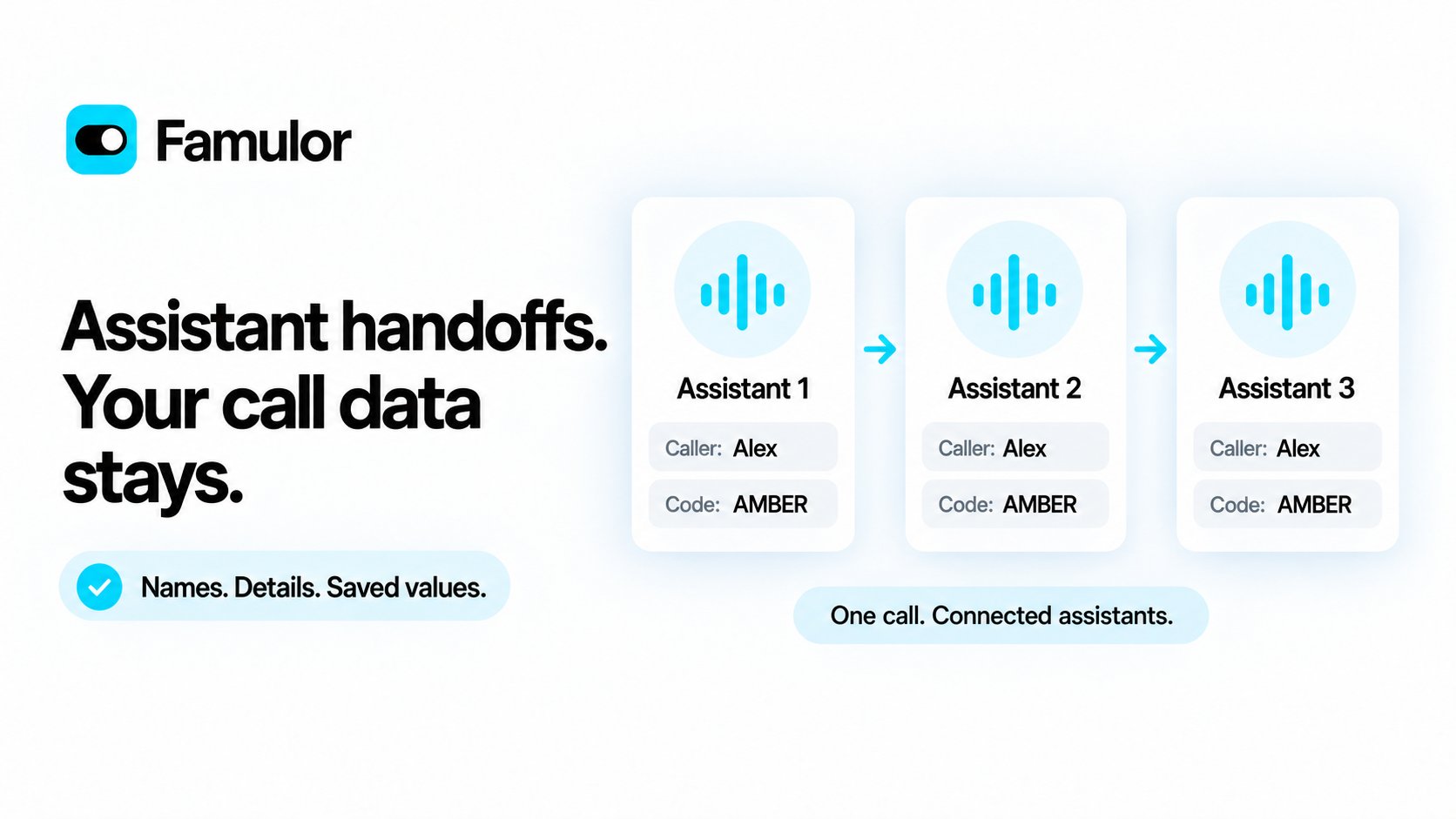
- Continue with current values. Information saved with a variable tool, collected in a flow or mapped from an API response carries forward.
- Keep intentional changes. A cleared value stays empty. The receiving assistant’s defaults apply only to missing values.
- Choose conversation history separately. Variables remain available even when you pass no previous messages. Each assistant keeps its own instructions and identity.
Keep the conversation language through tools and data collection
Fixed a case where the email-capture step switched to English during a Spanish conversation. Automatic collection steps now receive the current conversation language for their questions, clarifications and confirmations, while preserving the assistant’s allowed languages and the original collected values.For multilingual assistants, saved farewell and tool progress messages guide a reply in the caller’s current supported language. Their fields stay editable. Single-language assistants keep the exact wording, and an empty farewell in Agent Tools still means a silent hangup.Automatic retries for warm transfers
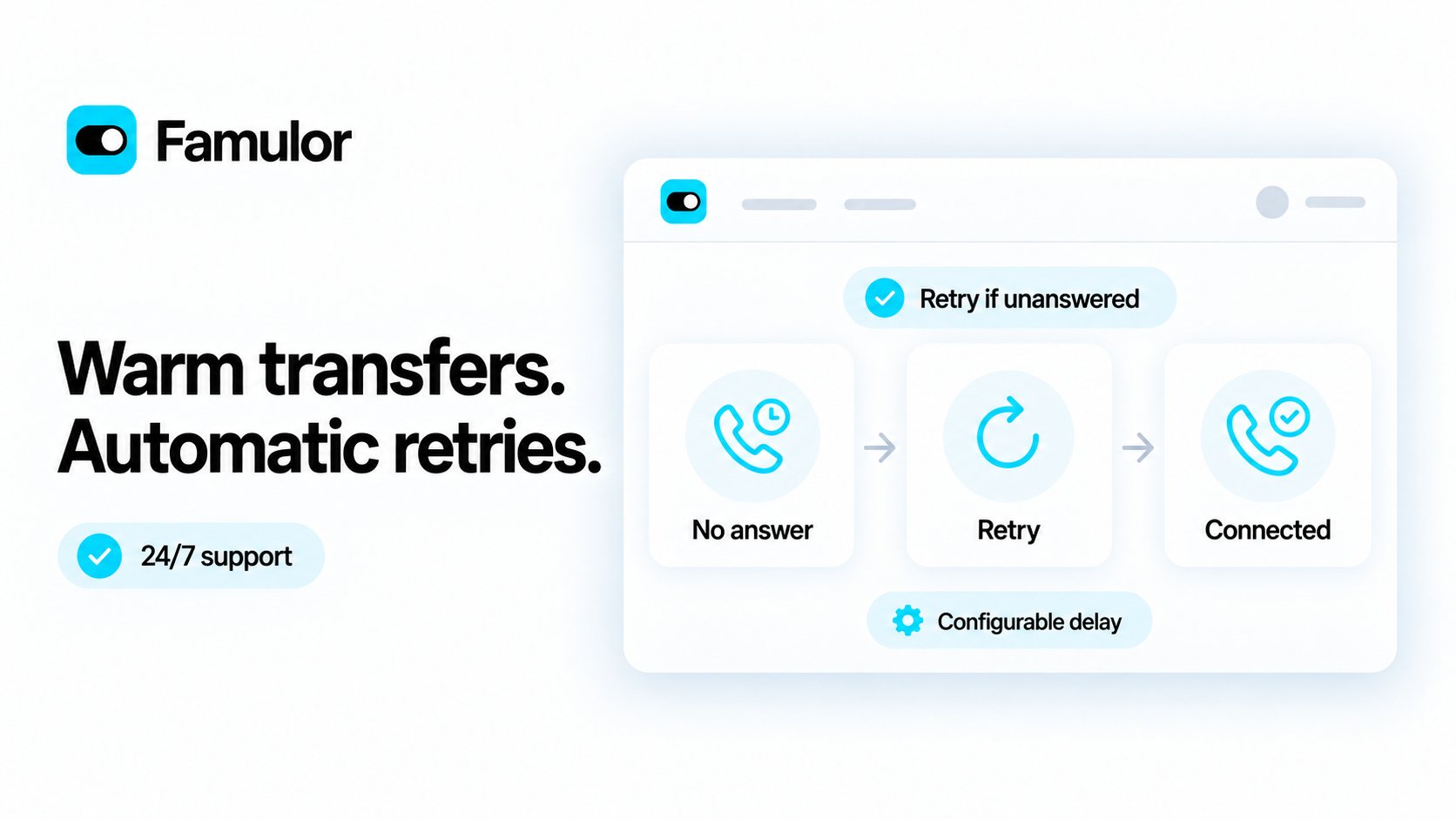
- Enable it per tool. Select Retry if unanswered in the warm-transfer tool. Existing tools keep their current behavior until you enable it.
- Choose the delay and attempt limit. Set a pause of 5–120 seconds between attempts. The limit includes the first call; choose 0 to keep retrying while the caller stays connected. Existing call-duration and credit limits still apply.
- Keep control of the outcome. A successful connection, an explicit refusal or the caller leaving stops retries. Your configured fallback handles an exhausted attempt limit or a failure that cannot be retried.
Start automations from web chat
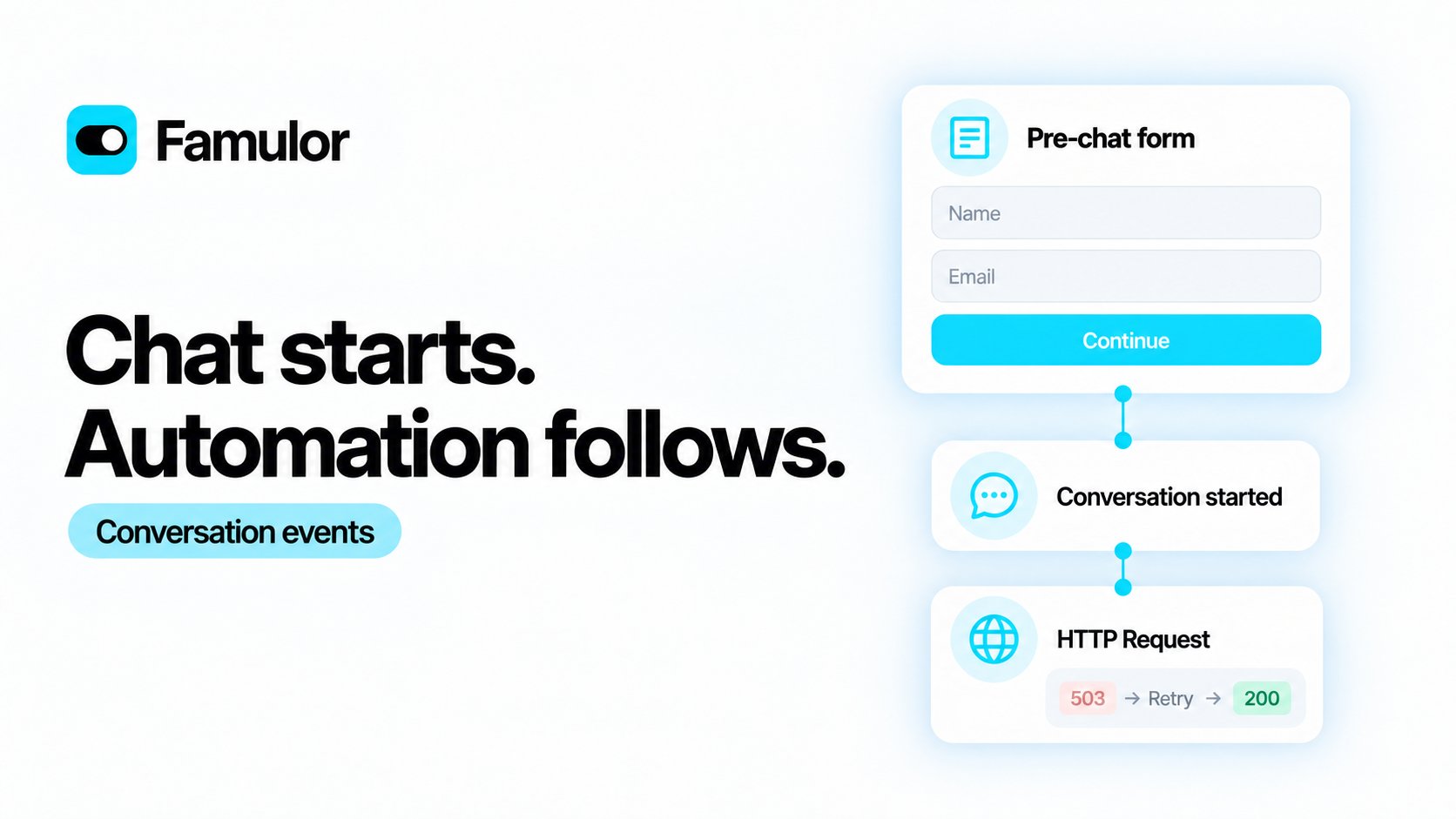
Reliable webhook delivery
HTTP Request actions retry temporary HTTP and connection failures up to twice within the configured timeout, using the same Idempotency-Key. Earlier successful actions are not repeated. Conversation-ended connector webhooks now retry temporary delivery failures. Call lifecycle delivery also recovers after a temporary platform outage, including calls that end before the assistant answers.Tidy up your flows in one click
Use Tidy up flow beside the zoom controls to arrange nodes with clear spacing, parallel branches and return connections routed around the flow. Center flow brings the whole graph into view. Instructions, tools and connections stay intact; save the draft when you are happy with the layout.Milian can tidy the open flow, including unsaved edits. You can also arrange a saved flow through REST or MCP.Flow BuilderVoice cloning on demand
Create a voice directly from the voice library. The creation button shows whether it is free or how many credits it costs. Standard plans include 0 / 1 / 3 / 5 free successful creations for Prepaid / Plus / Pro / Agency, once per workspace. Renewals and deleting voices do not reset this allowance.Additional successful creations use credits. Saved voices have no plan capacity limit or recurring storage fee. The former Voice Cloning and extra-slot add-ons are no longer offered for new purchases. Existing voices and purchase records remain available. Resellers can configure the feature and free allowance in their plans.Voice cloningRemove conversations from History
Workspace owners and admins can now select conversations and choose Remove. In conversation details, Remove appears alongside the other actions, including inside the Actions menu on smaller screens for calls. The same action is available through REST and MCP. Removed conversations disappear from History and new exports; billing and historical statistics stay unchanged. Existing retention settings continue to apply.Read about HistoryMilian AI: more actions for your automations
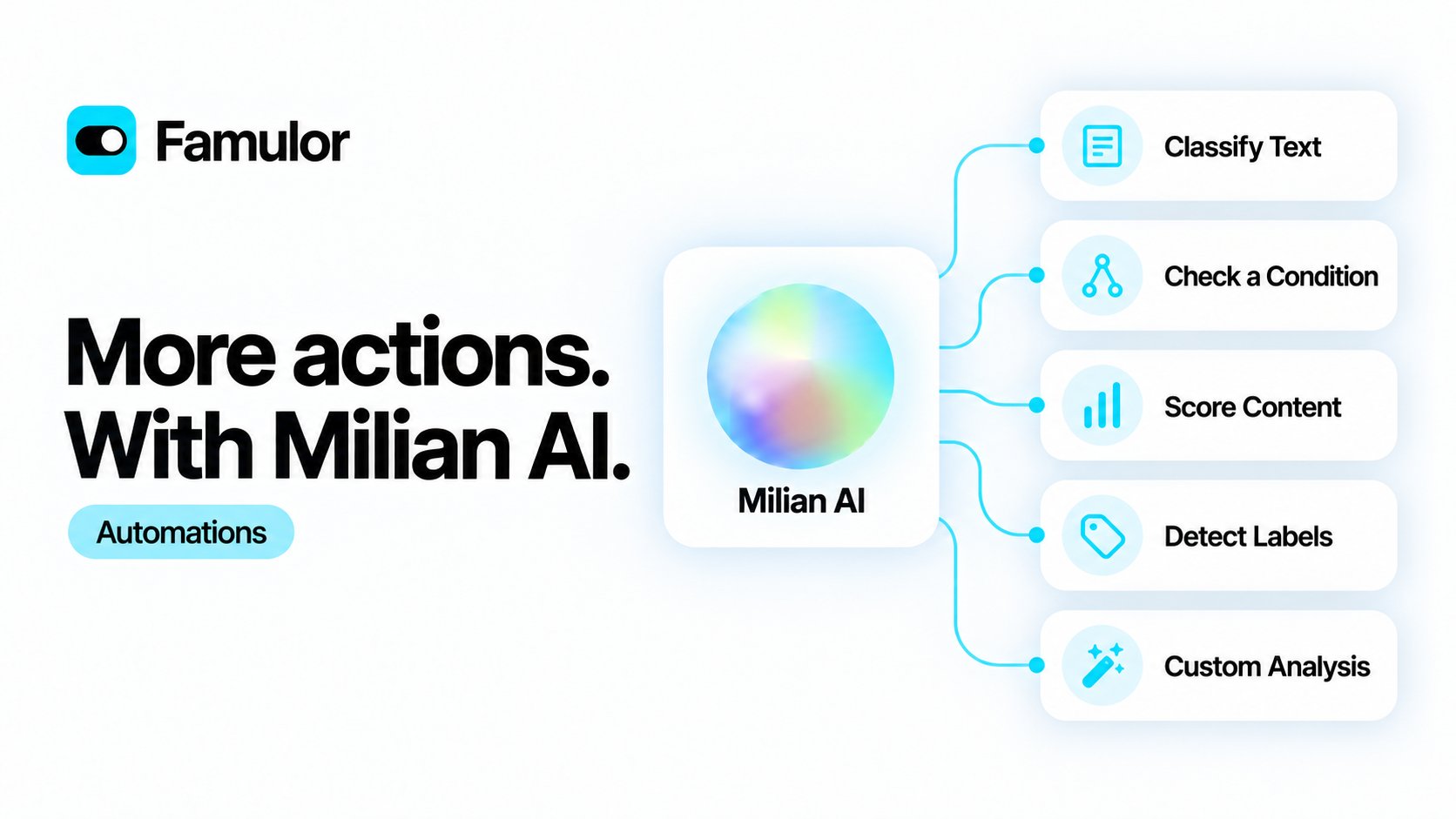
- Five new actions. Turn transcripts, messages and previous step outputs into categories, yes/no decisions, scores or labels.
- Three editable templates. Start Custom Analysis with Analyze a call, Qualify a lead or Prioritize a message, then adjust the questions.
- Clear uncertainty. Insufficient evidence produces an uncertain answer instead of a guessed value. Use the result status in a Condition before continuing.
- Your workspace, your workflow. Preview inputs without spending credits, run a live test with workspace credits, and reuse the same configuration through REST or MCP.
Jev joins Famulor: clearer message insights
Jev, TypeSafe AI’s decision model, now powers Famulor’s advisory message labels. It adds focused message assessment alongside Milian, your copilot for conversations and workspace tasks.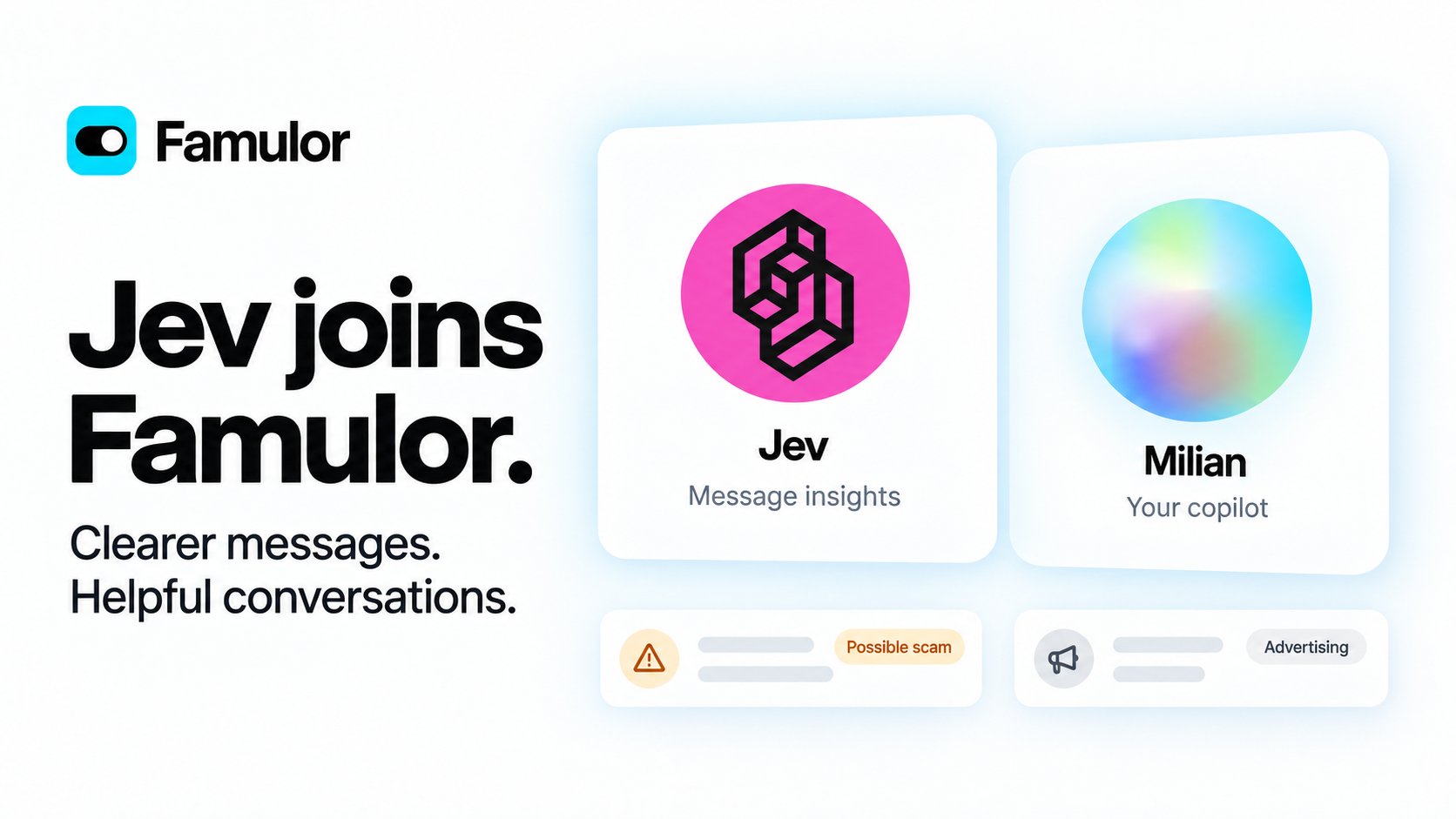
Jev for message insights. Milian as your copilot. Together in Famulor.
- Jev helps you spot what needs attention. Incoming conversations can receive a Possible scam label; promotional email can receive an Advertising label.
- Milian helps you take the next step. Discuss your work, configure assistants and use the tools available to your workspace through the existing copilot.
- You stay in control. Review labels in History, dismiss an incorrect assessment, or let a workspace owner or admin turn future assessments off in Workspace settings.
A calendar view for your appointments
Booking now offers a month, week and day calendar next to the familiar list.- Switch in one click. A list/calendar switch flips between the two, and your choice is remembered on that device.
- See what is booked and what is free. Free-time counts show for the event type you pick in the sidebar’s Open slots for list — switch types, hide them, or open the day to book one.
- Manage from the calendar. Open, reschedule or cancel an appointment straight from any day, week or month.
- Your time zone, including changeover days. Everything is laid out in your workspace time zone, with correct 23- and 25-hour days.
Click, drag, and it’s booked
The calendar view gets a Google Calendar-style header and sidebar, live updates, and the ability to book and move appointments yourself, right from the grid.- A cleaner header. A single row now holds a Today button, a view dropdown (Day/Week/Month with keyboard shortcuts — switch them off if they get in the way), and the list/calendar switcher. No refresh button anywhere.
- A sidebar, like Google’s. A collapsible sidebar adds a New booking button, a mini month, and a multi-select event-type list — each type gets its own color, carried through to every appointment.
- Click to book. Click an empty time in Week or Day, or an empty day in Month, to open a quick-create popover right there. Fill in the guest’s details and it is booked — the guest gets the usual confirmation email.
- Drag to move. Drag a confirmed appointment to a new time or day; confirm the update email, and it moves.
- Book at any time. You can book or move an appointment to any future time, including outside the event type’s open times — the calendar marks such a time clearly. Guests on your booking page and your assistants only ever get real open times.
- No more refresh button. The calendar and the appointments list update on their own as bookings are created, moved, or canceled, with a brief highlight on what changed.
- Milian can book for you. Ask Milian to find a free slot, book an appointment for a customer, look up someone’s bookings, or reschedule and cancel — in chat it always recaps and asks for your confirmation before touching a customer’s calendar; a scheduled Milian Mission can book or move an appointment on its own, on open times only, and never cancels unattended.
- API and MCP parity.
POST /api/v1/bookings,POST /api/v1/bookings/{id}/rescheduleand their MCP equivalents (create_booking,reschedule_booking, plus the newget_booking_slots) support the same staff override viaallow_outside_availability.
Accurate conversation summaries
History now shows a summary only when a generated recap is available. Missing summaries leave an empty list cell and no summary section in the details. Email subjects, original messages and transcripts remain accessible across all channels.Clearer message labels in History
Spot suspicious messages and promotional email more easily, while keeping every conversation visible.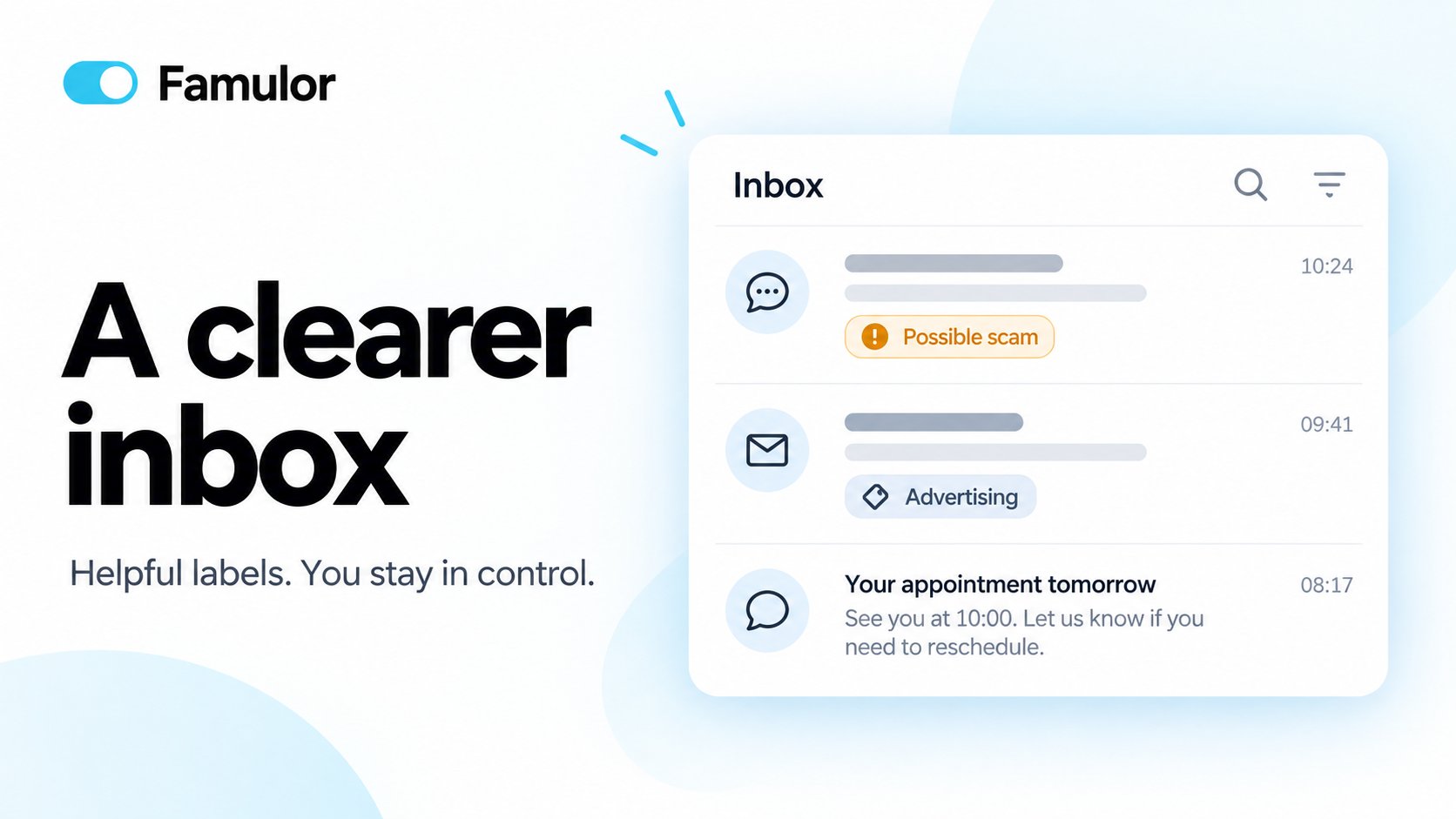
A clearer inbox — helpful labels, with you in control
- Possible scam. A discreet hint highlights suspicious incoming messages, such as fake account-suspension notices.
- Advertising. Unsolicited sales pitches, SEO offers and paid award promotions in email can receive a separate label.
- Simple details, full control. See the label and a short assessment note in History details. Dismiss an incorrect label, or let a workspace owner or admin switch message labels off in Workspace settings.
SMS registration, step by step
Prepare your business for SMS from an active, purchased US local number with SMS support. Open Settings → Numbers → SMS registration (A2P) to complete the application in one guided flow.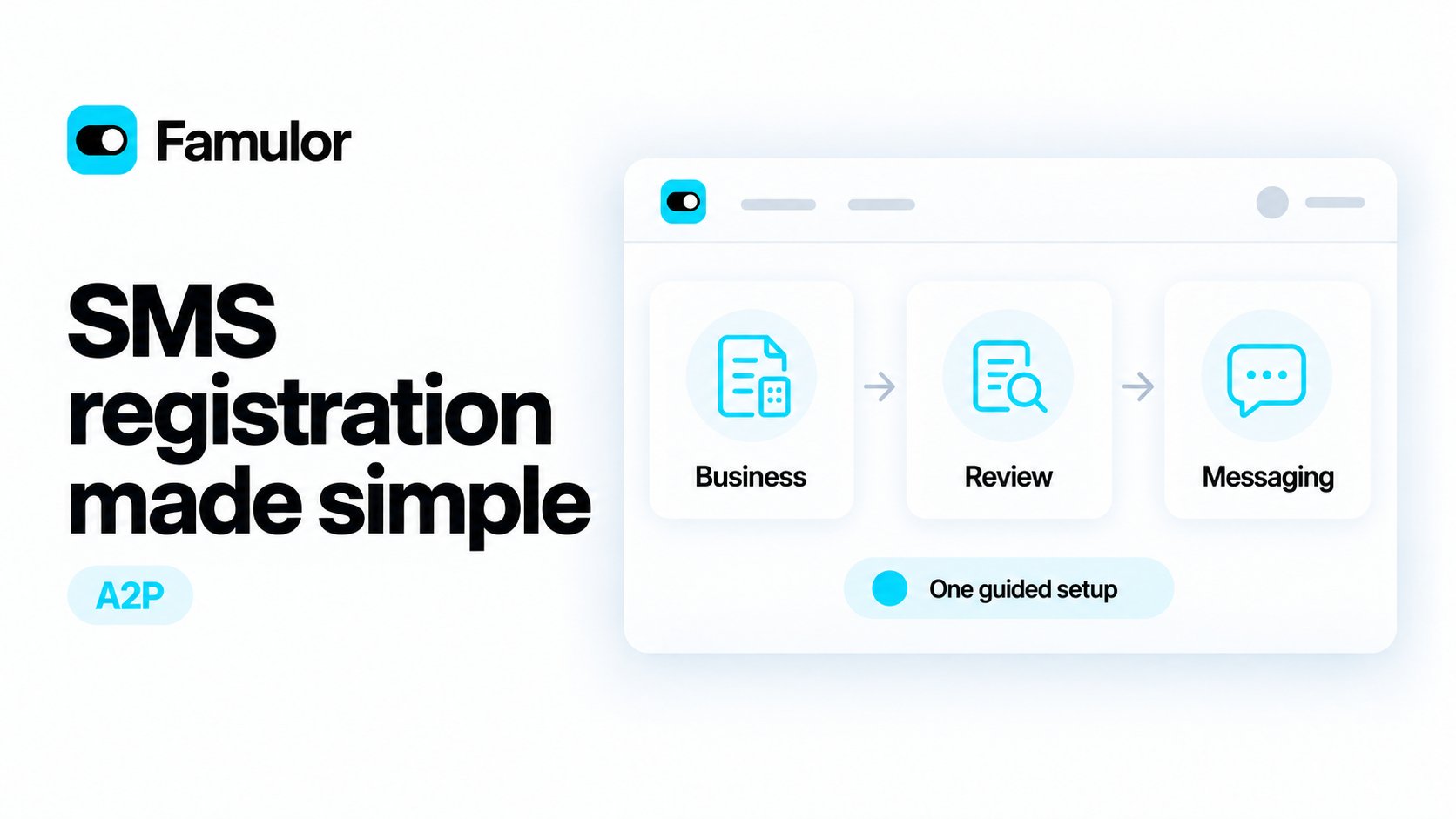
SMS registration made simple — from business details to review and messaging
- Prepare the right details. Add your business and contact information, describe your messaging purpose, and provide sample messages, public policy links and your existing opt-in process.
- Get help from Milian. Ask Milian to explain required fields, check formats, draft message examples from your business details and guide you through submission. Milian helps you review the price before you confirm checkout.
- Review the price before paying. See the one-time registration fee and monthly subscription before opening the payment dialog. Registration is billed separately from number rental and SMS usage; monthly billing starts with payment.
- Follow the application. Track progress through business review, campaign review and number activation, with notices when a correction is needed. Submission starts after confirmed payment; external approval is still required.
- Reuse an approved registration. Link additional eligible numbers in the same workspace when the business, messaging purpose and consent process match, without another registration subscription.
- Manage renewal in one place. Cancel renewal from SMS registration billing, even after releasing all linked numbers. SMS sending on those numbers ends when the paid registration period expires.
Talk to Milian, wherever you work (Beta)
Speak with Milian directly in your existing chat. A clear male voice and a colorful orb that responds to speech make it easy to follow the conversation.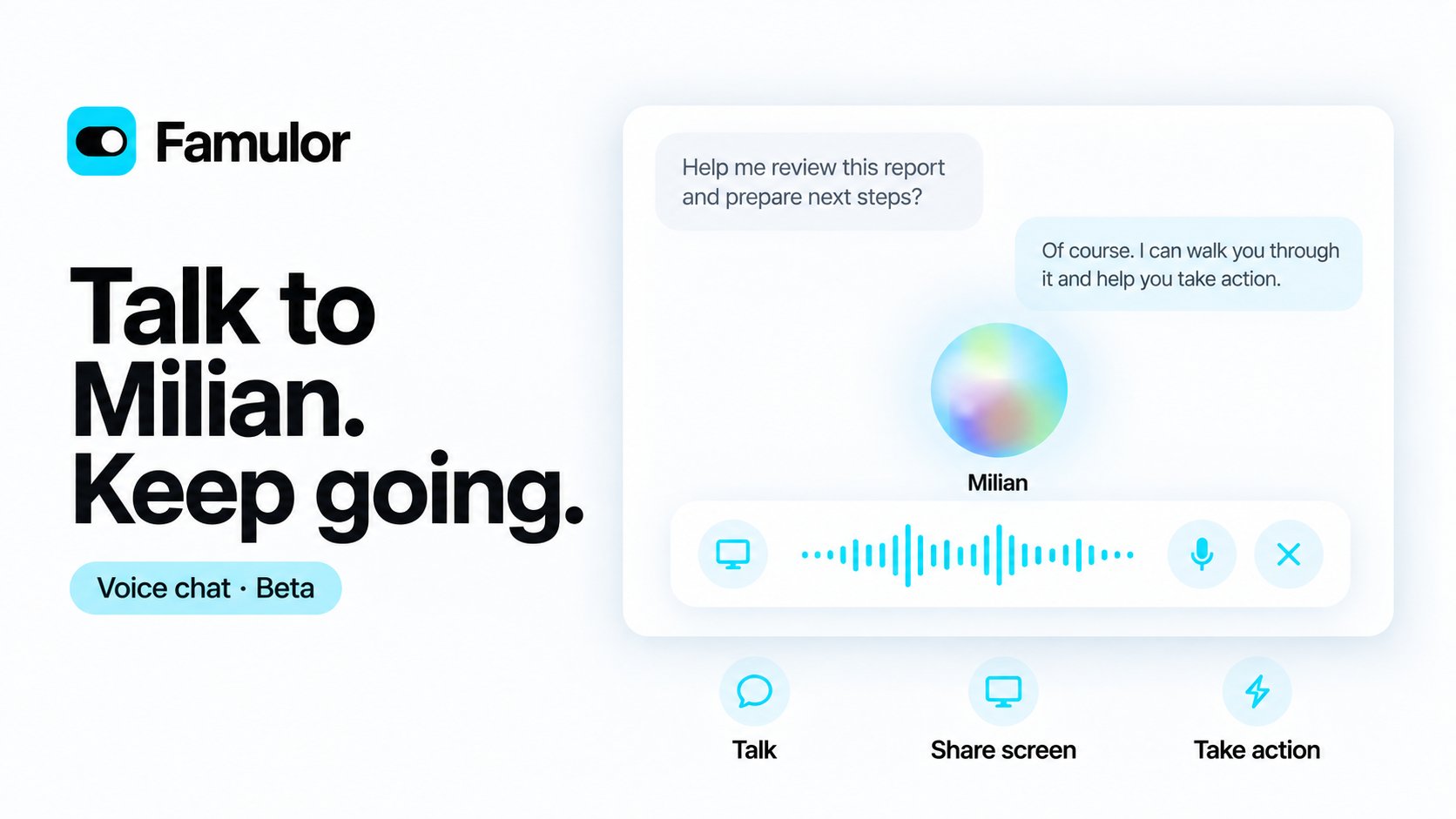
Talk to Milian. Keep going.
- A more conversational voice. Short spoken answers, one question at a time, and brief progress updates make longer tasks easier to follow. You can ask Milian to adjust its pace or tone.
- Voice where you type. Switch the message composer to voice on the dashboard or in the side panel. Mute, type alongside speech, or end the conversation from the same controls.
- Keep going across pages. Your chat and active voice connection follow you into the side panel when you open another page in the same workspace. Reloading restores the selected chat; voice needs an explicit restart. Switching workspaces ends voice and loads the other workspace’s own conversation.
- Screen help when you choose. Share a browser tab or window to let Milian analyze periodic screenshots and explain what is visible. You control when sharing starts and stops.
- Actions with the same permissions. Milian can use your available workspace tools. Voice and screen analysis use workspace credits; plan limits still apply.
Booking, your way
Choose the details callers share, the calendar you use and the confirmation your customers receive.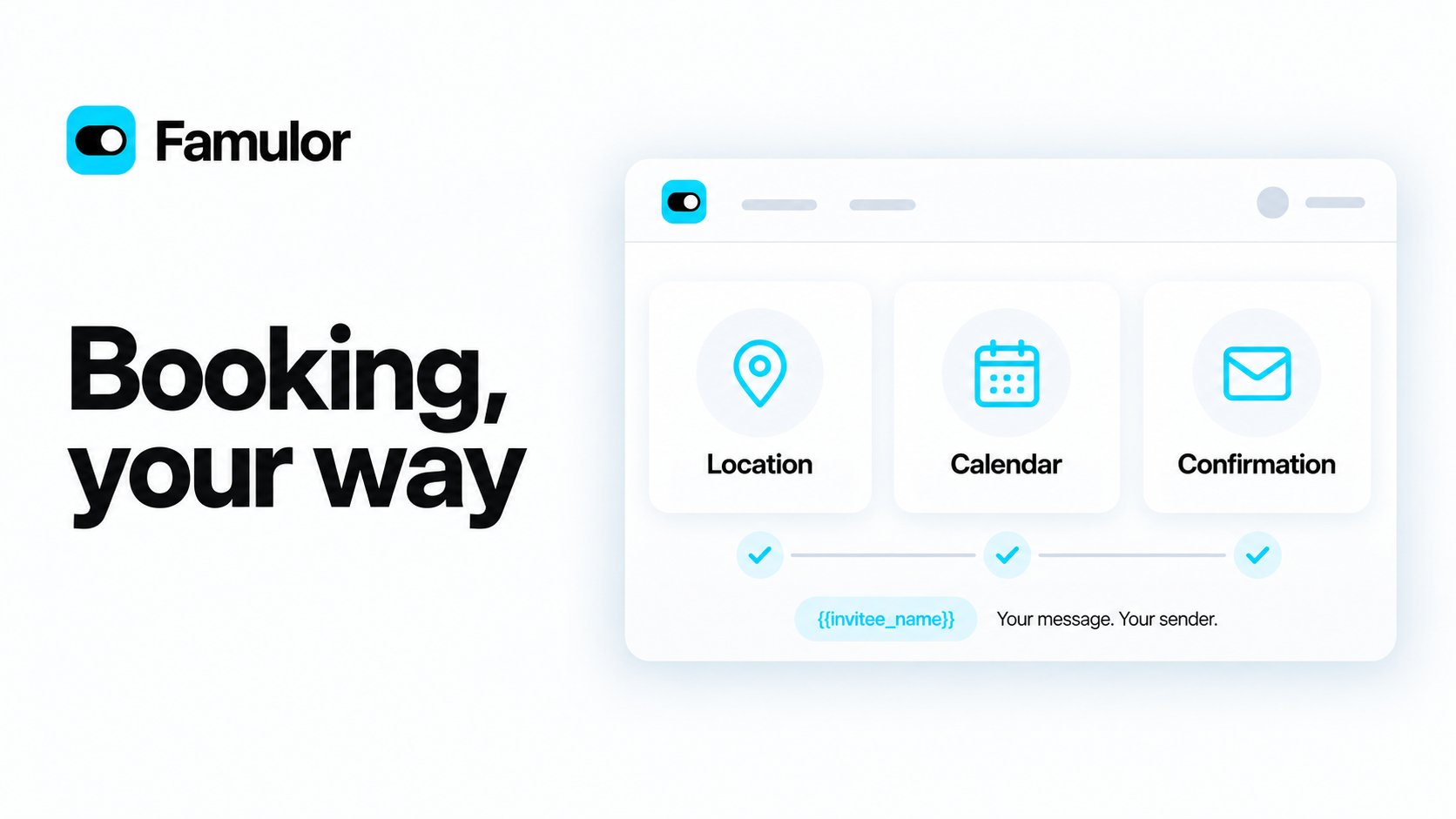
Booking, your way
- A clearer event editor. Location comes before booking questions, with calendar selection beside it in a dedicated dialog. Fields and spacing adapt to smaller screens.
- Email only when needed. Make email optional for phone, in-person and other appointments. Google Meet and Microsoft Teams keep it required for meeting invitations. The phone assistant follows the same setting.
- Your message and sender. Customize the confirmation subject and message with booking variables. Leave either field empty to keep its standard text. Choose a verified sender or use automatic workspace and reseller SMTP.
- Clear invitation ownership. When Google or Outlook creates the attendee invitation, the confirmation does not attach a second calendar invitation. Without a successful provider invitation, the confirmation includes the calendar file.
Better warm transfers: brief first, connect after approval
Warm transfers now follow your configured opening and keep permission to hear a briefing separate from permission to connect the caller.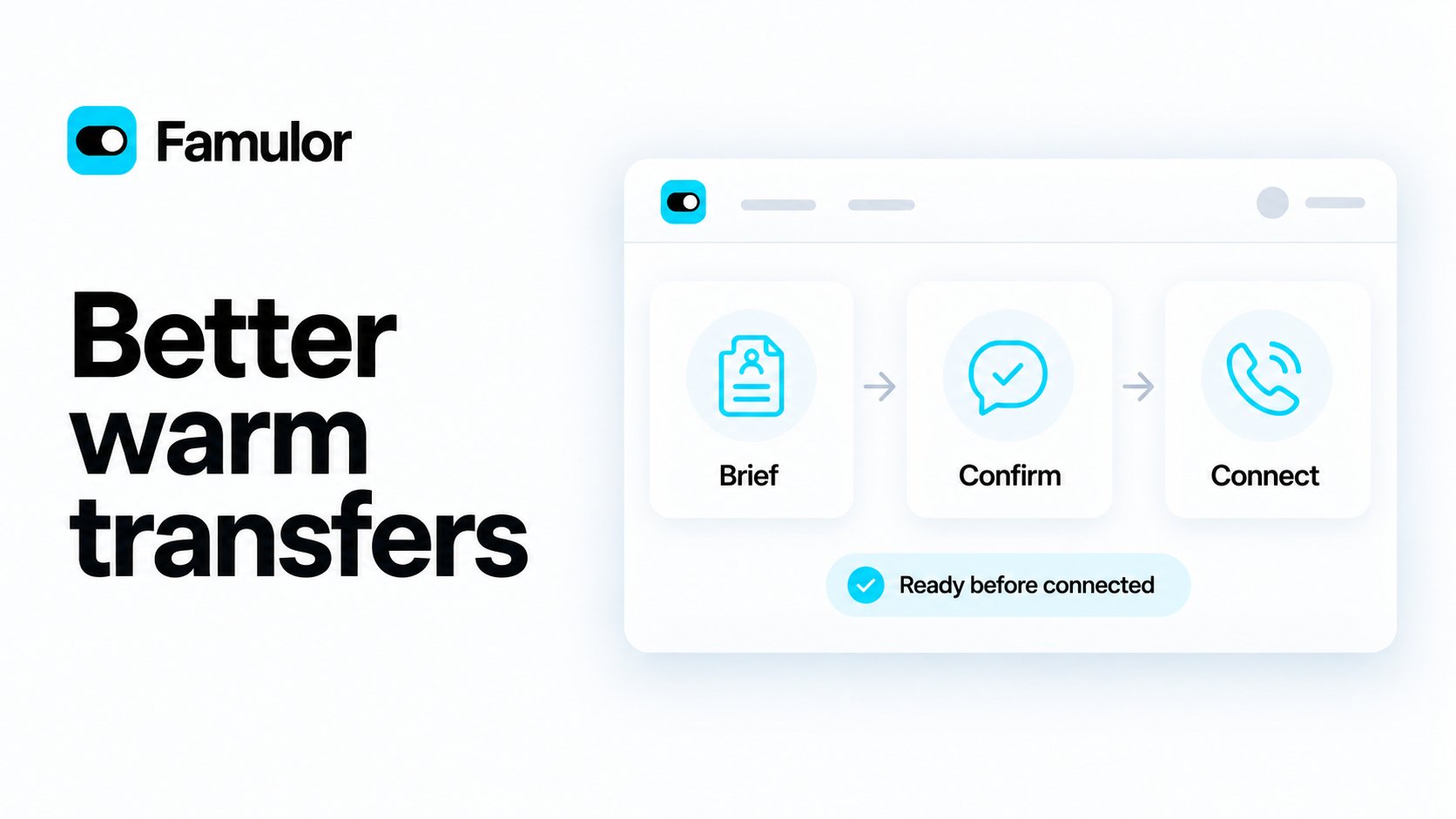
Brief the supervisor, get approval, then connect the caller
- Your opening, your instructions. The Briefing initial message controls the first sentence. If it is empty, your Summary instructions guide the opening; the generic introduction is used only when both are empty.
- A “yes” to the briefing does not connect the call. The assistant must finish the caller’s name and request, ask for permission to connect, and receive a new affirmative reply. Early replies cannot skip the briefing.
- Wait for the receiving person. The assistant waits for the destination to answer and speak first. For Loop transfers, it also waits for the team member to join the call before starting the consultation.
- Your connected message also works in Flows. The caller hears the configured Connected message after the supervisor is connected. Your existing preference for sharing supervisor consultation notes with the AI is preserved.
More reliable Milian Missions and conversations
- Mission results are recognized correctly. Completed runs no longer appear as failed because their final answer was missed. Tool failures show an error instead of a completed badge, with clearer reasons when an action is unavailable.
- Email reports work with communication permission. Missions with Communicate access can use workspace email for their reports. Email previews remain previews and do not send a message.
- Daily reports follow the Mission timezone. Requests for the previous calendar day use the correct local-day boundaries, including daylight-saving changes.
- Conversation history stays in order. Your request appears before Milian’s tools and reply, tool activity follows the order it was started, and duplicate replies from older chats are filtered out.
- Stay in the conversation you selected. Opening an assistant or automation editor during a turn no longer switches the chat when Milian finishes. Background conversations no longer redirect the visible page.
- Clearer subagent setup. Before building a workflow with subagents, Milian asks whether callers should experience separate departments or one agent handling different tasks. The choice guides introductions and handoffs.
Send files and images in web chat
Visitors can now attach images and documents to a web-widget chat message — with the paperclip, by dragging files onto the composer, or by pasting a screenshot. Uploads show a preview chip while they are processed, just like in modern chat apps, and the message goes out once every file is ready.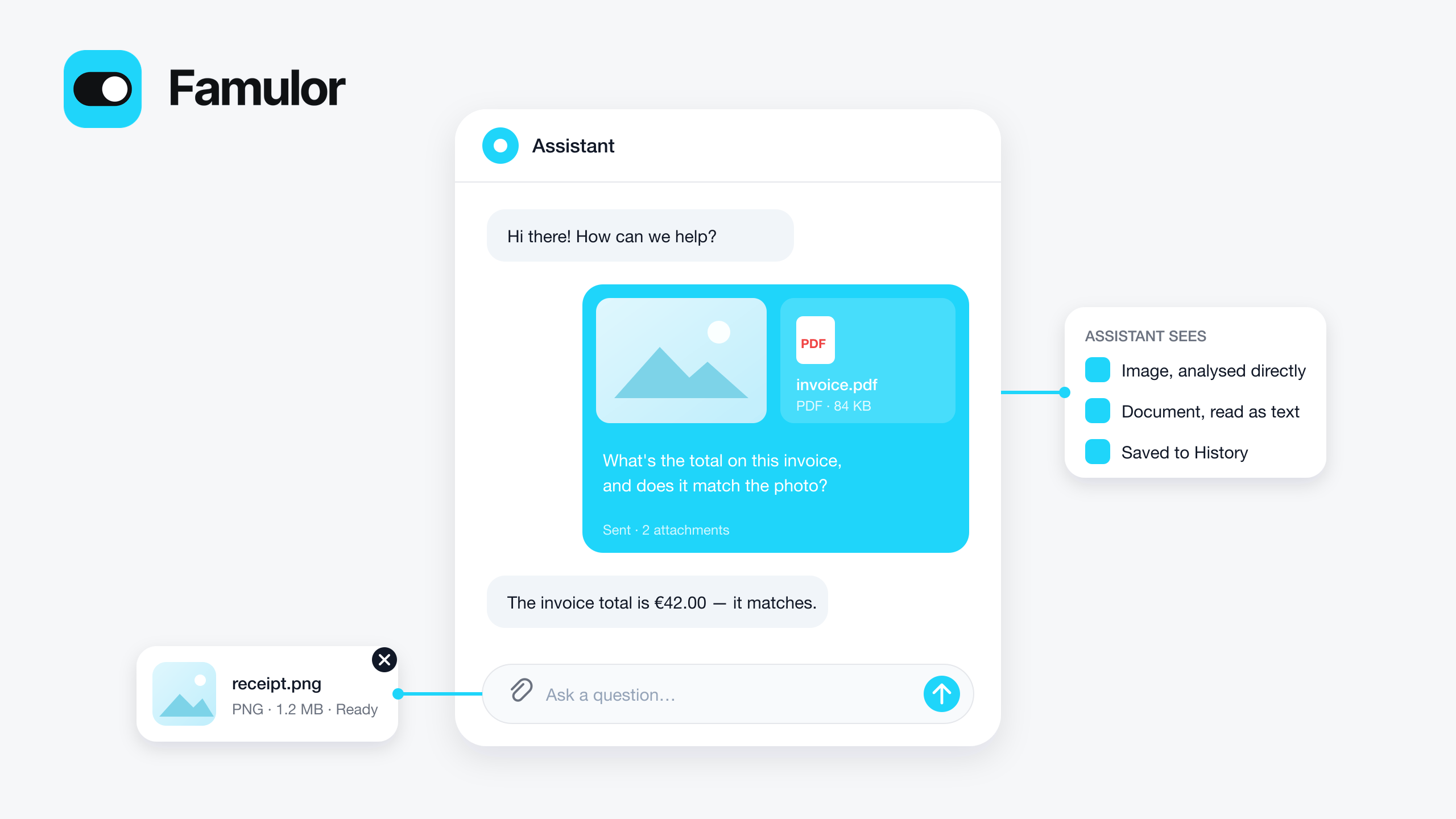
Attach images and documents in the web widget chat
- Images go straight to the assistant. Chat models with image input see the picture itself; other models get a short generated description.
- Documents are read as text. PDF, DOCX, TXT, MD, CSV and JSON are extracted on upload and handed to the assistant with the message (up to 10 MB each, 5 files per message).
- Everywhere the chat is shown. Attachments appear in the widget bubble, in the assistant’s chat preview in the dashboard, and in History on the chat transcript, where images render inline with their caption and files open via a temporary link.
- Replies read like chat. Assistant answers in web chat now render light formatting (bold, bullet lists, links) instead of showing raw Markdown symbols — in the widget, the chat preview and History.
- Your data, your retention. Files live in your workspace’s private media storage next to the chat history and are removed together with it by data retention.
chat_attachments_enabled option and return attachments on chat transcripts.Web widget uploadsMobile app 1.3.7: easier dialing and in-call keypad
- Keypad and transfer, easier to leave. During a call, the keypad and the transfer panel now have a clear “Hide keypad” or “Close transfer” button next to End, plus a back control in the header — so you can return to Mute, Speaker, Hold, Transfer and Recording at any time. Digits you send from the keypad appear on their own line and no longer overlap the call status.
- Recording ready on outgoing calls. Recording controls now become available reliably on outgoing mobile calls — previously, some outgoing calls could show recording as unavailable. Start and stop still work as before, and each start after a stop creates its own recorded section, shown as “Recording 1”, “Recording 2” and so on with its duration in the Loop call detail.
- A clearer dialer. The country flag and calling code now sit in the same row as the number. Paste a number in any common format — spaces, dashes, brackets, a leading “00” or a “tel:” link — and it is cleaned up automatically; the number is formatted as you type, and the placeholder is no longer cut off.
- Find your dialing country faster. The default dialing country picker shows flags and full country names in your language, and lets you search by name, code or calling code.
Start and stop recording during a call
You can now start and stop call recordings directly from the web softphone, Chrome extension, and mobile app. During any active Loop call, turn recording on or off whenever you need to.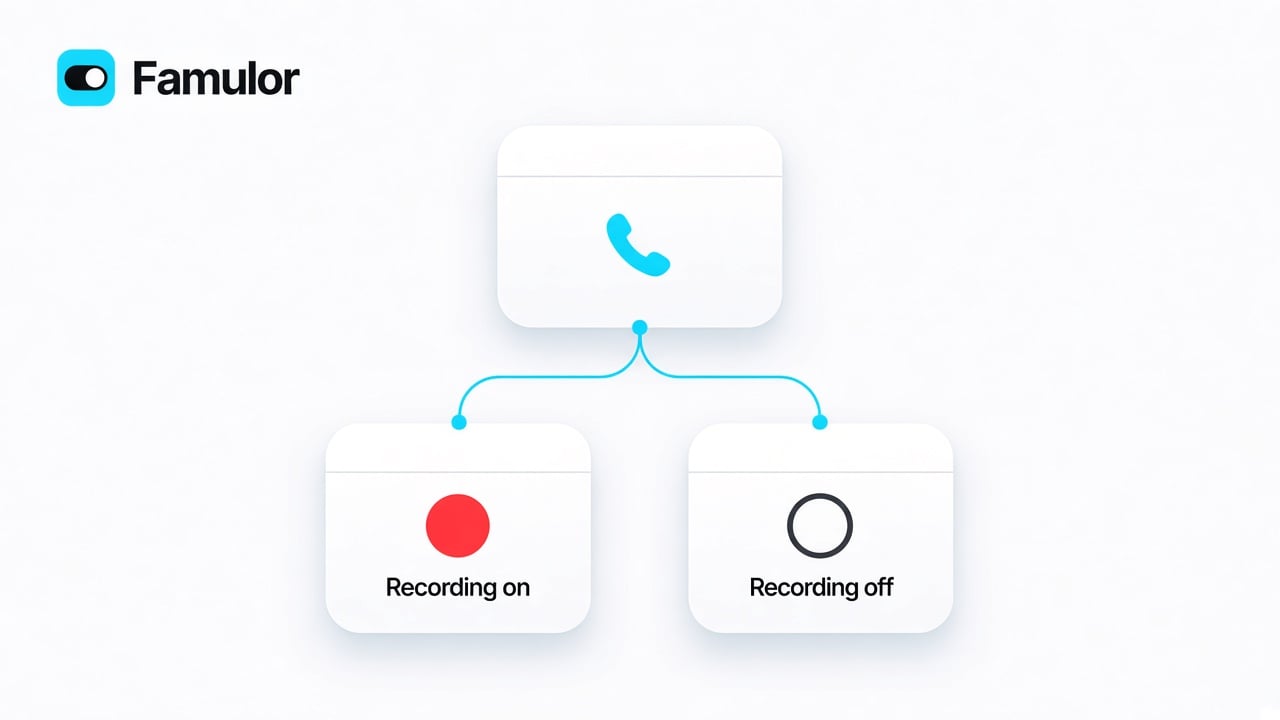
Start or stop recording during a live Loop call
Introducing Gemini 3.8 Live
Realtime voice now includes Gemini 3.8 Live and Gemini 3.8 Live Extended Thinking. Workspaces with the Fallbacks & Guardrails add-on can pick them in the assistant editor for Realtime. Without the add-on, Famulor keeps the recommended automatic selection.
Gemini 3.8 Live and 3.8 Live Extended Thinking, now in Realtime
- Gemini 3.8 Live. Natural, low-latency speech-to-speech for phone and voice conversations. Pick it when you want the new Gemini Live experience.
- Extended Thinking. The same Live conversation, with extra reasoning when the call needs it — useful for trickier questions, at a slightly slower pace.
- Gemini 3.1 Flash Live is ready for Realtime. Greetings, handoffs and mid-call instruction updates now work on this model, so you can select it without dropping back to Pipeline.
- Choose the model when Failover is on your plan. The catalog — including Gemini 3.8 Live — is visible with Fallbacks & Guardrails. Check Settings → Plan. Without the add-on, voices and languages stay yours to pick; Famulor chooses the conversation model.
- Smoother Realtime and Full Duplex. Tools fire more reliably, the last words of a turn are less likely to go missing, and speech recognition is less likely to drop a silent stretch of audio.
Calls open faster and hang up when you say goodbye
Assistants start speaking sooner, extra languages stay stable, and a spoken farewell now ends the line.- Greeting plays right away. Extra languages no longer delay the opening line. Greeting, consent and farewell still use the main language; additional languages are for switching during the call.
- Save the consent goodbye. If you write what the assistant says when the caller declines consent, that line can be prepared as audio like the greeting. Leave the field empty to generate it live. Text chat stays text.
- Many extra languages no longer drop the call. Assistants with a long additional-language list start reliably, including Full Duplex.
- A goodbye hangs up. When the assistant says farewell without using End call, the call still ends. Write when to hang up in the tool description and the optional Farewell in assistant settings — that sentence is what callers hear. Leave farewell empty for a silent hangup.
- More concurrent calls can start. Starting several calls at once no longer reserves credits for the full maximum duration — only a short window — so more lines can begin. Talk time still follows your existing limits.
Calendars, SIP credentials and team invites
- Edit CalDAV and ICS connections. Apple iCloud, Fastmail, Nextcloud and ICS busy feeds now have the same edit control as Google and Outlook. Change the URL or credentials without deleting the connection; leave a secret empty to keep the stored one.
- iCloud calendars discover more reliably. Connecting Apple iCloud follows the server redirects and finds writable calendars, including subscribed calendars used only to block busy times.
- SIP trunk forms keep what you typed. Switching to your carrier portal and back no longer clears the Add SIP integration dialog. A click outside the dialog no longer closes it either — use the close control or Escape.
- Team invites set a password when needed. Re-adding someone who never chose a password now sends a set-password email instead of a login link that cannot work.
Missions stay on their schedule
A failed Run now or a brief platform hiccup no longer counts toward the automatic pause. Scheduled Missions keep running unless they fail on their own schedule.Managing a missionA clearer overview for your white-label business
Manage customer payments, payouts and account balances from your white-label console. Payments & payouts brings the financial views together and appears once your connected payment account is ready.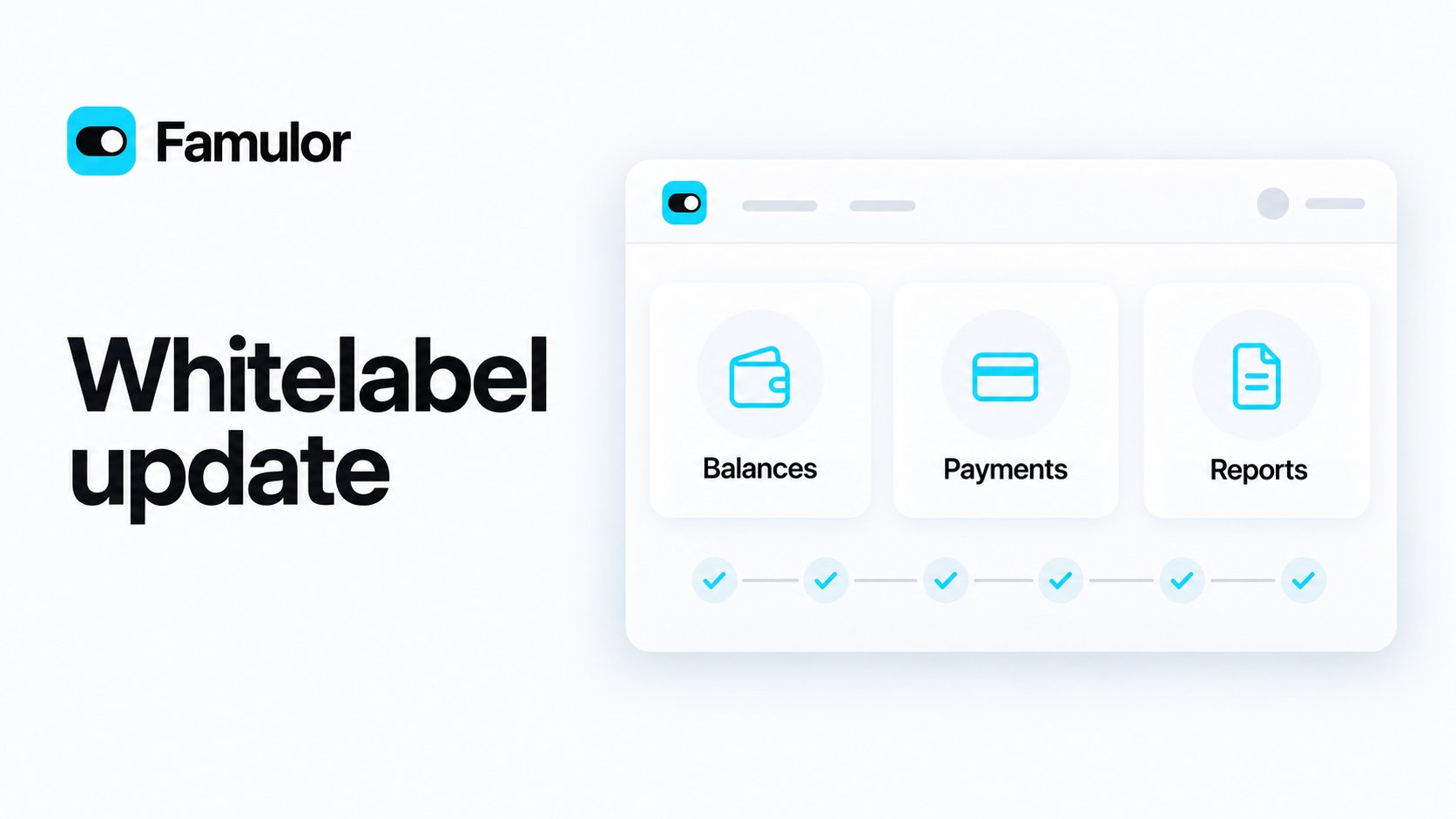
Your brand, with a clearer view of balances, payments and reports
- Keep your finances in view. See account balances on the dashboard, review customer payments and payout history, and open the dedicated Balance report tab for balance reconciliation and exports.
- Finish your billing setup. Manage tax settings and registrations under Checkout. Account notices highlight outstanding requirements; eligible accounts can see an Instant Payouts offer.
- Expand only what you need. Customer usage, recent activity and subscription margins each have a full-width section that starts closed. Plan names and percentages appear when you hover over the subscription chart.
- Follow six setup steps. The checklist covers appearance, domain, payments, pricing plans, email and bot protection. Hide it when you are done and reopen it at any time.
Ask Milian from your connected AI client
Bring Milian into your MCP workflow for answers, workspace analysis, and recommendations. Select the optional Milian tool group to use ask_milian alongside the data groups you want to analyse. The same capability is available through the public REST API.Milian uses additional workspace credits at the same rates as the dashboard. Your client must explain these costs and obtain your explicit approval before every question, including follow-ups. Milian reads only the data your connection permits and does not change workspace resources. Each response shows the credits actually charged.Ask Milian through MCP and APIYour assistant now knows why a transfer failed
When a cold or warm transfer does not go through, the assistant’s tool result now carries the failure code (no_answer, busy, declined, destination_forbidden, …) and whether a retry makes sense, instead of a generic “the transfer failed”. Prompts can offer a callback on a busy line but stop retrying an unreachable destination. Failed warm transfers are also recorded as failed tool runs in the call detail — they previously showed as successful even when nobody picked up.Phone transfer settingsListen back to your Loop calls
Open History → Loop calls in the web app, Chrome extension or mobile app to find your conversations and play available recordings. Recorded sections stay together in the call detail; linked assistant recordings are shown for new AI handoffs. Human conversations are not automatically transcribed.The web softphone now opens transfer controls in a focused dialog with the main action always visible. Choose a teammate, speak privately when needed, and complete the transfer without scrolling past the active call.Loop calls and recordingsSeparate your SIP login from your caller ID
Connect a carrier that requires your SIP username for outgoing calls while sending your public phone number separately as caller ID. In your BYO trunk’s Carrier settings, choose SIP username under Outbound SIP identity, then match Caller ID source to your carrier’s settings.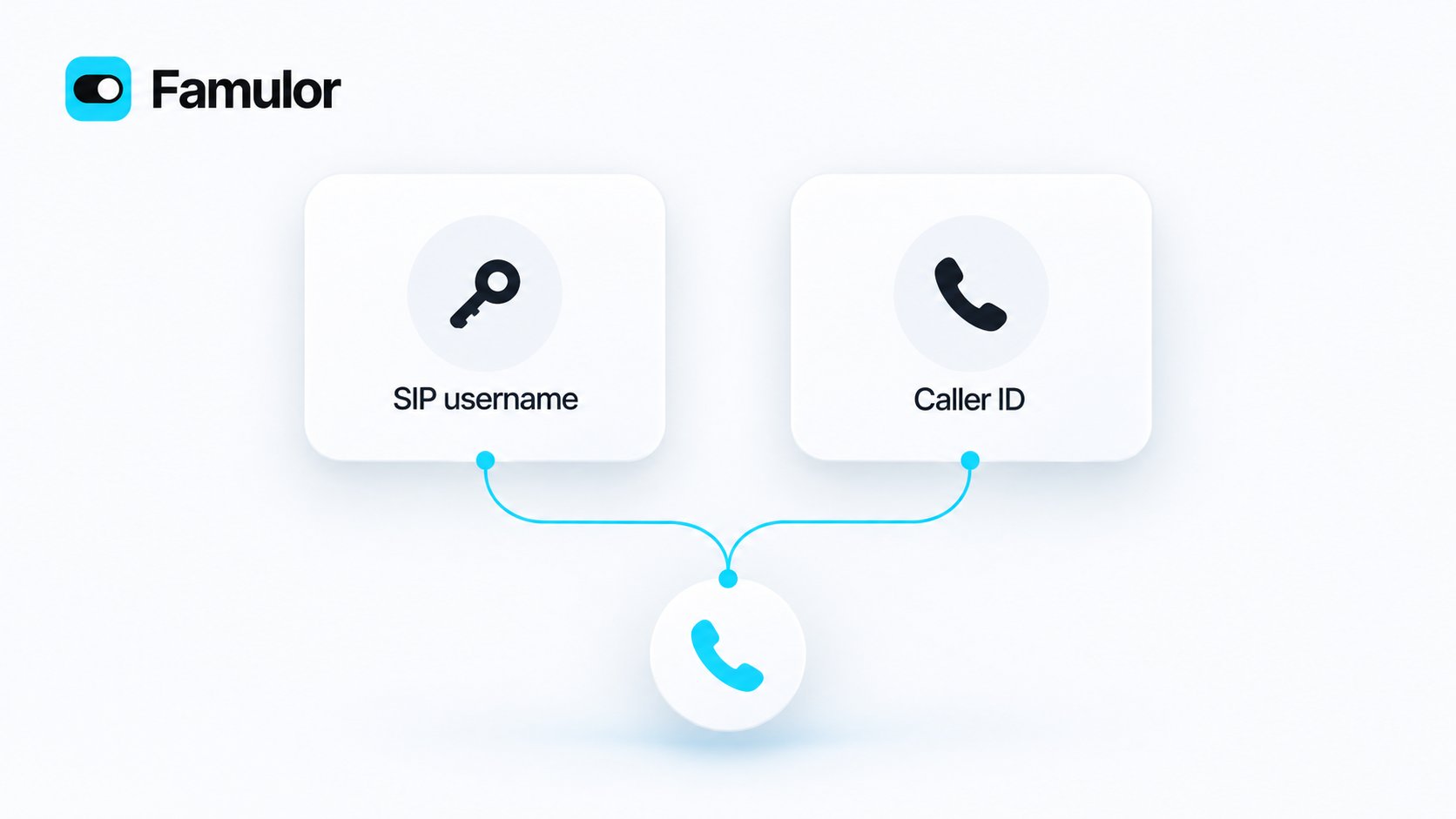
Your SIP login and public caller ID, configured separately
More reliable keypad input and call transfers
Collect codes through the caller’s phone keypad or spoken digits. Leading zeros are preserved, and incomplete entries follow the configured retry or failure path. Use an exact length or let callers finish with a stop key.
Keypad input and smoother call transfers
- Send keypad tones from tools and flows. Assign multiple send actions to the same assistant. Telephone calls support digits, star, hash and A–D; longer sequences finish before the assistant hangs up.
- Reach an extension during a warm transfer. Add up to 32 post-answer tones and pauses. The recipient hears the sequence before the briefing, while the caller remains on hold.
- Keep collection steps consistent. Collection uses the active assistant’s voice and engine. Flow instructions supplement the shared tool settings, retry limits are respected, and failed steps do not reuse an earlier value.
- Start with the greeting. The first collection step waits for the opening announcement. Its full input timeout starts afterward, and buffered early answers reach the collection step.
- Manage reusable tools through API and MCP. Workspace service accounts with the required scope can create, update and archive tools.
- Finish conversations cleanly. The assistant waits for its preceding speech and farewell before ending the call.
Know before you answer in Loop
When an AI assistant transfers a customer to your Loop user or personal extension, Transfer context shows why they are being transferred and what they need before you pick up. Read the brief, then Answer or Decline — less repetition for the customer, and a more useful start for you.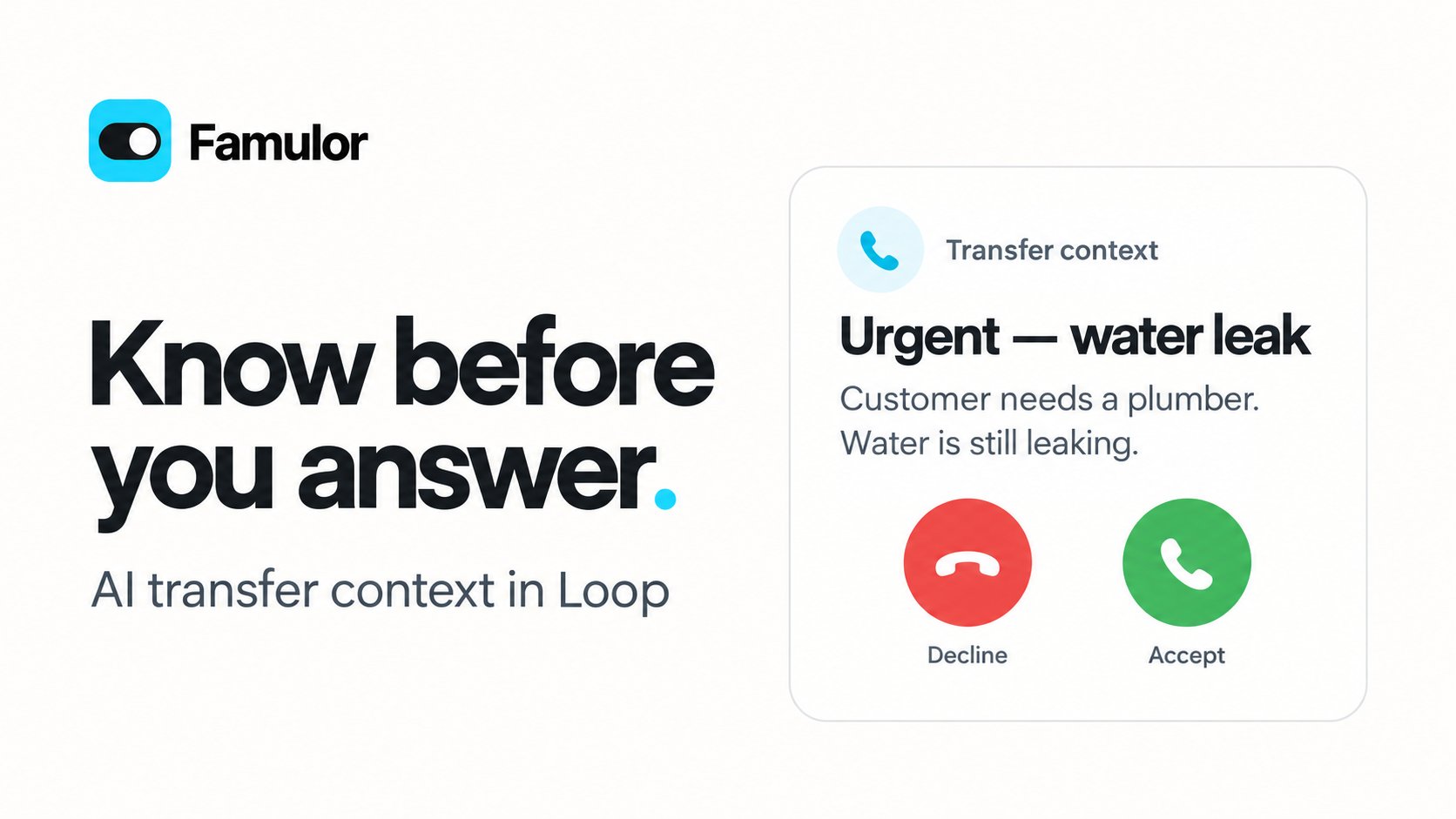
The context you need before picking up
A clearer workspace experience in Chrome
Chrome now shows workspace logos and the same available workspaces as the Famulor web app. Find any workspace with search, switch with the keyboard, and enjoy clearer Geist typography with a fixed navigation bar in light and dark appearance. Workspace changes are protected while a call is ringing or active. These interface improvements are included in Chrome extension 1.0.13; mobile version 1.3.3 includes the transfer preview.Preview your saved announcements
Prepare fixed greetings, consent messages and end-call farewells from your saved assistant settings. Play or stop each ready recording directly inside its text field. A compact animated save confirmation lets you keep editing while preparation continues. Matching audio is reused; unsupported or dynamic messages retain their existing call behavior. Full Duplex keeps its native voice and groups the Pipeline fallback controls separately.Preview your saved announcementsListen and speak at the same time with Full Duplex
Realtime → Full Duplex (Beta) brings simultaneous listening and speaking to voice conversations. The assistant can hear a clarification while it is answering and adapt as the conversation continues. The option appears in eligible workspaces with Beta features enabled; existing assistants keep their current engine and settings.
A more natural flow between listening and speaking
Clearer costs for voice extras
The money icon beside Full Duplex shows the additional credits per minute. The same effective rates are shown for Full Duplex and AI Avatar in the relevant settings and Usage. Completed-call details use the recorded usage and the price saved when the call started.Create and manage assistants across your tools
The assistant editor, Milian, the REST API and MCP tools support the same Realtime variant and compatible voice choices. The engine guide explains when to use Full Duplex, how to write its conversation instructions, and which settings remain available.Build richer WhatsApp templates, right in your dashboard
Add template now builds a complete custom Utility or Marketing template, not just body text: choose a text, image, video, document or location header, an optional footer, and website, phone, quick-reply or copy-code buttons. Media headers just need a review sample — the real image, video or document is supplied when you actually send. The same live WhatsApp preview also appears while you configure campaign outreach, so what you see is what your contacts get.Approved, rejected and paused templates can now be edited in place instead of only recreated from scratch — provider review runs again after a content change, and approved templates follow Meta’s edit-frequency limits. Specialized templates imported from WhatsApp Manager (Authentication, Flows, catalog, carousel, and similar) stay visible with a live preview but remain preview-only until their dedicated composer ships.14 new Soniox voices
The voice catalog grows with 14 new Soniox voices, ready to assign to any assistant that uses Soniox for text-to-speech.Easier number editing in assistant settings
You can now fully clear the idle timeout and enter a new value, such as 30 seconds, without the minimum value reappearing as you type. The same fix applies to follow-up rounds, transcription timeout and the maximum number of tool steps. Existing limits still apply, and leaving a field empty restores its last valid value.Docs refreshed
The WhatsApp channel guide and API reference now describe the new template composer, editing rules, and media-header review flow.Keep the WhatsApp Business app while the assistant replies
Settings → Channels → WhatsApp → Add now asks how you want to connect. WhatsApp Cloud is the existing Cloud API path. Coexistence with WhatsApp Business app keeps the Business app and WhatsApp Web on the number so your team and the assistant can work in parallel.A teammate reply from the official app pauses AI for that conversation. You can resume AI from History as before. Business-app replies show up in History as Team (WhatsApp Business app), and the shared chat history is imported as closed conversations without credits. Voice calling stays Cloud-only — Coexistence numbers keep calls in the Business app. Existing Cloud senders stay on Cloud API — Coexistence is for new connections only.Use Famulor directly in ChatGPT & Codex
Famulor is now an official plugin in ChatGPT and Codex! You can now access and explore your Famulor voice AI workspace directly from within your favorite conversational environments and developer workflows.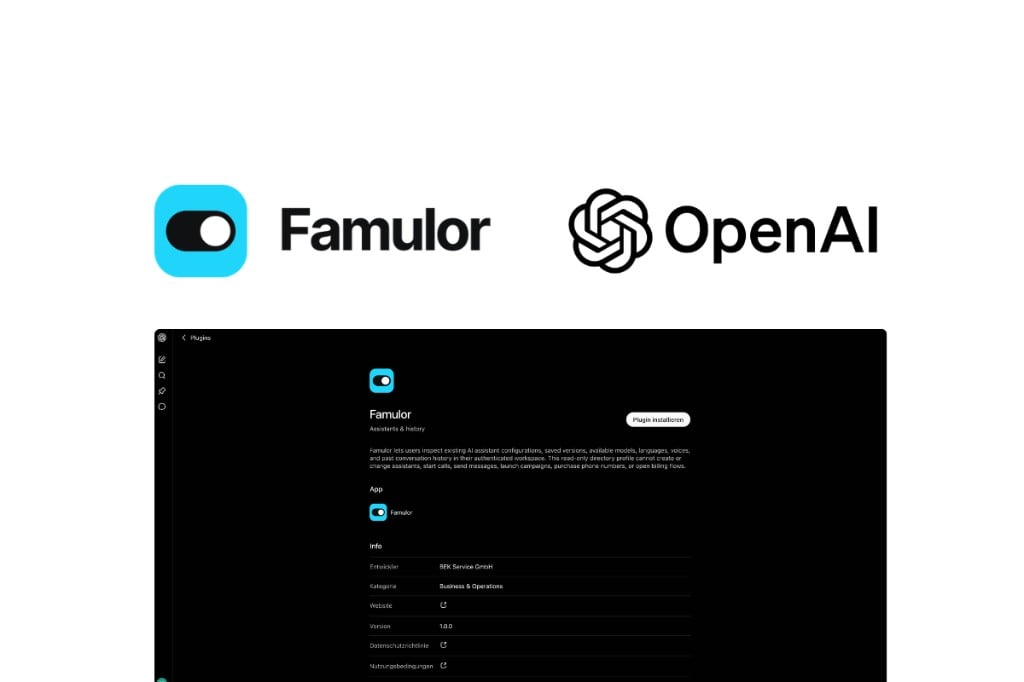
Official Famulor plugin in ChatGPT and Codex
Speak naturally across languages with Translate
Translate is a new assistant engine for live conversations between two people who speak different languages. Choose a language and compatible voice for each speaker, then start a private room. Speaker 1 is the workspace user; Speaker 2 can join through a private link or email invitation without creating an account.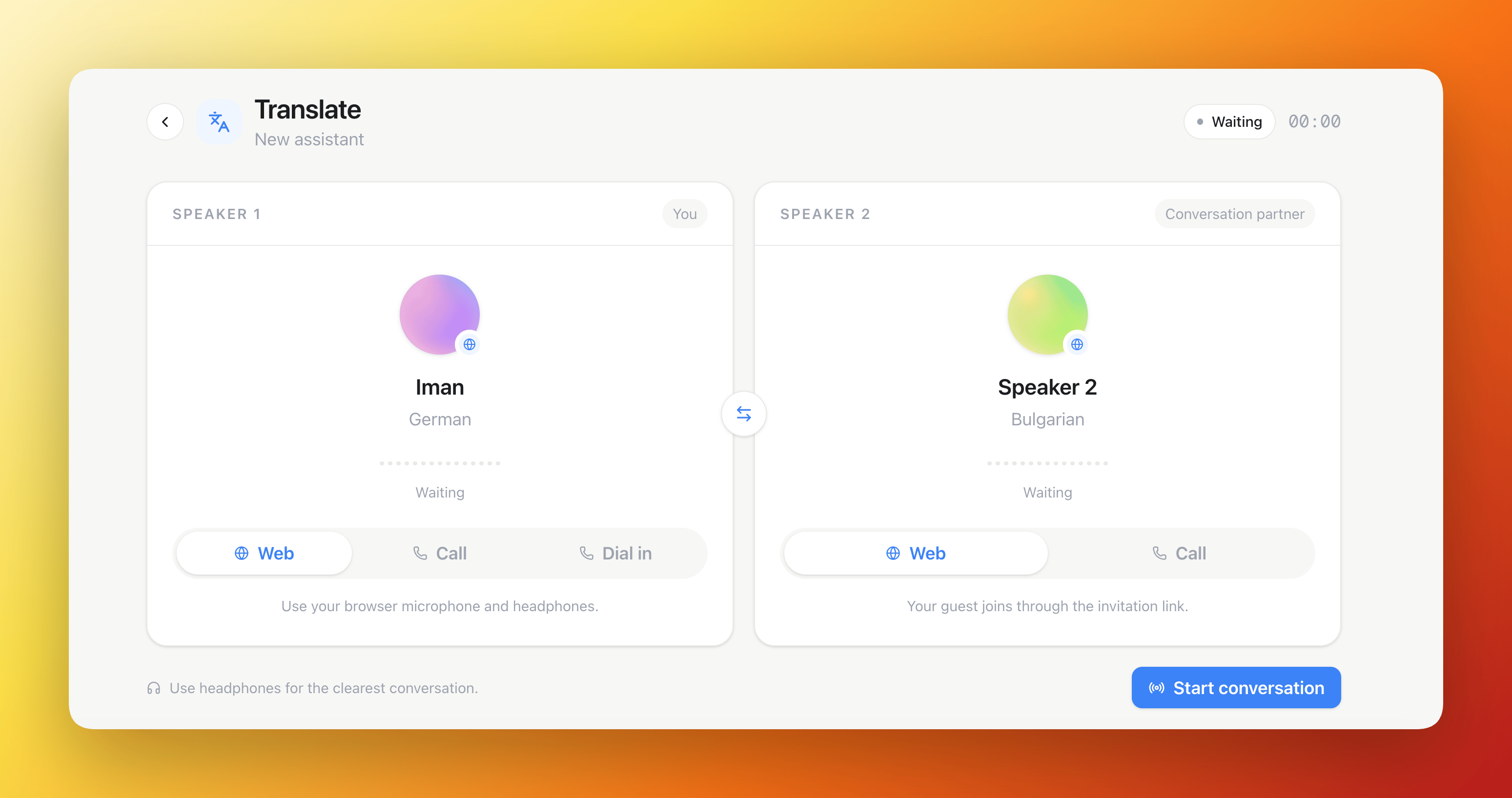
A Translate room prepared for two speakers
Know where your credits go
The refreshed Usage page brings calling, messages, knowledge processing and AI workflows into clear sections with larger icons and a cleaner layout. See fixed credit rates alongside usage-based services, understand Milian’s token-based usage, and review Loop activity and team usage with more room for the details.Check phone rates before you call
Search by country and switch between incoming and outgoing calls to explore estimated rates for Loop or assistant phone connections. Clear explanations show how AI session time, cold and warm transfers, recording and other call services contribute to usage. Estimates reflect your workspace’s prices and load faster when you revisit them. Actual phone charges are settled after the call and can vary by network and routing.Build the plan that fits
The new plan configurator keeps included features, paid extras and your order summary together. Capacity controls show what your plan already covers, how much extra you selected and how each pricing band works. Compare monthly and yearly billing; when a tiered add-on has no separate annual offer, the yearly price is twelve times the monthly price for the same capacity.White-label resellers can bring features and capacity into one recurring plan price, with a live view of the platform fee and estimated amount they keep. Included benefits are clearly marked, and optional add-ons are easier to browse by monthly, yearly or tiered pricing.Ask Milian about your plan and costs
Ask what your plan includes, which add-ons are available or what a phone connection might cost. Milian can use your workspace’s billing information and rate estimates to explain the options, including the difference between AI session time and transfer-related phone usage. Open your plan settings to review the available add-ons and configure your purchase.Meet your customers in more languages
Famulor’s voice assistants now offer a broader language selection, including these 60 languages. Choose a supported language and a compatible voice in the assistant editor, and use multilingual conversations where your selected voice supports them.Explore the 60 languages
Explore the 60 languages
Turn your spreadsheets into answers
Price lists, product catalogs, service tables: your knowledge base can now work with CSV, TSV, Excel (XLSX) files and Google Sheets connected through Drive. Assistants can find exact product codes, search descriptions, and use table filters, counts and totals. Answers retain references to the source file, sheet and row.This works in voice and messaging conversations, with table queries also available through the public API and MCP. The data reflects the last import; formulas are not recalculated. If a document fails to process, Retry refreshes that file, including cloud drive documents, while preserving the previous searchable version if the retry fails.Find and improve the right answer faster
The FAQ (Beta) area now searches questions, answers and proposed answers across all matching entries, with status filters and pages of 25 results. Open pending questions directly from the review notice, add an FAQ with +, and keep your unsaved drafts while switching searches, filters or pages. Available when Beta Features is enabled for your workspace.A smoother conversation, from the first message
Your website assistant now shows a familiar three-dot typing bubble in your widget’s accent color while a reply is on its way. It stays visible between sending a message and receiving the assistant’s first words, so visitors can see that the conversation is moving forward. The animation also respects reduced-motion preferences.Set the pace of your chat
Want a short pause before an answer appears? Choose Reply delay in the widget editor: a fixed wait or a fresh random wait within your chosen range for each reply, adjustable from 0 to 10 seconds. Leave it disabled to show replies as soon as they arrive.The pause sets the minimum wait before displaying a chat reply. If the assistant needs longer, the typing bubble stays visible while it prepares the answer. Voice conversations keep their existing timing.Verify visitors and pick up where you left off
Give your website conversations a verified start: visitors receive a six-digit one-time code (OTP) by email or SMS, enter it in the widget, and continue into chat or voice. They can choose to remember a private browser for seven days for an easier return visit.With a verified identity, separate visitor permission and a plan that includes customer memory, your assistant can pick up useful context from previous conversations. Enable Web Chat and Web Voice memory independently in workspace and assistant settings. Visitor verification and web/SMS memory are available in direct Famulor workspaces and resellers’ own workspaces; reseller customer workspaces are excluded.Email and SMS verification now use shorter instructions, a clearer six-digit code prompt, and simpler options for remembering a private device and allowing conversation details to be saved. The security check adapts to the widget’s language, light or dark theme, and available width, appearing only when interaction is needed. A tidier start to the conversation, especially on smaller screens.A smoother start after recording consent
Fixed greetings can now be prepared while the recording-consent prompt is playing, reducing the wait after a caller agrees. Clear consent replies in English, German, French and Spanish are recognized more directly, while unfinished replies are given time to complete. Your chosen behavior for declined recording remains in place.Stay on top of your workspace
Contacts, customer memory, callbacks, campaigns, History and Famulor Loop now refresh more consistently as activity changes and when you return to the tab. Your current filters, page and unsaved edits stay in place.Compact search controls make more room for your work across the app. In Audience → Memory, search names, phone numbers, email addresses and shared summaries across matching contacts, then open a summary preview for more detail. Assistant settings now put Save and the saved/unsaved status directly in the dialog header.More reliable everyday workflows
- Campaigns: a new call attempt no longer picks up an old unanswered-call result. Assigning a contact that belongs to another campaign now gives a clear instruction to remove it there first, once its active attempt has ended.
- WhatsApp and Messenger: repeated WhatsApp setup requests reuse the completed connection, and failed setup can be retried. Blocked or cancelled Facebook login now gives clearer guidance.
- SMS: credit checks better coordinate simultaneous activity, and uncertain delivery or pending billing gives a clearer status before you decide whether to send again.
- Phone-number verification: delete draft or failed requests through the public API and MCP, and resubmit eligible rejected requests with corrected documents.
- Workspace sign-in: accounts that use both Famulor and a reseller’s domain resolve to the appropriate separate workspace more reliably.
Milian can now set up your booking calendars for you
Ask Milian to create an event type — name, duration, weekly availability, location, custom questions — and it builds the whole thing in one go, including handing it straight to an assistant. Paste a booking link into the chat and Milian recognizes it, telling you which event type it is and which assistant already uses it. Need to swap a calendar on an assistant, or add a second one alongside the first, without disturbing the rest of its setup? Milian handles that directly, no trip to the Booking page required.A booking page that looks like the ones you know
The public booking page has a new three-column layout: your branding, description, duration, and location on the left; a month calendar in the middle; and the times for the selected day on the right. A 12-hour/24-hour toggle defaults to the format your visitor’s country normally uses, and remembers their choice after that.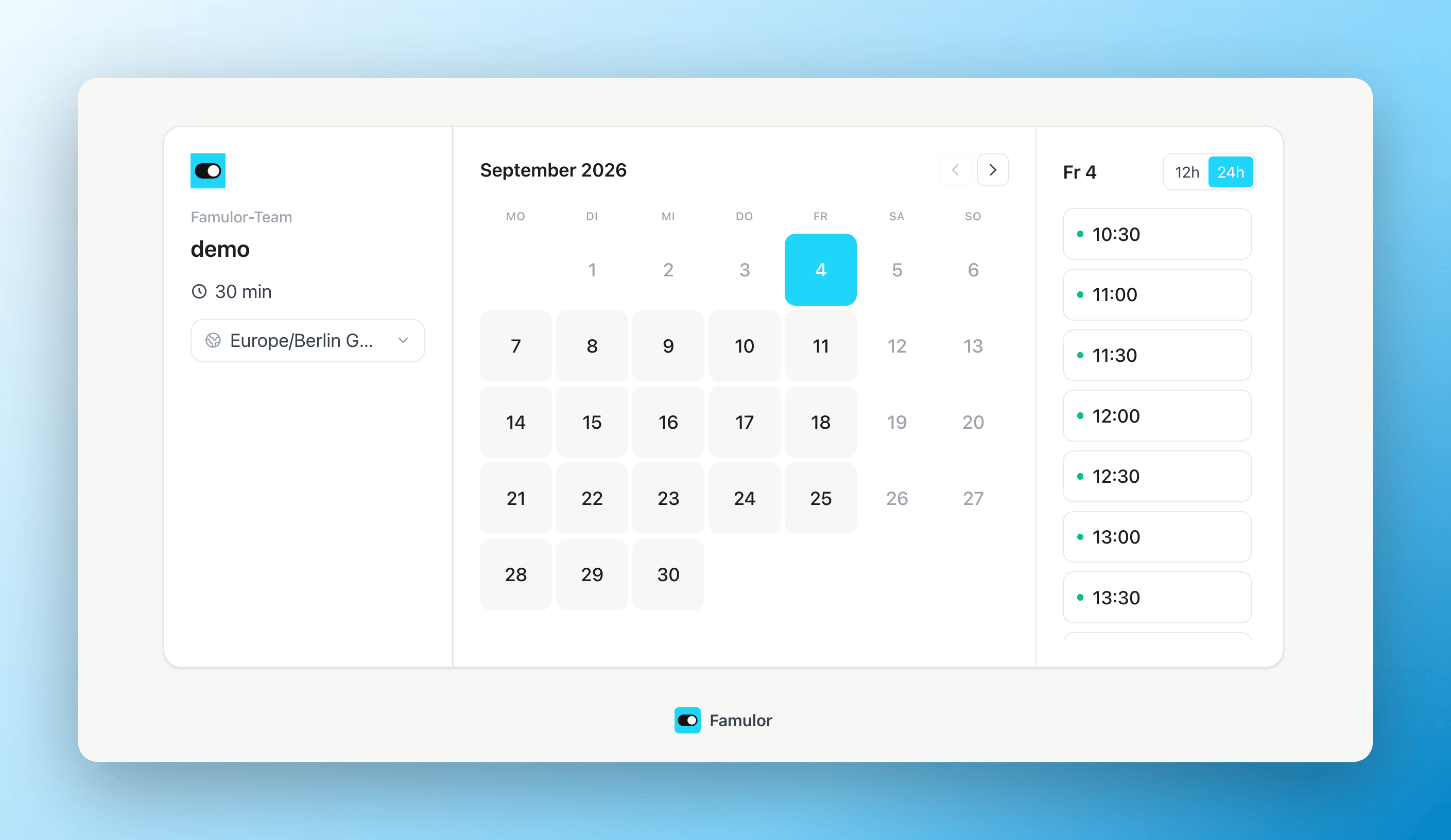
The new three-column public booking page
Ask your own booking questions
Event types can now ask for more than a name and an email address. Add custom questions to any event type — short text, long text, email, phone, address, URL, number, a single checkbox, a checkbox group, a radio group, a select, a multi-select, or multiple email addresses — each with its own label and a required toggle. Turn on Required for the built-in Phone question whenever every booking needs a callback number. Every question can be prefilled from a URL parameter and, optionally, locked once it’s been prefilled — handy for embeds that already know the answer.Assistants know what they need to book
Voice and Messenger assistants now say up front, before offering a time, exactly what they still need to collect — full name, email, phone in the right format, and any custom question you’ve added — and they never confirm a booking unless it actually went through.Your workspace name is your booking URL
Renaming your workspace now updates your public booking URL to match, with a check that stops you from picking a name someone else already uses. Old booking links keep working — they redirect to the new one automatically.Milian now has a memory
Milian remembers what matters across chats — your business, your preferences, house rules — so you don’t repeat yourself in every conversation. Memory has two scopes: personal (your language, role, how you like to work) and shared workspace facts (company, industry, hours, tone) that every team member’s Milian knows.- Only the important things — Milian keeps stable facts you state or confirm, never one-off task details, phone numbers, secrets, or caller data. Facts expire 180 days after they were last confirmed.
- Search and reference chats — Milian can look up details from your own earlier chats when you say “like we discussed yesterday”.
- Generate memory from chats — after a conversation, Milian distils durable facts automatically. Both switches, plus everything Milian remembers, live under Settings → Milian where you can delete single facts or clear them all.
More expressive multilingual voices
The voice library now includes more multilingual voices that can keep a consistent identity when the conversation changes language. Choose a voice compatible with your assistant’s configured languages.- Audio tags for delivery — supported voices can use tags such as
[whispering],[laughing], or[excited]to guide how a response is spoken. - Regional speech processing — these speech-recognition and voice-generation options follow your workspace’s EU or US AI region setting.
- Preview available voices directly in the voice library before choosing one.
Force a tool call — so the AI never skips the step that matters
Some steps in a flow shouldn’t be optional. A new Force tool call toggle on any tool node in Flow Builder guarantees the assistant actually calls that tool — booking the appointment, checking availability, whatever it is — instead of talking past it. Built-in safeguards mean a call can never get stuck: after a few failed attempts, the assistant gracefully continues the conversation instead of looping forever.Check before you save
Flow Builder now catches problems before they reach a live caller. If a tool node is missing its tool, or the greeting has gotten too long, saving shows a clear Check before saving summary — fix it, or save anyway if you know what you’re doing.Save failures are also easier to spot: instead of a small red line you could miss, a dialog now tells you exactly what went wrong.Public demo links can now expire
Sharing a live demo of an assistant? Set the link to expire in 2 hours, 24 hours, 1 week, or 30 days — perfect for a trade show, a sales call, or a time-boxed trial. The demo panel shows a live countdown, and hovering reveals the exact expiry time in your workspace’s timezone.Cleaner call details
Call History detail pages got tidier: Usage & Cost and Webhook & Automation now collapse by default (your preference is remembered), and latency and action labels reveal themselves on hover instead of crowding the view — especially nice on smaller screens.Turn recurring work into event-driven Missions
Milian Missions now include Mission Studio: one place to define what should happen, what starts the work, which workspace context Milian may use, and which actions it may take. Existing manual and scheduled Missions continue to work, while event-driven Missions can start as soon as something changes in your workspace.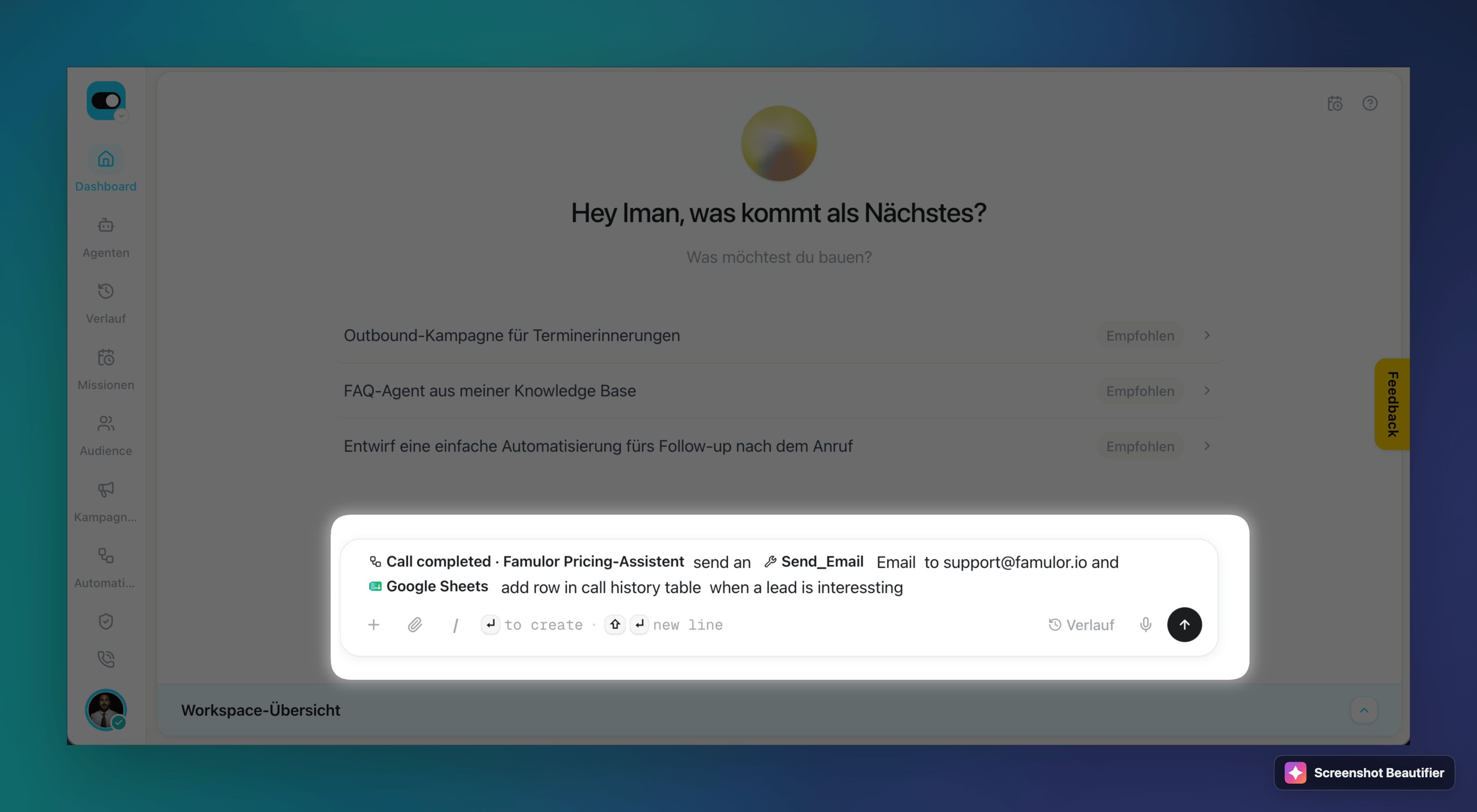
Bring workspace context and actions into Milian while describing a Mission
- Add context as you type — enter
@to insert an assistant, automation, Mission, call, contact, campaign, knowledge base, segment, booking, phone number, saved app connection, or active Agent Tool. Each selection becomes a clear chip with its icon or avatar. Enter/for Milian actions and skills. - Start from the event that matters — in addition to manual and scheduled runs, a Mission can react to completed calls, conversations, messages and incoming email, bookings, new leads, inbound webhooks, CRM events, and events from a connected app. Event triggers are available when Workspace Beta Features are enabled; classic manual and scheduled Missions remain available without them.
- Publish with clear boundaries — review the objective, trigger, filters, referenced resources, app connections, allowed actions, and run limits before activation. A published version stays unchanged; later edits become a new draft and do not alter work already running.
- Understand every run — Mission Studio shows the active version, last and next run, status, credit usage, attention state, and transcript. Events wait in order when a Mission is already running, so they are not silently dropped.
More choice for clear pronunciation
New voice options help assistants pronounce names, addresses and numbers clearly. Preview them in the voice library to choose the delivery that fits your business.Some voices support a single language. For an assistant with additional languages, choose a compatible multilingual voice; the voice picker accounts for your assistant’s language configuration.Warm transfers can bring a message back to the caller
A warm transfer no longer leaves the assistant guessing when the handoff doesn’t complete. If the supervisor answers but cannot take the call, they can say, for example, “Ask them to call back in an hour” and hang up. The assistant returns to the caller, briefly relays the relevant message in the caller’s language, and continues the conversation.
When a warm transfer cannot be completed, the assistant can bring the supervisor's message back to the caller
- The outcome is always shared — the assistant receives the classified reason: busy, declined, no answer, or temporarily unavailable. It is explicitly told never to invent something the supervisor did not say.
- Consultation notes are your choice — Share supervisor conversation with the AI (consultation notes) controls whether the assistant sees the supervisor-side conversation when the supervisor actually spoke. The transcript is always saved to the call record, even when sharing is off. If nobody answers, there are no consultation notes — only the outcome.
- Every warm-transfer path behaves consistently — this works in Flow Builder warm transfers, the Warm transfer tool, and Famulor Loop Recall. Consultation notes are always enabled for Loop Recall because there is no separate transfer form there.
Create AI-native automations and run them during a conversation
Create AI-native automations in Famulor, connect them to an assistant, and run them while the conversation is still going.The assistant can start a workflow during a phone call, web chat, messaging conversation, or email. You decide when it should run and which information it passes into the workflow.Capture leads, submit callback requests, create tasks, and run other business processes from the conversation itself.Faster conversational voice responses
Updated conversational voice options reduce the delay before an assistant starts speaking on phone and voice calls while retaining expressive delivery. Response time still depends on the selected voice and the conversation.Explore the available options in Models & voices.Famulor Loop, now in your browser
Famulor Loop now has a Chrome side panel — your softphone, call history, and workspace switcher next to whatever tab you’re working in, plus notifications for incoming, missed, and failed calls and agent activity. Pair it to your workspace with a 4-digit PIN instead of a password; the Loop page has the setup steps.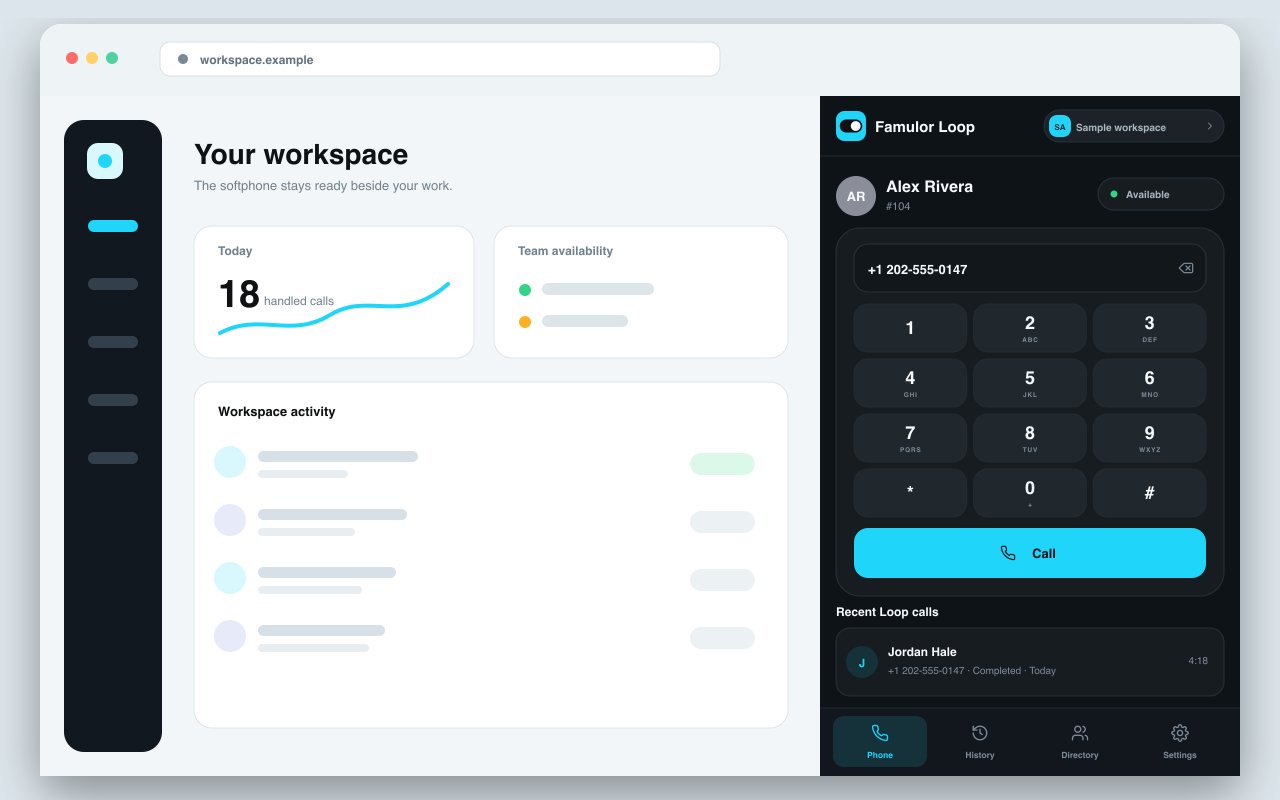
The Famulor Loop side panel, docked next to your browser tab
Milian offers to top up your credit, right in the chat
If you run low on credit while chatting with Milian, it now shows an Add credits card right there in the conversation — no need to go find Settings → Balance yourself.Assign a tool to several assistants at once
Select Assign on any tool in Agent Tools to see and change which assistants use it — search the list, tick the ones you want, save. No more opening each assistant to add the same tool one at a time.Assistants can call an automation mid-conversation
An assistant can now trigger an automation while it’s still talking to someone, not only after the conversation ends. Describe in plain language when it should run, switch that automation to Live, and the assistant decides in the moment to use it — across voice, web chat, messaging, and email.Assistants can look up current information on the web
A new Perplexity research connector in Agent Connectors lets an assistant fetch up-to-date answers during a call or a chat, beyond what’s already in its knowledge base. Install it with your own Perplexity API key, pick the model your account offers, and optionally set a system prompt for tone, language, and answer format — then assign the tool to as many assistants as you like.Workspace-scoped API keys
Issue a Public API key scoped to a single workspace, with its own permissions and expiry, instead of only account-wide keys.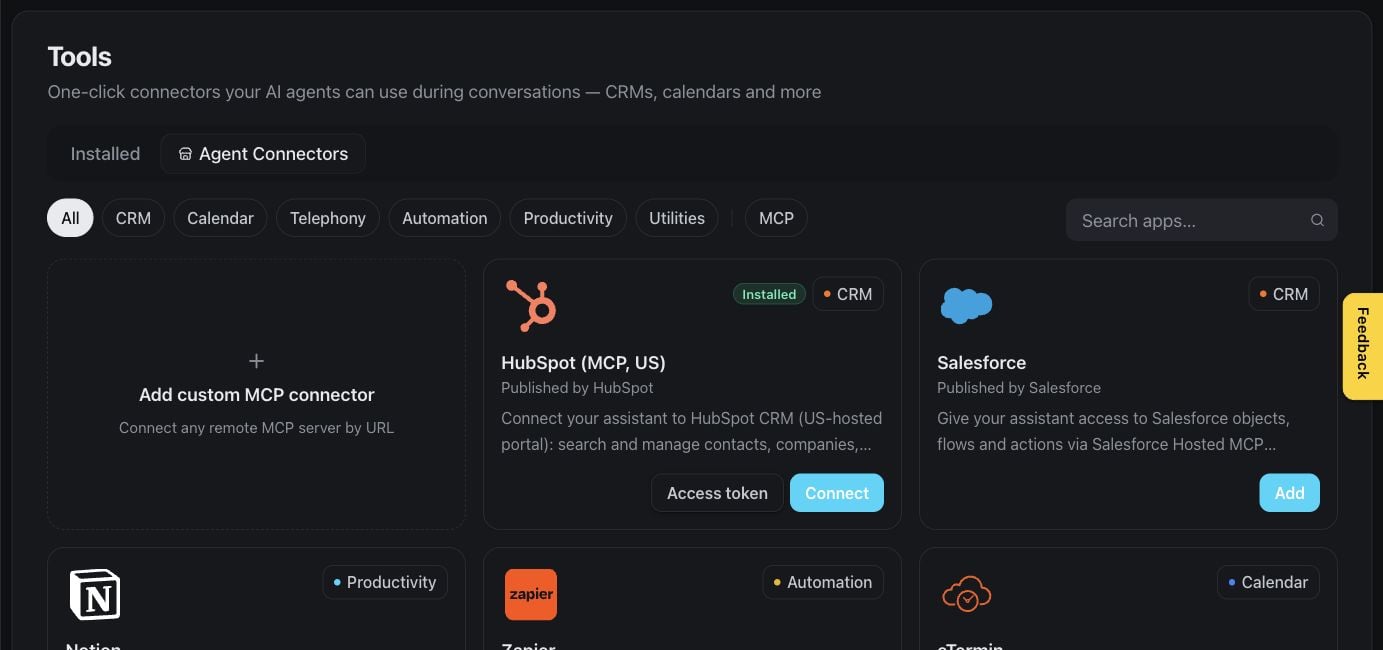
Agent Connectors — install a research tool like the new Perplexity connector
Start from a ready-made assistant, not a blank page
The Create assistant gallery now includes complete flow blueprints for common use cases, not just prompt templates. Each one shows what it’s built to do, which surfaces it works on, and anything you still need to finish before it goes live. See Start from a use-case template.Teach an assistant your key terms
Add up to 100 product names, brand terms, and other key vocabulary so speech recognition transcribes them correctly. Open Assistant settings → Voice → Speech recognition to build the glossary — it’s a plan feature, and the settings appear only for the engine modes and speech-recognition providers that support it. An optional Detect key terms automatically (Beta) toggle can pick up further terms for the current call.Ten new inboxes your assistant can answer in (Beta)
Freshdesk, Gmail, Outlook, Zendesk, ServiceNow, Intercom, Zoho Mail, AgentMail, Instagram, and Zulip join WhatsApp, Telegram, Slack, and the rest of messaging — sign in to the account once and your assistant reads and replies automatically. Gmail and Outlook can watch the Inbox, the whole mailbox, or a single label or folder, and either send replies straight away or leave a draft for you to review. Turn on Beta Features under Settings → Workspace to see them.Three more ways to keep your knowledge base current (Beta)
Sync a knowledge base from Box, Dropbox, or SharePoint now too, alongside the existing Google Drive and OneDrive sources — kept up to date automatically, the same way a website source is. Cloud drive sync is Beta and carries its own plan feature.Automations can now react to every message, not just the first
An automation triggered by an inbound message used to fire only on the first one. It can now trigger on every inbound message, so a workflow can keep responding as the conversation continues.Milian is now AI-native
Milian, the workspace copilot, can now do more than answer questions — it analyzes your assistants and calls, connects accounts and data sources, builds automations from scratch, and tests them before anything goes live. Most of what you used to click through by hand in the dashboard, you can now just ask Milian to do in chat.Missions — recurring tasks in the background
Milian Missions are scheduled tasks Milian runs for you on a recurring schedule or on demand, with no browser tab required to stay open. New Missions entry in the sidebar.Rate Milian’s answers
Hover over any Milian response to rate it with a thumbs up or down. After a helpful interaction, Milian may also nudge you to leave Famulor a review.Test with a real phone call, not just text
Simulation tests can now run as an actual voice call, not only a text conversation. A simulated caller — with its own voice from the voice library — calls your live, unmodified assistant, so you hear exactly what a real customer would experience before you ship a change. Two test modes: fast, text-based Chat, or full audio round-trip Voice. Every test now also scores turn-by-turn response latency and whether the assistant called the tools it was supposed to.Workspace Audit Log — see who changed what
Team accounts can now open Settings → Data → Audit Log for a complete history of changes across the workspace: who changed what, and when, down to the exact field. Searchable, sortable, and paginated.Multiple workspaces per account
You can now create more than one workspace under a single account — useful for keeping separate brands, clients, or departments cleanly apart without juggling logins. Availability depends on your plan.GoHighLevel joins the calendar-booking providers
Your assistant can check availability and book, cancel, or reschedule appointments directly in GoHighLevel calendars — the same booking experience already available for Cal.com, Calendly, and other supported providers.Call endings now match the assistant’s language
When a call ends, the assistant’s closing line now speaks in the assistant’s own configured language instead of always defaulting to English.More resilient voice calls
Calls now recover more gracefully from a rare voice-provider hiccup instead of ending abruptly, keeping the conversation going for the caller.Refer and Earn — get rewarded for every workspace you bring in
Invite other businesses to Famulor and both sides get rewarded once the workspace you referred makes its first payment — up to 10 rewarded referrals per workspace. Copy your personal referral link from Settings → Workspace → Refer and earn; rewards land automatically, no manual claiming. Currently available on Famulor-branded workspaces — see Refer and Earn.A faster way to build and test assistants
- Squad view — see every hand-off route between transfer-linked assistants as a visual graph.
- Latency waterfall — a step-by-step breakdown of where time goes in a test call.
- Live tool progress — watch tool calls execute in real time instead of waiting for the result.
- One-click simulate from a real call — turn any past call straight into a repeatable test.