

The native calendar
Native is Famulor’s own booking engine — built directly into the platform rather than a third-party product you sign up for, and listed alongside the other calendar providers in Providers at a glance. There’s no external account, no API key, and no OAuth consent screen: define an event type with its own weekly availability and it’s immediately ready to assign to an assistant.Native runs on the same Calendar integrations plan feature as every other provider listed under Providers at a glance — it is not a separate paid add-on on top of Cal.com or Calendly. Your plan still has to include that feature before you can create any event type or integration, native ones included. See Plan gating.
check_availability and book_appointment tools as any other integration, with no third-party API in between: slots come straight from the event type’s own availability windows, buffers, and notice rules. Native is also one of only two providers — Acuity is the other — whose assistants can find, cancel, and reschedule an existing appointment, and the only one of the two that needs no external account for it. See Assigning to an assistant for the full tool list.
Calendar connections
Native works standalone on just its own weekly-availability rules, or you can connect a real calendar so its busy times are respected and — for most connection types — confirmed bookings get written back to it. Connect Google Calendar and Outlook under Booking → Integrations; add CalDAV or an ICS feed under Booking → Event types → Calendars. Either way, pick the connection on the event type’s own Calendars field to actually use it.The built-in booking engine
Create event types under Booking in the dashboard (or via API/MCP):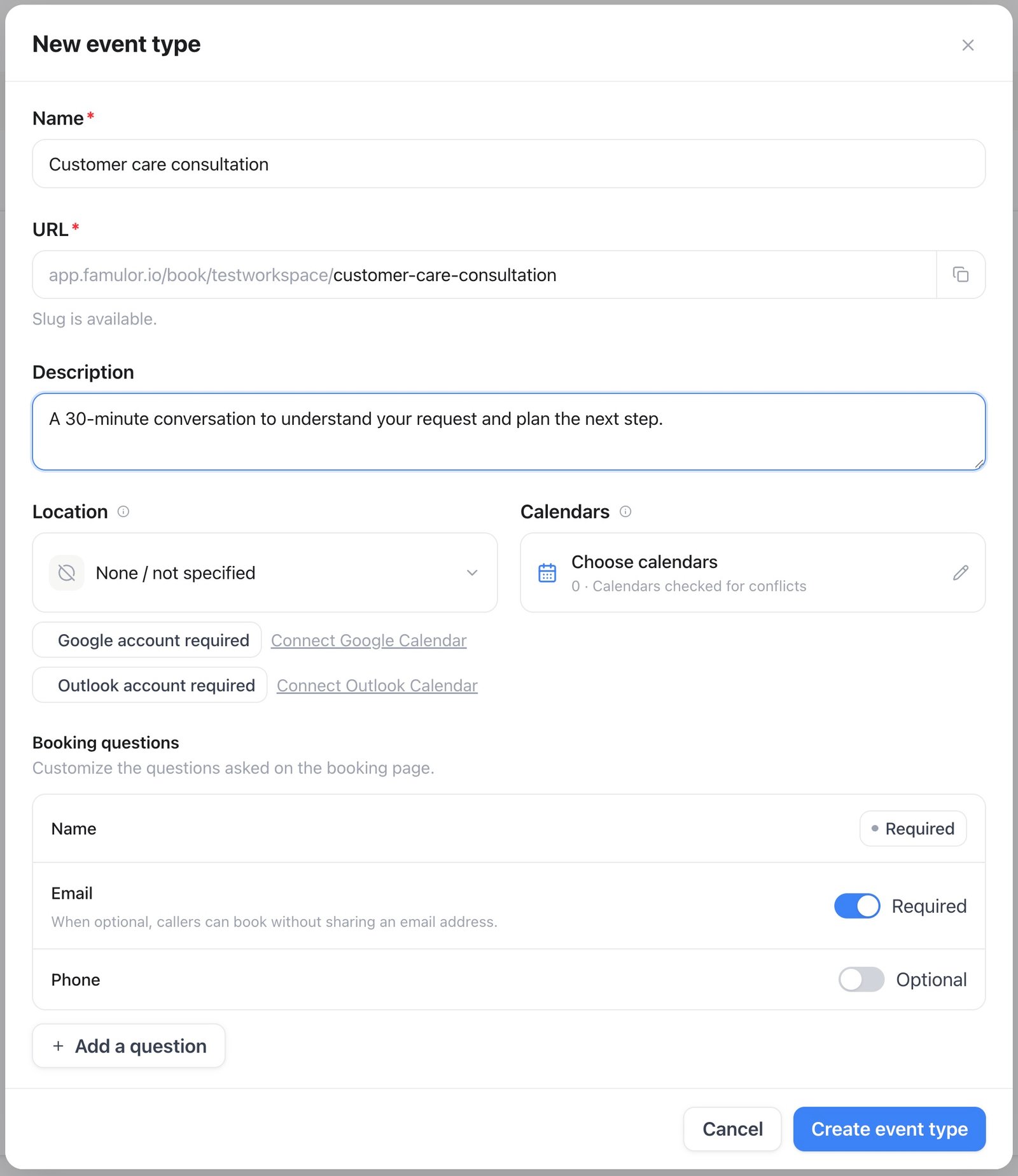
New event type — an example configuration before saving
- Name, slug, duration — the slug is unique within the workspace and becomes part of the public booking-page URL shown in the editor.
- Weekly availability — time windows per weekday in the event type’s timezone, e.g. Mon–Fri 09:00–17:00.
- Buffers & rules — buffer before and after each booking, minimum notice, how far ahead customers may book, and slot increment.
- Calendar sync (optional) — link a connected calendar. Google, Outlook, and CalDAV connections have their busy times subtracted from the offered slots and get confirmed bookings pushed back as calendar events; on Google and Outlook the guest is added as an attendee, so the provider sends its own invite as well. An ICS feed only contributes busy times.
- Name is always required. Switch Email and Phone between required and optional in Booking questions. Email remains required for Google Meet and Microsoft Teams so the provider can deliver the meeting invitation. The booking page and phone assistant follow the same requirements.
Confirmation emails and calendars
Select Location before configuring booking questions. Open Calendars beside it to choose the calendar that receives bookings and the calendars used for conflict checks. These choices are saved when you save the event type. Under Confirmation email, choose From address and edit Email subject and Email message. A blank field keeps its standard text. Use the ⚡ variables for the guest name, event, company, start time, duration, location, rescheduling link and cancellation link. Custom text applies to the initial confirmation; cancellations, rescheduling and reminders keep their standard messages. Email language fixes the language of all standard email texts for this event type (English, German, French or Spanish). Recipient’s language keeps the default: each guest gets the standard text in the language of their account or your workspace. To stop emailing guests entirely, turn off Send emails to guests on the Guest emails tab — guests then receive no confirmation, cancellation, reschedule or reminder emails and are not added as attendees to the event in your connected Google or Outlook calendar (so those calendars send them no invitation either), while host notifications still send. Guests of Google Meet or Microsoft Teams event types then do not receive the join link by email. Automatic sender uses the workspace SMTP, or the reseller SMTP for customer workspaces. Eligible direct workspaces can use the platform mail server when no workspace SMTP is configured. A selected verified address uses that address’s email delivery. Whitelabel workspaces do not fall back to a platform identity when their SMTP is missing or fails. Google and Outlook send their own attendee invitations from the connected calendar account. The booking confirmation uses your selected sender and omits the extra calendar attachment after a successful provider invitation. Standalone bookings and CalDAV use the confirmation’s calendar file. If no optional email was supplied, no guest email is sent; the configured host can still be notified.Public booking page & embed
Each active event type has a workspace-branded public page athttps://<your-domain>/book/{workspace}/{slug} — no login required. Select Embed in the event-type list and choose one of four options: an inline booking flow, a floating pop-up button, a pop-up opened by your own page element, or an email-safe link/button. HTML and React snippets are generated for the selected option, with light, dark, and automatic themes where applicable.
The HTML loader uses a neutral, non-secret booking key and is served from the same domain as the public booking page:
The inline container fills the available width and height. Give its parent an explicit height when you want the booking flow to match a specific section; otherwise the loader applies a safe minimum and grows with the booking content.
Floating buttons can sit in either bottom corner. Element-click embeds use delegated clicks, so they also work with multiple matching elements and buttons rendered later by a React or other single-page app. On larger screens, pop-ups follow the measured booking height and remain vertically centered. They become full-screen on small displays, respect safe areas, lock background scrolling, and return keyboard focus to the element that opened them.
Enable Forward page parameters when booking-field prefills or campaign attribution should carry from the host page into the booking flow. It is off by default; when enabled, authentication-shaped parameters are filtered. Never place secrets in a page URL.
The email embed loads current availability and lets you select up to five times. It generates plain email text and email-safe HTML time buttons, each linking to the booking form with that slot preselected; the slot is checked again before the form opens, so an unavailable time can never be booked from an old email.
On a verified whitelabel domain, both the loader URL and booking page stay on that custom domain and use its branding; customer-facing snippets do not contain platform branding. Existing embeds keep working after a workspace rename because old booking handles redirect to the current URL.
Managing bookings
Open Booking in the dashboard to review appointments as a list. Filter with Upcoming, Unconfirmed, Recurring, Past, and Canceled. Open a row for details, cancel, or reschedule. A month, week and day calendar view is also available from the same toolbar. The public booking page is different: visitors pick a day on a month calendar, then a time slot.Team notifications
With the Famulor mobile app signed in, workspace owners, admins and members get a push notification:- when a booking comes in from the booking page, an assistant or the API (bookings you make yourself in the dashboard or with Milian don’t notify)
- 15 minutes before a booking starts
- when it starts
Booking from calls
Connect the built-in booking engine to an assistant to place mid-call bookings in the same calendar and link them to the related call. You assign it exactly like an external provider — see Assigning to an assistant.Webhooks
Give an event type a Webhook URL and Famulor notifies it whenever a booking on that event type is created, cancelled, or rescheduled. Saving the URL reveals a Webhook signing secret — shown once, so copy it before leaving the page. Each delivery is aPOST of booking.created, booking.cancelled, or booking.rescheduled, signed with an HMAC-SHA256 of the raw body in X-Famulor-Signature: sha256=<hex digest>. The data object carries booking_id, the event type’s event_type_id/event_type_slug/event_type_name, invitee (name, email, phone, timezone), start_time and end_time (plus previous_start_time on a reschedule), status, source (web, call, api, or manual for a booking made from the dashboard or by Milian), the originating call_id when the booking came from a call, free-text notes, and the visitor’s booking question answers in every booking webhook payload.
See Receive webhooks for a full server example, including signature verification.
Calendar view
Appointments don’t have to live only in a list. A small icon switcher at the right of the Bookings toolbar flips between the list and a full calendar — the list stays the default, and whichever you pick is remembered on that device. Both the list and the calendar update live as bookings are created, moved, or cancelled — see Live updates below.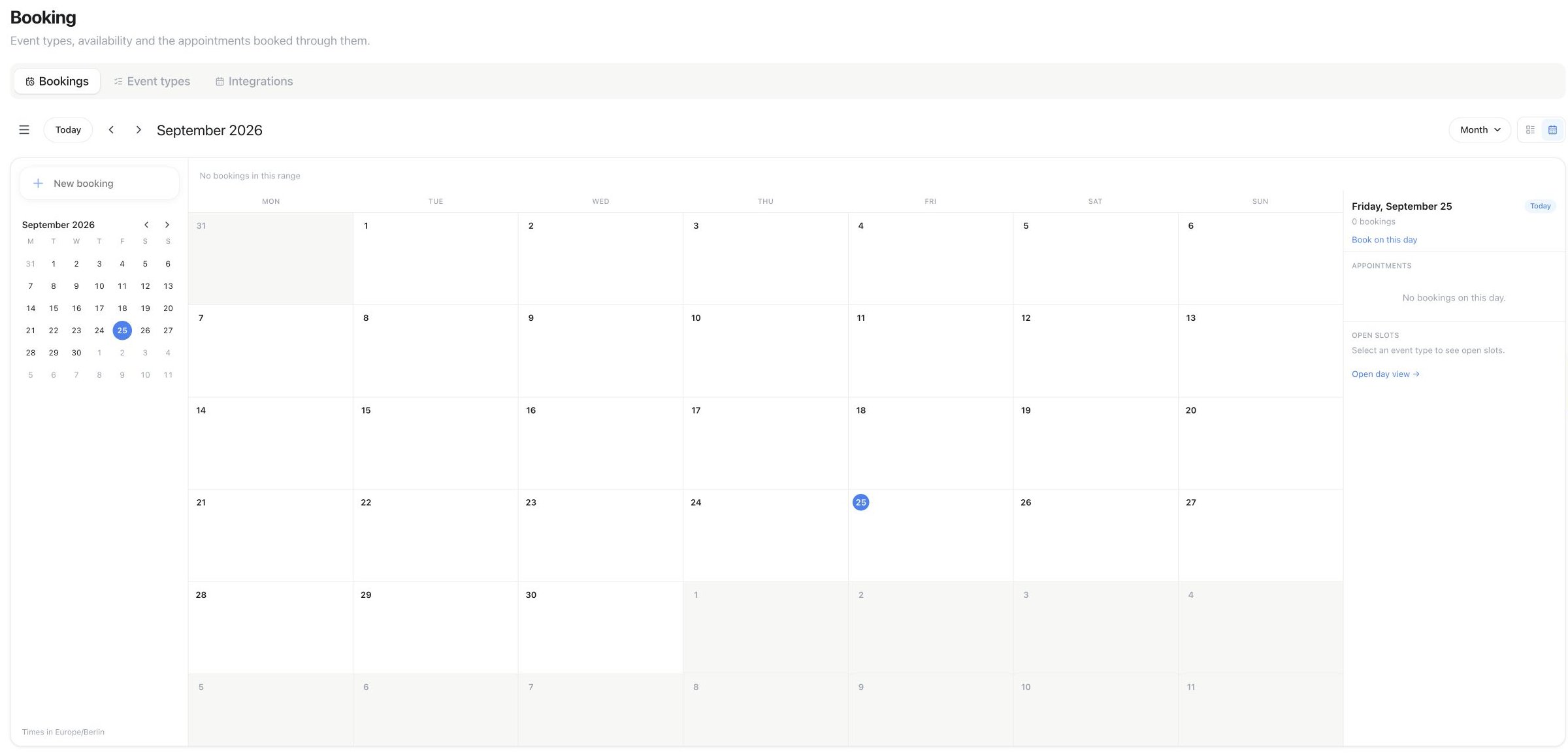
Booking → Bookings: use the calendar icon to open this view. Today, the arrows, and the Month menu control the period; the selected day appears on the right.
Header and shortcuts
The calendar has its own single-row header, modelled on Google Calendar: an outlined Today button, borderless previous/next arrows, the current period as a plain title, a view dropdown (Day / Week / Month) with a Show canceled bookings checkbox inside it, and the same list/calendar switcher at the far right. There is no separate refresh button; the header never needs one. With focus on the calendar (not in a text field or menu), keyboard shortcuts match Google Calendar: D, W, M switch range, T jumps to today, J/N and K/P (or the arrow keys, with focus on the grid) step to the next/previous period, and C opens a new booking. If the single-letter keys ever get in the way, turn them off from the view dropdown’s Keyboard shortcuts checkbox — the setting is remembered on that device.Sidebar and colors
A collapsible sidebar (open by default on larger screens, a hamburger icon at the start of the header shows or hides it, a sheet on phones) holds a New booking button, a mini month you can click to jump to any day — with a dot on days that have appointments and today highlighted — an Event types list with a colored checkbox per active event type for filtering the grid (multiple types can be checked at once; existing links that pick a single event type keep working), and an Open slots for control that picks which event type’s free times are shown. Each active event type gets its own color from a fixed set of ten, assigned automatically and kept stable across sessions, readable in both light and dark. Appointments are colored by event type — like Google colors by calendar — with a cancelled appointment shown with a dashed border and a completed or no-show appointment shown muted with a small status marker. Free times still account for existing appointments, any connected calendar, buffers, and minimum notice; a free-slot count shows on each day in Month, shaded availability in Week, and a tappable list of open times in Day. Tapping one starts a booking there directly for anyone who can create appointments; viewers instead get a link to the public booking page.Click-to-book
Click an empty position in Week or Day to open a quick-create popover right there, anchored to a placeholder at the time you clicked; in Month, click empty space in a day (not the date number or an existing appointment) to open it for that day. The sidebar’s New booking button, the calendar’s own ”+” button, and the C shortcut open it for the next available time. Pick the event type, a time from that event type’s real open slots or any other future time (or use “More options” for the full form when the event type has extra booking questions), and enter the invitee’s name (always required), email and phone (only when the event type requires them), and notes. Save, and the guest gets the usual confirmation email when an email address was given — the dialog says so; the appointment appears on the calendar right away. You can book or move an appointment to any future time, including outside the event type’s open times; the calendar marks such a time so it stays clear that it falls outside the normal hours. Guests on your public booking page, and your assistants on a call, only ever see and book real open times.Drag to move
Drag a confirmed, not-yet-started appointment to a new time or day in Week or Day, or to another day in Month (keeping its time of day); the target time updates live while you drag. On drop, a small confirmation appears — “Move<invitee>’s <event type> to <day>, <time>? They receive an update email.” — before anything is sent. Dropping on a time already taken by another appointment of the same event type, or in the past, is refused with a clear message and nothing is sent; dropping on a time outside the event type’s open times is allowed and clearly marked, the same as click-to-book.
Live updates
There is no refresh button anywhere in the calendar. The calendar and the appointments list pick up a new, moved, or cancelled booking on their own — made from any device, from the public booking page, or by Milian — with a brief highlight on whatever just changed. Click any appointment to open the same details panel as the list, where you can reschedule or cancel it. Cancelled appointments stay hidden until you switch them back on.On a phone, Month shows up to three coloured dots per day plus a count of any further appointments; tap a day to see that day’s appointments and open times.
Plan gating
Your plan must include Calendar integrations — the same plan feature that gates the external providers on Calendar & booking. Without it, you cannot create event types, and public booking pages do not accept new bookings.API & MCP
Everything above is available in the public REST API and as MCP tools athttps://<your-domain>/mcp. Provider integrations (Cal.com, Calendly, Acuity, eTermin, HighLevel) and assigning any calendar to an assistant are covered in Calendar & booking. The calendar view above shares its data with the endpoints below: appointments through the same bookings list as GET /api/v1/bookings/list_bookings, and free times through the same per-event-type slots lookup as GET /api/v1/booking-event-types/{id}/slots/get_booking_slots.
GET /api/v1/bookings and list_bookings support event type, source and date filters — source includes manual for dashboard- and Milian-made bookings. Use view=upcoming|unconfirmed|recurring|past|cancelled for the same booking views as the dashboard, or use an exact status filter; view and status are mutually exclusive.
Creating or moving a booking through the API or MCP normally has to land on a real open slot from
get_booking_slots, exactly like the public booking page. Pass allow_outside_availability: true on POST /api/v1/bookings, POST /api/v1/bookings/{id}/reschedule, create_booking, or reschedule_booking to book or move it to any future time instead, including outside the event type’s open times — the same staff override the dashboard calendar offers. It defaults to false, so existing integrations are unaffected.