

Configure the DID in DIDLogic
- In Famulor, open Settings → Phone numbers → Add a number → Add SIP integration. Choose the SIP region and copy the hostname from the SIP URI.
- In DIDLogic, open Purchased for an existing voice number, or use Buy to add one. Select Destinations next to your number and choose SIP URI. Add the full destination, for example
+12025550123@5wxj7da18ea.eu.sip.livekit.cloud;transport=tcp, and check the routing order if the number already has destinations. Use the host for the region selected in Famulor. DIDLogic inbound routing. - Open SIP, create or edit the SIP account for outgoing calls, and choose your DID as its Caller ID. Save the SIP login and a strong password. Copy the regional gateway shown in DIDLogic, for example
sip.de.didlogic.net. If DIDLogic is set to Restrict to authorized IPs, use the Famulor outbound source addresses for your selected region. DIDLogic SIP credentials.
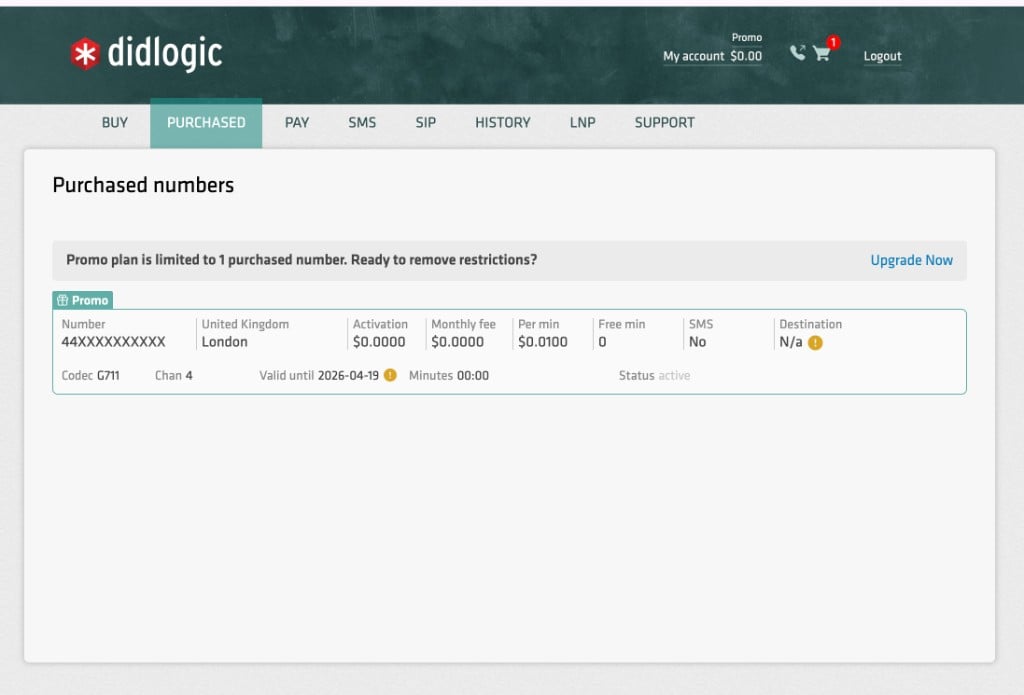
Open Purchased to find the DID and edit its destination.
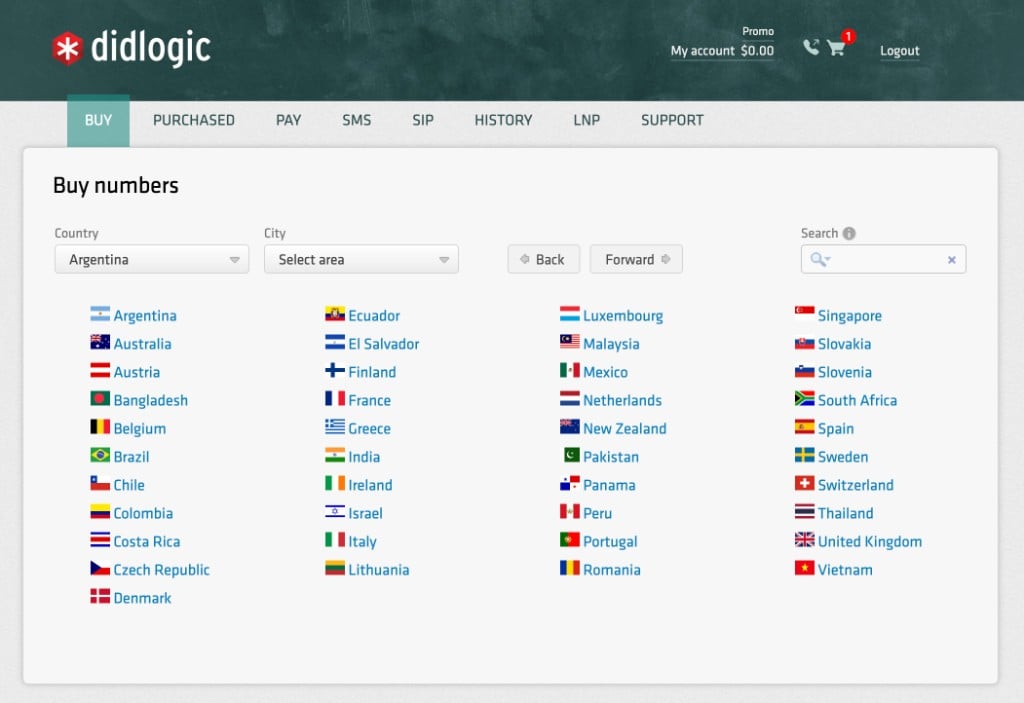
Use Buy to find a number, or Purchased for an existing DID.
Save the SIP trunk in Famulor
Choose Phone number (DID) and enter the exact DID in+E.164. Select Provider source IPs for incoming calls. Enter the DIDLogic regional gateway as Termination address and the SIP account login and password for Outbound authentication. Use International (with +) for the outgoing caller ID.
The official DIDLogic FAQ listed these unique signaling gateways on 22 August 2026:
What to enter in Famulor
The screenshots use the English app labels.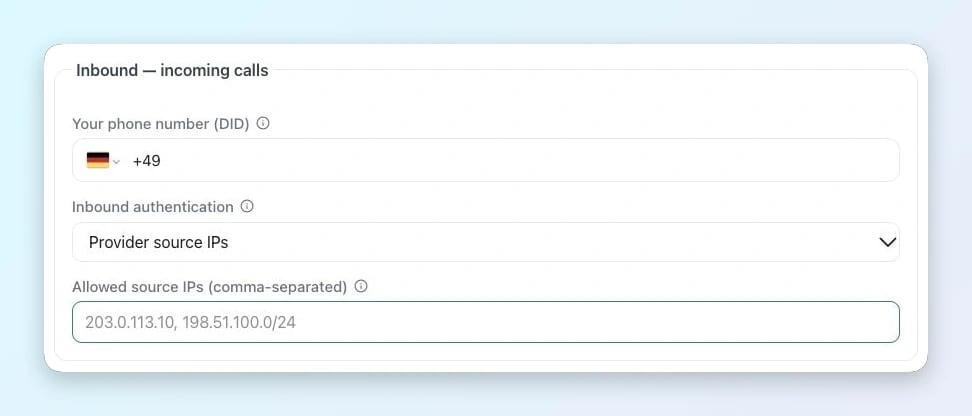
Incoming calls in Famulor
- Your phone number (DID) · Enter the exact number delivered by DIDLogic, with its country code and leading + for an E.164 DID.
- Inbound authentication / Allowed source IPs · Choose Provider source IPs and enter the complete SIP signaling list for DIDLogic and the selected route.
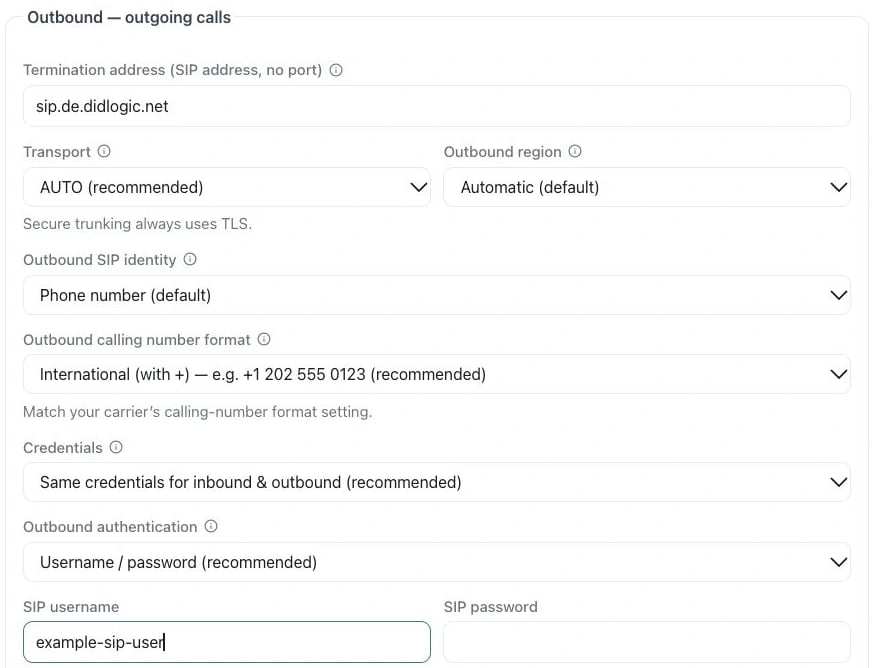
Example in the English app
- Termination address · Use the provider hostname from the setup above (sip.de.didlogic.net). Enter only the hostname, without a SIP prefix or port.
- Outbound authentication / SIP username / SIP password · Select Username / password when using Digest. Enter the SIP login and password from SIP.