

Availability
Loop becomes available when it is included in the workspace plan, enabled in workspace settings, enabled for your membership, and connected to an active number purchased through Famulor.Loop access is a member feature, not a separate workspace role. Only the workspace owner can turn it on or off for each member.
Personal phone workspace
Use Loop to:- set your status to available, busy, do not disturb, or offline;
- call from the web or mobile softphone;
- register and revoke your own devices;
- find available colleagues by name or extension;
- see your personal calls under Loop Recents.
Popout window
Loop can also be popped out of the dashboard into its own browser tab or window — no extension needed. Select the expand icon in the softphone dock to open it; the main Loop page then shows a Show Loop tab prompt that brings the popout back into view.Chrome extension
Famulor Loop is also available as a Chrome side panel — a compact dialer that stays open next to whatever tab you’re working in, so you don’t need the full dashboard open to take a call.1
Add the extension to Chrome
Install Famulor Loop from the Chrome Web Store, then open its side panel from the toolbar icon. Alt + Shift + L opens it from anywhere in Chrome.
2
Get a pairing PIN
Open
https://app.famulor.io/device in a signed-in browser tab — the side panel has a button for it. The page shows a 4-digit PIN, valid for two minutes and usable once.3
Pair the extension
Enter that PIN in the side panel and connect. The browser then appears in Devices as Chrome extension, and you can revoke it there like any other client.
Calling from the extension needs Famulor Loop enabled for your membership, the same as any other Loop client — see Availability above. Without it, the panel hides the dialer and shows only the conversations you’re authorized to see.
Record an active call
The web softphone, Chrome extension and mobile call screen include a recording icon for supported active Loop calls. Choose Start recording to record and Stop recording to stop capturing audio. The recording indicator changes after the action is confirmed. You can start recording again during the same call. This is especially useful when parts of a conversation should not be recorded — for example, when discussing sensitive information. You must be an enabled Loop member participating in the call with permission to control it. An ended or unsupported call cannot be recorded through this control. Calls connected from an assistant may use a separate recording lifecycle. If workspace automatic recording is enabled, the call may already be recording when you answer; use the confirmed indicator to check. Loop recording charges use the actual recorded sections, excluding paused time. A new recording after a stop can be billed as a separate recording, with its own started-minute rounding. The final charge appears after processing. These controls do not change an assistant’s recording setting or the workspace’s automatic recording default. See recording charges for the differences between assistant, Loop and voicemail recordings. User-owned credentials can read the state withGET /api/v1/loop/recording and request an action with POST /api/v1/loop/recording, using the public Loop call ID. Reads require loop:read; actions require loop:write and permission to control the call. Use a unique idempotency key for each action and reuse it only when retrying that same action. MCP provides get_loop_recording and set_loop_recording; a recording action requires an explicit user request.
Team usage
When Loop is available, the Usage page adds Loop-only statistics for the selected period: calls, minutes, customer credits, answer rate, inbound and outbound trends, and a breakdown by team member. This section is hidden when Loop is unavailable.Personal working hours
Set a weekly schedule and timezone in Softphone → Settings when assistant transfers should reach you. Your manual Busy, Do not disturb, or Offline status, active calls, and registered clients still take priority.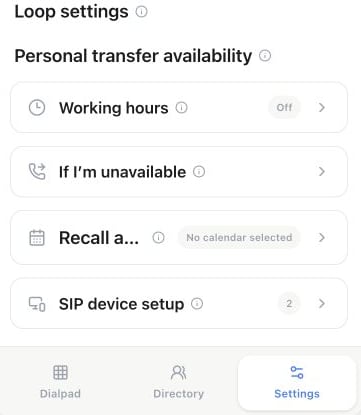
In the Loop softphone, select Settings → Working hours to configure personal transfer availability. If I’m unavailable controls the fallback.
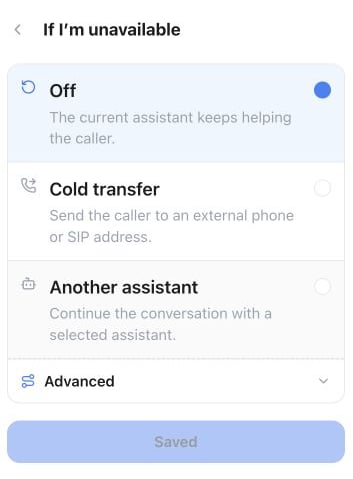
Settings → If I’m unavailable: Off keeps the current assistant helping the caller. Cold transfer and Another assistant are optional alternatives.
GET /loop/availability and PATCH /loop/availability. A null timezone inherits the workspace timezone. Omitting fallback or recall_appointment_calendar_id preserves the current value.
Dialing country
In Softphone Settings, choose the personal default country used for numbers entered without an international country code. For example, a German mobile number beginning with0170 is converted to +49 format before the call starts. A number that already begins with +44 keeps that country code, and internal Loop extensions are never expanded.
User-owned integrations can read or update this preference with GET /loop/preferences and PATCH /loop/preferences.
Recall
Recall keeps follow-up requests assigned to you when a transfer was missed or a caller asked to be called back. From the softphone, you can call the person yourself, ask a selected assistant to connect the person to you, ask the assistant to arrange an appointment, or mark the item as resolved. Choose the calendar used for Recall appointments under Softphone → Settings. Connect calendars on the Booking page first, then select one here. After you start an assistant, the softphone shows that the assistant is calling instead of the Recall details.GET /loop/recalls returns only Recall items assigned to the authenticated member, including for owners and admins. Use POST /loop/recalls/{id}/actions for the available actions. A successful assistant start becomes the remembered choice for that member.
The application can show scheduled assistant callbacks and personal Recall requests in the same callback workspace. Their public resources remain separate: existing scheduled callback integrations continue to use /scheduled-callbacks, while personal Recall integrations use /loop/recalls.
Workspace call routing
Workspace owners and admins can manage the same Loop configuration from the app, REST API, or MCP:- workspace availability, default phone number, dialing country, recording, and default routing rule;
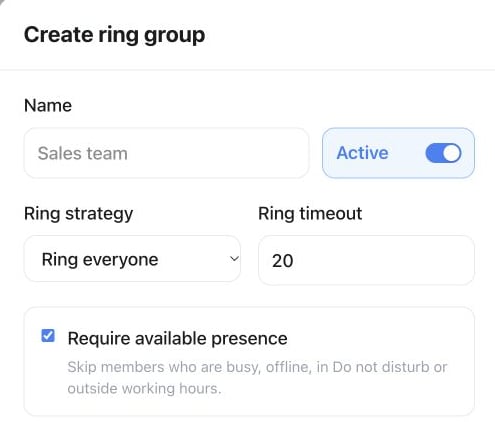
- ring groups with simultaneous, sequential, or round-robin ringing, per-member delay, ring timeout, and optional presence filtering;
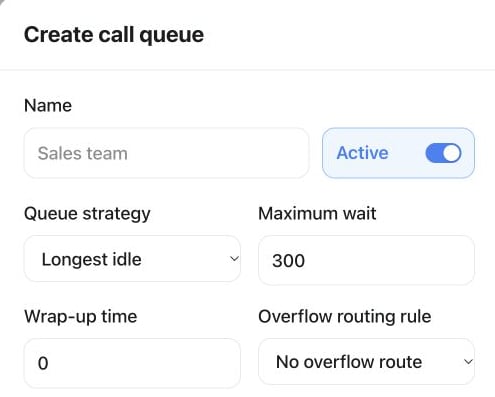
- call queues with atomic round-robin, sequential or longest-idle routing, wait time, wrap-up time, member order, per-member capacity, and an overflow rule;
- ordered routing rules for members, extensions, groups, queues, assistants, another rule, or an external number;
- inbound destinations for active phone numbers purchased through Famulor.
PATCH /loop for workspace settings and the /loop/ring-groups, /loop/queues, /loop/routing-rules, and /loop/number-routes resources for call routing. Read operations require loop:read; changes require loop:write. User-owned credentials must belong to a workspace owner or admin.
Ring-group and queue writes accept ordered member assignments, including a delay for ring-group members and concurrent-call capacity for queue members. The older flat member list remains accepted for compatible integrations.
Routing rules share one optional weekly schedule. Each step runs always, during those hours, or outside those hours, and continues only for selected pre-answer outcomes: unavailable, busy, timeout, or error. An answered person or assistant always stops the rule. Updates are atomic and cyclic references are rejected.
- Routing rule
- Ring group
- Call queue
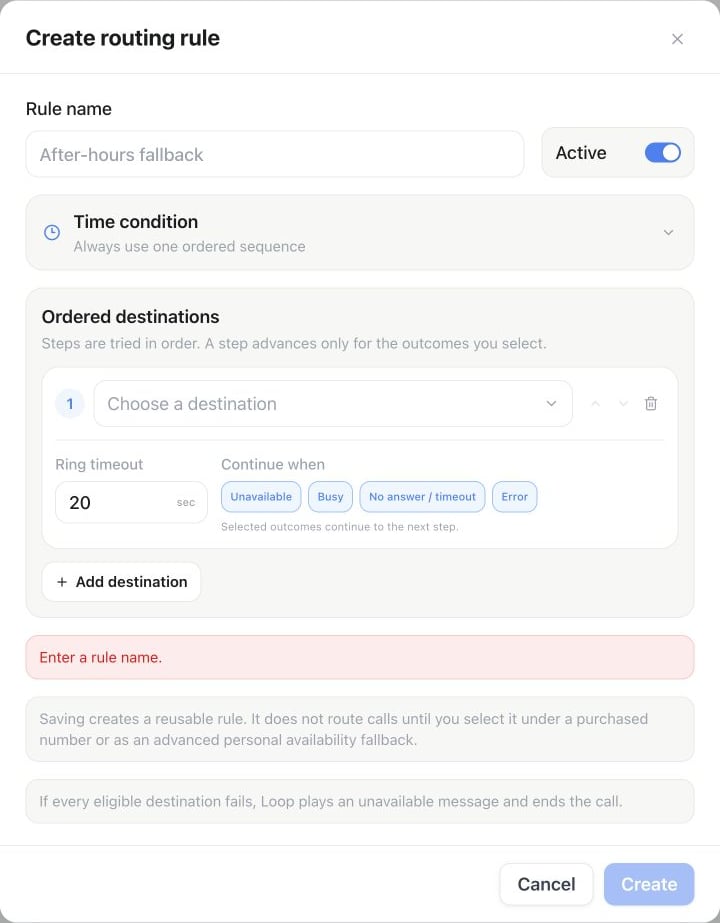
Settings → Famulor Loop → Numbers → New routing rule: name the rule, choose ordered destinations, then set the ring timeout and outcomes that continue to the next step.
API and MCP
The REST API exposes Loop access and settings, the directory, personal presence, working hours and dialing preferences, registered-device metadata, device revocation, personal call recents and Recall items, and workspace call routing. Use theloop:read and loop:write permissions. Personal preferences, working hours and Recall require a user-owned credential associated with a workspace member.
Equivalent MCP tools are available in the Telephony toolset. Devices use list_loop_devices, rename_loop_device, and revoke_loop_device; personal schedules use get_loop_availability and update_loop_availability; dialing preferences use get_loop_dialing_preferences and update_loop_dialing_preferences; Recall uses list_loop_recalls and act_on_loop_recall. Public responses never include registration secrets, raw failure diagnostics, or internal cost data. Usage is shown in minutes and credits.
Context before accepting an AI transfer
When an AI assistant transfers a customer to your Loop user or personal extension, the incoming call screen in the web softphone, mobile app, and Chrome extension shows Transfer context when available: why the customer is being transferred and what they need. Read it before choosing Answer or Decline. Declining uses the existing unanswered-transfer handling configured for that assistant. A warm transfer still includes its spoken briefing after you answer. Ordinary calls, external phone and SIP transfers, ring groups, queues, and transfers started by a colleague keep their existing behavior. If no context is available, you can still answer or decline normally. The mobile preview appears inside the app; the operating system’s incoming-call screen may show only the caller. Open the app to read the context. Caller context is not added to browser notifications. Your personal Loop call history API and the List Loop calls MCP tool also return the available transfer context for calls offered to you.Listen to Loop recordings
Open History → Loop calls in the web app, Chrome extension or mobile app. Choose a conversation to see its available recordings, then press Play. You can return to older calls using the history pages. Personal history shows calls you own or participated in. In the mobile app, workspace owners and administrators can also review workspace calls under History → Loop. If an AI assistant transferred the call to Loop, an available linked assistant recording appears in the same detail view. The assistant manages this recording, so Loop does not start a second automatic recording. Older transfers may not have a linked assistant recording; open the original assistant conversation in History. Direct inbound and outbound Loop calls keep their recorded sections together in the call detail. Processing can take a short time after stopping a recording. Calls without a recording show an empty state. Human conversations are not automatically transcribed, and the assistant transcript does not automatically include speech after the handoff. Playback links expire after one hour. Reopen or refresh the call to obtain a new link. The REST API provides the same detail through Get a Loop call, and MCP throughget_loop_call.
Contacts in Loop calls
Loop calls show the matching Audience contact the same way assistant conversations do. If the caller’s or dialed number belongs to a contact, the list shows the contact’s name and the call detail shows a Contact Details card with the contact’s name, email, and phone number. Use Add to contact in the call detail to link the call to an existing contact, New contact to create one from the phone number, or Edit contact to update a linked contact. A linked contact is kept for the call even if its phone number changes later. Only the call owner or a participant can link a contact. The REST API returns the contact with every personal Loop call and links one through Link a Loop call to a contact; MCP usesset_loop_call_contact.
Personal and workspace history
In the mobile app, Loop → Directory → Recents always shows your own calls, including when you manage the workspace. Incoming calls show the caller; outgoing calls show the recipient. History → Loop shows workspace conversations to owners and admins, with names and avatars when available. Other members continue to see their personal calls. Opening a conversation or playing a recording checks the same access permissions. The REST endpoints List Loop calls and Get a Loop call, and the MCP toolslist_loop_calls and get_loop_call, accept scope=personal (default) or scope=workspace. Workspace scope requires owner/admin access and a user-owned credential with loop:read. Contact linking remains restricted to your own calls.
Inactive browser installations are hidden by default in Settings → Loop → Devices after two minutes without activity. Use Show inactive browsers to manage older entries. Reopening an enabled browser or Chrome extension reuses its saved installation and makes it visible again; credentials and call history are retained. Separate browser profiles and cleared browser storage can create separate installations. The devices API and list_loop_devices MCP tool include the activity state independently of whether calling is enabled.
Confirmed browser installations are removed automatically after 14 days without activity. When returning after removal, select Enable calling on this browser once. This cleanup does not remove enabled Chrome-extension installations or SIP phones. Unclassified older browser records are retained until the client type is confirmed. Removing an installation does not remove call history.