

- Outbound — a Fonial SIP user supplies the credentials the platform authenticates with.
- Inbound — a Fonial destination (Ziel) forwarding to a SIP URI sends calls to the platform’s SIP address.
The Fonial SIP user stays Offline in Fonial’s dashboard permanently — that’s expected, not a fault. The platform never sends a SIP REGISTER; inbound calls arrive through the forwarding destination, not through registration.
Set it up
1. Create a SIP user in Fonial
In the Fonial customer portal (kundenkonto.fonial.de), open SIP-Benutzer and create a new SIP user (any name, e.g.Famulor). It appears in the list with status Offline — leave it that way.
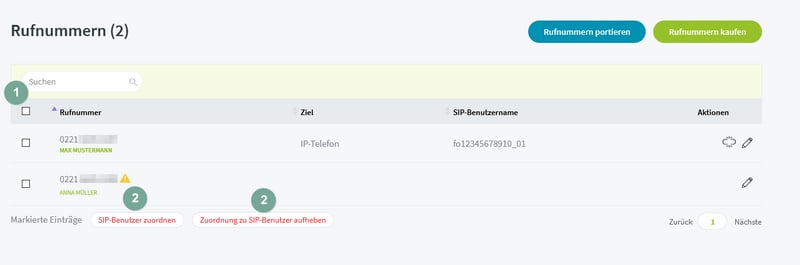
Under Rufnummern, select the number and choose SIP-Benutzer zuordnen.
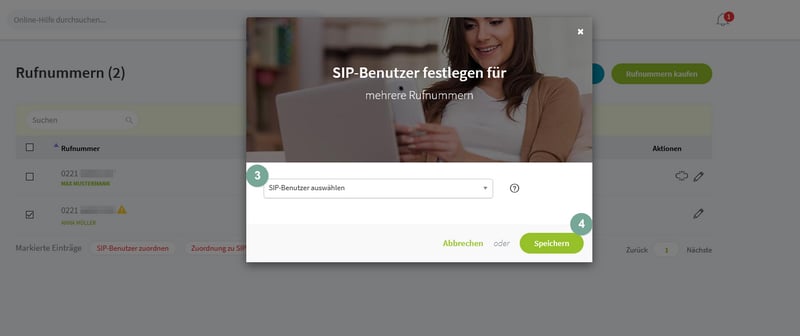
Select the SIP user and save the number assignment.
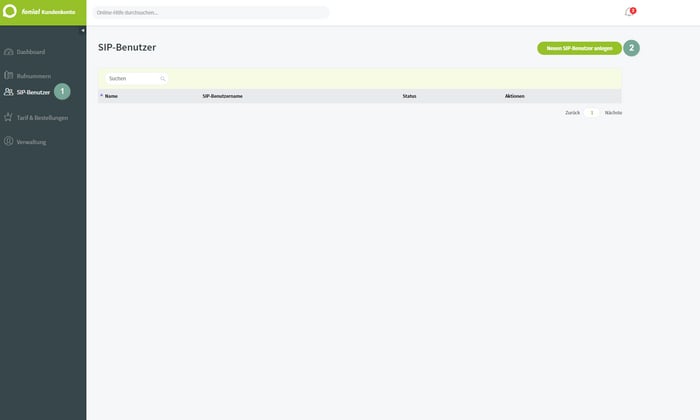
Create a SIP user in the Fonial portal.
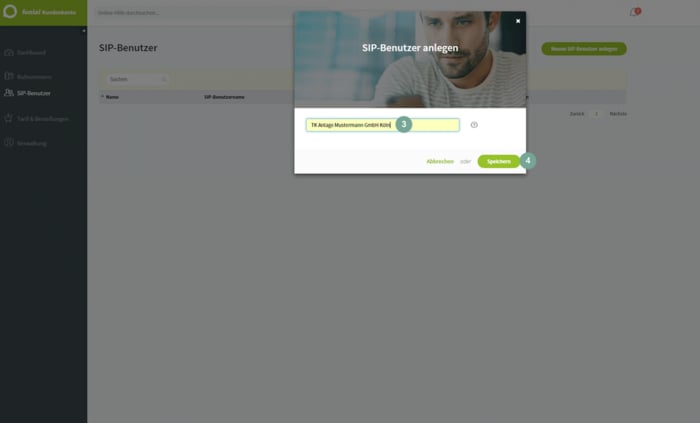
Give the new Fonial SIP user a name and save.
2. Open its credentials and assign the number
Open the new SIP user’s credentials to get its username, password, and server URL (sip.plusnet.de). Then, under Rufnummern, select the number to connect and assign it to that SIP user.
3. Create the platform SIP trunk
In Numbers → Add SIP integration, use these settings:
From the top of the Famulor SIP integration form, copy the selected region’s hostname after
sip:. Inbound SIP addresses by region.
In Famulor, select Provider source IPs for inbound SIP-URI forwarding. Ask Fonial for the complete SIP-signaling source addresses of your account and enter those addresses. The SIP user credentials apply to outbound calls via sip.plusnet.de.
What to enter in Famulor
The screenshots use the English app labels.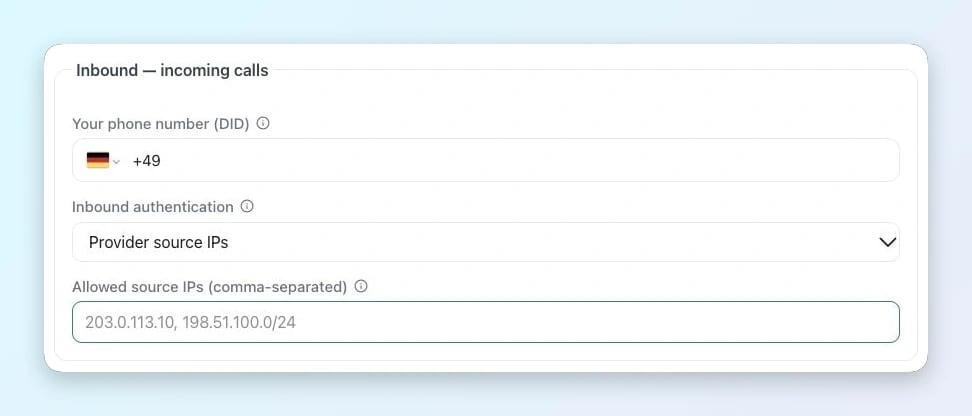
Incoming calls in Famulor
- For SIP Extension, fill Primary DID (required) with the exact number delivered to Famulor.
- Inbound authentication / Allowed source IPs · Choose Provider source IPs and enter the complete SIP signaling list for Fonial and the selected route.
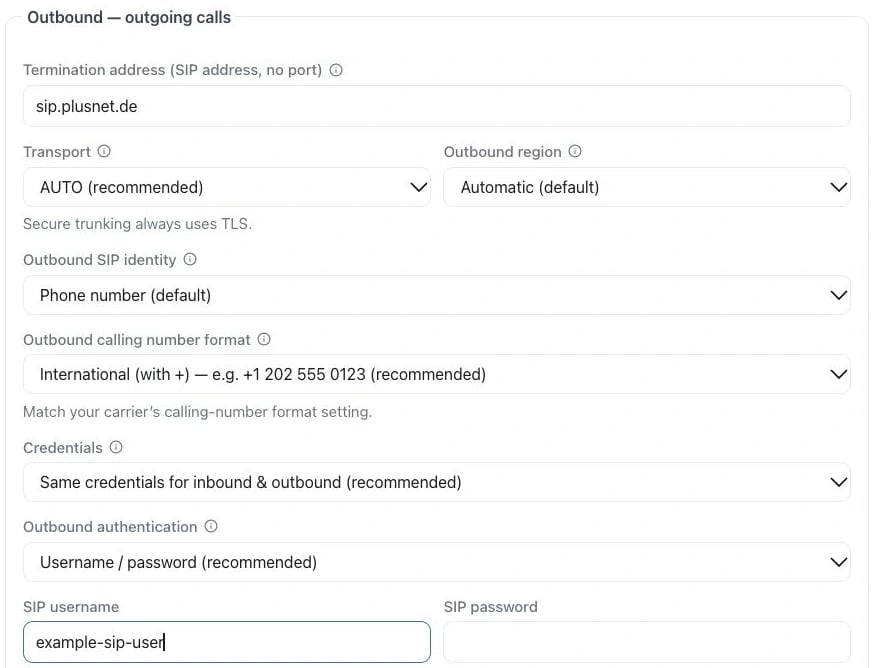
Example in the English app
- Termination address · Use the provider hostname from the setup above (sip.plusnet.de). Enter only the hostname, without a SIP prefix or port.
- Outbound authentication / SIP username / SIP password · Select Username / password when using Digest. Enter the SIP login and password from SIP-Benutzer.
4. Forward the number to the platform (inbound)
Build the SIP URI from the Fonial number without the leading+ and the address copied in step 3:
+498956546546 and 5wxj7da18ea.eu.sip.livekit.cloud become sip:498956546546@5wxj7da18ea.eu.sip.livekit.cloud.
In Fonial, go to Telefonanlage → Ziele → Neues Ziel anlegen, choose Weiterleitung (Mobilfunk, Festnetz, Fax oder SIP-URI) as the destination type, name it, select Weiterleitung auf SIP-URI, paste the SIP URI above, set the outgoing number to the Fonial number you’re connecting, and save.
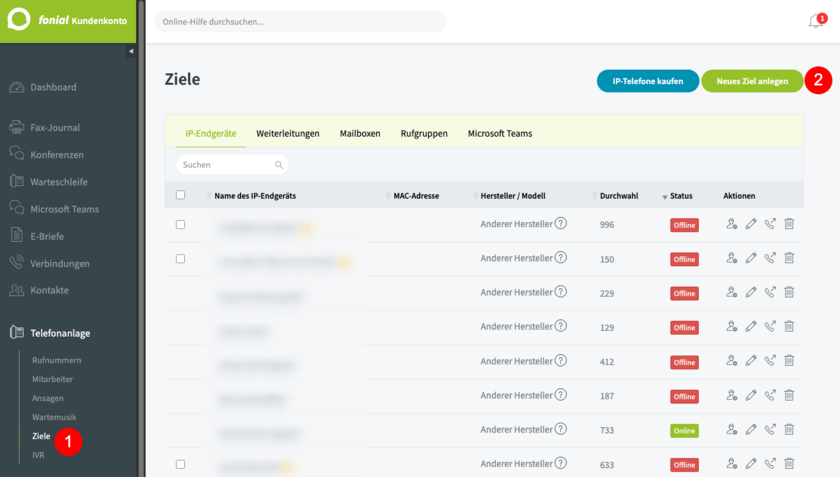
Open Telefonanlage → Ziele to create the forwarding destination.
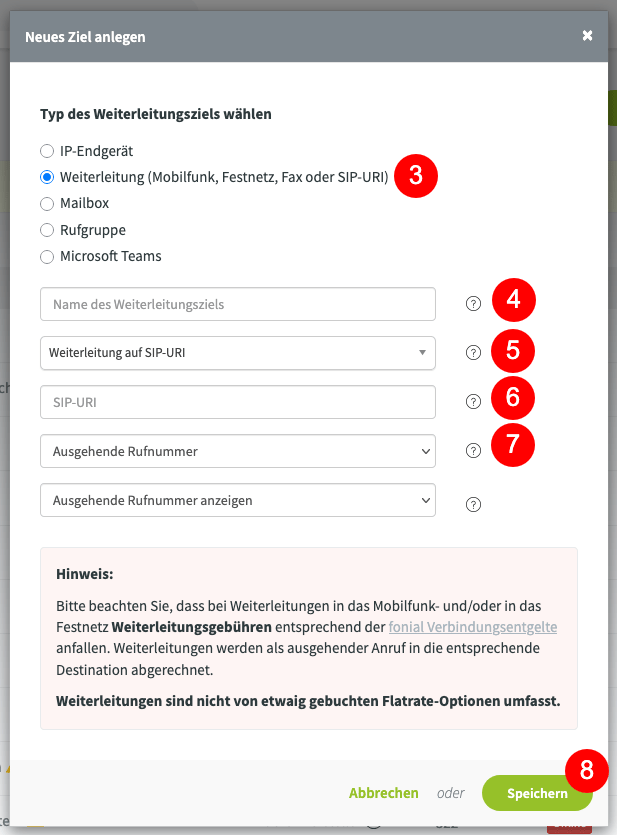
Select SIP-URI forwarding and enter the Famulor destination.
+, confirm the routing format with Fonial before switching a live number.
5. Assign an assistant and test
Assign the connected number to an assistant, then call it externally to confirm the assistant answers.Common issues
SIP user shows Offline
SIP user shows Offline
Expected — see the note above. The platform never registers; inbound calls use the SIP-URI forwarding from step 4, not registration.
Inbound calls don't arrive
Inbound calls don't arrive
Check the SIP-URI forwarding (step 4): correct number format (no
+), the exact Our SIP address copied from the platform (no extra sip:, no whitespace), and the right outgoing number selected on the Fonial destination.Outbound calls fail
Outbound calls fail
Recheck username, password, and
sip.plusnet.de from the Fonial SIP-user credentials (step 2), and confirm the outbound calling number format is set to international with +.