

Background audio
Complete silence sounds artificial on the phone. You can layer in:- Ambient sound — office, city, forest, crowded room, or keyboard typing, with adjustable volume (or your own uploaded audio).
- Thinking sound — a subtle sound while the assistant is thinking — during the LLM wait and while the caller waits for a tool — so processing never sounds like a dropped call. It doesn’t play while a tool with Talk While Waiting runs in the background, because the conversation continues during that time.
Interruption handling
Callers interrupt — good assistants deal with it gracefully.- Allow interruptions — on by default; the assistant stops speaking when the caller talks over it.
- Minimum interruption duration — ignores very short noises so a cough doesn’t cut the assistant off.
- Adaptive interruptions — backchanneling like “mhm”, “okay”, or “right” is not treated as an interruption, so the assistant keeps talking through natural listener feedback but yields to a real interjection. In compatible realtime modes, select Adaptive under Turn detection to use this behavior.
- Resume after false interruptions — in supported modes, the assistant resumes its interrupted output when an apparent interruption produces no transcript during the two-second detection window. This control is disabled when interruptions are off.
Noise cancellation and voice detection
Under Conversation → Latency, Noise & background voice cancellation is a single on/off toggle. It suppresses environmental noise and competing background voices before speech detection, with the appropriate audio model selected automatically for phone or web calls. Browser echo cancellation is separate and remains active independently of this assistant setting. The Custom voice detection threshold control lives under Conversation → Turn taking. It changes how readily audio is classified as speech; it does not filter the audio. Auto uses 0.50 for pipeline and adaptive voice detection. Server voice detection uses 0.50 for web calls and 0.70 for phone calls. Lower values hear quieter speech but may react to noise; higher values reject more noise but may miss soft voices. A live latency waterfall (STT / LLM TTFT / TTS TTFB / E2E) appears only in the studio web-call test panel — never in the public widget.Telecom guidance (ITU-T G.114) targets one-way latency under 150 ms for a call to feel natural — a useful benchmark when deciding how aggressively to tune interruption and VAD sensitivity for your use case.
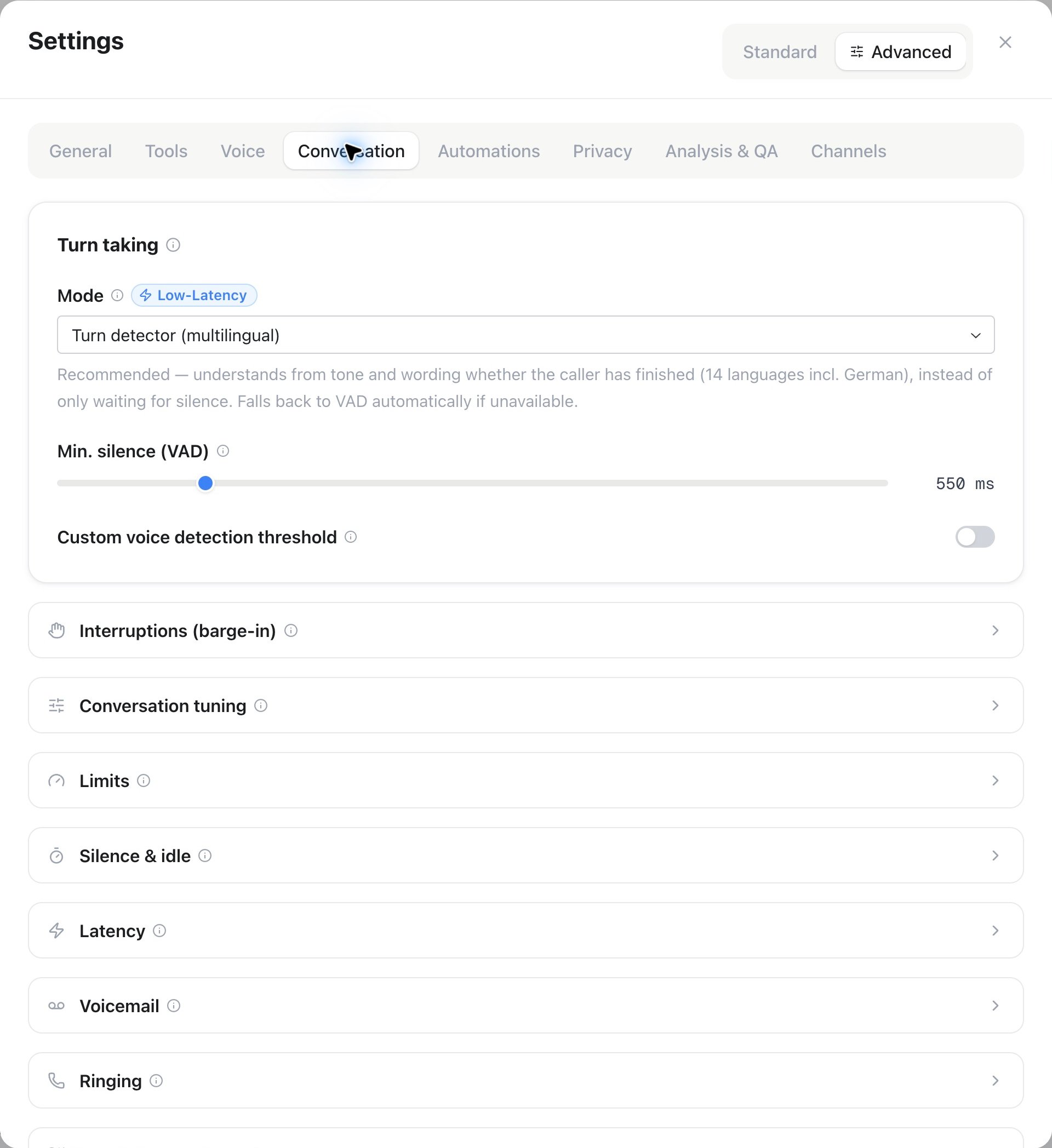
Assistant Settings → Advanced → Conversation: Turn taking contains Mode, Min. silence (VAD) and Custom voice detection threshold.
Filler phrases & async tools
When a tool call (CRM lookup, availability check) takes seconds, the assistant can bridge the gap. For HTTP API tools, you set this per tool under Voice behavior on the Tools page. It applies to voice conversations:- Filler phrase — said when the request starts (“One moment, I’m checking that…”).
- Talk While Waiting — the request runs in the background, so the conversation continues; the result is woven in once it arrives. If the tool has no filler phrase, a default phrase announces the request.
- Talk After Action Completed — on by default: the assistant continues once the request finishes. Turn it off to let the action complete silently; the assistant still receives the result and uses it after the caller speaks again.
Idle handling
Nobody wants a call that hangs forever in silence:- Idle timeout — after this many seconds of silence, the assistant checks in (“Are you still there?”).
- Idle messages — optional fixed phrases for those check-ins; leave empty for natural LLM-generated ones.
- Max rounds — after N unanswered check-ins, the assistant says goodbye and hangs up. This also protects your minute balance.
PATCH /api/v1/assistants/{id} and the MCP update_assistant tool.
Independently, max call duration caps every call: when reached, the assistant wraps up politely and ends the call.
Voicemail
These settings apply to direct outbound calls — from the dashboard, the API, automations and callbacks. They do not change what happens when a call simply rings out unanswered.- Answering machine detection (AMD) — off by default for new assistants. On: before the assistant speaks, the call checks whether a person, a mailbox or a phone menu answered, so people may hear a few seconds of silence before the greeting. Off: the assistant greets as soon as the call is answered, and a mailbox hears the normal greeting. Turn it on where mailboxes are common; keep it off for calls people expect, such as requested callbacks or test calls. With Call Screen handling on, the call still listens for screening services first.
- Leave a voicemail message — needs answering machine detection. On: at a detected mailbox, the assistant speaks a message, then hangs up. Off: the assistant hangs up immediately, leaving nothing.
- Voicemail message — the free-text message spoken via TTS when a mailbox is detected. Keep it short and include a callback number. Leave it empty and the greeting / first message is used instead.
PATCH /api/v1/assistants/{id} and the MCP update_assistant tool.
Campaign calls use their own Answering machine detection (AMD), On voicemail and Voicemail message settings in Campaign Settings. These override the assistant for that campaign. Direct calls use Assistant settings → Conversation → Voicemail. An empty message falls back to the greeting. A message counts as left only when playback finishes. An unavailable mailbox cannot receive a message.
Automatic IVR navigation enables detection and presses menu digits when workspace Beta Features are enabled. With navigation off, an interactive receptionist remains on the normal conversation path. Call Screen handling takes priority. Turning campaign AMD off disables detection unless automatic IVR navigation or Call Screen handling is enabled.
Ringing
Two independent timeouts control how long a call rings before something happens:This is separate from the Call transfer tool’s own ringing timeout, which times a single transfer attempt rather than the original call.
Consent
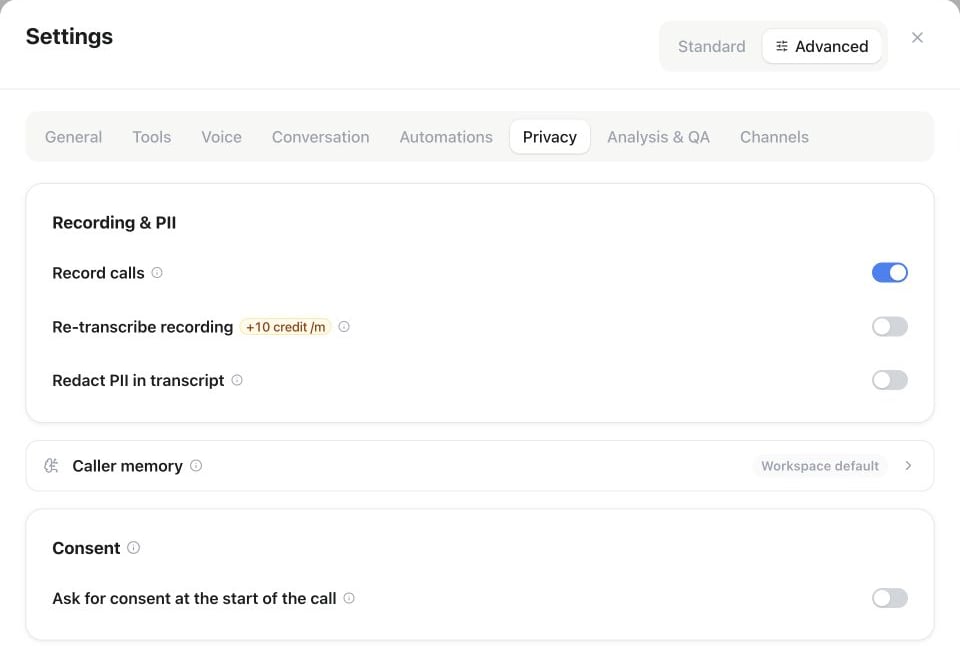
Assistant Settings → Advanced → Privacy: recording and transcript controls are under Recording & PII; the Consent section contains Ask for consent at the start of the call.
- Consent announcement — a configurable message played at call start (pre-generated, zero added latency).
- Consent mode — the caller agrees verbally or by pressing a key (DTMF).
- On decline — either continue the call, or end it politely.
- The consent result is stored with the call, audit-proof.
What the consent covers
One announcement can cover two separate purposes. Tick them independently in the assistant editor:- Recording the call — the recording starts only after consent, never before, and additionally
requires Record calls. Asked on every call, because each recording needs its own permission.
(In API updates, omitting
recording_enabledin aPATCHleaves the setting unchanged, while an explicit boolean updates it.) - Remember callers — a granted consent unlocks that caller’s durable memory, so returning callers are recognised without anyone approving them by hand under Audience → Customer memory. Asked once.
Recording privacy: redaction and re-transcription
Two more controls sit next to recording, under Settings → Privacy.Redact PII in transcript
Selected categories of personal data are replaced with[REDACTED:type] before the transcript is stored — data minimisation, not just display masking. It applies to newly finished calls only; transcripts already stored keep their original text.
Turning it on starts with four categories selected — email address, phone number, IBAN, and credit card number. The full built-in list is much larger, spanning identity, contact, government-ID, financial, security-credential, and health information, and you can select any combination of it. Beyond the built-in categories, add up to 20 of your own named patterns (regular expressions) for anything specific to your business.
Automatic re-transcription
Independently of the manual Re-transcribe action in History, Re-transcribe recording can run for every recorded call automatically. When it’s on, each finished call’s recording is transcribed again with a higher-accuracy engine once the call ends; the enhanced transcript appears in the call’s detail view next to the live transcript. It requires Record calls to be on.Automatic re-transcription bills per recorded minute (rounded up) at the workspace’s Re-transcribe rate; current rates are on the Usage page.
Guardrails
Deterministic safety rails on top of the prompt:- Manipulation → Prompt injection — blocks attempts to bypass or override system instructions (jailbreak detection in the caller’s speech). Available on every plan, on by default; uncheck to opt out (
guardrails.input.jailbreak). - Blocked topics — subjects the assistant must refuse; matched output is replaced by your refusal text (Fallbacks & Guardrails).
- Escalation keywords — if the caller mentions one (e.g. “lawyer”, “emergency”), the platform — not the LLM — triggers an immediate transfer to your escalation number (Fallbacks & Guardrails).
Topic and category filters are enforced in the output path, so they hold even when a clever caller talks the model around its prompt.
Pronunciation & text cleanup
See Models & voices → Speaking style: pronunciation dictionary, markdown/emoji filtering, speaking rate, and output volume.Troubleshooting
Change one setting at a time and re-test with a realistic call — small, isolated changes are much easier to judge than several at once.