

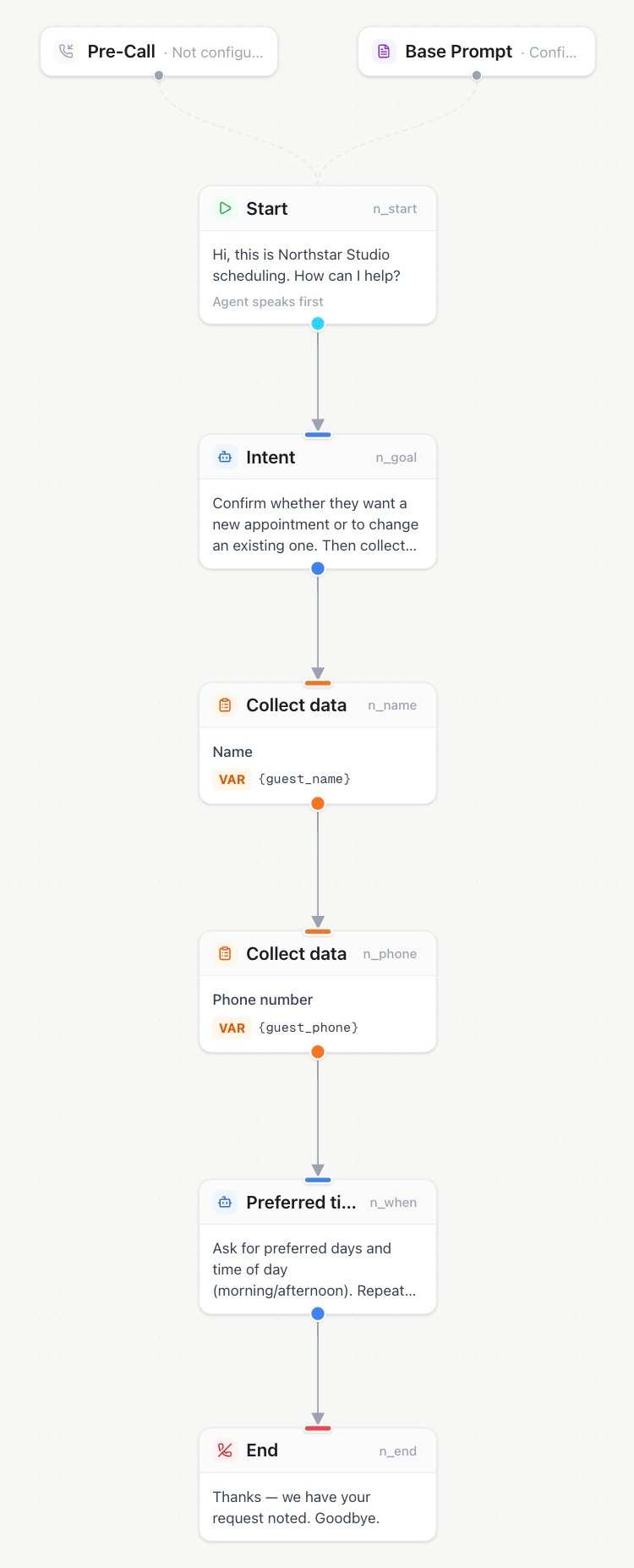
In an assistant’s Flow builder, connect Start to the conversation and Collect data nodes, then finish with End.
Start
Entry point of every flow. Defines the greeting and the greeting mode:agent speaks first— the greeting is spoken as soon as the call connects (typical inbound).user speaks first— the assistant waits for the caller (typical outbound: the callee says “Hello?” first).
Agent
A conversational agent with its own name, instructions, and optional voice override. The conversation stays with this agent until it hands off along one of its outgoing edges.- Each outgoing edge is a possible handoff; the assistant uses its label to decide. See why labels matter.
- Empty instructions use the assistant’s system prompt (Advanced prompt) as the base; node text is appended, not replaced.
- Voice override lets different agents speak with different voices.
Condition
A forced decision point. You write a description of what is being decided; the assistant must choose exactly one outgoing edge based on the edge labels. Use it when routing must happen immediately.Tool
Runs a reusable API or built-in tool during the conversation and gives the result back to the assistant. The node only selects the tool: its endpoint, credentials, description, timeout, and voice behavior are managed once on the Tools page and apply wherever the tool is used.
Turn on Force tool call only when this step must always run the tool. Make sure every required input is already known, and add an error or fallback path for this node.
With secondary languages configured, saved tool announcements use the text as guidance in the caller’s current supported language. See filler phrases and async tools.
Transfer (blind)
Immediately transfers the call to a phone number or SIP URI (SIP REFER), optionally after a short announcement. The assistant leaves the call; there is no briefing of the receiving person.Warm transfer
The premium handover: the caller is put on hold music, the assistant dials the target (an employee), briefs them with an AI-generated summary of the conversation so far, and only then connects both parties. The employee can accept or decline; voicemail at the target is detected.
Opening and approval: The assistant waits for the supervisor to speak before its initial message. If the briefing initial message is empty and summary instructions are configured, those instructions control the opening. A generic introduction is used only when both are empty. Agreeing to hear a briefing does not approve connecting the call: the assistant must finish the caller summary and ask for permission to connect, then receive a new affirmative reply. An interrupted briefing must be completed before connecting.
For example,
wwww1234#wwww waits two seconds, dials extension 1234 followed by #, then waits another two seconds before the briefing. These are fixed pauses: the sequence cannot detect when a phone menu or extension is ready. Leave it empty for direct numbers, or use a direct extension through Custom SIP when available. In a flow, configure this on the assigned warm-transfer tool in Tools.
Warm transfer outcomes (started / completed / failed) are recorded as call events. After failure, the AI always receives the provider-neutral failure status. It receives supervisor notes only when sharing is enabled and the supervisor actually spoke.
Collect
Structured data capture with built-in validation, re-asking, and confirmation — far more reliable than hoping the LLM transcribes an email address correctly.- Types:
name,email,phone,address,date of birth,dtmf(digits via keypad or spoken aloud),credit_card(payment card). - Variable (required): the result is stored under this name and included in the
call.completedwebhook. - Prompt: optional extra instructions on top of the built-in dialogue.
- Max attempts (default 3): after final failure, the flow takes the edge labeled
failedif present. - Input length (
dtmf): choose an exact length or collection until the stop key. DTMF digits is the exact count or maximum (1–32); Minimum digits applies to stop-key mode. Existing nodes stay exact unless changed. - Timeout and stop key (assigned Collect Keypad Input tool): one total deadline of 5–120 seconds and submit key
#or*. Exact mode needs the fixed count; stop-key mode accepts submission after the minimum or finishes at the maximum. The stop key is not included in the result. Default: 30 seconds, including the prompt; saved timeouts stay unchanged. - Payment card: requires the Collect payment card tool and an eligible connected Stripe account. During the call, payment details are collected securely. Only a reusable payment-method reference and non-sensitive display details are retained; the full card number and security code are never stored. Connect Stripe under Tools → Agent Connectors first.
DTMF
Sends a sequence of keypad tones from the assistant to navigate an external IVR or phone menu. Assign a DTMF Input tool and configure the tones on the Tools page (0–9, *, #, or A–D, up to 32 characters). A flow node needs a configured sequence; after sending it, the flow follows the outgoing edge.
End
Terminates the call, optionally speaking a farewell first. Always give your flows explicit endings — it produces clean call statuses and prevents the conversation from drifting after its job is done. With secondary languages configured, a saved farewell guides a message in the caller’s current supported language. Without secondary languages, it keeps its existing delivery behavior. An empty Flow farewell lets the assistant generate a brief goodbye if none was just spoken; unlike the built-in End call tool, it is not a silent-hangup setting.Central Tool Library
Add node opens a searchable Tool Library. Reusable settings remain managed on the Tools page:
Use Edit in Tools to change reusable settings. The change applies to every assistant and flow that uses the tool.
Tool, transfer, warm-transfer, Send DTMF, and keypad-collection nodes select a reusable tool from the Tools page. If a selected tool becomes unavailable, the node follows its configured path and the call details show the issue.