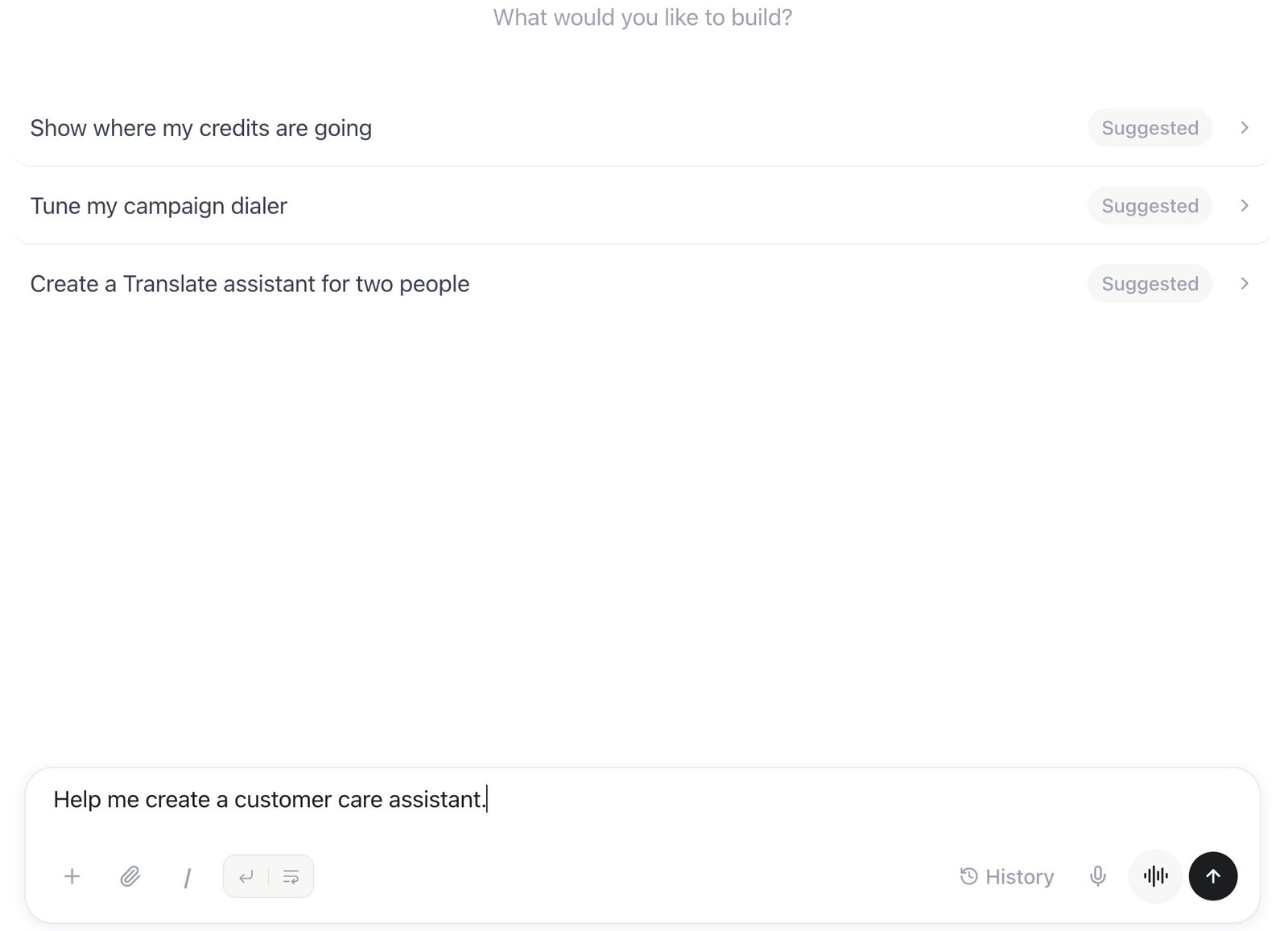
In-app AI that builds and edits assistants in your workspace
Milian is the workspace copilot built into the dashboard and assistant editor. Use it to create, explain, and improve your workspace configuration.To connect an external AI application such as Claude or ChatGPT, use the MCP endpoint.
Single prompt — a standalone instruction with no saved conversation flow
Conversational flow — built on a saved or existing flow; the flow’s Advanced / base system prompt applies to agent steps
Translate — live interpretation between a host and a guest. Ask Milian to create a Translate assistant, choose both languages and voices, and manage its room. Translate requires your plan’s support and uses its own settings; recording and asking both speakers for consent are separate choices.
Milian isn’t limited to writing prompt text — describe what you want in plain language from the assistant editor:
Tone and content changes — “make the greeting friendlier,” “add our 30-day return policy,” “add a rule for handling angry callers.”
Troubleshooting — describe what’s going wrong (“calls sound cut off at the start,” “it keeps re-asking for the phone number”) and Milian proposes a fix to the prompt, flow, or settings.
Configuration for your use case — ask which engine mode or settings fit a scenario such as sales, support, or appointment booking, and Milian recommends a starting configuration.
You don’t have to start from a blank prompt either: pick a use-case template when you create the assistant, then ask Milian to adapt it to your business.
Be specific and make one change at a time — “mention a 10% discount for new customers” works better than “add discount info,” and small, testable edits are easier to review than a full rewrite.
When Milian needs a decision or a missing detail, it asks with a question card that takes the place of the message box:
Pick an answer — a click sends it. Some answers carry a short explanation; select Show more to read all of it.
Type your own answer — the field at the bottom of the card always works, for example for your website or a phone number.
Several questions appear one at a time. Go back with the arrow or Skip a question; your answers are sent together after the last one.
Close the card with ✕ to write freely instead. Answer now in the chat opens it again. A message you type instead of answering counts as your reply.
Answered questions stay in the chat with your answer ticked. Before an action that costs credits or reaches people — for example buying a phone number — the card names the price or effect, and your click counts as your go-ahead.When Milian builds a new assistant, it also asks which engine to use. The card lists only the engines your plan includes. If Full Duplex is available in your workspace, Full Duplex (Beta) comes first as the recommendation and shows its extra credits per minute. Milian skips the question when you already named an engine. If you tell it to use defaults, it uses Pipeline when your plan includes it.For a longer setup, such as your first assistant, Milian shows a Step 2 / 4 indicator above the message box. Select it to see every step and which one is in progress.
Milian can look up free times, book an appointment for a named customer, find a customer’s existing bookings by name, email, phone, or date, and reschedule or cancel — directly, without going through the general tool dispatcher.In chat, before booking, moving, or cancelling anything, Milian recaps who, what, and when in your workspace time zone and waits for your explicit yes; nothing is sent to a customer without that confirmation. When a customer match is unclear, Milian asks which one you mean instead of guessing. After a successful change, the calendar and appointments list update on their own — see Live updates.Scheduled Milian Missions work differently: with nobody there to say yes, a mission can book or move an appointment on its own, capped at 5 changes per run, always on a real open time — a mission never books outside an event type’s open hours and never cancels an appointment unattended.Milian normally only offers and books real open times, the same as the public booking page. If you ask for an exact time outside an event type’s open hours, Milian says so, and its recap tells you the time is outside the open times before it books it — only after you confirm that exact time. This override is available only in chat, never in a scheduled Milian Mission.
Milian can review your workspace’s calls on its own, spot patterns and conversion bottlenecks, and save the complete analysis as an Excel file directly to your Google Drive — no manual export needed.
Ask Milian to build any of these as a one-off task or as a recurring Milian Mission:
Daily executive call summary — review every call logged today and summarize volume, success rate, sentiment, average duration, and notable calls or errors.
Outbound campaign progress digest — check all running campaigns and report leads, calls made, completion rate, and progress toward the goal.
Win-back messages for inactive customers — scan booking history and send a friendly WhatsApp message to customers who haven’t returned in a while.
Appointment reminders — check upcoming bookings and message each customer shortly before their appointment starts.
Waitlist auto-fill — when a booking is cancelled, offer the freed slot to the next matching customer on the waitlist.
Post-appointment review requests — after a booking is completed, thank the customer and ask for feedback, in the language they used.
Resume a paused campaign automatically — check outbound call limits and restart a paused campaign once they reset.
Phone number availability watch — monitor the marketplace for a specific area code and notify you the moment a number becomes available.
These are starting points, not a fixed list — describe your own workflow to Milian and it will propose how to build it.
Milian remembers what matters across chats so you don’t have to repeat yourself. There are two scopes:
Personal — private to you in this workspace: your preferred language, your role, how you like Milian to communicate.
Shared workspace — facts about the business that every member’s Milian knows: company name, website, industry, what you sell, locations, opening hours, timezone, the tone your assistants should have, a fixed e-mail for call reports, house rules for prompts (for example “no emojis”). Only editors can change shared facts.
Milian is deliberately selective: it keeps stable facts you state or confirm and skips one-off task details, anything your workspace inventory already lists, phone numbers, secrets, and caller data. Every fact expires 180 days after it was last confirmed.Under Settings → Milian you control two switches and see everything Milian remembers:
Search and reference chats — lets Milian look up details from your own earlier chats (kept for 10 days) when you refer to another conversation.
Generate memory from chats — lets Milian distil durable facts automatically after a conversation. Switched off, Milian only remembers what you explicitly ask it to.
Delete a single fact with the trash icon, or clear your personal memory at once. You can also just tell Milian — “forget the opening hours” or “remember that we’re closed on Mondays”.
This is Milian’s own memory of your workspace. It is separate from caller memory, which is what your assistants remember about the people who call them.
Milian’s edits land directly on the assistant canvas — the prompt, greeting, or flow updates as you chat. Read through the result before you click Save; nothing is written to the live assistant until you save.
Milian can help you create and edit your own assistant prompts. Internal operating instructions and skill files are not available for export. Retrieved documents, messages and saved memories do not grant permission to change your workspace or skip an approval.Public web research uses an isolated research specialist when it is available for your workspace. Public web research is not available during unattended missions. Milian will tell you when current external evidence is unavailable.
Starting voice chat also enables page context: Milian can read visible text and controls on the current application page without a browser screen-sharing dialog. Field values, editable text, images and embedded pages are omitted. Select the eye icon in the voice controls (Pause page context) to stop this, and select it again (Resume page context) to turn it back on. While you share your screen, the eye icon is dimmed because page context is paused. Page context follows navigation within the workspace and pauses while the tab is hidden. After you approve Share screen in the browser dialog, the selected screen replaces page context. Cancelling the dialog keeps page context unchanged. When screen sharing ends, page context resumes unless you paused it. Ending voice chat stops both modes. Context updates do not start a new conversation turn.Enable Beta Features in your workspace, then choose Start voice chat next to the message composer on the dashboard or in the Milian side panel. Voice and screen help use workspace credits. The existing message composer switches to voice controls while the conversation stays visible. You can mute your microphone, type while talking, and use action cards in the chat. Choose Share screen and select a tab or window when you want visual help. Whenever your question needs screen context, Milian takes a fresh look at the shared screen, so it also sees a tab or window you switched to. Screen updates do not interrupt a task in progress. You can answer clarification cards by speaking or selecting options. Milian is instructed to keep the conversation language unless you ask to change it. If speech is misinterpreted, you can explicitly ask Milian to return to your preferred language. Stop sharing at any time, and choose End voice chat to release the microphone and return to the text composer. Transcripts and tool results join your chat history; raw audio and screenshots are not stored as attachments. Your plan controls availability and the session limit. Regional processing settings may make voice unavailable.The orb above the composer responds to the microphone while listening and to Milian’s audio while speaking. Milian uses a clear male voice. Replies are designed for conversation: short explanations, one question at a time, and brief progress updates for longer tasks. Ask Milian to slow down, change tone or explain more. Working… means a task is still running after a spoken update.When you navigate to another page in the same workspace, the conversation continues in the side panel. A full page reload ends the audio connection: your chat and panel position are restored, and you can explicitly restart voice. If an interrupted connection remains, use Restart voice chat or End voice chat. Switching workspaces ends the current voice connection and loads only the selected workspace’s own conversation and panel state. Each workspace has separate history and credits.Temporary connection problems trigger up to three automatic reconnect attempts within the remaining session time. The selected chat stays open and the microphone mute setting is preserved. Screen sharing stops on disconnection and must be selected again. Milian does not automatically repeat tool actions. Automatic reconnection pauses if an action was still running when the connection ended or its result could not be saved. Check the conversation and workspace before requesting the action again. If reconnection fails, you can restart voice manually. Usage from each connection is charged to the same workspace.For certain temporary internal voice-service errors, Milian can reconnect using a backup voice model. The conversation, remaining session time, and completed actions are retained. Completed actions are not automatically repeated; credits continue to be charged for actual usage.
Milian can configure all nine node types, tool bindings, speech settings, transfer announcements and fallback, keypad collection, call screening, positions and connection rules. Existing tool assignments and unchanged graph settings are preserved. Individual node edits in the open editor merge into the current draft; save the draft to publish those changes. Configuration alone does not verify a real call or external integration.
When a connected app or MCP tool returns a supported list of records or spreadsheet rows, Milian can show the result as cards or a table. Search, sort, switch between returned sheets, expand the view, or download the filtered preview as CSV. These controls work with the existing result and do not run the action again. Simple confirmations and unsupported results keep their normal chat presentation.Previews show up to four result sets, with 100 rows, eight columns and 600 characters per cell in each set. A notice identifies limited previews. Connected-app cards show the status recorded when the result was returned; open Connections to manage or refresh a connection.