

Voice notes and image analysis
When a connected channel supplies an accessible audio attachment, the assistant transcribes the speech and uses it as message text. For images, image analysis creates a short description of what the customer sent, including readable text where possible. The assistant uses that description in its reply. This also applies to audio and images attached to messages in connected mailbox and support channels, such as Zoho Mail. The reply follows the channel’s normal text or email format.- The first 5 attachments per message can be processed, with a maximum of 10 MiB per attachment.
- In History, an audio attachment shows its transcript when transcription succeeds and a player when the audio is available. The transcript remains readable if playback is unavailable.
- Images appear in History with their available descriptions. Descriptions summarize photos or screenshots; they are not a complete OCR export. PDFs, videos and other files are not analyzed by this attachment feature.
- The channel must include the attachment or allow the connected account to download it. A filename, private preview, or inaccessible link alone cannot be transcribed. Audio and image format support and access permissions can vary by channel.
- If a file cannot be downloaded or analyzed, the message keeps its attachment information without a transcript or description; the assistant cannot use the unavailable content.
GET /api/v1/history/messaging/{id} or the MCP tool get_messaging_history_item. Obtain the conversation ID from GET /api/v1/history or list_history. Media links expire after one hour; fetch the conversation again to refresh them. Conversation detail includes up to 500 messages in chronological order.
Tools (voice parity)
The assistant can use the same text-safe tools as on voice:- API tools (HTTP)
- MCP tools (workspace + assistant servers)
- Knowledge base search
- Calendar integrations (built-in engine / Cal.com / Calendly / Acuity / eTermin / HighLevel / meetergo)
- Built-ins: current time, business hours, send SMS, send email, schedule callback, set variable
Prerequisites
- Your plan includes the channel you want to connect (Telegram, Slack, Messenger, Teams, Discord, Google Chat, X, WhatsApp text / WhatsApp voice).
- If a provider requires a webhook, use the exact URL shown after you connect the channel. Verified custom domains are supported automatically.
Connect (product UI)
Channels you have not connected yet are listed under Settings → Channels → All channels. Once connected, a channel also appears in the Settings menu. Settings → Channels → Telegram / Slack / Messenger:- Pick an assistant.
- Connect with one-click where available (Add to Slack, Connect with Facebook) or paste bot credentials manually.
- Configure conversation settings (below).
- Save — Telegram webhooks are registered automatically; Slack/Messenger BYO need the shown webhook URL in their developer consoles. One-click installs require no URL copy.
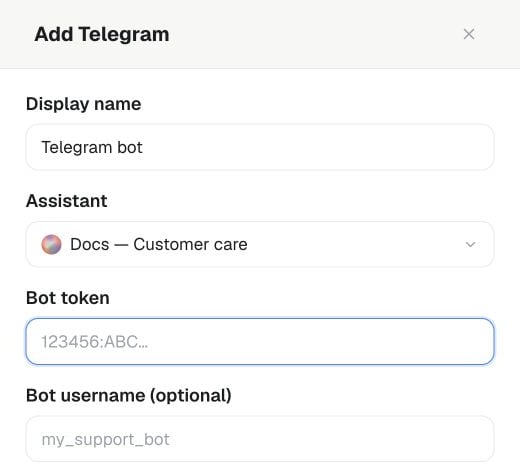
Settings → Channels → Telegram → Add: enter a Display name, choose the Assistant and provide the bot credentials in the connection form.
Slack — Add to Slack
Preferred onboarding (platform domain / root workspaces only — not whitelabel hosts) uses the shared Famulor Slack app:- Settings → Channels → Slack → Add to Slack
- Approve the requested Slack permissions.
- Return to the channel settings and confirm the connection is active.
GET/POST /api/v1/slack/oauth · MCP: get_slack_oauth_config, start_slack_oauth.
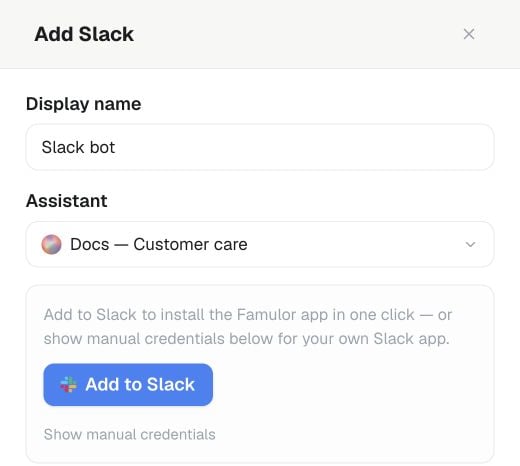
Settings → Channels → Slack → Add: choose the Assistant and select Add to Slack to open the authorization flow where one-click connection is available.
Messenger — Connect with Facebook
Preferred onboarding (platform domain / root workspaces only — not whitelabel hosts) uses the same platform Meta app as WhatsApp:- Settings → Channels → Messenger → Connect with Facebook (HTTPS required)
- Approve the requested permissions and select a Facebook Page.
- Return to the channel settings and confirm the connection is active.
GET/POST /api/v1/messenger/facebook-login · MCP: complete_messenger_facebook_login.
Conversation settings
Applies to every text channel: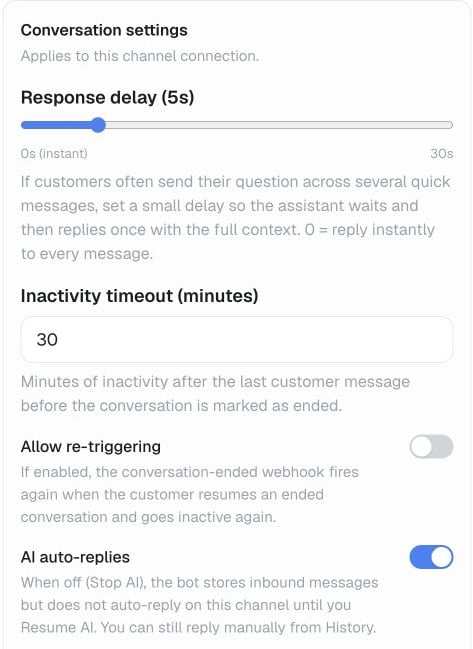
In the channel connection, open Conversation settings to set Response delay, Inactivity timeout, Allow re-triggering and AI auto-replies.
Conversation ended webhook
Three things send aconversation.ended delivery:
- Inactivity — the inactivity timeout above elapses with no new customer message (checked about once a minute).
- Manual — someone selects Actions → End conversation on an open conversation in History.
- Test — you select Test webhook in the connector’s settings; this always sends a realistic example payload, whether or not a real conversation has ended yet.
reason is inactivity, manual, or test. conversation, connector, assistant, transcript, and analysis are repeated at the top level of the payload too, for older receivers built against that flat shape instead of the data envelope. Inside analysis, only the parts you enabled on the assistant are present — sentiment, success plus its reason, and a data map of your own extracted fields; see Analysis for the full shape.
Configure the target in the Conversation ended webhook URL field above, or with PATCH /api/v1/messaging-connectors/{id} / update_messaging_connector — each channel connector carries its own URL. To send a delivery again after the fact — for example once a re-evaluation changed the analysis — use Resend webhooks on the conversation in History.
Beta connectors
Ten additional channels connect the same way, once your workspace turns on Beta Features under Settings → Workspace: Freshdesk, Gmail, Outlook, Zendesk, ServiceNow, Intercom, Zoho Mail, AgentMail, Instagram, and Zulip. Their entries stay out of Settings → Channels until Beta Features is on. Instead of pasting a bot token or app secret, you connect these through Famulor’s OAuth connector flow: sign in to the account once, and Famulor keeps the connection alive. Beyond the conversation settings every text channel shares, a Beta connector can add:Billing
Sending and receiving messages on Telegram, Slack, Messenger, Teams, Discord, Google Chat, X, and the Beta connectors costs credits per message, at the workspace’s Messaging (sent) / Messaging (received) rate — the same rate WhatsApp text uses. Current rates are on the Usage page; see also How usage is billed.Platform apps you create
Copy the connector-specific webhook URL shown in Settings → Channels. Telegram configures this automatically after you save.
Public API & MCP
- REST:
GET/POST /api/v1/messaging-connectors,PATCH/DELETE /api/v1/messaging-connectors/{id},GET /api/v1/messaging-connectors/{id}/watch-options(Gmail labels / Outlook and Zoho Mail folders),POST /api/v1/messaging-connectors/{id}/ended-webhook-test - Slack OAuth:
GET/POST /api/v1/slack/oauth - WhatsApp templates:
GET/POST /api/v1/whatsapp/templates - WhatsApp outbound voice:
POST /api/v1/calls/whatsapp-outbound - MCP tools:
list_messaging_connectors,list_messaging_connector_watch_options,create_messaging_connector,update_messaging_connector,delete_messaging_connector,test_messaging_ended_webhook,get_slack_oauth_config,start_slack_oauth, plus WhatsApp template/call tools - OpenAPI tag: Messaging / Calls
- Text: WhatsApp Business chat, when included in your plan.
- Voice: WhatsApp calling on the same connection, when included in your plan — see WhatsApp Voice.
- Templates:
GET/POST /api/v1/whatsapp/templates(+ MCP tools). - Outbound voice:
POST /api/v1/calls/whatsapp-outbound.
SMS
A workspace number that is SMS-capable and has Allow outbound SMS enabled can send text through the built-in Send SMS tool — from an assistant mid-call or mid-chat, or as an automation step (for example, a confirmation after a call ends, or an appointment reminder). See SMS for which numbers qualify and the send API. A few practices keep SMS useful instead of annoying:- Keep messages short and to the point — SMS has no rich formatting, and it’s billed per 160-character segment (70 if you use emoji or accented characters), so length costs money.
- Include opt-out instructions where local law requires them.
- Send a test message to yourself before turning a template loose on a full campaign.
- Keep an eye on SMS spend under Usage, especially after changing a template or targeting a new country.
Message labels
New incoming messages can receive a Possible scam label. Unsolicited sales pitches, SEO offers and paid award promotions in email can receive Advertising. Labels appear beside the message and in the History list after background processing. These are advisory hints and may be wrong. Messages remain visible, replies continue as usual, and no message is moved, deleted or marked as spam in a connected mailbox, including Gmail. No label does not mean a message is safe. Booking and customer enquiries should remain unlabelled. Workspace owners and admins can switch Message labels on or off in Settings → Workspace, when included in their plan. Changes apply to new messages; existing labels remain. Members with write access can dismiss an incorrect label in the message details. History API responses and the history MCP tools include active labels. Usedismiss_inbox_label to dismiss one, and get_inbox_label_settings / update_inbox_label_settings to manage the workspace setting.