

Setting the primary language
The primary language sets the assistant’s default spoken language. Engines with separate speech recognition also use this setting to configure recognition. Choose the language you want the assistant to speak by default.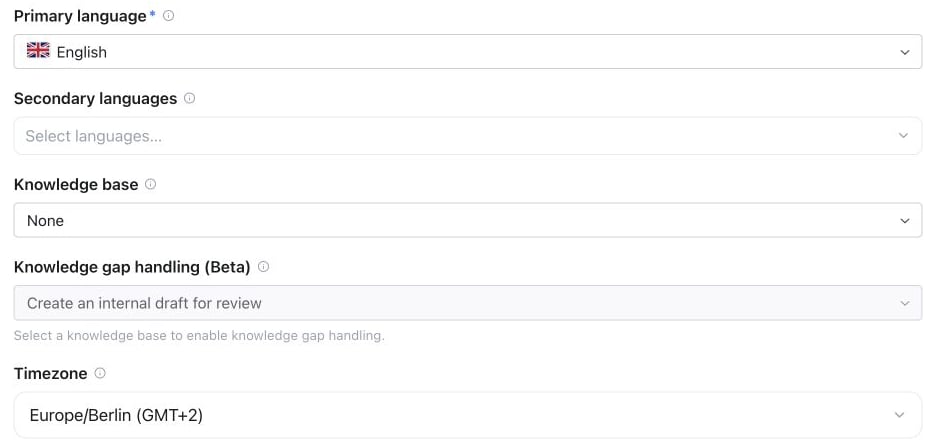
Assistant Settings → Advanced → General: set Primary language, then use Secondary languages to allow additional languages.
Multilingual assistants
To allow automatic language switching:- Set the primary language as the default.
- Add a secondary language different from the primary language. Switching is enabled only while a distinct secondary language is configured, and is limited to the selected languages.
- For engines with separate speech recognition, choose a multilingual recognition model that supports those languages.
- Optionally choose a voice per language where the engine supports it. The assistant uses the matching voice when switching to an allowed language.
Switching the editor view to Voice per language does not change the assistant by itself. Choose a voice for a language to save an override; languages without one keep the assistant’s main voice.
Languages and voices
Each voice can speak a specific set of languages. The editor only offers primary and secondary languages the assistant’s voice can speak, and the voice library can be filtered by language. The same rule applies when you save in the dashboard, through the API or through MCP. For Pipeline and Half-cascade assistants, the primary language, the secondary languages and every language with its own voice must be languages the voice can speak:- A new assistant is checked in full. If you create it without choosing a voice, a default voice that speaks the primary language is selected automatically.
- An existing assistant is checked in full when you switch to a voice from a different voice provider, or switch the engine to Pipeline or Half-cascade. Otherwise only the languages you add are checked: choosing another voice from the same provider keeps the current languages, and unrelated edits keep working. If the platform has to replace a voice that is no longer available, the current languages are kept as well.
- Restoring an earlier version follows the same rule.
- Realtime, including Full Duplex, speaks with its native voice and isn’t affected.
German (Switzerland)
Choose German (Switzerland) to request Swiss German (Schweizerdeutsch). This is a dialect preference within the language selector; no separate region setting is required. German continues to request standard German.- Pipeline and Half-cascade: recognition uses German while response instructions request Swiss German. Choose a voice suited to Swiss pronunciation and listen to a test conversation; a German-speaking voice does not guarantee a Swiss accent.
- Realtime, including Full Duplex: the model receives dialect instructions with the selected native voice. Dialect consistency and regional pronunciation depend on that model and voice.
- Translate: uses its own source and target language list. This option does not add Swiss German to translation engines.
gsw. de-CH remains a standard-German locale and is not an alias for this dialect option. List enabled choices with GET /api/v1/languages, MCP get_languages, or famulor list-languages. Set the language with PATCH /api/v1/assistants/{id} using {"primary_language":"gsw","secondary_languages":["en"]}, or the same fields in MCP update_assistant.
Regional prompt examples
For the regional variants below, select the existing base language and add the matching example to your assistant’s instructions. These are prompt preferences, not additional language-selector options. The examples are written in the intended spoken language and are starting points to adapt to your business.What the settings handle automatically
The platform combines its language policy with your assistant’s instructions for the model. Keep them consistent: a regional prompt does not enable an unselected language or override the configured language list. If you allow secondary languages, apply each regional preference only when speaking its matching language.
German (Austria)
German (Austria)
Select: German.
Bavarian
Bavarian
Select: German.
French (Quebec)
French (Quebec)
Select: French.
Portuguese (Portugal)
Portuguese (Portugal)
Select: Portuguese.
Portuguese (Brazil)
Portuguese (Brazil)
Select: Portuguese.
English (United Kingdom)
English (United Kingdom)
Select: English.
Spanish (Mexico)
Spanish (Mexico)
Select: Spanish.
Arabic (Egypt)
Arabic (Egypt)
Select: Arabic.
Check the result with your engine
- Pipeline and Half-cascade: the prompt shapes the generated wording. The selected speaking voice strongly influences accent and pronunciation; choose a suitable voice or per-language voice where available.
- Realtime, including Full Duplex: the native speech model receives the regional direction in its instructions. The outcome depends on the model and selected voice.
- Fixed greetings and recordings: write the desired wording into fixed scripts. Prompt edits do not rewrite uploaded recordings.
Full Duplex pronunciation and prompts
Full Duplex is guided to use natural, neutral pronunciation and rhythm in the configured spoken language by default. Explicit regional or name-pronunciation instructions in your prompt are respected. It does not automatically imitate the caller’s accent, and no particular accent is guaranteed: results still depend on the selected voice and the model’s support for the language. Write the prompt and spoken examples in the intended primary spoken language where possible. For example, for a German-speaking assistant:API and MCP
The same language and voice settings are available throughPATCH /api/v1/assistants/{id} and the MCP update_assistant tool. Use GET /api/v1/languages to list supported ISO 639-1 / ISO 639-3 language codes; see the API reference for the request fields. Through the REST API, a rejected change returns 400 with the error code invalid_request; the MCP tools return the same message as a tool error.
Pronunciation across languages
The pronunciation dictionary applies to TTS speech, including supported languages and per-language TTS voices. Workspace administrators can define a default map that merges with per-assistant entries. The dictionary does not currently apply to native Full Duplex speech. For native speech, add explicit pronunciation instructions for names or brands to the assistant’s prompt.Post-call summary language
The Conversation Summary on a call detail is always written in the assistant’s primary language — not in the language the call was held in. A German assistant that took a call in English still gets a German summary, so a history list stays readable in one language. Re-evaluating a call (History → Re-evaluate) uses the same rule. Everything else stays in the original language: the transcript, recordings, and extracted analysis fields are never translated.When you change the primary language, only new summaries follow it. Use Re-evaluate on an older call to regenerate its summary in the new language.
Documentation vs. call language
Note that the platform UI language and the assistant’s call language are independent: your team can operate an English dashboard while assistants speak German to customers, and vice versa.The language catalog includes two-letter codes and three-letter codes where needed, such as
ceb for Cebuano. Available choices depend on both the speaking model and speech recognition. A language in the catalog is not supported by every model; check the choices shown for your assistant. Voice quality, accents, and supported writing systems can vary by language.