

Every endpoint on this page requires API Access plus an API key created in your white-label workspace with the
platform:read or platform:write scope and an owner or admin role. Results are always limited to your own customer workspaces. A key issued for a customer can use the REST API only while that customer workspace also has API Access; issuing or revoking a key does not grant the capability.Get platform users
GET /api/v1/platform/users lists your customers, newest first. Paginate with limit / offset (see pagination) and search by name or email with q.
Register a platform user
POST /api/v1/platform/users creates a new customer account and workspace on your behalf. Two modes:
invite(default) — no password required. The account is created without credentials; pair it with a login or token call below to actually get the customer (or your own frontend) into it.password— you choose an initial password (8+ characters) for the customer up front.
409 — the message never reveals whether that account is inside or outside your own scope.
The registration response includes welcome_credit with status, requested_credits, and granted_credits. This lets your onboarding UI show whether the one-time welcome credits were granted or need a later manual transfer.
This is an authorised operator action. It remains available when hosted self-service registration is disabled.
Configure registration and prepaid defaults
GET /api/v1/platform/default-limits returns the independent self-service-registration and prepaid-access controls, the prepaid extra-minute price in EUR, and the default limits for prepaid customer accounts. PATCH updates any subset of those settings.
get_platform_default_limits and update_platform_default_limits in the platform toolset.
Configure welcome credits
GET /api/v1/platform/welcome-credits returns the configured one-time amount, whether prepaid accounts and automatic grants are active, your current wallet balance, and the estimated number of new customers you can currently fund. PATCH updates the amount for future customers; 800 credits is the recommended starting point, and 0 disables automatic grants.
Log in a platform user
POST /api/v1/platform/users/login authenticates a customer with their own email and password and returns an access token on success. Use it to build a login form on your white-label platform instead of sending customers to the hosted login page. Failed sign-ins return the same generic 401 response and do not reveal whether an account exists.
Create a user token
POST /api/v1/platform/users/{user_id}/token creates an API key for a customer without needing their password — useful for a dashboard, onboarding flow, or approved automation acting on the customer’s behalf.
scopes grants full access for that customer, not just the scopes your own operator credential happens to have.
Log out a platform user
POST /api/v1/platform/users/{user_id}/logout revokes the customer’s active API keys and OAuth tokens in your customer scope. Use it to force a sign-out after an account is compromised or your relationship with that customer ends. Repeating the request is safe.
Transfer balance
POST /api/v1/platform/users/{user_id}/balance moves credits between your workspace balance and a customer’s:
- Positive
credits— grants credits from your wallet to the customer (the standard way to provision a customer account). - Negative
credits— reclaims credits back from the customer into your wallet.
Custom payments
Custom payments let you charge one of your customers outside their regular plan — a one-off setup fee, a support invoice, or a bespoke recurring add-on you don’t want to model as a plan. Two types:- One-time — a single charge for a fixed amount.
- Subscription — a recurring charge on an interval you choose (day/week/month/year), with an optional trial.
charge_saved_method— bills the customer’s card on file immediately. Fails if they have no saved card, or if the card needs an authentication step your customer must complete themselves (useinvoiceorpayment_linkinstead in that case).invoice— creates a hosted invoice, due indays_until_duedays (default 14), and e-mails the customer a link to pay it.payment_link— creates a payment link and returns its URL. The link is single-use (it stops accepting new payments once completed) but does not expire on its own — share it whenever you’re ready.
amount_minor is the unit price in the currency’s smallest unit (e.g. cents); the total charged is amount_minor * quantity. Automatic tax calculation is applied whenever it’s available for your billing account — this requires the customer to already have a billing address on file; otherwise the request fails with guidance to add one first (or pass automatic_tax: false to skip tax calculation for that payment). The currency must match the customer workspace’s own display currency once it has been set — you cannot bill an existing customer in a second currency.
GET /api/v1/platform/users/{user_id}/custom-payments lists a customer’s payments plus create-time context (their resolved workspace, available currencies, saved payment methods, and whether automatic tax is available). GET /api/v1/platform/custom-payments lists across every customer in your scope, filterable by status, kind, channel, and a search (q) that matches the payment description and the customer’s e-mail.
invoice and payment_link channels (off by default for charge_saved_method, since a card charge already gets a receipt) — override with notify_customer. The e-mail uses your own sender and branding, exactly like every other customer-facing e-mail on your platform.
A payment moves through statuses such as pending, open, paid, active / trialing (subscriptions), past_due, canceled, void, uncollectible, and expired. GET /api/v1/platform/custom-payments/{payment_id} returns the current status, amounts, and hosted link. Use POST on the same endpoint to act on it:
immediately (boolean, optional) only applies to the cancel action on a subscription: true cancels it right now, false/omitted cancels at the end of the current period. It has no effect on one-time invoices/payment links or on any other action.
Canceling or writing off a payment is not reversible through this API.
Limitations: there is no refund action — issue refunds from your payment-account dashboard directly. Each payment is a single line item (no discounts, coupons, or multiple line items), and an existing subscription’s price cannot be changed in place — cancel it and create a new one instead.
The equivalent MCP tools are list_custom_payments, get_custom_payment, create_custom_payment, and run_custom_payment_action in the platform toolset — see MCP below.
Manage API keys
To create the workspace credential used below, open Settings → API & MCP in the reseller workspace. Scroll past the MCP connection cards to Create a new API key, enter a name, and select Create key. API Access and an owner or admin role are required.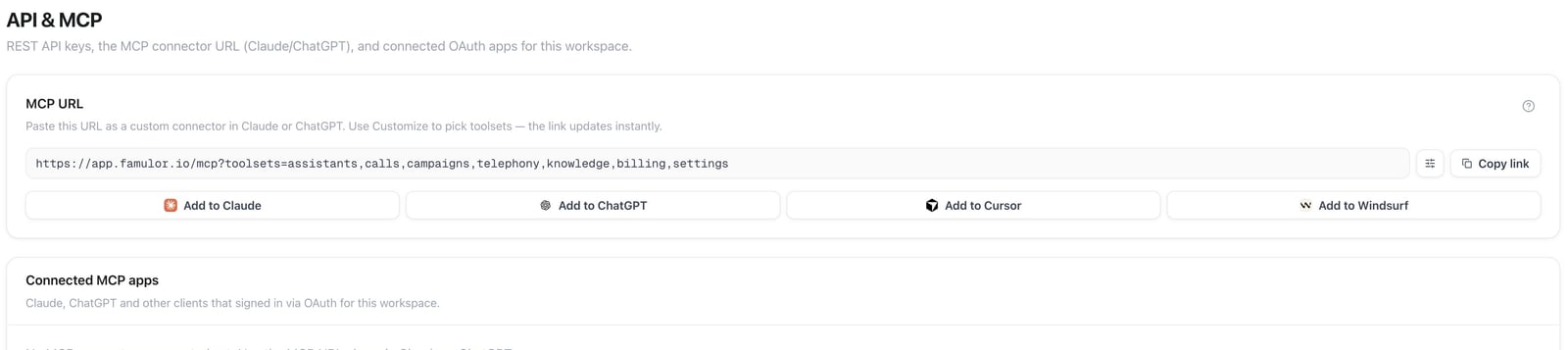
API & MCP — settings entry point; API-key controls are farther down the page
/api/v1/api-keys or Settings → API & MCP in the dashboard. A user-owned credential can also mint a key directly for another same-brand workspace where that user is currently an owner or admin by calling /api/v1/workspaces/{workspace_id}/api-keys. That nested endpoint is a general multi-workspace capability and does not require white-label access.
scopes on a new key must be a subset of the calling credential’s scopes. GET /api/v1/api-keys lists a workspace’s keys without exposing their secrets; DELETE /api/v1/api-keys/{id} revokes one.
MCP
Everything above is also available as MCP tools, grouped in theplatform toolset (plus list_api_keys / create_api_key / revoke_api_key in the settings toolset). Connect with the toolset selector:
There’s no
login_platform_user tool — logging in stays REST-only, for the reason above. The MCP tools accept either a user_id or an email to identify the target customer; REST always takes user_id from the URL path.
Include services in one customer plan
In Plans, select the features and additional capacity to include in the recurring plan price. Customers see these services as Included in plan. Optional capacity purchases add to that allowance; an included feature is not charged again as a separate add-on. One-time services remain separate purchases. The plan editor shows the platform fee, its tax, an estimated payment-cost reserve and your remaining contribution per customer. This is an estimate before your own operating costs and taxes. Annual offers use available annual service prices; otherwise the editor explicitly shows twelve monthly cost periods. Included credits remain a monthly allowance for both billing intervals. Payment confirmation activates the purchased inclusions. A scheduled cancellation keeps access until the paid period ends. A failed renewal blocks paid access; a successful payment restores the purchased contract. Purchased credit balances remain separate. After cancellation, prepaid access follows your existing Free-account policy. Duplicate a plan with existing subscriptions before changing its price or inclusions. The new plan starts inactive so you can review it before offering it to customers.Manage inclusions through the API
UseGET /api/v1/reseller/plans with settings:read to find your plans and available inclusion codes. Use PUT /api/v1/reseller/plans/{id}/inclusions with settings:write to replace inclusions on an eligible plan. Both operations require owner or admin authority in your Whitelabel workspace. The matching MCP tools are list_reseller_plans and update_reseller_plan_inclusions. These operations configure the offer; they do not charge customers or create paid subscriptions.
Customer passwords and account emails
Open Users → select customer → Account access to send a password reset email or set a new password. Direct password changes are available only when the customer account is used exclusively within your brand. For accounts that also access another brand or platform workspace, send a reset email so the customer retains control of their global login. Account emails use your verified domain, branding, and configured SMTP sender. This includes invitations, password recovery, email-change confirmations, verification codes, and enabled account-security notifications. Email changes may require confirmation from both the current and new address. A mail-server failure does not switch the sender to another brand. Check your SMTP settings if delivery fails. UseGET /api/v1/platform/users/{user_id}/password?workspace_id=... to check permissions. POST to the same endpoint accepts the workspace, action reset or set, and a password for set. The MCP tools get_platform_user_password_access and manage_platform_user_password enforce the same customer boundaries. The reset action uses your configured SMTP sender. Never include passwords in logs.
Payment account and financial activity
Before payment-account activation, Connect payments guides you through verification. After activation, Payments & payouts provides an overview, customer payments, bank payout history, a Balance report tab and checkout settings. The dashboard shows your payment-account balance. Amounts retain their actual settlement currencies. The external dashboard action opens the dashboard supported by your connected account. The balance report supports date, currency and time-zone filters and CSV exports. Where available, the overview also shows an Instant Payouts offer and a payment-volume chart. Instant Payouts appear only when your account has eligible funds. Financing, after Checkout, appears when business financing is available for your account. Payouts and financing applications require your own authenticated workspace access and any additional payment-account verification. UseGET /api/v1/reseller/billing or the get_reseller_billing MCP tool in the billing toolset with billing:read. These require owner or admin authority in your Whitelabel workspace plus API Access. The default overview returns readiness and available/pending balances. Set view=payments or view=payouts for activity, with limit from 1 to 100 (default 25). Pass the returned next_cursor as cursor to load the next page within 24 hours; a null cursor marks the end. Cursors are scoped to the account and view.
Before activation, the overview returns empty balances and activity requests return 409. These operations are read-only and do not issue refunds, initiate payouts, change bank accounts or create dashboard login sessions.
Use view=transactions to read the balance ledger for reconciliation, including signed amounts, net changes, public transaction categories and availability dates. Paginate with next_cursor to retrieve more history. Dashboard report exports and financial applications are interactive account workflows; the public API and MCP provide read access and never submit applications or initiate payouts.
An account notification banner highlights outstanding verification tasks after onboarding, including tasks that temporarily restrict payments. It stays hidden when there are no notifications.
The Checkout tax section includes tax settings and tax registrations. Registration details are also available read-only through view=tax; the authenticated payment-account interface supports interactive changes.
Tax management is also available through the API and MCP with billing:write and workspace owner/admin access: PUT /api/v1/reseller/tax/settings updates defaults and business address; POST /api/v1/reseller/tax/registrations creates or schedules collection; PATCH /api/v1/reseller/tax/registrations updates activation or expiry. Read settings with GET /api/v1/reseller/tax/settings. The corresponding tools are get_reseller_tax_settings, update_reseller_tax_settings, create_reseller_tax_registration and update_reseller_tax_registration. Use the opaque registration reference from the tax view (valid for 24 hours) and a unique request key for creation retries. Registrations cannot be deleted and do not register your business with tax authorities. Only make changes matching the business owner’s explicit tax instructions.
Knowledge source access
Whitelabel operators can enable Website crawl, Cloud drive sync and Auto-sync separately in customer plans and prepaid defaults. Auto-sync controls scheduled refresh for both source types; the matching source feature must also be enabled. A reseller’s own workspace follows its own plan, separately from its customers. Cloud drive sources additionally require Settings → Workspace → Beta Features in each customer workspace. New or changed content continues to consume credits; enabling access does not include free ingestion. Read plan permissions withGET /api/v1/reseller/plans and update them with PATCH /api/v1/reseller/plans/{id}/knowledge-sources (settings:write). The matching MCP tool is update_reseller_plan_knowledge_sources. Updates affect customers using that plan. Prepaid defaults use the existing default-limit API and MCP tools described above.