

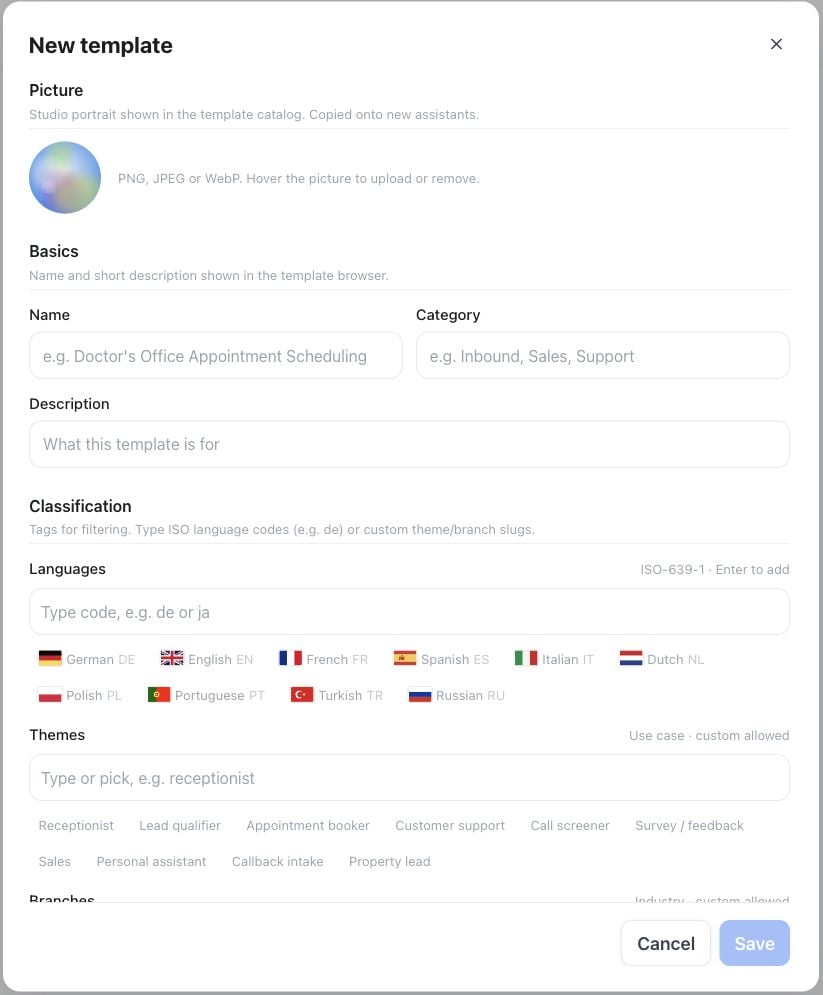
New template — picture, basic details and classification fields
What a template holds
Most templates hold a plain system prompt. A template can also carry a saved flow — when a customer applies one of these, Famulor seeds the assistant’s Flow Builder canvas instead of a plain prompt.
Where customers see it
A customer picks a template while creating a new assistant, or later from the system-prompt card on an existing assistant. They preview it, then apply a copy. Later changes to the template never overwrite an existing assistant — applying a template copies its content once; it does not create a live link back to the template.Scope
Templates you create in Whitelabel Admin are available to your own reseller team and to your customer workspaces. Delete or deactivate a template to remove it from the catalog; existing assistants that already applied it are unaffected.API and MCP
The customer-visible catalog is read-only throughGET /api/v1/prompt-templates and the MCP list_prompt_templates tool — useful if you want to surface your template catalog in your own UI. Creating and editing templates themselves is a Whitelabel Admin dashboard action; there is no write API for template management.
See also White Label Program for how visibility and other white-label customizations work together, and Flow builder for how flow-based templates behave once applied.