

Automations list tabs
The/automations list page has three tabs:
Triggers
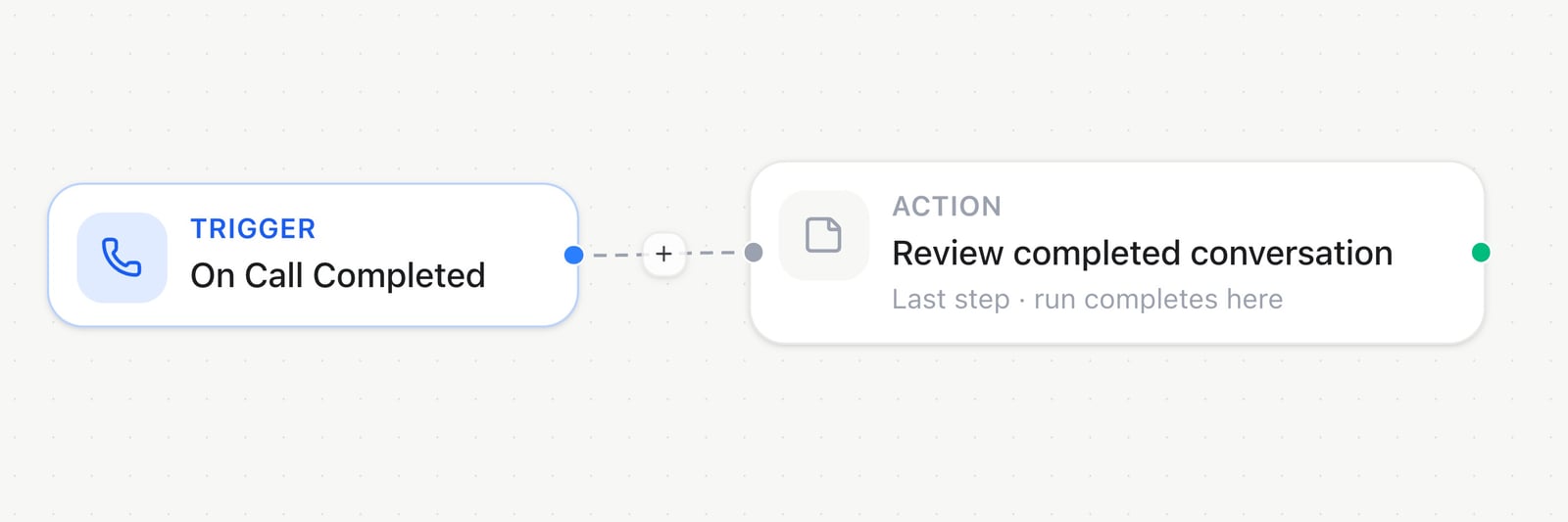
In the Automation builder, On Call Completed starts this example; use the + on the connection to add another step.
A generic or CRM webhook trigger gets its own inbound URL and secret, shown directly in the trigger’s settings once the automation is saved. HighLevel and connected apps deliver events through a shared, pre-authenticated endpoint instead — set up once for the workspace, not per automation:
Steps
Logic & flow control
These don’t talk to anything outside the automation — they shape which path a run takes, or pause it.
In the Builder, open Add Node → Famulor to choose a logic action such as Condition, Loop on Items, Filter, or Set variable.
Loop on Items processes at most 100 items per loop, and loops can nest up to 5 levels deep.
Ending a run
A run also ends cleanly whenever a step has no outgoing connection. These three end it explicitly, and two of them hand back a specific answer.
When an assistant calls this automation mid-conversation, every path must end at Respond to webhook, with no Delay or Loop step first.
Time
AI
Grouped under Milian AI in the catalog. These actions use workspace credits based on token usage at your workspace’s rates. The charged amount appears on the run and in the step’s Test panel.
Add Node → Milian AI lists the analysis actions, including Classify Text, Custom Prompt, and Extract Fields. Select an action to configure its inputs.
Milian AI
Add a step in Automations → Milian AI to classify text, check a condition, score content, detect multiple labels or build a custom analysis. Custom Prompt and Extract Fields remain available.
Classify Text → Configure: choose Input Data, an Answer key, the Question, and the Categories. The shown values are editable examples.
- Five new actions. Turn transcripts, messages and previous step outputs into categories, yes/no decisions, scores or labels.
- Three editable templates. Start Custom Analysis with Analyze a call, Qualify a lead or Prioritize a message, then adjust the questions.
- Clear uncertainty. Insufficient evidence produces an uncertain answer instead of a guessed value. Use the result status in a Condition before continuing.
- Your workspace, your workflow. Preview inputs without spending credits, run a live test with workspace credits, and reuse the same configuration through REST or MCP.
Messaging
Send on an already-open conversation, or start a fresh WhatsApp conversation with an approved template.Contacts, calls & compliance
Suppression actions are idempotent — re-adding or re-removing the same identity never fails a run.
Call Phone Number also accepts optional Variables as a flat JSON object, for example
{ "auftrag": "{{data.task}}" }. Values may be text (up to 2000 characters), numbers or booleans. You can also use an entire mapping from a previous step, such as {{data.inputs}}. These are inputs for this call and do not edit the assistant or contact. Invalid or oversized resolved values fail the step before dialing. Check the resulting call’s expected inputs and actual outcome separately; creating a call is not proof that the task succeeded.
Knowledge
HTTP & webhooks
Neither of these needs a saved connection — paste a URL and go.
HTTP Request actions retry temporary HTTP and connection failures up to twice within the configured timeout, using the same Idempotency-Key. Temporary failures are HTTP 408, 425, 429, 5xx and network errors. Permanent errors stop immediately. The timeout covers the whole action; retries stop when that budget is exhausted. The receiver must honor Idempotency-Key to prevent duplicate effects after a lost response.
External connections
CRM, MCP, and connected-app steps all read or write an external system through a saved credential — add one under Automations → Connections before using any of them. Each shows up in the catalog as Provider · Action (for example Airtable · Create record). CRM providers. See CRM sync for the recurring-sync setup and the HighLevel authorize flow — these action nodes write one record at a time, independent of any sync schedule.
Example: after On Call Completed, use a HubSpot update to log
{{data.analysis.success}} on the matched contact, or branch on it first with Condition.
Vendor & generic MCP. Instead of fixed fields, these hand a prompt and the run’s context to an agent that picks the right tool and arguments itself — useful when the exact call varies run to run. Both bill workspace AI credits for the agent’s reasoning.
Connected apps. Beyond the platforms above, the catalog also carries every app your workspace has connected over OAuth. Connect one under Connections → App marketplace, then pick it as a trigger or action like any built-in platform. See App Catalog for the full list and how connecting works. Apps with many actions load more as you scroll; type in Search actions… above the list to find any action by name or keyword, such as send message.
How data flows between steps
Every field marked with a ⚡ accepts{{ }} templates pulled from the run’s current data.
- Extract Fields returns its values twice — nested under
fields({{steps.step1.fields.email}}) and flattened onto the step itself ({{steps.step1.email}}) — use whichever reads more clearly. - Set variable writes into the run itself rather than a step’s own output — reference the path you chose the same way afterward, e.g.
{{vars.summary}}. - Condition, Switch, and Loop on Items also decide which connected path runs next — drag separate connections out of their
true/false, per-case, or Loop/Done handles.

Classify Text → Test prompts you to load sample data on the trigger first. Review the input before running an action; a live test uses workspace credits.
Statuses
An automation that fails five runs in a row is paused automatically, so a broken graph can’t keep firing. Check the Runs tab for the error, fix it, then switch it back to Live.
Building automations with Milian
Open an automation and ask Milian, the AI copilot, to build or change it in plain language — add a trigger and steps, wire a condition’s true/false branches, rename or retag it, switch it Live, or debug a failed run, the same things you’d do by hand. Try “add an email step after the trigger,” “add a condition branch and wire true/false,” or “debug the last failed run.” Milian applying a change directly shows Milian saved changes; updating the canvas without saving shows Milian updated the canvas — click Save to persist, and the change stays a draft until you click Save.Next steps
Automations overview
Concepts, billing, and worked example automations
App Catalog
Browse and connect apps for triggers and actions
CRM sync
Keep Audience and a connected CRM aligned on a schedule