> ## Documentation Index
> Fetch the complete documentation index at: https://docs.famulor.io/llms.txt
> Use this file to discover all available pages before exploring further.
# Caller ID verification
> Verify a number you already own so it can be presented on outbound calls
Want your own existing number — a personal line, an office line, whatever your customers already recognize — to show up on outbound calls, without buying a number or setting up a SIP trunk? Verify it as a caller ID.
Caller ID verification is outbound only. It doesn't create an inbound route — calls placed *to* that number are never answered by an assistant. To also receive calls, [buy a marketplace number](/telephony/phone-numbers) or [forward your existing line to one](/telephony/call-forwarding-setup) instead.
## How verification works
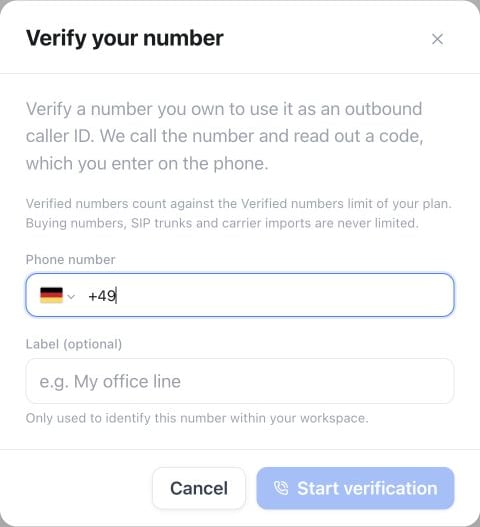 Go to **Settings → Numbers**, open the **Add a number** menu, and choose **Verify your number (caller ID)**.
Enter the number in E.164 format (for example `+4930123456`) and an optional label, then start verification.
The platform calls that number immediately and shows a short code on screen. Whoever answers keys that code in on the phone.
The status updates automatically once the code is confirmed — no page refresh needed, though you can press **Check status** to look right away. The number is now a verified caller ID.
Every attempt places a real call, so verification is rate-limited: one attempt per person and five per workspace every 15 minutes, plus a small shared budget across the whole platform. Hit the limit and the button shows a countdown until you can start the next one. Numbers in high-risk destinations (premium-rate and known toll-fraud ranges) and numbers that are already pending in several other workspaces cannot be verified, and the platform operator may require a completed credit top-up or plan purchase before caller IDs can be verified.
Prepaid workspaces use the platform own-number (Caller ID) quota; if verification is blocked with 0 slots, upgrade to a plan that includes Caller IDs (Plus 5 / Pro 10 / Agency 20). Buying marketplace numbers, SIP trunks, and carrier imports are never limited by this quota.
## Plan quotas for Caller IDs
Your plan determines how many verified caller IDs your workspace can maintain simultaneously. A caller ID slot is occupied while verification is pending or active; deleting a verified number frees its slot immediately.
| Plan | Verified Caller IDs | Marketplace numbers & SIP trunks |
| - | - | - |
| **Prepaid** (Pay-as-you-go) | 0 active slots (verification blocked until upgraded) | Unlimited |
| **Plus** (€35/mo) | **5** verified numbers | Unlimited |
| **Pro** (€129/mo) | **10** verified numbers | Unlimited |
| **Agency** (€259/mo) | **20** verified numbers | Unlimited |
**Important distinction:** The verified number quota applies **only** to verified caller IDs. Buying phone numbers from the platform marketplace, connecting your own BYO SIP trunks, and importing carrier numbers (Twilio, Telnyx, Vonage) are never capped by this limit.
## Using a verified caller ID
Once verified, the number appears alongside your other numbers under **Numbers**. Open **Configure** on that row and connect it to an assistant under **Outbound** — outbound calls placed by that assistant, by a campaign, or through the `make_call` API/MCP tool then present the verified number to the person you're calling.
Calls placed with a verified caller ID still count against your [daily outbound allowance](/telephony/outbound-limits), the same as marketplace numbers. Only calls placed over your own [BYO SIP trunk](/telephony/sip-trunks) skip that allowance.
If you connect numbers through a SIP trunk instead, your provider — not this verification flow — controls which caller ID is presented; configure it on the provider side.
## Legal considerations
Some countries restrict presenting a number you don't have the right to use. Verify only numbers you own or are authorized to use, and check local rules before relying on a verified caller ID for outbound campaigns.
## API and MCP
Manage caller IDs with the Public API — `GET`/`POST /api/v1/caller-ids`, `PATCH`/`DELETE /api/v1/caller-ids/{id}` — or the equivalent MCP tools: `create_caller_id`, `list_caller_ids`, `update_caller_id`, `delete_caller_id`.
This documentation is built and hosted on [Mintlify](https://mintlify.com), a developer documentation platform.
Go to **Settings → Numbers**, open the **Add a number** menu, and choose **Verify your number (caller ID)**.
Enter the number in E.164 format (for example `+4930123456`) and an optional label, then start verification.
The platform calls that number immediately and shows a short code on screen. Whoever answers keys that code in on the phone.
The status updates automatically once the code is confirmed — no page refresh needed, though you can press **Check status** to look right away. The number is now a verified caller ID.
Every attempt places a real call, so verification is rate-limited: one attempt per person and five per workspace every 15 minutes, plus a small shared budget across the whole platform. Hit the limit and the button shows a countdown until you can start the next one. Numbers in high-risk destinations (premium-rate and known toll-fraud ranges) and numbers that are already pending in several other workspaces cannot be verified, and the platform operator may require a completed credit top-up or plan purchase before caller IDs can be verified.
Prepaid workspaces use the platform own-number (Caller ID) quota; if verification is blocked with 0 slots, upgrade to a plan that includes Caller IDs (Plus 5 / Pro 10 / Agency 20). Buying marketplace numbers, SIP trunks, and carrier imports are never limited by this quota.
## Plan quotas for Caller IDs
Your plan determines how many verified caller IDs your workspace can maintain simultaneously. A caller ID slot is occupied while verification is pending or active; deleting a verified number frees its slot immediately.
| Plan | Verified Caller IDs | Marketplace numbers & SIP trunks |
| - | - | - |
| **Prepaid** (Pay-as-you-go) | 0 active slots (verification blocked until upgraded) | Unlimited |
| **Plus** (€35/mo) | **5** verified numbers | Unlimited |
| **Pro** (€129/mo) | **10** verified numbers | Unlimited |
| **Agency** (€259/mo) | **20** verified numbers | Unlimited |
**Important distinction:** The verified number quota applies **only** to verified caller IDs. Buying phone numbers from the platform marketplace, connecting your own BYO SIP trunks, and importing carrier numbers (Twilio, Telnyx, Vonage) are never capped by this limit.
## Using a verified caller ID
Once verified, the number appears alongside your other numbers under **Numbers**. Open **Configure** on that row and connect it to an assistant under **Outbound** — outbound calls placed by that assistant, by a campaign, or through the `make_call` API/MCP tool then present the verified number to the person you're calling.
Calls placed with a verified caller ID still count against your [daily outbound allowance](/telephony/outbound-limits), the same as marketplace numbers. Only calls placed over your own [BYO SIP trunk](/telephony/sip-trunks) skip that allowance.
If you connect numbers through a SIP trunk instead, your provider — not this verification flow — controls which caller ID is presented; configure it on the provider side.
## Legal considerations
Some countries restrict presenting a number you don't have the right to use. Verify only numbers you own or are authorized to use, and check local rules before relying on a verified caller ID for outbound campaigns.
## API and MCP
Manage caller IDs with the Public API — `GET`/`POST /api/v1/caller-ids`, `PATCH`/`DELETE /api/v1/caller-ids/{id}` — or the equivalent MCP tools: `create_caller_id`, `list_caller_ids`, `update_caller_id`, `delete_caller_id`.
This documentation is built and hosted on [Mintlify](https://mintlify.com), a developer documentation platform.