> ## Documentation Index
> Fetch the complete documentation index at: https://docs.famulor.io/llms.txt
> Use this file to discover all available pages before exploring further.
# Product tour
> Explore Famulor: build assistants, connect your business, and manage daily operations
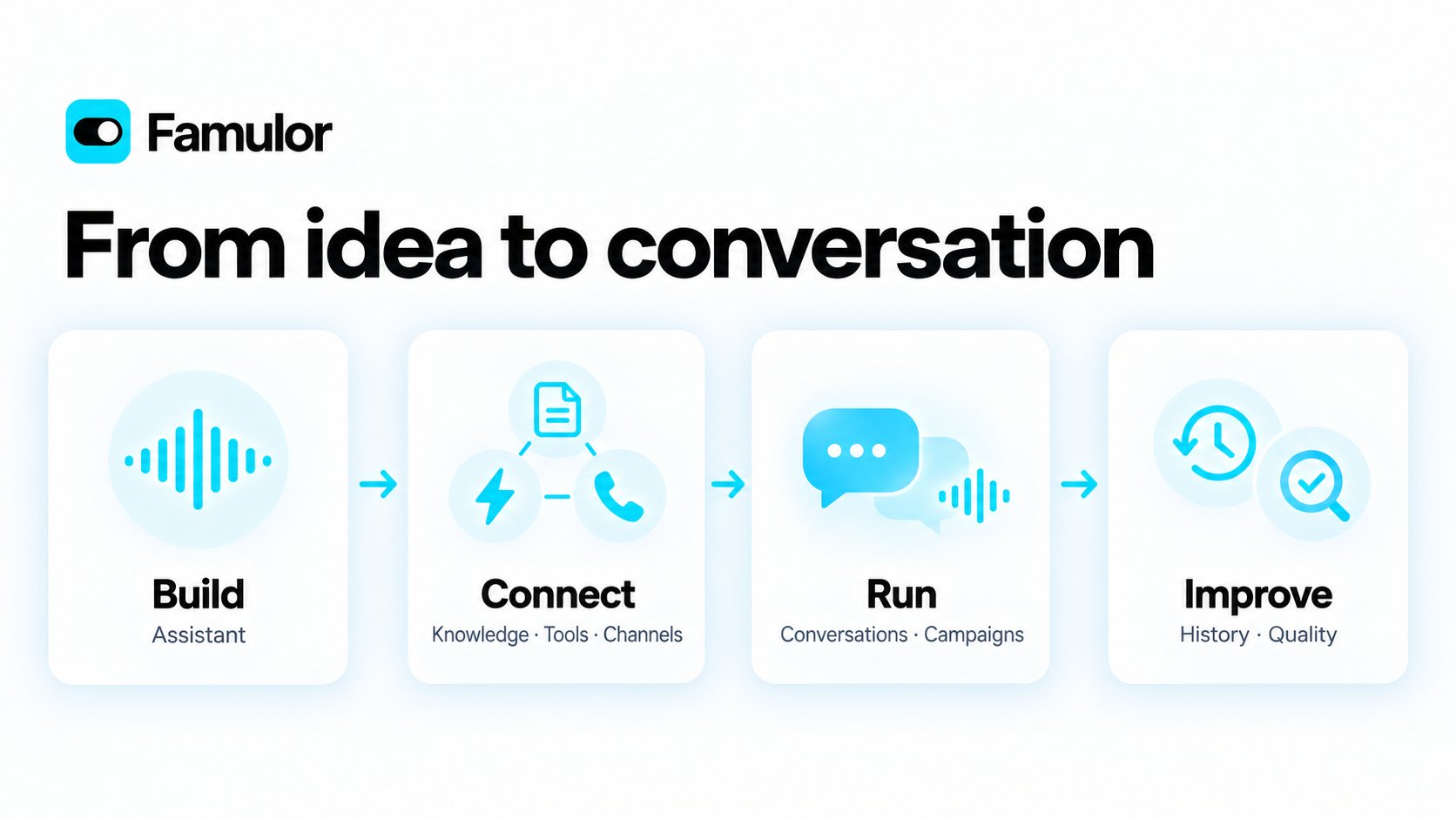
Follow a conversation from setup to follow-up. This tour introduces the main areas of Famulor, with selected product screens and links to the full guides. Your role, plan, and enabled features determine which controls appear in your workspace.
 ## Start with your workspace
Expand **Workspace overview** on the dashboard for **Total Calls**, **Active Agents**, **Talk Time**, **Campaigns**, quick actions, and the customer-reach map. Use **Open Agents**, **New Assistant**, or **Call History** to continue your work.
## Start with your workspace
Expand **Workspace overview** on the dashboard for **Total Calls**, **Active Agents**, **Talk Time**, **Campaigns**, quick actions, and the customer-reach map. Use **Open Agents**, **New Assistant**, or **Call History** to continue your work.
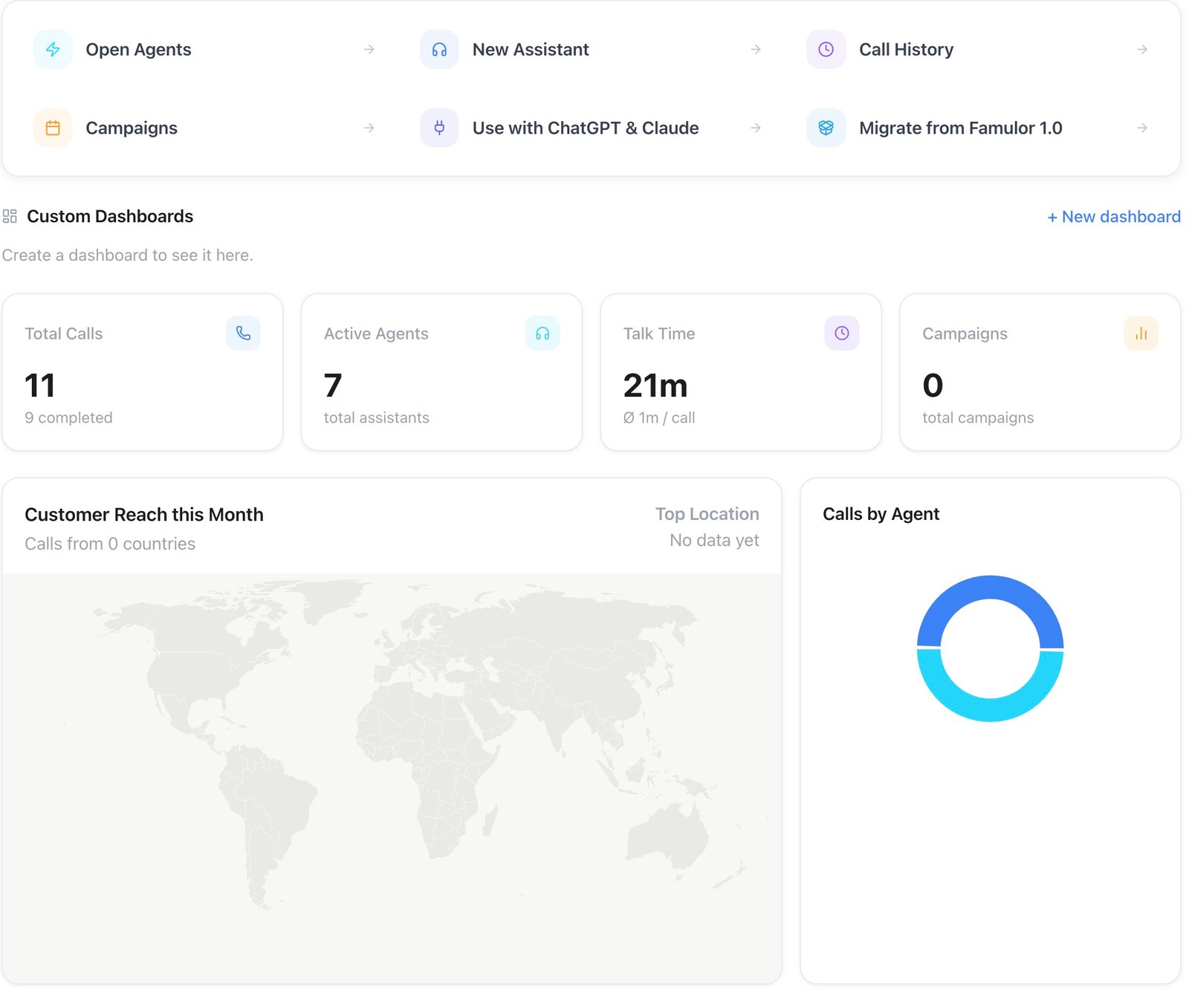 [Milian](/assistants/milian-copilot), the in-app copilot, shares the dashboard. Ask it to explain a setting, review an assistant, or help with workspace tasks using your existing permissions. Collapse the overview to focus on the conversation. **Use with ChatGPT & Claude** opens the [AI client connection guide](/mcp/overview).
 ## Build and test an assistant
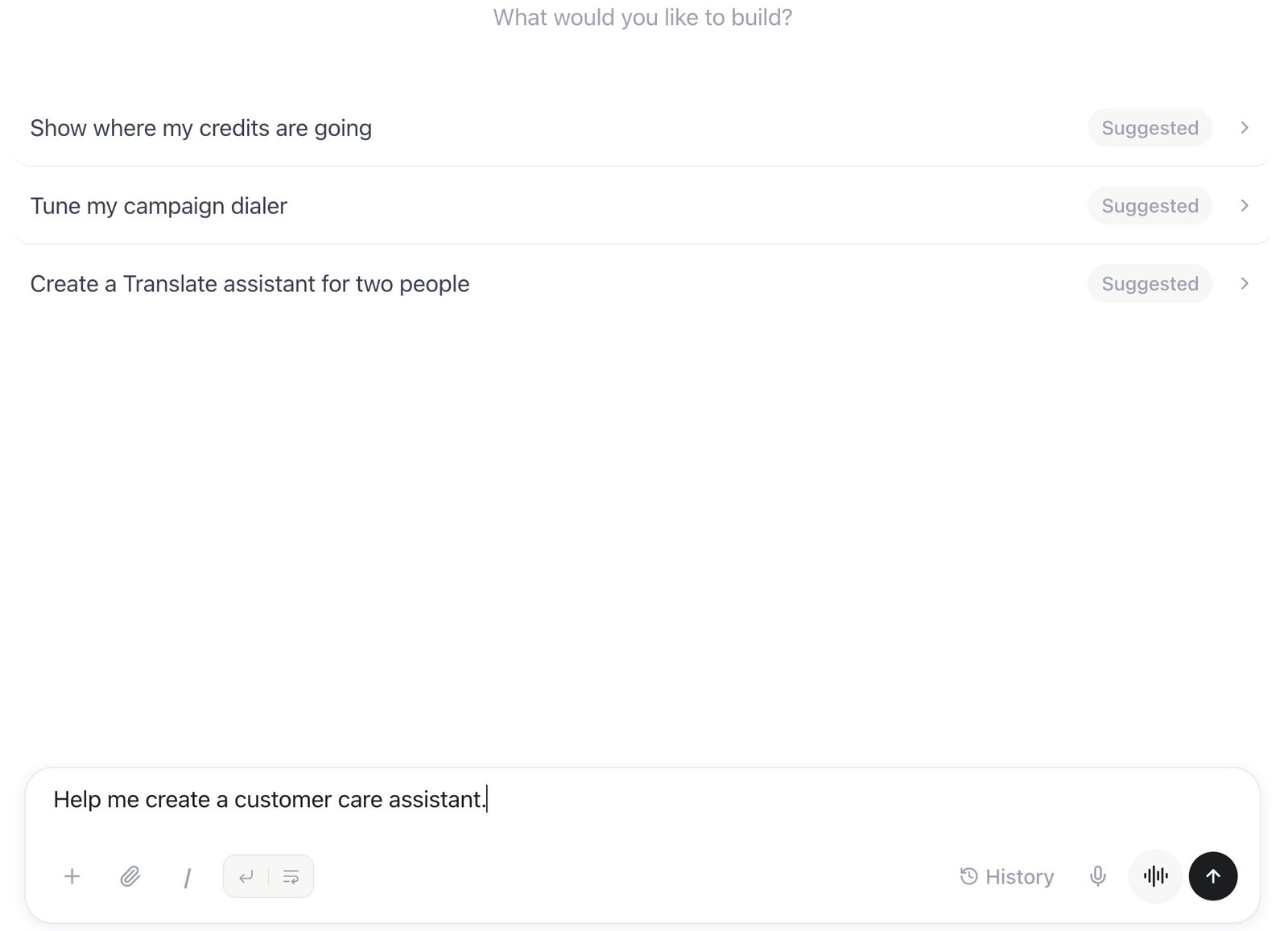
**[Assistants](/assistants/overview)** brings your voice and messaging assistants together. Create one, open an existing assistant, or start from a template.
## Build and test an assistant
**[Assistants](/assistants/overview)** brings your voice and messaging assistants together. Create one, open an existing assistant, or start from a template.
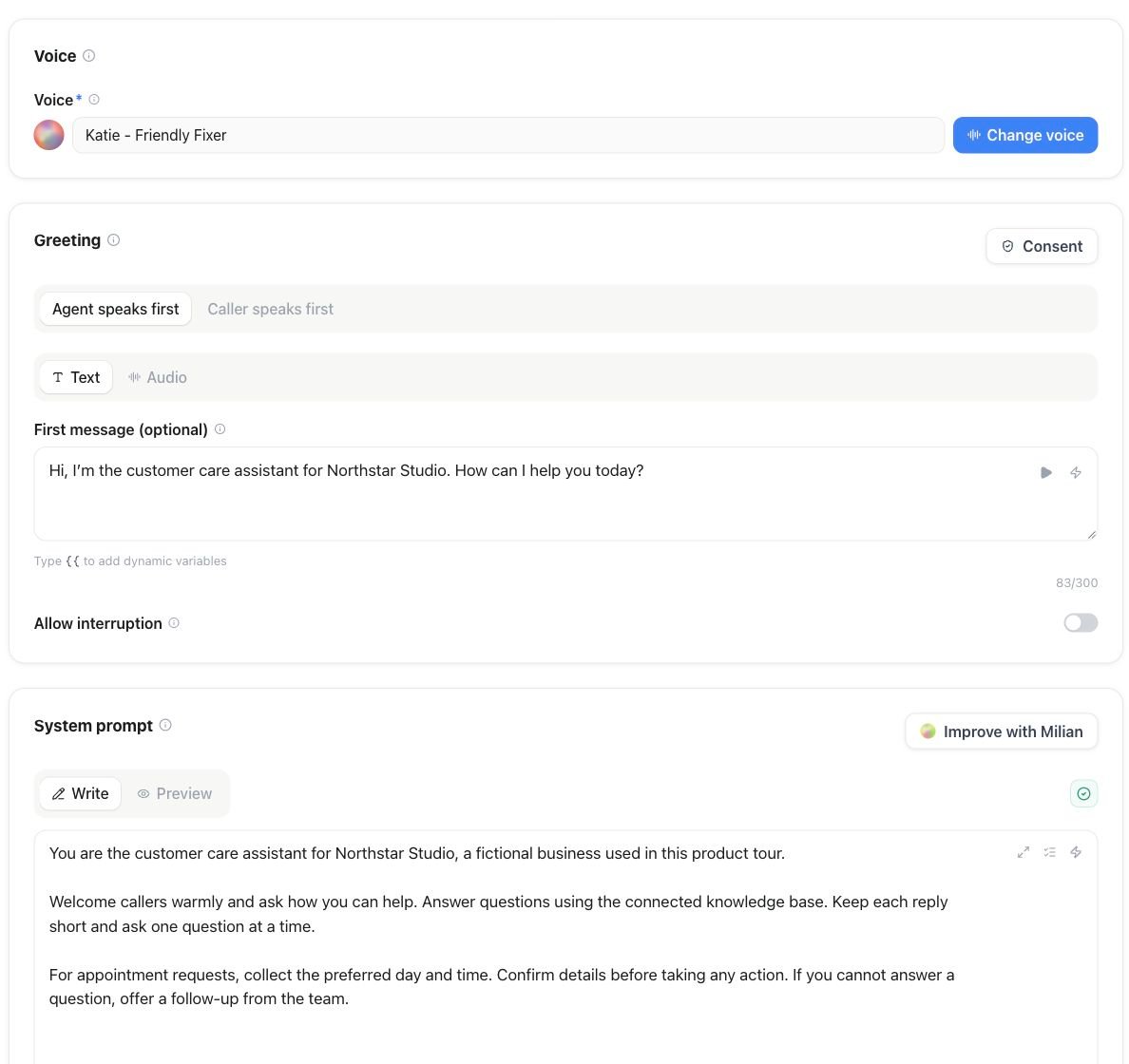
 Write the greeting and conversation instructions in the editor, test the experience, and save a version when it is ready. The [quickstart](/quickstart) walks through a first browser test call.
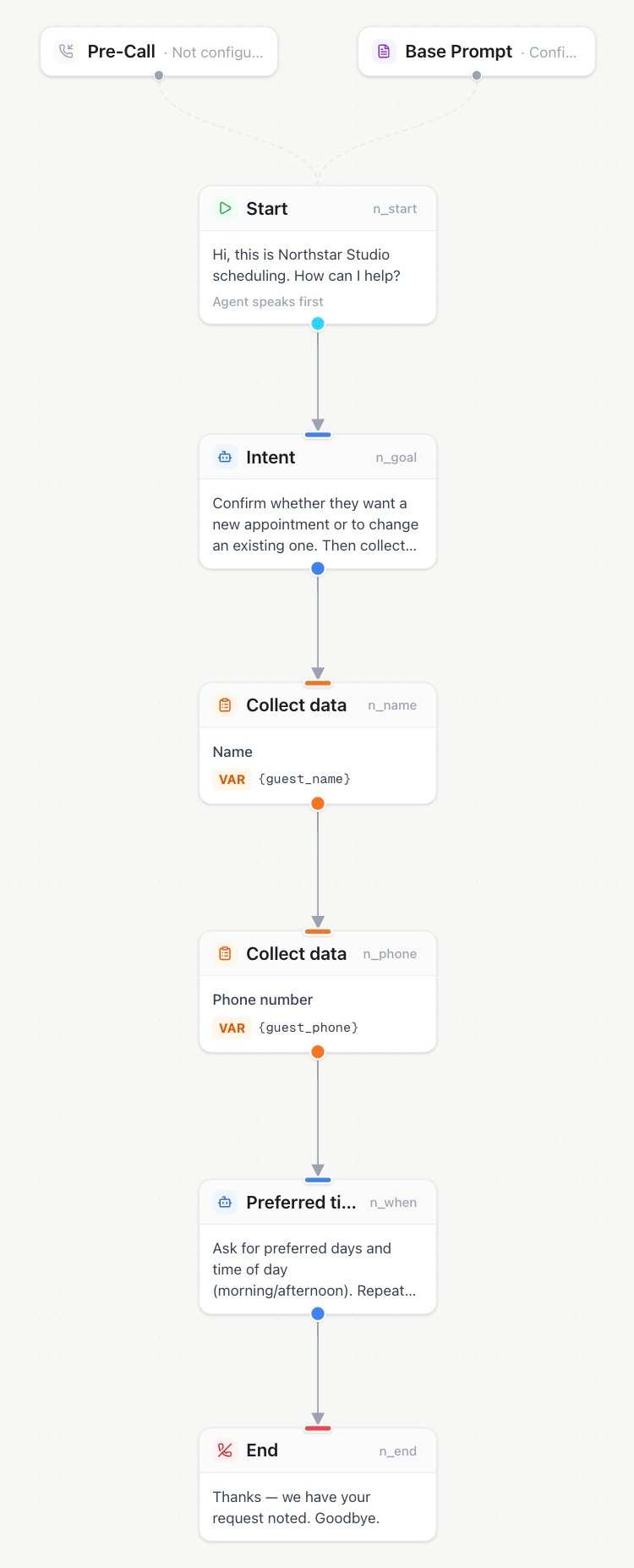
 Use the [flow builder](/flow-builder/overview) for conversations with defined steps, conditions, actions, and handoffs.
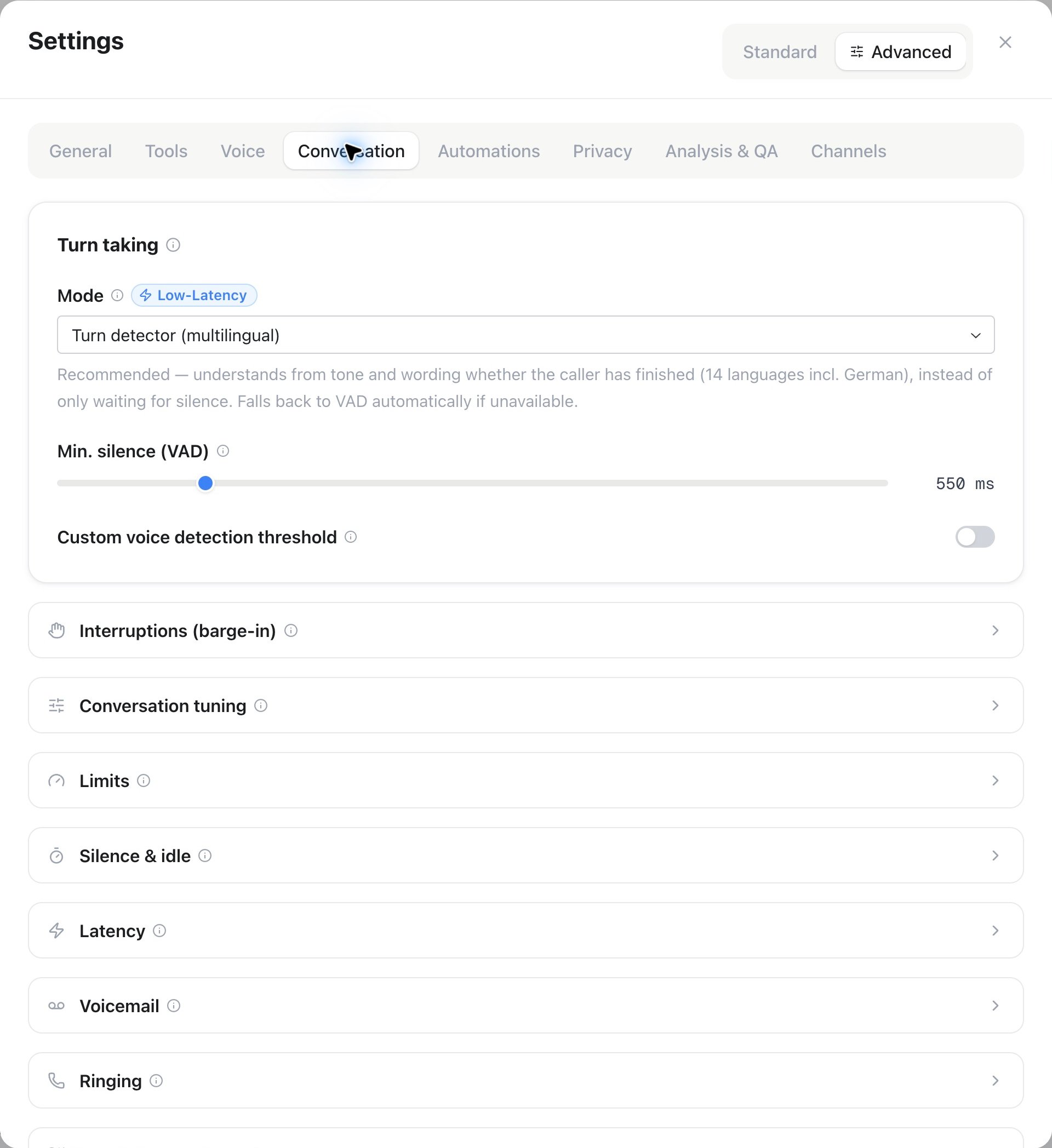
 Assistant settings bring voice, language, behavior, tools, knowledge, and channels into one place. Learn how to choose [models and voices](/assistants/models-and-voices) and prepare [simulations](/assistants/simulations) before launch.
 ## Prepare your audience and campaigns
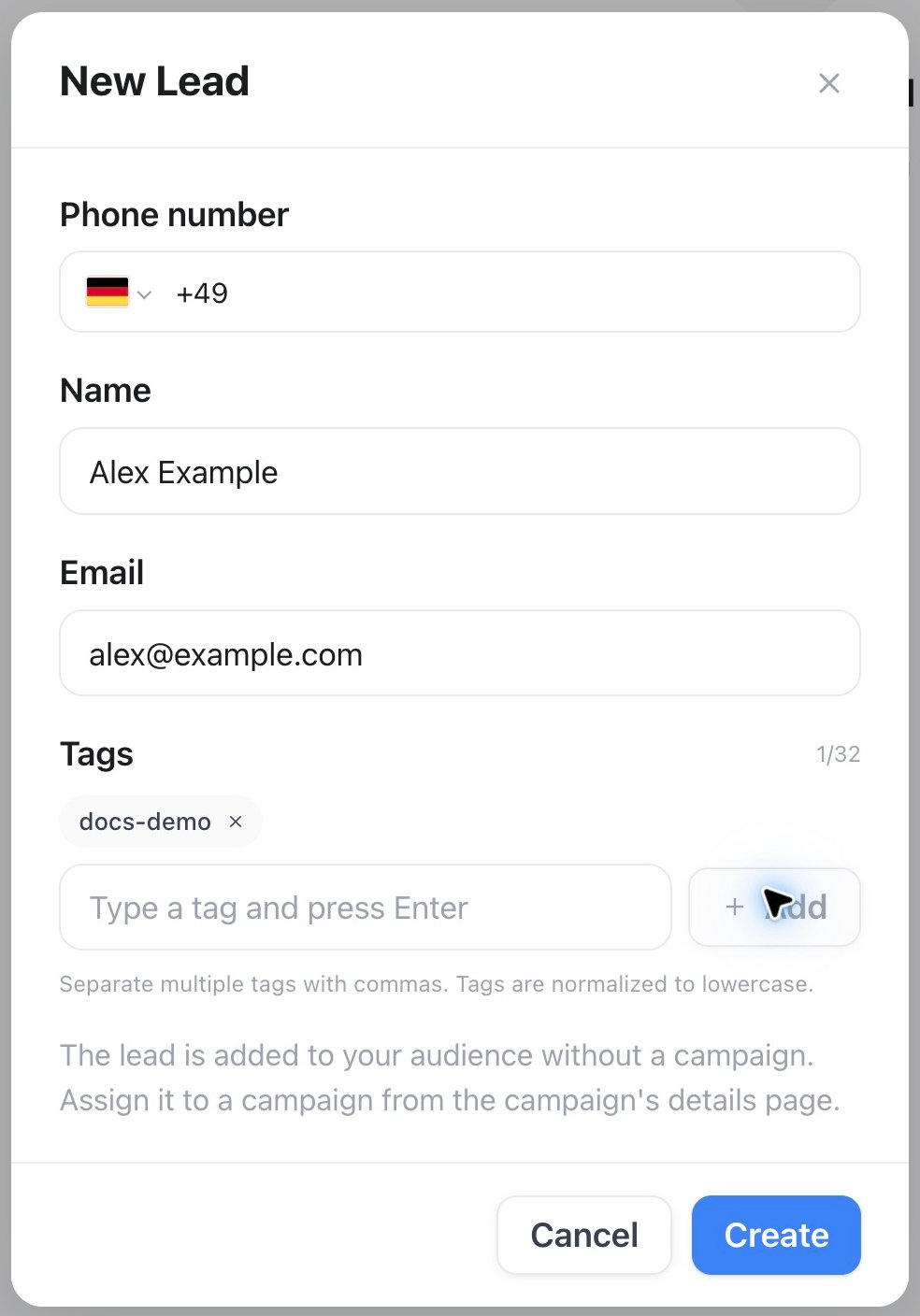
**[Audience](/audience/contacts)** organizes contacts and their activity. [Import contacts](/audience/importing-contacts), review contact memory, track callbacks, and maintain the do-not-contact list. [CRM sync](/automations/crm-sync) keeps supported business systems connected.
## Prepare your audience and campaigns
**[Audience](/audience/contacts)** organizes contacts and their activity. [Import contacts](/audience/importing-contacts), review contact memory, track callbacks, and maintain the do-not-contact list. [CRM sync](/automations/crm-sync) keeps supported business systems connected.
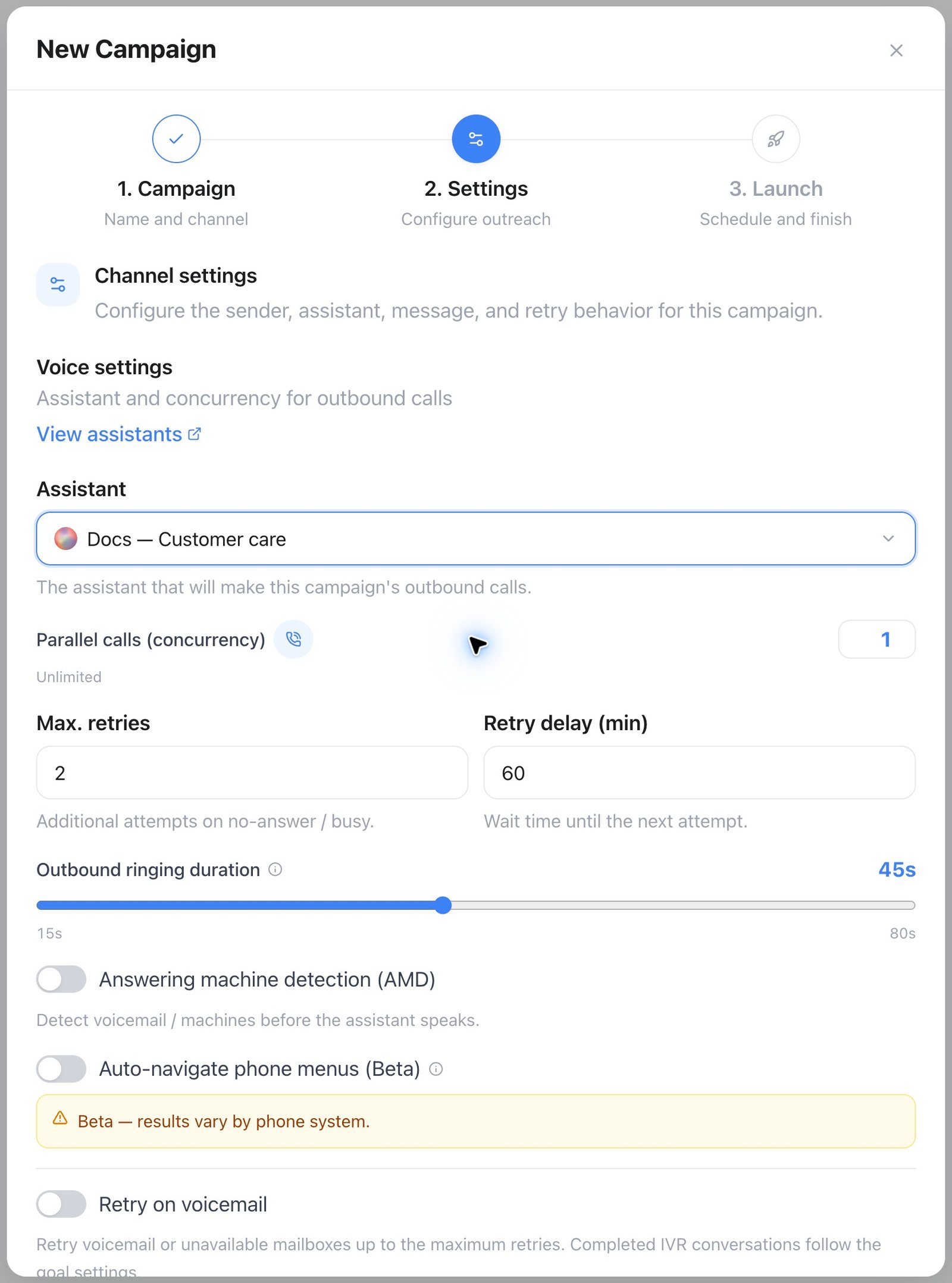
 **[Campaigns](/campaigns/overview)** combines an assistant, an audience, and a schedule. Channel settings let you choose the assistant, retries, and concurrency before launching. Open a campaign for its setup and results, or use the board to follow work by status. Before starting outreach, review the [outbound playbook](/campaigns/outbound-playbook) and [dialing controls](/campaigns/dialer-and-compliance).
 ## Review results and repeat useful work
These areas turn completed conversations into improvements and follow-up. Their detailed guides explain the available views without displaying customer conversations or billing records here.
| Area | What to do next |
| - | - |
| [History](/monitoring/history) | Filter interactions and open a conversation for its transcript, outcome, collected information, and available media. |
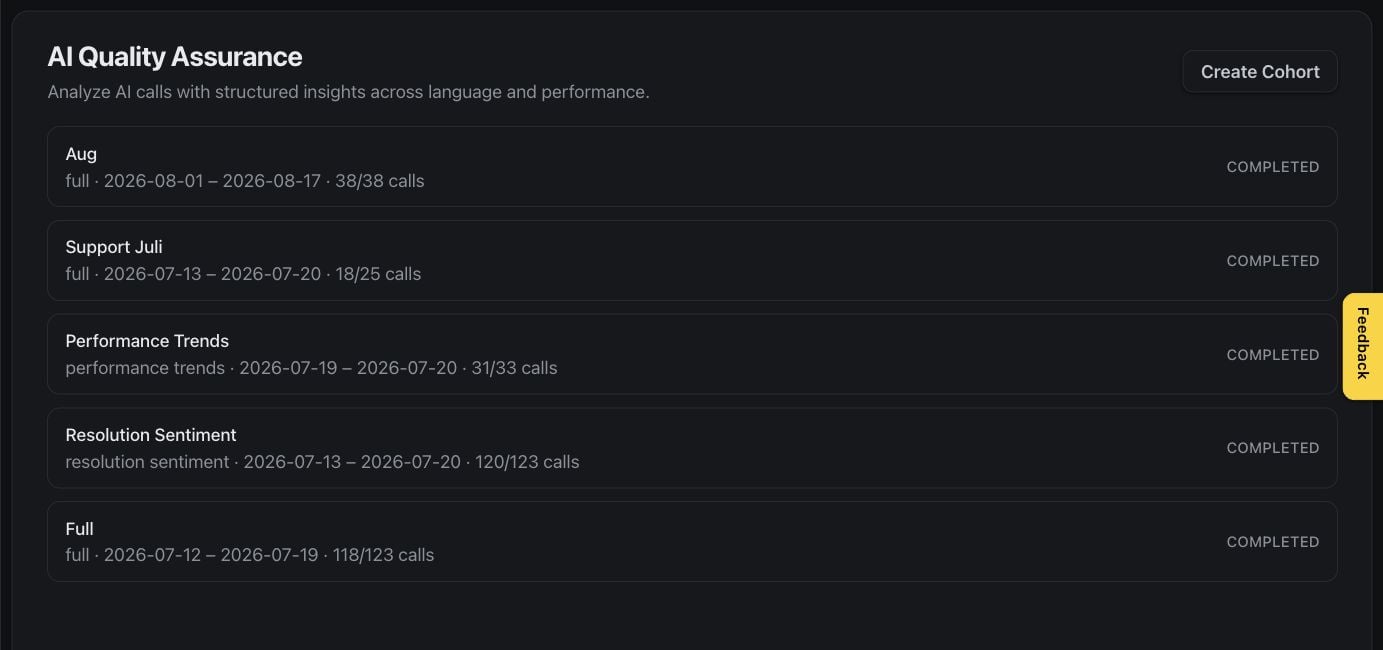
| [AI QA](/assistants/ai-quality-assurance) | Evaluate conversations consistently and identify coaching or assistant improvements. |
| [Milian Missions](/assistants/routines) | Schedule reusable jobs such as call summaries, lead follow-up, and daily digests. |
| [Usage and minutes](/billing/minutes) | Understand workspace consumption and available balance. |
| [Custom dashboards](/analytics/custom-dashboards) | Build focused analytics views; [natural-language creation](/analytics/natural-language-dashboards) helps you describe the view you need. |
## Review results and repeat useful work
These areas turn completed conversations into improvements and follow-up. Their detailed guides explain the available views without displaying customer conversations or billing records here.
| Area | What to do next |
| - | - |
| [History](/monitoring/history) | Filter interactions and open a conversation for its transcript, outcome, collected information, and available media. |
| [AI QA](/assistants/ai-quality-assurance) | Evaluate conversations consistently and identify coaching or assistant improvements. |
| [Milian Missions](/assistants/routines) | Schedule reusable jobs such as call summaries, lead follow-up, and daily digests. |
| [Usage and minutes](/billing/minutes) | Understand workspace consumption and available balance. |
| [Custom dashboards](/analytics/custom-dashboards) | Build focused analytics views; [natural-language creation](/analytics/natural-language-dashboards) helps you describe the view you need. |
 ## Give assistants knowledge and tools
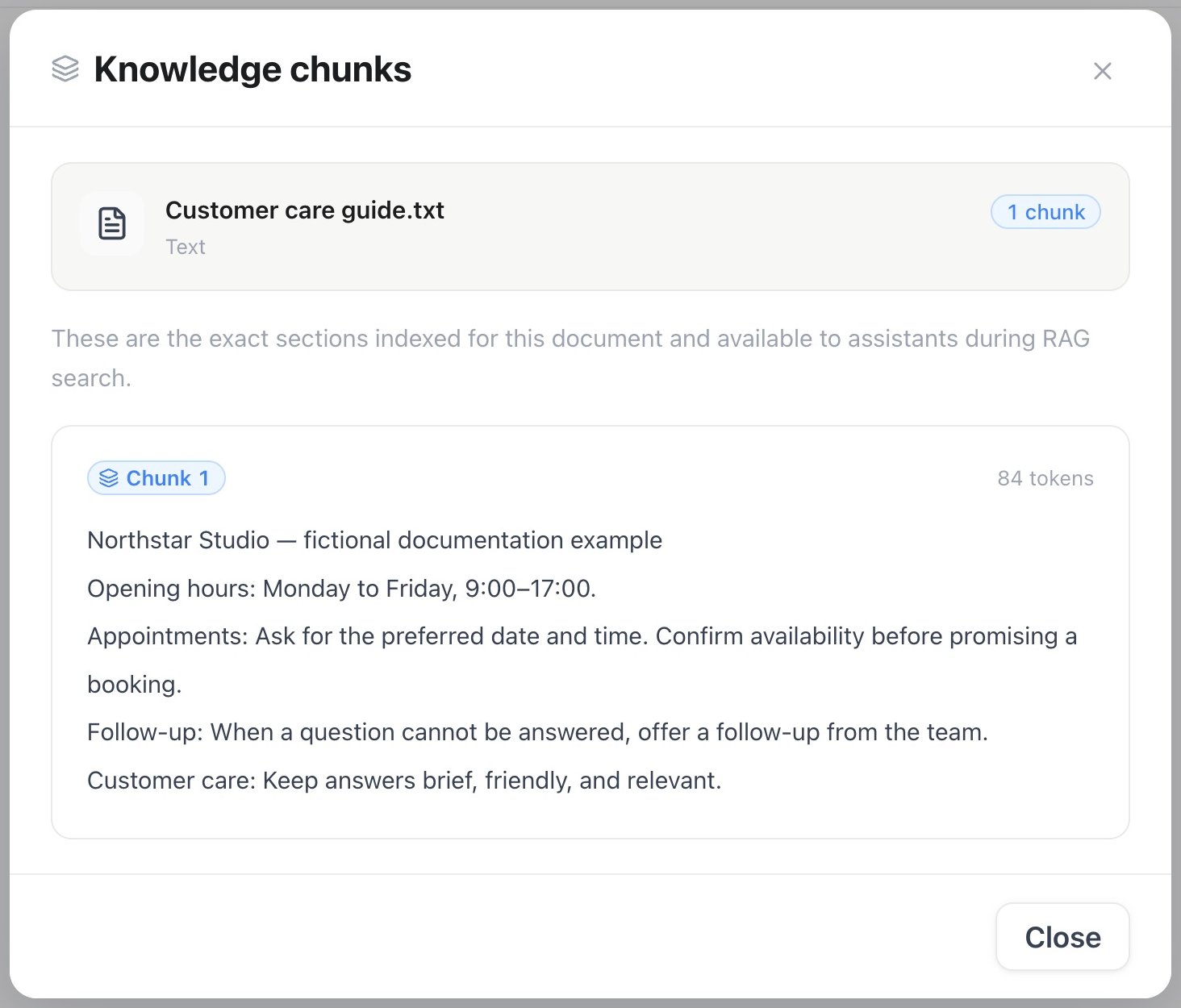
Add focused source material in **[Knowledgebase](/assistants/knowledge-base)**. Documents and supported website sources provide context; automatic refresh keeps supported sources current. Open a document’s indexed chunks to review the passages available for retrieval.
## Give assistants knowledge and tools
Add focused source material in **[Knowledgebase](/assistants/knowledge-base)**. Documents and supported website sources provide context; automatic refresh keeps supported sources current. Open a document’s indexed chunks to review the passages available for retrieval.
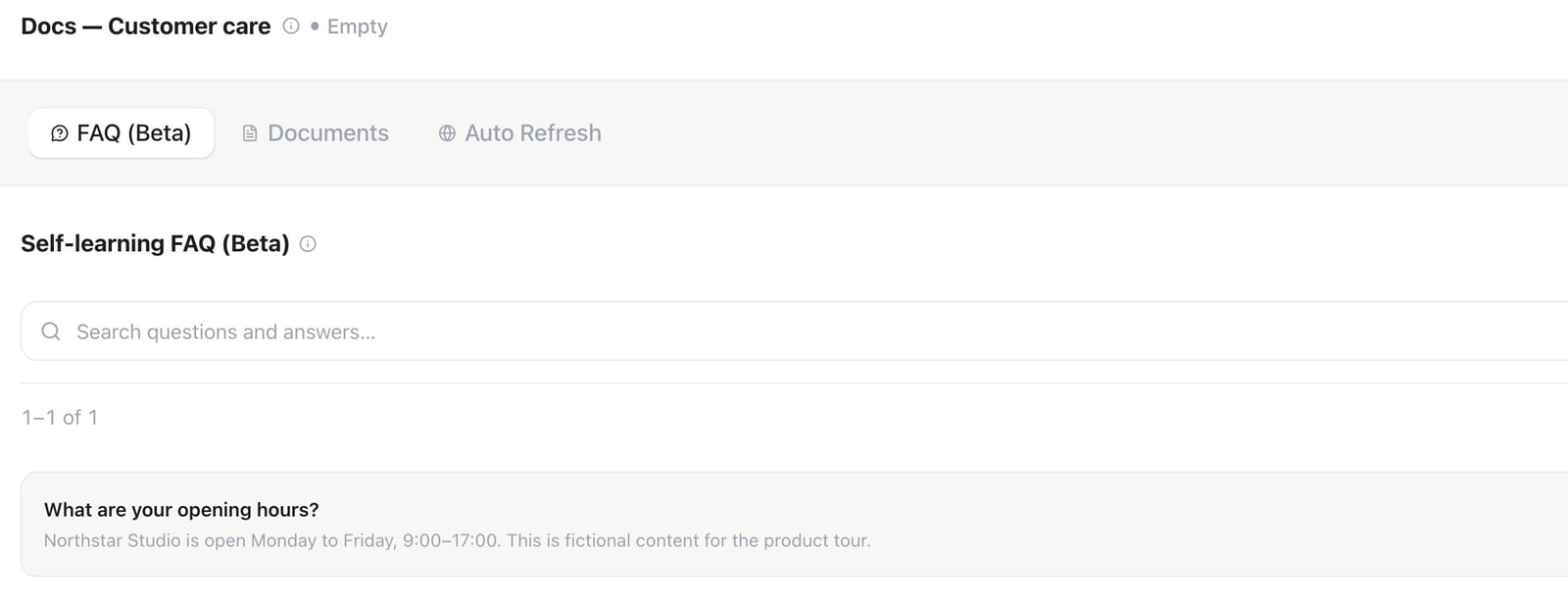
 Use FAQs for concise, curated answers to common questions, such as your opening hours.
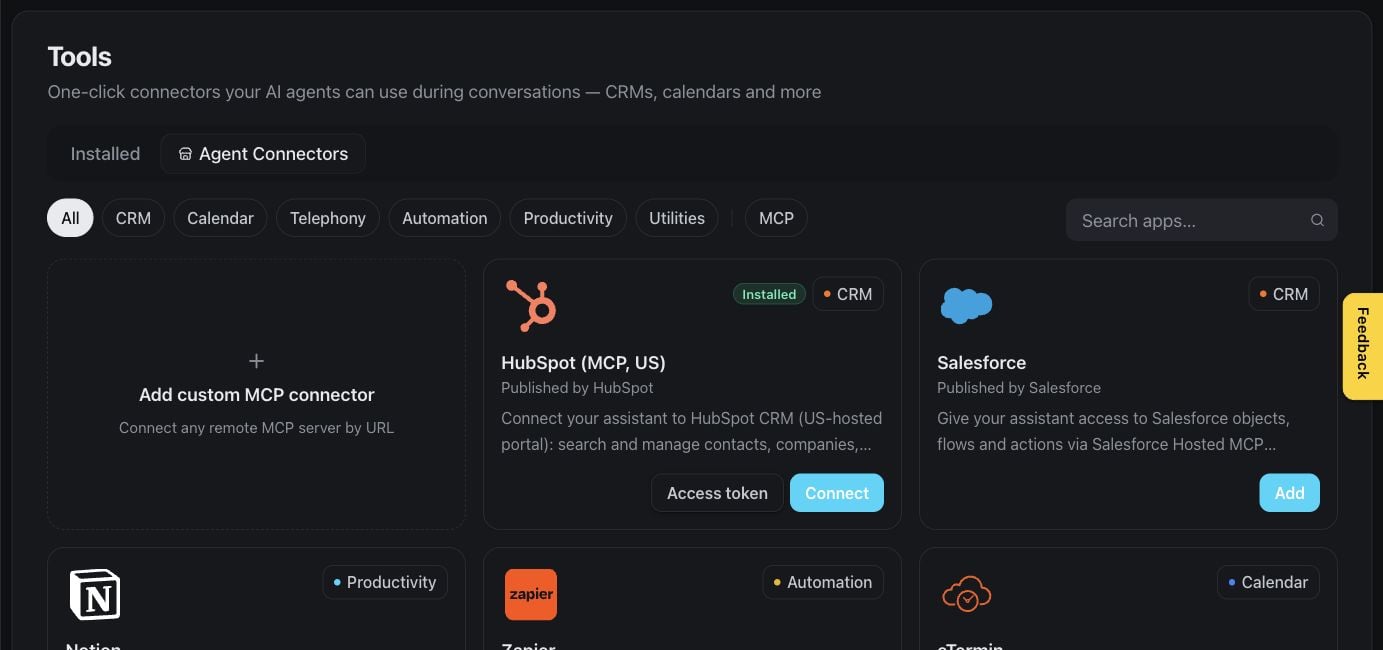
 **[Tools](/api/tools-and-webhooks)** extends what assistants can do during a conversation. Review installed tools, then browse connectors for supported business services. Connect the required account and enable the tool on the relevant assistant.
 ## Let assistants manage appointments
The **[Booking](/assistants/calendar-booking)** area brings appointments, event types, calendars, and scheduling integrations together. Event types define what can be booked, the duration, and the availability rules.
## Let assistants manage appointments
The **[Booking](/assistants/calendar-booking)** area brings appointments, event types, calendars, and scheduling integrations together. Event types define what can be booked, the duration, and the availability rules.
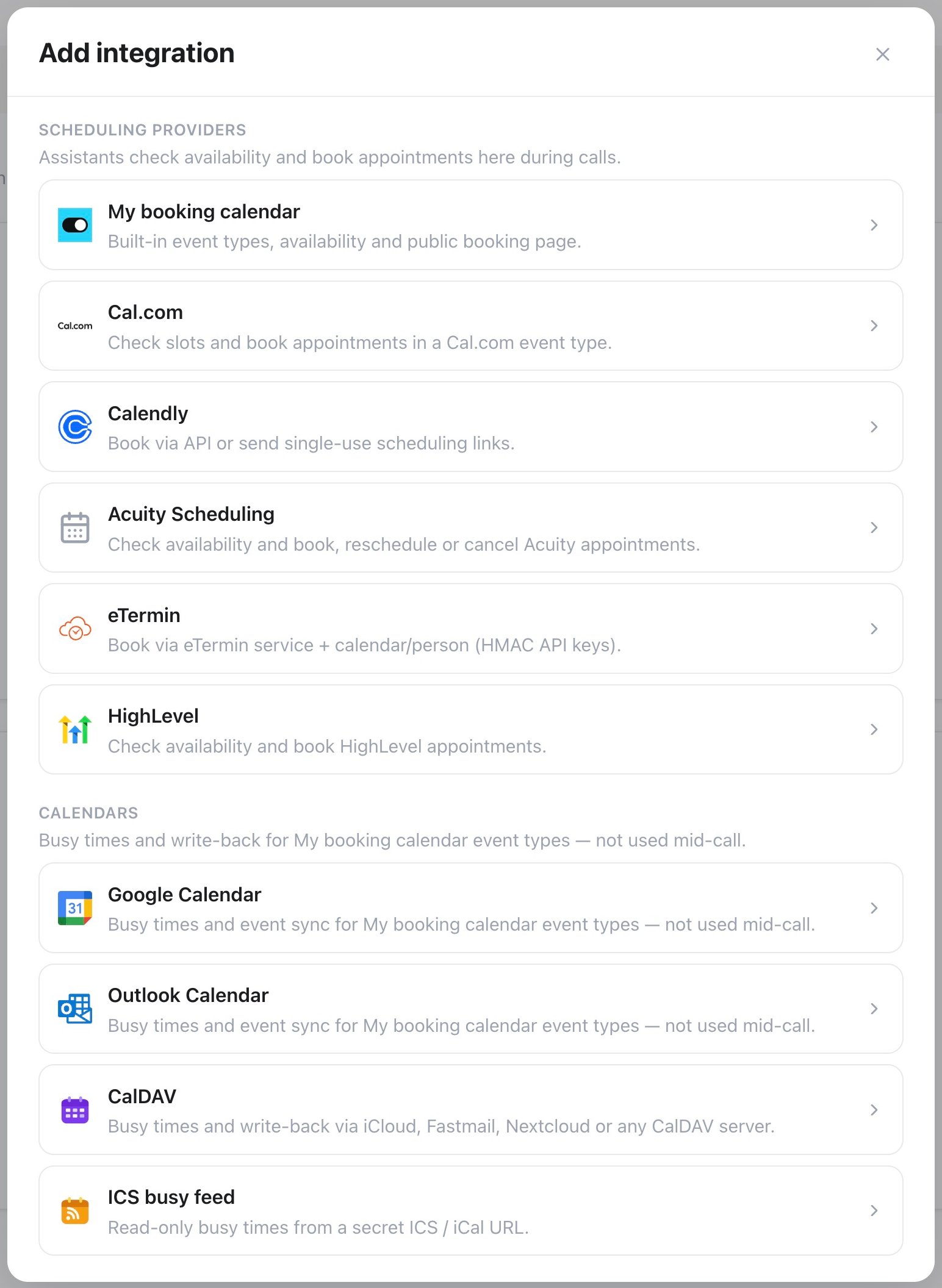
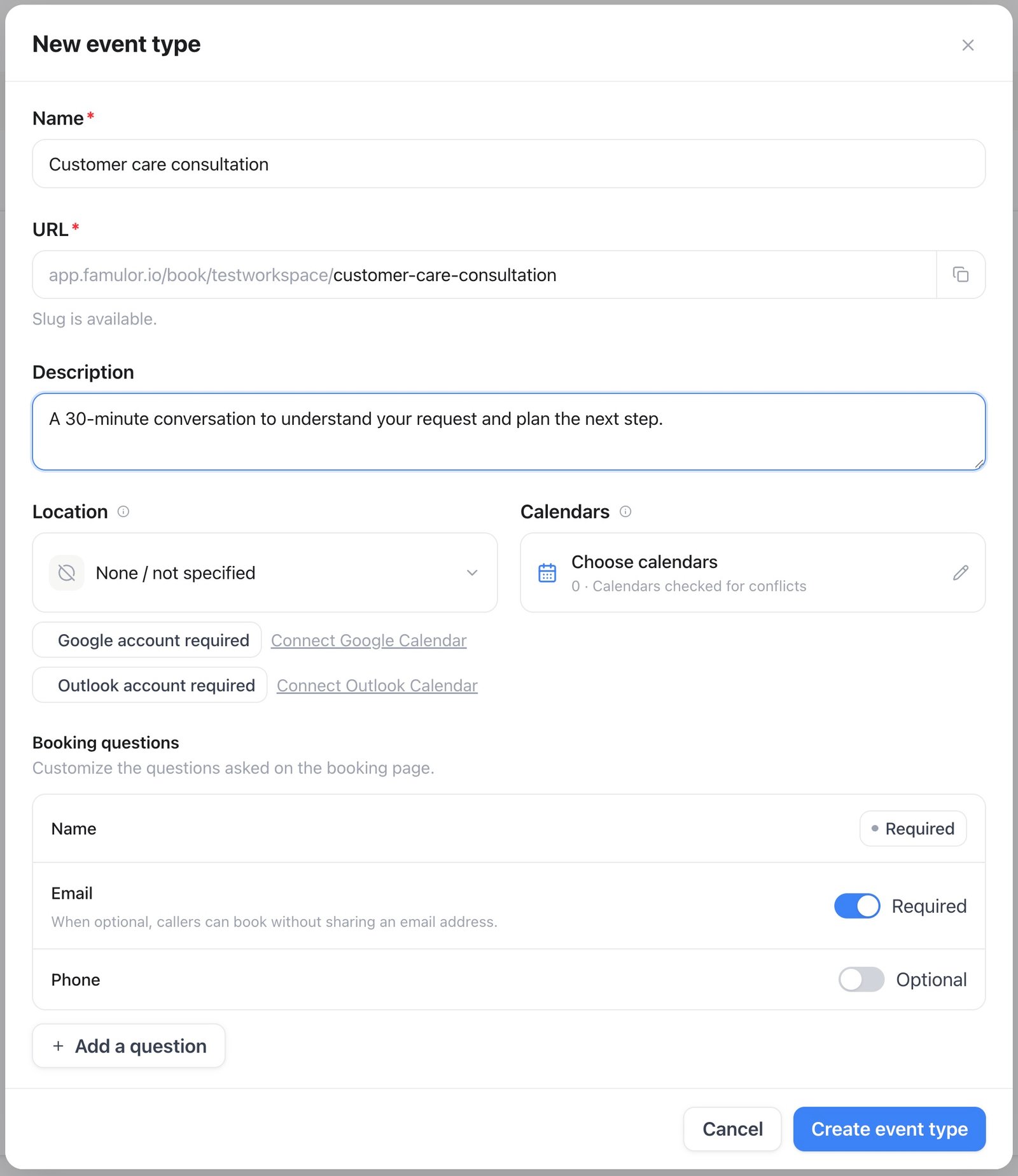 Connect a calendar or supported scheduling service to check availability and store confirmed appointments. Review created appointments in the bookings list; [native calendar settings](/assistants/native-calendar) explain calendars and availability in more detail.
 ## Automate follow-up
**[Automations](/automations/overview)** turns events into repeatable processes. Browse existing workflows or build one for follow-up, updates, and other recurring work.
## Automate follow-up
**[Automations](/automations/overview)** turns events into repeatable processes. Browse existing workflows or build one for follow-up, updates, and other recurring work.
 Arrange triggers, decisions, and actions in the visual builder. The [node reference](/automations/nodes) explains what each step does.
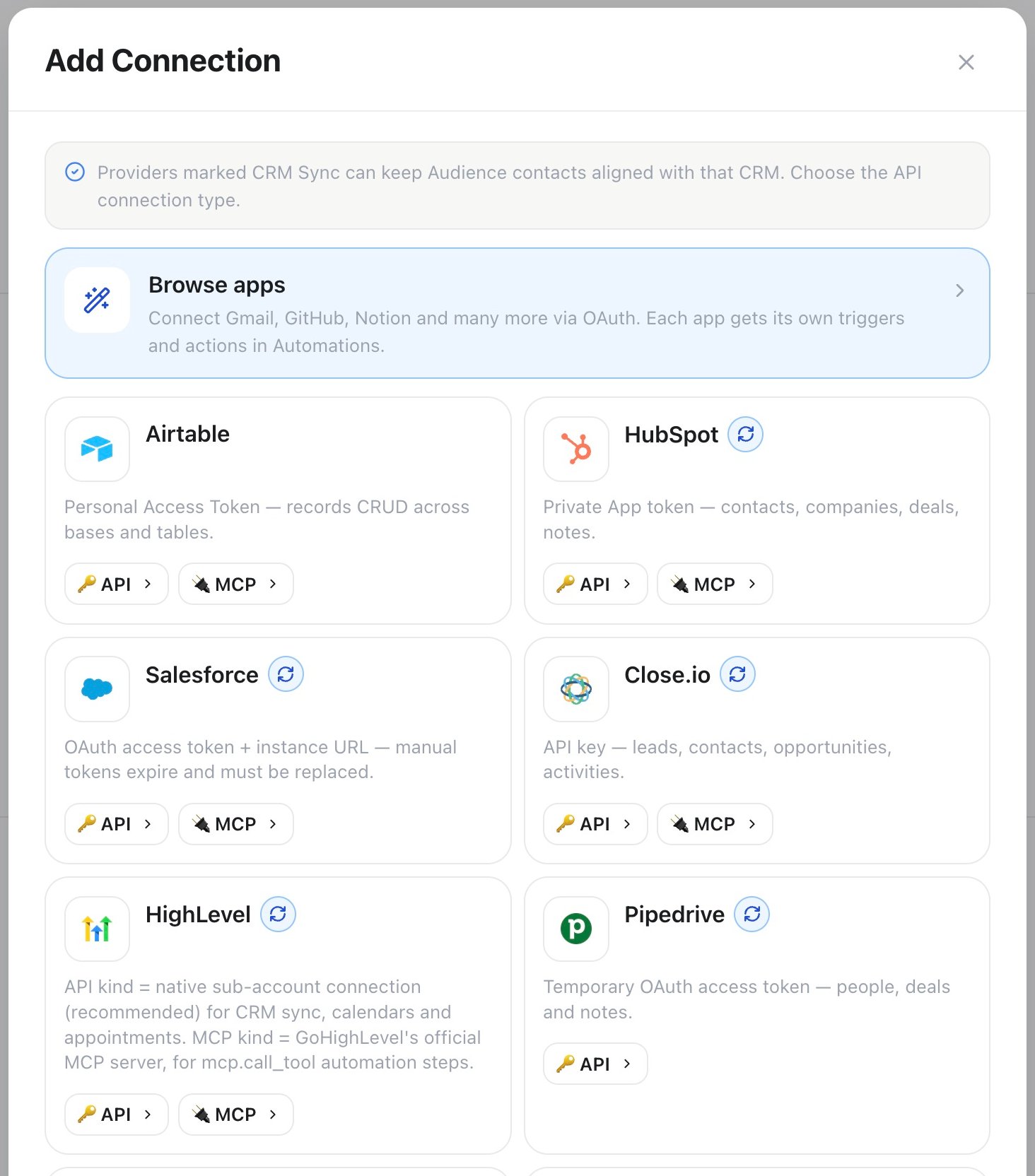
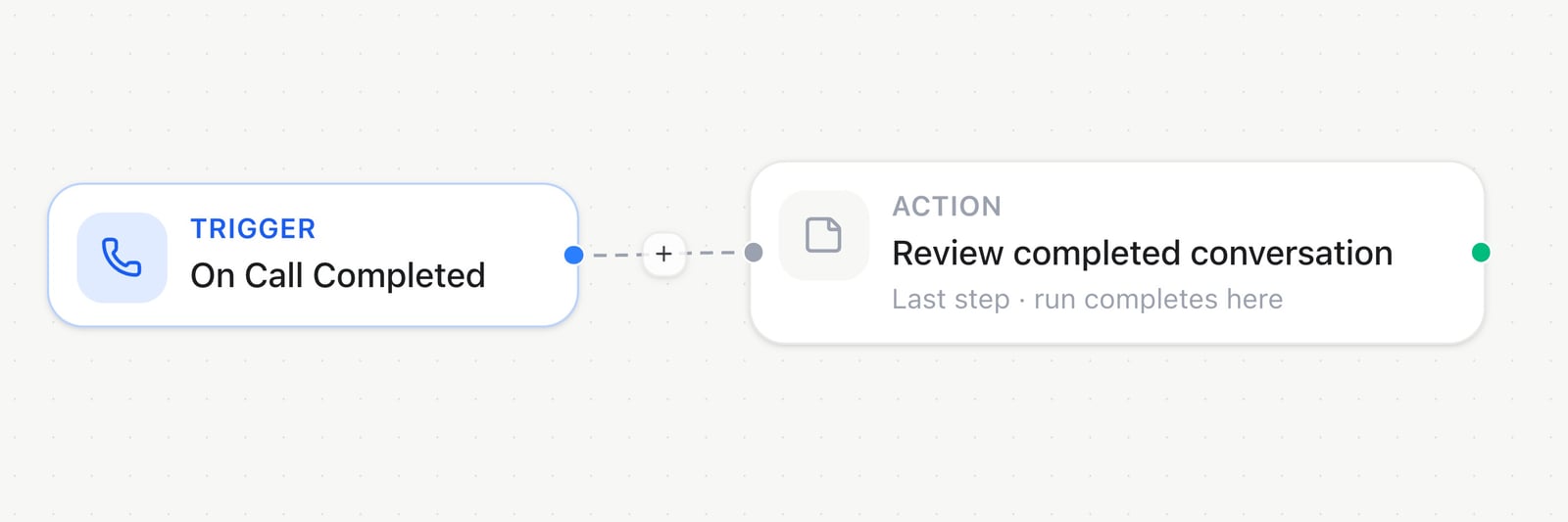 **Connections** holds the accounts workflows can use. **Runs** shows execution history so you can inspect unsuccessful steps. Explore the [app catalog](/automations/app-catalog) for supported services.
 ## Configure the workspace
Settings groups personal preferences, shared workspace controls, channels, and data policies. Owners and authorized admins manage team-wide settings; the available panels follow your access and subscription.
## Configure the workspace
Settings groups personal preferences, shared workspace controls, channels, and data policies. Owners and authorized admins manage team-wide settings; the available panels follow your access and subscription.
 | Settings area | What it controls |
| - | - |
| [Workspace and Team](/settings/workspaces) | Workspace identity, invitations, and member access. **Preferences** includes Light, Dark, and System appearance; **Milian** contains copilot preferences. |
| [Plan and Balance](/billing/manage-billing) | Workspace subscription, credit, and payment preferences. [Plans and add-ons](/billing/plans-and-addons) and **Limits** explain available capacity; [Refer and earn](/billing/referrals) shows referral benefits where available. |
| [Phone numbers](/telephony/phone-numbers) and [Famulor Loop](/telephony/famulor-loop) | Numbers, assistant assignments, team extensions, groups, queues, and devices. **Verification** manages supported sender and destination verification. |
| [Messaging channels](/channels/messaging), [WhatsApp](/channels/whatsapp), and [Email](/channels/email) | Connected communication accounts and senders. Create reusable WhatsApp templates once the channel is connected. Optional connectors appear when the workspace enables the relevant features. |
| [Memory](/assistants/memory) and **Custom Attributes** | What assistants can remember and the structured information stored with contacts and conversations. |
| [Suppression and consent](/settings/consent-compliance) | Contact restrictions and communication preferences. |
| [Audit Log](/settings/audit-log) | Search important workspace changes and see who made them. |
| [Migration](/settings/famulor-migration) | Import supported Famulor 1.0 resources; [provider migrations](/settings/provider-migrations) explain other supported imports. |
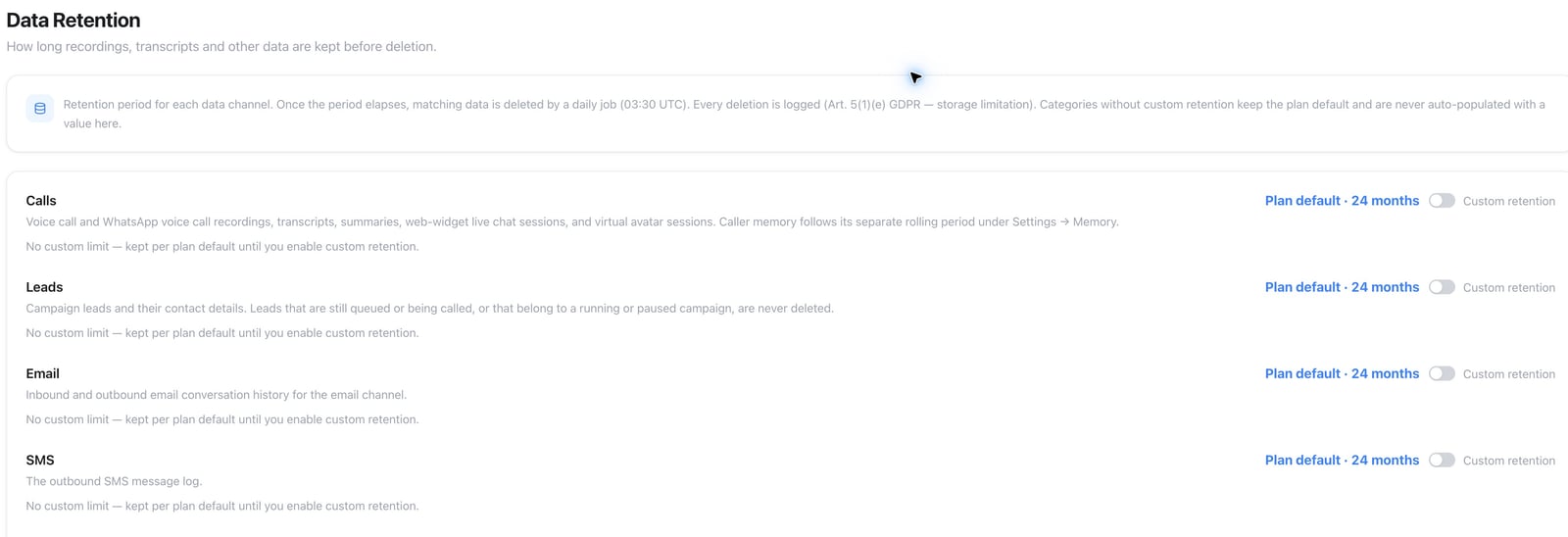
[Data Retention](/settings/data-retention) sets how long supported workspace data is kept.
| Settings area | What it controls |
| - | - |
| [Workspace and Team](/settings/workspaces) | Workspace identity, invitations, and member access. **Preferences** includes Light, Dark, and System appearance; **Milian** contains copilot preferences. |
| [Plan and Balance](/billing/manage-billing) | Workspace subscription, credit, and payment preferences. [Plans and add-ons](/billing/plans-and-addons) and **Limits** explain available capacity; [Refer and earn](/billing/referrals) shows referral benefits where available. |
| [Phone numbers](/telephony/phone-numbers) and [Famulor Loop](/telephony/famulor-loop) | Numbers, assistant assignments, team extensions, groups, queues, and devices. **Verification** manages supported sender and destination verification. |
| [Messaging channels](/channels/messaging), [WhatsApp](/channels/whatsapp), and [Email](/channels/email) | Connected communication accounts and senders. Create reusable WhatsApp templates once the channel is connected. Optional connectors appear when the workspace enables the relevant features. |
| [Memory](/assistants/memory) and **Custom Attributes** | What assistants can remember and the structured information stored with contacts and conversations. |
| [Suppression and consent](/settings/consent-compliance) | Contact restrictions and communication preferences. |
| [Audit Log](/settings/audit-log) | Search important workspace changes and see who made them. |
| [Migration](/settings/famulor-migration) | Import supported Famulor 1.0 resources; [provider migrations](/settings/provider-migrations) explain other supported imports. |
[Data Retention](/settings/data-retention) sets how long supported workspace data is kept.
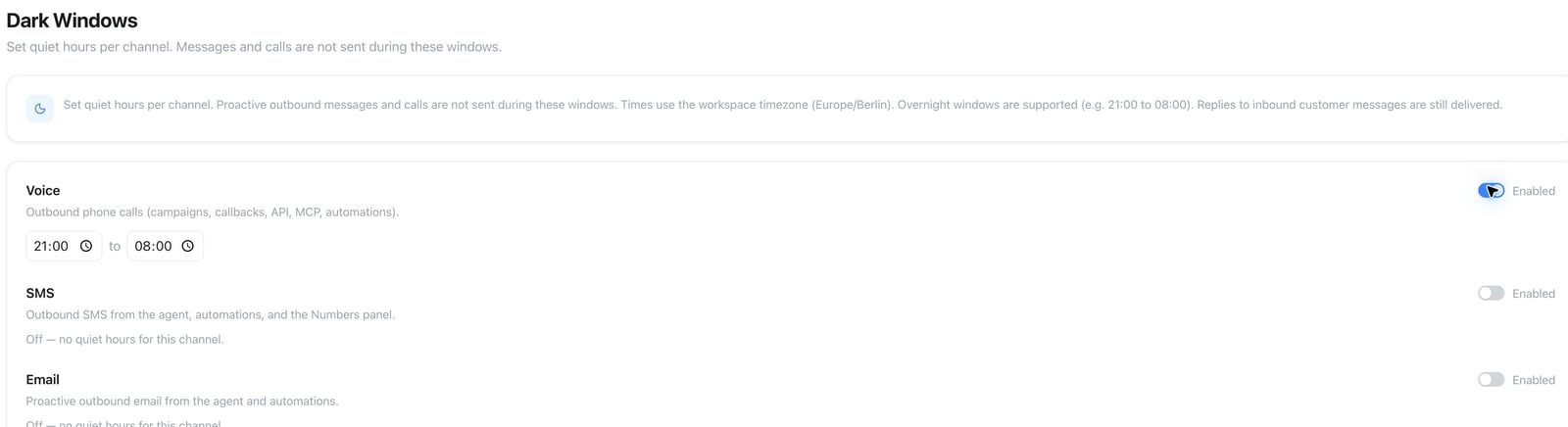
 [Dark Windows](/settings/dark-windows) defines quiet periods for automated contact.
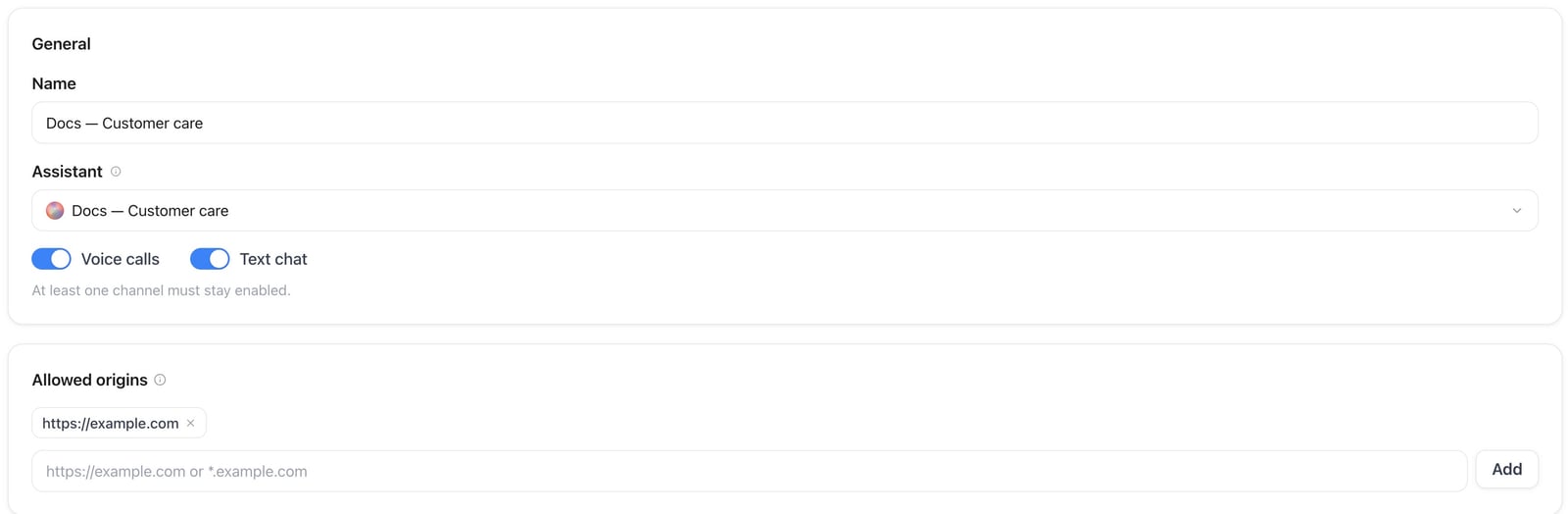
 **[Web Widget & AI Avatar](/web-widget)** customizes the assistant experience embedded on your website.
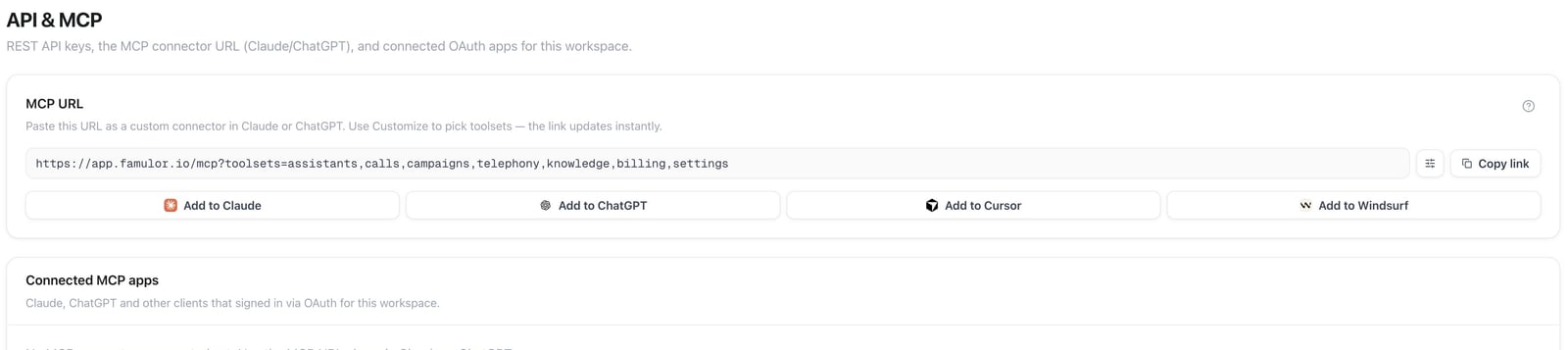
 **API & MCP** connects your workspace to applications and compatible AI clients. Use the [REST API](/api-reference/introduction), follow the [MCP guide](/mcp/overview), or install the [official Famulor plugin for ChatGPT](https://chatgpt.com/plugins/plugin_asdk_app_6a8a46791ed08191a79aa4c98f34d772) for read-only assistant and conversation review.
 ## Operate a white-label business
[White Label access](/admin/tenants-and-whitelabel) lets an eligible workspace offer a branded service. Customers have their own isolated workspaces, teams, subscriptions, and credits. These management areas require White Label access and an authorized role.
Open **Whitelabel Admin → Dashboard** and select an unfinished item in **Setup Your Platform** to open its settings. The checklist below shows an example workspace before domain and payment setup.
## Operate a white-label business
[White Label access](/admin/tenants-and-whitelabel) lets an eligible workspace offer a branded service. Customers have their own isolated workspaces, teams, subscriptions, and credits. These management areas require White Label access and an authorized role.
Open **Whitelabel Admin → Dashboard** and select an unfinished item in **Setup Your Platform** to open its settings. The checklist below shows an example workspace before domain and payment setup.
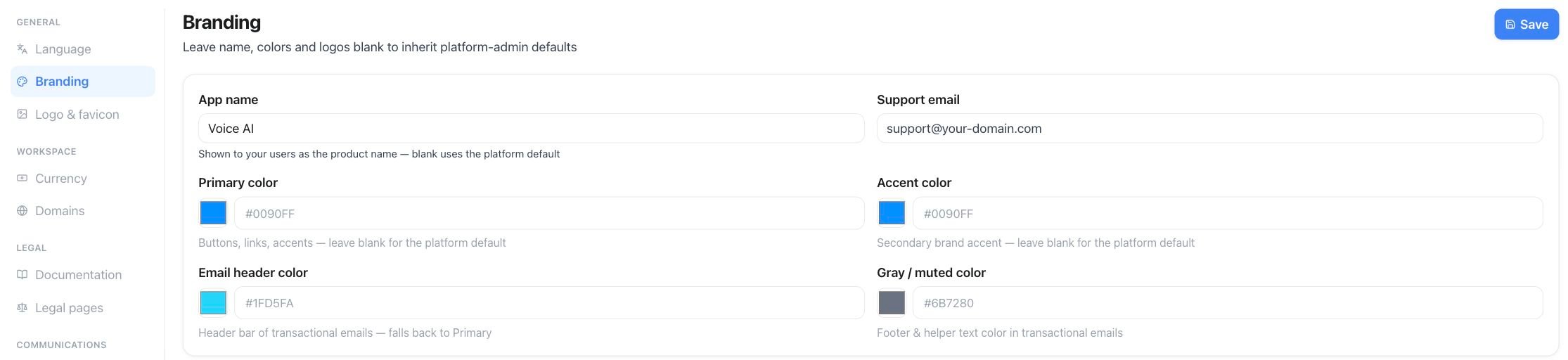
 Open **Whitelabel Admin → Settings → Branding**. Enter **App name** and **Support email**, choose the brand colors, then select **Save**.
 | Area | What you manage |
| - | - |
| [Dashboard and customers](/admin/dashboard) | Customer activity, workspace locations, customer lists, and individual customer details. |
| [Plans and pricing](/admin/plans-and-limits) | Customer packages, usage pricing, and included capacity. [Default limits](/admin/user-limits) provide starting boundaries and customer-specific adjustments. |
| [Billing](/admin/stripe) | Customer checkout, subscriptions, top-ups, and invoices. |
| [Voices and customer access](/admin/tenants-and-whitelabel) | Curate available voices and support customer workspaces within your granted access. |
| [Prompt templates](/admin/prompt-templates) | Reusable starting points for your customers' assistants. |
| [History and live monitoring](/admin/tenants-and-whitelabel#cross-customer-history-and-live-monitoring) | Review customer conversations and, when included in your plan, support active calls. |
| [Data migration](/admin/data-migration) | Move supported resources between customer workspaces. |
| [Brand settings](/admin/whitelabel-setup) | Domain, logos, email, and the customer-facing service experience. |
## Where to go next
Go from an empty workspace to a browser test call.
Understand prompts, flows, testing, and publishing.
Plan outbound conversations and follow their progress.
Let assistants offer and confirm available appointments.
This documentation is built and hosted on [Mintlify](https://mintlify.com), a developer documentation platform.
| Area | What you manage |
| - | - |
| [Dashboard and customers](/admin/dashboard) | Customer activity, workspace locations, customer lists, and individual customer details. |
| [Plans and pricing](/admin/plans-and-limits) | Customer packages, usage pricing, and included capacity. [Default limits](/admin/user-limits) provide starting boundaries and customer-specific adjustments. |
| [Billing](/admin/stripe) | Customer checkout, subscriptions, top-ups, and invoices. |
| [Voices and customer access](/admin/tenants-and-whitelabel) | Curate available voices and support customer workspaces within your granted access. |
| [Prompt templates](/admin/prompt-templates) | Reusable starting points for your customers' assistants. |
| [History and live monitoring](/admin/tenants-and-whitelabel#cross-customer-history-and-live-monitoring) | Review customer conversations and, when included in your plan, support active calls. |
| [Data migration](/admin/data-migration) | Move supported resources between customer workspaces. |
| [Brand settings](/admin/whitelabel-setup) | Domain, logos, email, and the customer-facing service experience. |
## Where to go next
Go from an empty workspace to a browser test call.
Understand prompts, flows, testing, and publishing.
Plan outbound conversations and follow their progress.
Let assistants offer and confirm available appointments.
This documentation is built and hosted on [Mintlify](https://mintlify.com), a developer documentation platform.