> ## Documentation Index
> Fetch the complete documentation index at: https://docs.famulor.io/llms.txt
> Use this file to discover all available pages before exploring further.
# Connect an AI client
> Connect Claude, ChatGPT, or another MCP client to your Famulor workspace
The **Model Context Protocol (MCP)** endpoint lets an AI application work with the same workspace resources you use in the dashboard — assistants, calls, campaigns, knowledge bases, and more — subject to your plan, role, and approved permissions.
```text theme={null}
https://app.famulor.io/mcp
```
On a white-label domain, use that domain instead. The login and consent screens use the same branding. Your plan must include **Connect AI / MCP**.
This page covers connecting an AI client (Claude, ChatGPT, and others) *to* Famulor. Looking to connect one of your assistants *out* to an external MCP server mid-call — your own CRM or internal tools? See [Tools & webhooks](/api/tools-and-webhooks#external-mcp-servers) instead.
## Connecting clients
Connect with the [Famulor connector in Claude's directory](https://claude.ai/directory/famulor-assistants-history).
1. Open the directory page and choose **Connect**.
2. Sign in to your Famulor account and approve the requested access.
3. Start a chat and ask, for example: “Review my support assistant and summarize its recent calls.”
The directory connector provides **read-only assistant information and conversation history**. See [Public directory profile](/mcp/tools-and-scopes#public-directory-profile).
To create and change assistants, start campaigns, or use a white-label domain, add a custom connector with the URL shown in **Settings → API & MCP**:
1. **Customize → Connectors → + Add → Add custom connector**.
2. Enter `https://app.famulor.io/mcp`.
3. Sign in and approve the requested permissions.
4. The approved tools appear in Claude.
**Connect** in the sidebar and **Add to Claude** in **Settings → API & MCP** offer both options: the directory connector or a prefilled custom connector.
Connect with the [official Famulor plugin](https://chatgpt.com/plugins/plugin_asdk_app_6a8a46791ed08191a79aa4c98f34d772) in ChatGPT.
1. Open the plugin page and choose **Install plugin** if shown.
2. Choose **Connect**, sign in to your Famulor account, and approve the requested access.
3. Start a chat, select **Famulor** from the app picker or mention **@Famulor**, and try: “Review my support assistant and summarize its recent calls.”
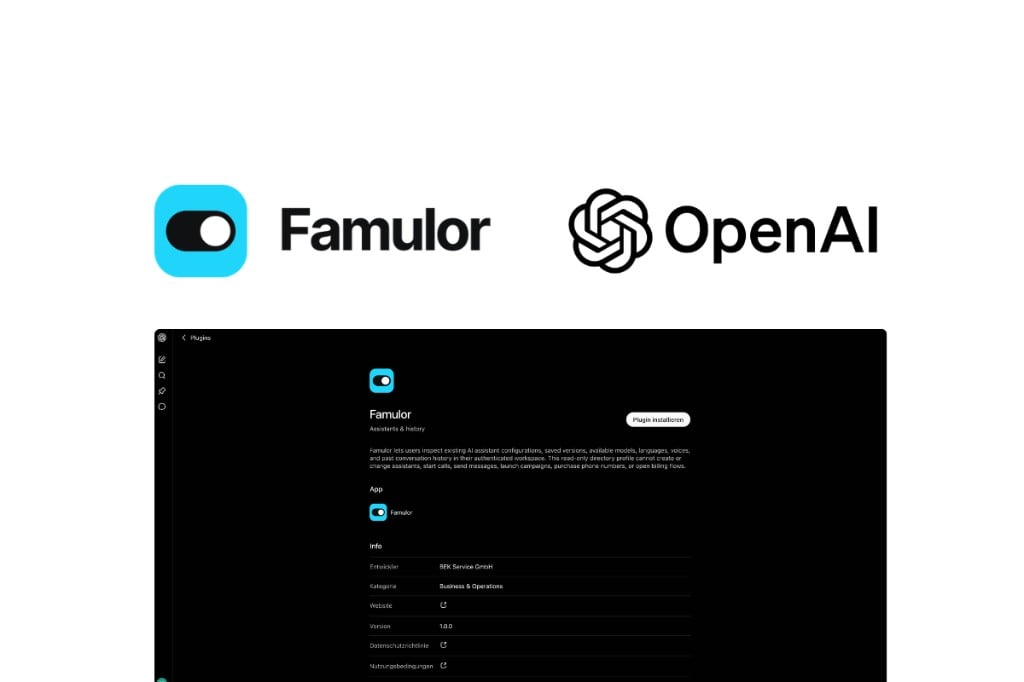 The official plugin provides **read-only assistant information and conversation history**. You can review configurations, saved versions, and transcripts, then ask for analysis or suggested improvements. It cannot change assistants, start calls, or launch campaigns. See [Public directory profile](/mcp/tools-and-scopes#public-directory-profile).
Installing the official plugin does not require creating a custom MCP app or enabling Developer mode. Available installation controls depend on your ChatGPT account and workspace settings. See [OpenAI's plugin setup guide](https://help.openai.com/en/articles/20001256-plugins-in-chatgpt-and-codex).
For a custom connection, open **ChatGPT Plugins → + → Add custom MCP server** on the web. Paste the URL from **Settings → API & MCP**, choose **OAuth**, sign in, and approve the tool groups you need. Install the resulting plugin, then select it with **@** in a chat. Workspace permissions can restrict this option. See [OpenAI’s current custom MCP setup](https://developers.openai.com/api/docs/guides/custom-mcp-server). This connection has its own permissions; installing the marketplace plugin does not enable additional tools.
Cursor, Windsurf, VS Code, Cline, Continue, Zed, and any other MCP-compatible client work the same way: point the client at the endpoint above and complete OAuth sign-in. For trusted server-to-server integrations, you can instead send a workspace API key as a Bearer token — see [Authentication](#authentication-and-consent) below.
### Connect from inside Famulor
Choose **Connect** in the sidebar or open **Settings → API & MCP**. Claude and ChatGPT both offer **Custom connector**, using your workspace’s plain MCP URL by default. Platform workspaces can also choose the marketplace connector, marked **Limited**, for read-only assistants and history. White-label customer workspaces use their own custom connection. Tool-group filtering is optional; the OAuth consent screen controls what you approve. Claude also offers starter tasks.
Working from a coding agent such as Claude Code, Cursor, or Codex, install the open-source [Famulor Skill](https://github.com/bekservice/Famulor-Skill) with `npx skills add bekservice/Famulor-Skill`. It carries the endpoint configuration (add the URL manually if your client doesn't pick it up) plus Famulor-specific working rules on top of raw MCP access: read current state before changing it, confirm anything hard to reverse, and stay inside the authenticated workspace.
## Authentication and consent
Compatible clients start the OAuth sign-in automatically. The consent screen shows the requested tool groups before anything is shared, and your choice is remembered for future connections. Approved connections are listed under **Settings → API & MCP**, where each one can be revoked at any time.
For a manual or server-to-server connection, send a workspace API key instead:
```http theme={null}
Authorization: Bearer fam_...
```
Use the narrowest scopes required. Write scopes include the corresponding read access.
The official plugin provides **read-only assistant information and conversation history**. You can review configurations, saved versions, and transcripts, then ask for analysis or suggested improvements. It cannot change assistants, start calls, or launch campaigns. See [Public directory profile](/mcp/tools-and-scopes#public-directory-profile).
Installing the official plugin does not require creating a custom MCP app or enabling Developer mode. Available installation controls depend on your ChatGPT account and workspace settings. See [OpenAI's plugin setup guide](https://help.openai.com/en/articles/20001256-plugins-in-chatgpt-and-codex).
For a custom connection, open **ChatGPT Plugins → + → Add custom MCP server** on the web. Paste the URL from **Settings → API & MCP**, choose **OAuth**, sign in, and approve the tool groups you need. Install the resulting plugin, then select it with **@** in a chat. Workspace permissions can restrict this option. See [OpenAI’s current custom MCP setup](https://developers.openai.com/api/docs/guides/custom-mcp-server). This connection has its own permissions; installing the marketplace plugin does not enable additional tools.
Cursor, Windsurf, VS Code, Cline, Continue, Zed, and any other MCP-compatible client work the same way: point the client at the endpoint above and complete OAuth sign-in. For trusted server-to-server integrations, you can instead send a workspace API key as a Bearer token — see [Authentication](#authentication-and-consent) below.
### Connect from inside Famulor
Choose **Connect** in the sidebar or open **Settings → API & MCP**. Claude and ChatGPT both offer **Custom connector**, using your workspace’s plain MCP URL by default. Platform workspaces can also choose the marketplace connector, marked **Limited**, for read-only assistants and history. White-label customer workspaces use their own custom connection. Tool-group filtering is optional; the OAuth consent screen controls what you approve. Claude also offers starter tasks.
Working from a coding agent such as Claude Code, Cursor, or Codex, install the open-source [Famulor Skill](https://github.com/bekservice/Famulor-Skill) with `npx skills add bekservice/Famulor-Skill`. It carries the endpoint configuration (add the URL manually if your client doesn't pick it up) plus Famulor-specific working rules on top of raw MCP access: read current state before changing it, confirm anything hard to reverse, and stay inside the authenticated workspace.
## Authentication and consent
Compatible clients start the OAuth sign-in automatically. The consent screen shows the requested tool groups before anything is shared, and your choice is remembered for future connections. Approved connections are listed under **Settings → API & MCP**, where each one can be revoked at any time.
For a manual or server-to-server connection, send a workspace API key instead:
```http theme={null}
Authorization: Bearer fam_...
```
Use the narrowest scopes required. Write scopes include the corresponding read access.
 ## What a connected client can see
The official ChatGPT plugin uses the read-only [public directory profile](/mcp/tools-and-scopes#public-directory-profile). Its permissions stay limited to assistant information and conversation history.
Custom connections use `/mcp` by default. When you approve a new connection, all selected tool groups are saved, including an explicit selection of every group. Access still depends on the client’s requested permissions, your approved scopes, workspace role, and plan. A tool appearing in the catalog does not itself authorize an action.
Existing connections keep their token permissions. To add missing access, revoke the old connection under **Settings → API & MCP**, reconnect, and approve the required groups. Refresh the tools or start a new chat in your AI client afterward.
Toolsets remain useful as an optional filter for focused workflows or clients that struggle with a large catalog. URL and header filters cannot expand a token’s explicitly approved groups. Marketplace connections remain limited to their reviewed profile.
## Rate limits
MCP requests are rate-limited to keep the platform responsive for every workspace:
| Limit | Value |
| - | - |
| Requests per credential | 120 per minute |
| Requests per workspace | 600 per minute |
| Request body size | 1 MB |
A client that exceeds these limits receives a `429` response and should back off before retrying — see [Errors](/mcp/tools-and-scopes#errors).
The same customer capabilities are available through the [REST API](/api-reference/introduction). Choose the interface that best fits your integration.
This documentation is built and hosted on [Mintlify](https://mintlify.com), a developer documentation platform.
## What a connected client can see
The official ChatGPT plugin uses the read-only [public directory profile](/mcp/tools-and-scopes#public-directory-profile). Its permissions stay limited to assistant information and conversation history.
Custom connections use `/mcp` by default. When you approve a new connection, all selected tool groups are saved, including an explicit selection of every group. Access still depends on the client’s requested permissions, your approved scopes, workspace role, and plan. A tool appearing in the catalog does not itself authorize an action.
Existing connections keep their token permissions. To add missing access, revoke the old connection under **Settings → API & MCP**, reconnect, and approve the required groups. Refresh the tools or start a new chat in your AI client afterward.
Toolsets remain useful as an optional filter for focused workflows or clients that struggle with a large catalog. URL and header filters cannot expand a token’s explicitly approved groups. Marketplace connections remain limited to their reviewed profile.
## Rate limits
MCP requests are rate-limited to keep the platform responsive for every workspace:
| Limit | Value |
| - | - |
| Requests per credential | 120 per minute |
| Requests per workspace | 600 per minute |
| Request body size | 1 MB |
A client that exceeds these limits receives a `429` response and should back off before retrying — see [Errors](/mcp/tools-and-scopes#errors).
The same customer capabilities are available through the [REST API](/api-reference/introduction). Choose the interface that best fits your integration.
This documentation is built and hosted on [Mintlify](https://mintlify.com), a developer documentation platform.