> ## Documentation Index
> Fetch the complete documentation index at: https://docs.famulor.io/llms.txt
> Use this file to discover all available pages before exploring further.
# Dialer, retries & compliance
> Parallel dialing, retry logic, calling windows, DNC lists, and voicemail handling
The dialer keeps running after you close the browser and places calls within your campaign rules.
## Parallel dialing (concurrency)
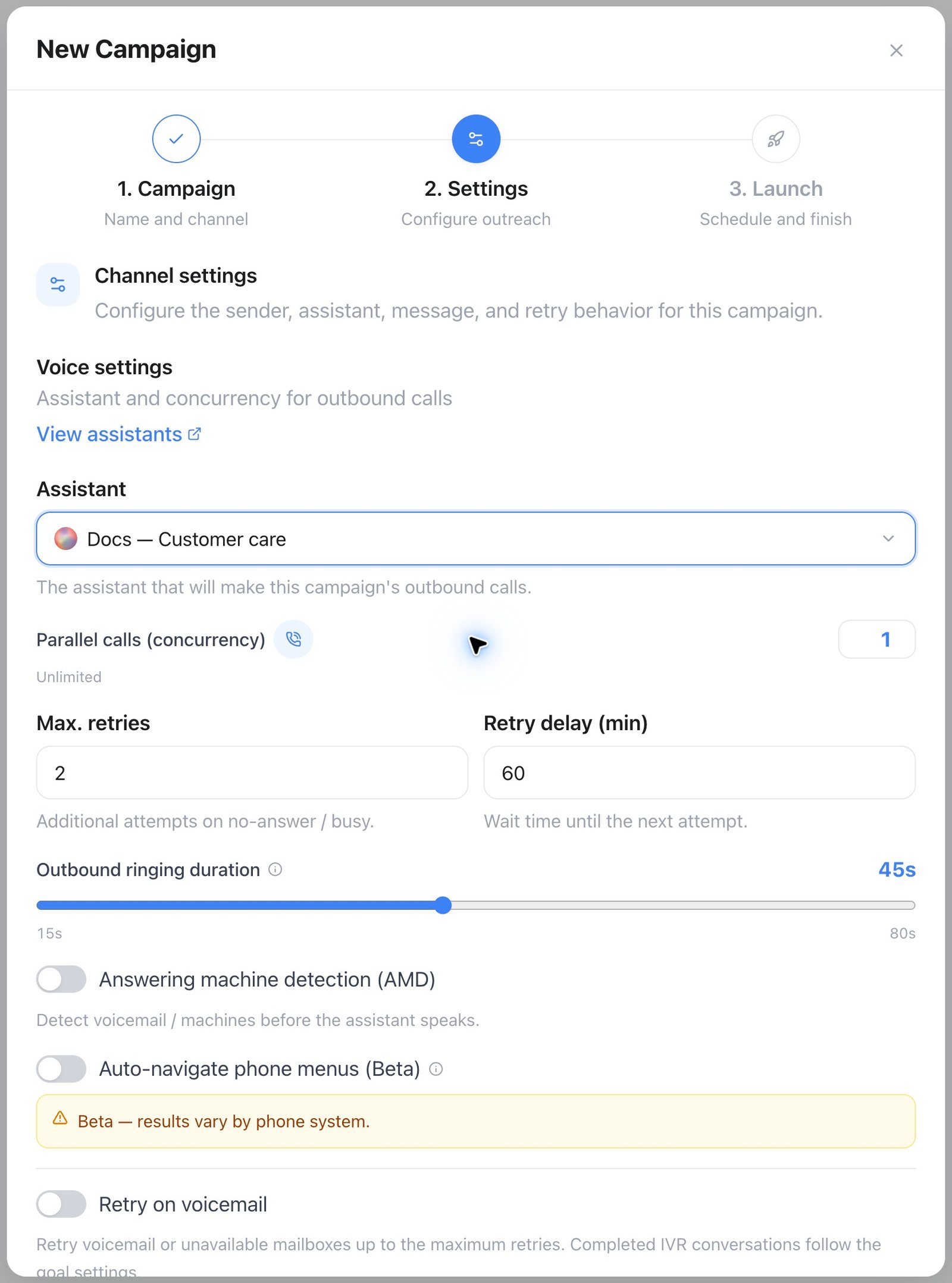
* Set **Parallel calls (concurrency)** per campaign. The slider ends at your workspace's available **Concurrent Lines**, including purchased add-ons. Workspaces with unlimited lines use a number input.
* New settings cannot exceed the current workspace allowance. If the allowance later falls, active dialing respects the lower limit. Lines are shared by every live assistant session — inbound and outbound calls, web calls, WhatsApp voice, and web chat. Campaigns wait for a free line without consuming a lead's retry attempts. Calls start in batches, so the selected concurrency is a ceiling rather than a promise that all calls start at once.
* Inbound phone callers who reach you while every line is busy are not turned away: they keep hearing the normal ringing tone and are connected as soon as a line frees up. The wait stays within the assistant's [Inbound ringing duration](/assistants/conversation-quality#ringing) (60 s by default, up to 120 s); if no line frees up in time, the caller hears a busy signal. When as many callers are already waiting as the workspace has lines (between 2 and 20), further callers hear busy right away. Calls that a Famulor Loop routing rule forwards to an assistant also get busy right away, so the rule can continue with its next step. Ringing time is not billed, because the call is only answered once a line is free.
* The small info icon explains this allowance and links to **Settings → Plan** to add Concurrent Lines.
* **Concurrent Lines** is a paid, tiered add-on bought from **Settings → Plan** for workspaces that need more simultaneous capacity than the plan includes. Each purchased line raises the workspace ceiling by one.
* Calls that never connect are cleared automatically so they do not occupy a slot indefinitely.
This is a different limit from the [daily outbound call cap](/telephony/outbound-limits): concurrency governs how many calls run at the same moment, the daily cap governs how many calls may start over a whole day.
 ## Retry logic
Unanswered leads are retried automatically:
* **Max. retries** counts *additional* attempts after the first dial. The default is 2, so a lead is dialed up to three times.
* **Retry delay (min)** is the wait before the next attempt (default 60) — the retry lands at a *different time of day*, which measurably improves reach.
* A lead that answers stops being retried; `busy`, `no answer`, and `failed` outcomes schedule the next attempt until the budget is exhausted.
* The full attempt history is visible per lead.
**Max. retries** is the hard ceiling for every retry policy below. The voicemail and goal options cannot create unbounded loops; once the attempts are exhausted, the lead receives its final outcome.
### Retry on voicemail
Turn on **Retry on voicemail** to retry calls that reach a voicemail or unavailable mailbox, within the maximum retries. A completed conversation with an interactive receptionist is evaluated using the configured goal; an IVR classification alone does not trigger another call.
### Retry until the goal is achieved
Two settings work together to keep dialing a lead until a defined outcome is met:
* **Retry until goal completed** ("Continue calling until the goal is achieved") — marks a lead completed only when the selected goal evaluates to true; otherwise another attempt is scheduled within the maximum.
* **Goal variable** — pick one of the assistant's yes/no post-call evaluation fields, or the built-in **Call successful** result. If the list is empty, add a boolean field under the assistant's [Analysis](/assistants/analysis) tab first.
If the goal is never achieved, the lead is retried only until **Max. retries** is reached.
## Calling windows
Define **when the campaign may dial**, per weekday, in the campaign's **timezone** — e.g. Mon–Fri 09:30–18:00. Outside the window the dialer pauses and resumes automatically.
In Germany, unsolicited calls outside reasonable hours violate the UWG. Calling windows aren't just a courtesy feature — configure them for every campaign that dials consumers.
## Do-not-call (DNC)
## Retry logic
Unanswered leads are retried automatically:
* **Max. retries** counts *additional* attempts after the first dial. The default is 2, so a lead is dialed up to three times.
* **Retry delay (min)** is the wait before the next attempt (default 60) — the retry lands at a *different time of day*, which measurably improves reach.
* A lead that answers stops being retried; `busy`, `no answer`, and `failed` outcomes schedule the next attempt until the budget is exhausted.
* The full attempt history is visible per lead.
**Max. retries** is the hard ceiling for every retry policy below. The voicemail and goal options cannot create unbounded loops; once the attempts are exhausted, the lead receives its final outcome.
### Retry on voicemail
Turn on **Retry on voicemail** to retry calls that reach a voicemail or unavailable mailbox, within the maximum retries. A completed conversation with an interactive receptionist is evaluated using the configured goal; an IVR classification alone does not trigger another call.
### Retry until the goal is achieved
Two settings work together to keep dialing a lead until a defined outcome is met:
* **Retry until goal completed** ("Continue calling until the goal is achieved") — marks a lead completed only when the selected goal evaluates to true; otherwise another attempt is scheduled within the maximum.
* **Goal variable** — pick one of the assistant's yes/no post-call evaluation fields, or the built-in **Call successful** result. If the list is empty, add a boolean field under the assistant's [Analysis](/assistants/analysis) tab first.
If the goal is never achieved, the lead is retried only until **Max. retries** is reached.
## Calling windows
Define **when the campaign may dial**, per weekday, in the campaign's **timezone** — e.g. Mon–Fri 09:30–18:00. Outside the window the dialer pauses and resumes automatically.
In Germany, unsolicited calls outside reasonable hours violate the UWG. Calling windows aren't just a courtesy feature — configure them for every campaign that dials consumers.
## Do-not-call (DNC)
 A central workspace suppression list hard-blocks opted-out contacts before
proactive marketing outreach:
* **Universal mode** blocks every linked channel after an opt-out on any one
channel.
* **Per-channel mode** blocks only the channel where the opt-out was received.
* Phone, email, contact identity, scope, source, reason, and the mode at
opt-out are retained for auditability.
* Campaign dialing checks the active voice suppression immediately before
dispatch and fails closed when consent status cannot be verified.
Manage the mode and records under **Settings → Data → Suppression**. See
[Consent & compliance](/settings/consent-compliance) for cross-channel
behavior, restoration semantics, REST examples, and MCP tools.
* `GET /api/v1/suppression-list` — list active records
* `POST /api/v1/suppression-list` — record an opt-out
* `DELETE /api/v1/suppression-list/{id}` — restore consent without deleting
the audit history
The same operations are available through MCP.
## AMD & voicemail
Turn on **Answering machine detection (AMD)** in the campaign's settings to detect a machine before the assistant speaks, and pick **Conservative** (fewer false hang-ups) or **Aggressive** (faster detection at higher volume). AMD classifies who picked up into one of five categories:
| AMD result | Meaning |
| - | - |
| `human` | A person answered — the conversation proceeds normally |
| `uncertain` | Couldn't be classified — treated like a human, the conversation proceeds |
| `machine-vm` | Voicemail / answering machine |
| `machine-ivr` | An IVR / phone menu system |
| `machine-unavailable` | Number unavailable / operator message |
Campaign calls use **On voicemail** and **Voicemail message** in Campaign Settings. These override the assistant for that campaign. Direct calls use [Assistant settings → Conversation → Voicemail](/assistants/conversation-quality#voicemail). An empty message falls back to the greeting. A message counts as left only when playback finishes. An unavailable mailbox cannot receive a message.
Automatic IVR navigation enables detection and presses menu digits when workspace Beta Features are enabled. With navigation off, an interactive receptionist remains on the normal conversation path. Call Screen handling takes priority. Turning campaign AMD off disables detection unless automatic IVR navigation or Call Screen handling is enabled.
The AMD result appears with the call and helps retry logic distinguish a mailbox from an unanswered call. Turn on [Retry on voicemail](#retry-on-voicemail) when appropriate.
A voicemail message followed by a retry at a different hour can improve reach. Pair the assistant's voicemail message with **Retry on voicemail**.
Put together, one dial attempt for a lead follows this path:
```mermaid theme={null}
%%{init: {'flowchart': {'defaultRenderer': 'elk'}}}%%
flowchart TD
Dial["Dial lead — attempt N"] --> Outcome{"Dial outcome"}
Outcome -->|"AMD: human or uncertain"| Talk["Conversation proceeds normally"]
Outcome -->|"IVR"| Talk
Outcome -->|"AMD: machine-vm / machine-unavailable"| VM{"Did the call finish
A central workspace suppression list hard-blocks opted-out contacts before
proactive marketing outreach:
* **Universal mode** blocks every linked channel after an opt-out on any one
channel.
* **Per-channel mode** blocks only the channel where the opt-out was received.
* Phone, email, contact identity, scope, source, reason, and the mode at
opt-out are retained for auditability.
* Campaign dialing checks the active voice suppression immediately before
dispatch and fails closed when consent status cannot be verified.
Manage the mode and records under **Settings → Data → Suppression**. See
[Consent & compliance](/settings/consent-compliance) for cross-channel
behavior, restoration semantics, REST examples, and MCP tools.
* `GET /api/v1/suppression-list` — list active records
* `POST /api/v1/suppression-list` — record an opt-out
* `DELETE /api/v1/suppression-list/{id}` — restore consent without deleting
the audit history
The same operations are available through MCP.
## AMD & voicemail
Turn on **Answering machine detection (AMD)** in the campaign's settings to detect a machine before the assistant speaks, and pick **Conservative** (fewer false hang-ups) or **Aggressive** (faster detection at higher volume). AMD classifies who picked up into one of five categories:
| AMD result | Meaning |
| - | - |
| `human` | A person answered — the conversation proceeds normally |
| `uncertain` | Couldn't be classified — treated like a human, the conversation proceeds |
| `machine-vm` | Voicemail / answering machine |
| `machine-ivr` | An IVR / phone menu system |
| `machine-unavailable` | Number unavailable / operator message |
Campaign calls use **On voicemail** and **Voicemail message** in Campaign Settings. These override the assistant for that campaign. Direct calls use [Assistant settings → Conversation → Voicemail](/assistants/conversation-quality#voicemail). An empty message falls back to the greeting. A message counts as left only when playback finishes. An unavailable mailbox cannot receive a message.
Automatic IVR navigation enables detection and presses menu digits when workspace Beta Features are enabled. With navigation off, an interactive receptionist remains on the normal conversation path. Call Screen handling takes priority. Turning campaign AMD off disables detection unless automatic IVR navigation or Call Screen handling is enabled.
The AMD result appears with the call and helps retry logic distinguish a mailbox from an unanswered call. Turn on [Retry on voicemail](#retry-on-voicemail) when appropriate.
A voicemail message followed by a retry at a different hour can improve reach. Pair the assistant's voicemail message with **Retry on voicemail**.
Put together, one dial attempt for a lead follows this path:
```mermaid theme={null}
%%{init: {'flowchart': {'defaultRenderer': 'elk'}}}%%
flowchart TD
Dial["Dial lead — attempt N"] --> Outcome{"Dial outcome"}
Outcome -->|"AMD: human or uncertain"| Talk["Conversation proceeds normally"]
Outcome -->|"IVR"| Talk
Outcome -->|"AMD: machine-vm / machine-unavailable"| VM{"Did the call finish
successfully?"}
Outcome -->|"busy / no answer / failed"| Budget{"Attempts left under Max. retries?"}
Talk --> GoalToggle{"Retry until goal completed ON?"}
VM -->|"No — it hung up"| Budget
VM -->|"Yes"| VMToggle{"Retry on voicemail ON?"}
VMToggle -->|"Yes"| Budget
VMToggle -->|"No"| GoalToggle
GoalToggle -->|"No"| Done["Lead marked completed —
no further attempts"]
GoalToggle -->|"Yes"| GoalCheck{"Goal variable true?"}
GoalCheck -->|"Yes"| Done
GoalCheck -->|"No"| Budget
Budget -->|"Yes"| Next["Schedule next attempt after Retry delay"]
Next --> Dial
Budget -->|"No"| Final["Lead gets its final outcome —
retries exhausted"]
```
## Troubleshooting
### Campaign won't start
| Message | Cause | Fix |
| - | - | - |
| "The campaign has no assistant assigned." | No assistant is selected on this campaign | Assign an assistant in the campaign's settings |
| "The campaign has no leads." | The lead queue is empty | [Import leads](/audience/importing-contacts) or assign contacts from Audience |
| "Archived campaigns cannot be started. Restore it first." | The campaign was archived | Restore the campaign, then start it |
| "This campaign is blocked by your current plan limit. …" | You're over your plan's campaign allowance | Upgrade your plan, or archive another campaign |
| "Campaign is already running." | The campaign is already dialing | Nothing to do — to change its settings, select **Stop** first, then start it again |
A scheduled campaign runs through the same checks when its start time arrives. If one of them fails, the campaign moves to Paused instead of Running and keeps the error — so a campaign that was Scheduled yesterday and is Paused today usually hit one of the rows above.
### No calls happening
A running campaign that isn't placing calls usually comes down to one of these:
* **Outside the calling window** — check the current time against the campaign's [calling window](#calling-windows) and timezone.
* **Queue exhausted** — every lead has either used up its **Max. retries** or is waiting for its next retry. Import more leads, or review the [retry settings](#retry-logic).
* **Suppressed** — leads on the [do-not-call list](#do-not-call-dnc) are skipped, not retried.
### Goal-completion debugging
If [Retry until goal completed](#retry-until-the-goal-is-achieved) marks leads complete unexpectedly — or never marks them complete — the usual cause is the goal variable itself, not the retry logic:
1. Review recent call transcripts for extraction errors on the goal variable.
2. Place a few test calls and check what the assistant actually extracts.
3. Tighten the variable's description and the prompt language around it so the criteria are unambiguous.
Starting a campaign dials its first wave immediately, and the dialer re-checks every running campaign about once a minute after that. If nothing has happened within a few minutes, work through the checks above rather than assuming it needs more time.
This documentation is built and hosted on [Mintlify](https://mintlify.com), a developer documentation platform.