> ## Documentation Index
> Fetch the complete documentation index at: https://docs.famulor.io/llms.txt
> Use this file to discover all available pages before exploring further.
# Automation node reference
> Every trigger and step in the Automation builder, with its fields and behavior
This is the field-level reference for the Automation builder — every trigger, every step, and how data moves between them. For what Automations are for, how runs are billed, and worked examples, start with [Automations overview](/automations/overview).
## Automations list tabs
The `/automations` list page has three tabs:
| Tab | Shows |
| - | - |
| **Automations** | Every workflow in the workspace — connected app icons, name (with its trigger, and the bound assistant if the trigger has one), tags, run count, when it last fired, and status. Search, filter by tag, and activate/pause/delete from the row menu. |
| **Runs** | Every run across every automation — which automation, trigger, status, credits charged, when, and the error if it failed. The same list, scoped to one automation, also lives in that automation's own **Runs** tab in the editor. |
| **Connections** | Saved, reusable credentials for CRMs, SMTP, and MCP servers. Each row shows a provider icon, a kind badge (API or MCP), and a status pill (ok / pending / error) — test or edit one without touching the automations that use it. |
## Triggers
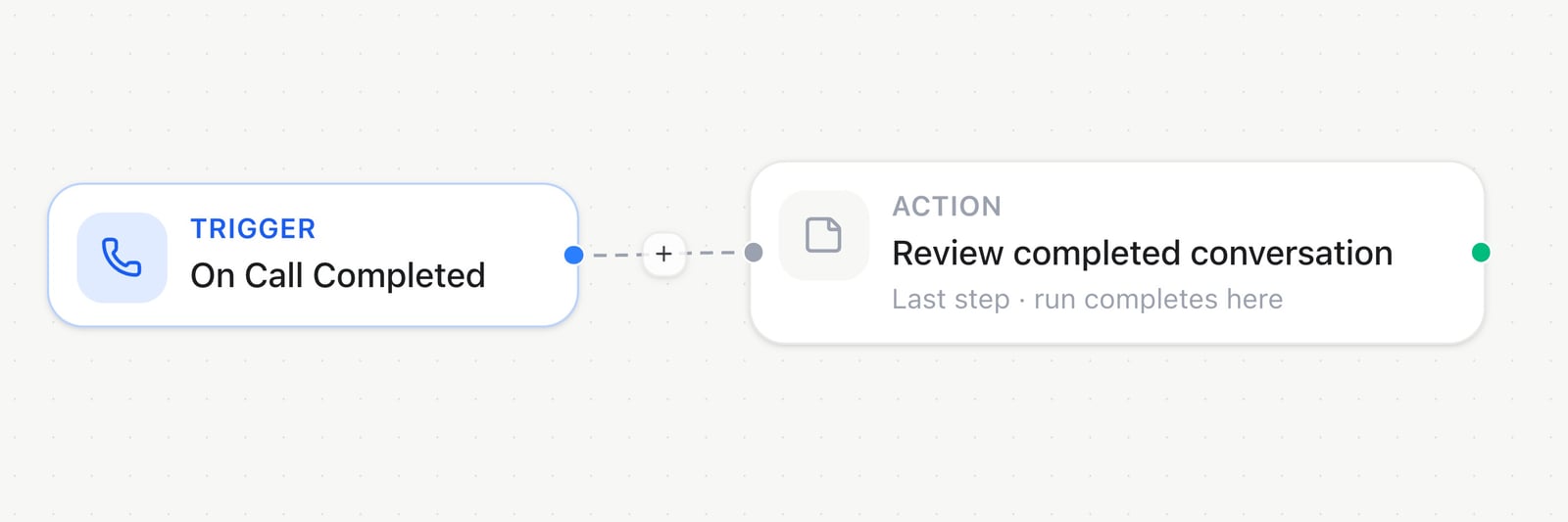 Every trigger starts from a specific event. Assistant-bound triggers (**On Call Completed**, **On Inbound Call**, **Inject input variables**) require picking a specific assistant. Booking, conversation, and email triggers take an optional **Assistant filter** instead; conversation triggers can also be narrowed to one messaging connection or platform, and booking triggers to a single booking page.
For conversation triggers, **Platform** and **Channel or widget** show only active, connected channels assigned to the selected assistant. Without an assistant filter, they show the workspace’s connected channels. Web chat widgets are available for **Conversation started**. Choosing a connection sets its platform automatically. Saved filters remain visible as unavailable if their connection is removed, disabled or reassigned; review them before saving. Leaving the connection filter empty also includes future matching connections. REST and MCP use the same assistant, platform and connection filters.
| Trigger | Fires when |
| - | - |
| **On Call Completed** | A voice call ends and its post-call analysis is ready. |
| **On Inbound Call** | An inbound call starts ringing, before it's answered or analyzed. |
| **Inject input variables** | A call from the selected assistant is starting — this replaces that assistant's variable webhook for the duration this automation is Live. Pair it with **Return variables**. |
| **Conversation started** | A new messaging or web chat conversation opens, including widget previews. |
| **Conversation ended** | A messaging conversation closes or times out. |
| **Message received** | Every inbound message on a channel, not just the first one — optionally filter by platform. |
| **Email received** | An inbound email arrives on a workspace address. |
| **Booking created / cancelled / rescheduled** | A booking-page event happens. |
| **Contact created** | A new Audience contact is added. Choose which **sources** count — created manually (on by default), CSV/file import, API, CRM sync — so a bulk import can't fire thousands of runs by accident. |
| **Manual** | Runs only when you click **Run now**, call the API, or ask Milian. |
| **Schedule** | Cron-based, on a timezone (coming soon — selectable today for drafts). |
A generic or CRM webhook trigger gets its own inbound URL and secret, shown directly in the trigger's settings once the automation is saved. HighLevel and connected apps deliver events through a shared, pre-authenticated endpoint instead — set up once for the workspace, not per automation:
| Trigger | Fires when |
| - | - |
| **Incoming Webhook** | Something POSTs JSON to this automation's inbound URL, with the automation's secret in an `X-Automation-Secret` header. |
| **Airtable / HubSpot / Salesforce / Close.io / Pipedrive / Zoho CRM / Attio / Keap / Twenty CRM webhook** | The connected CRM POSTs an event to this trigger's own inbound URL — same mechanics as Incoming Webhook, just filed under that provider in the catalog. |
| **HighLevel webhook** | HighLevel sends a signed CRM or appointment event from its Marketplace app. One **Marketplace webhook URL** is reused across every HighLevel automation; you scope each automation by picking a **HighLevel connection** and one **HighLevel event**. |
| **App event** | A connected app delivers a signed event — a new commit, an inbox message, and so on. Pick the app and event from the catalog. |
## Steps
### Logic & flow control
These don't talk to anything outside the automation — they shape which path a run takes, or pause it.
Every trigger starts from a specific event. Assistant-bound triggers (**On Call Completed**, **On Inbound Call**, **Inject input variables**) require picking a specific assistant. Booking, conversation, and email triggers take an optional **Assistant filter** instead; conversation triggers can also be narrowed to one messaging connection or platform, and booking triggers to a single booking page.
For conversation triggers, **Platform** and **Channel or widget** show only active, connected channels assigned to the selected assistant. Without an assistant filter, they show the workspace’s connected channels. Web chat widgets are available for **Conversation started**. Choosing a connection sets its platform automatically. Saved filters remain visible as unavailable if their connection is removed, disabled or reassigned; review them before saving. Leaving the connection filter empty also includes future matching connections. REST and MCP use the same assistant, platform and connection filters.
| Trigger | Fires when |
| - | - |
| **On Call Completed** | A voice call ends and its post-call analysis is ready. |
| **On Inbound Call** | An inbound call starts ringing, before it's answered or analyzed. |
| **Inject input variables** | A call from the selected assistant is starting — this replaces that assistant's variable webhook for the duration this automation is Live. Pair it with **Return variables**. |
| **Conversation started** | A new messaging or web chat conversation opens, including widget previews. |
| **Conversation ended** | A messaging conversation closes or times out. |
| **Message received** | Every inbound message on a channel, not just the first one — optionally filter by platform. |
| **Email received** | An inbound email arrives on a workspace address. |
| **Booking created / cancelled / rescheduled** | A booking-page event happens. |
| **Contact created** | A new Audience contact is added. Choose which **sources** count — created manually (on by default), CSV/file import, API, CRM sync — so a bulk import can't fire thousands of runs by accident. |
| **Manual** | Runs only when you click **Run now**, call the API, or ask Milian. |
| **Schedule** | Cron-based, on a timezone (coming soon — selectable today for drafts). |
A generic or CRM webhook trigger gets its own inbound URL and secret, shown directly in the trigger's settings once the automation is saved. HighLevel and connected apps deliver events through a shared, pre-authenticated endpoint instead — set up once for the workspace, not per automation:
| Trigger | Fires when |
| - | - |
| **Incoming Webhook** | Something POSTs JSON to this automation's inbound URL, with the automation's secret in an `X-Automation-Secret` header. |
| **Airtable / HubSpot / Salesforce / Close.io / Pipedrive / Zoho CRM / Attio / Keap / Twenty CRM webhook** | The connected CRM POSTs an event to this trigger's own inbound URL — same mechanics as Incoming Webhook, just filed under that provider in the catalog. |
| **HighLevel webhook** | HighLevel sends a signed CRM or appointment event from its Marketplace app. One **Marketplace webhook URL** is reused across every HighLevel automation; you scope each automation by picking a **HighLevel connection** and one **HighLevel event**. |
| **App event** | A connected app delivers a signed event — a new commit, an inbox message, and so on. Pick the app and event from the catalog. |
## Steps
### Logic & flow control
These don't talk to anything outside the automation — they shape which path a run takes, or pause it.
 | Step | What it does | Key fields | Example |
| - | - | - | - |
| **Condition** | Branches true or false on a value from the payload. | Payload path, operator (equals / not equals / contains / exists), value | `data.analysis.success` equals `true` → branch to a follow-up text |
| **Filter** | Continues only if the condition matches; otherwise the run ends here, successfully — not as a failure. | Same as Condition | Only continue when `data.status` equals `open` |
| **Switch** | Matches a value against a list of cases — more than two outcomes. | Payload path, cases (JSON), default | Route `data.pipeline_stage` to a different step per stage |
| **Random Outcome** | Picks a random branch from a list — handy for A/B testing a message. | Outcomes (comma-separated) | Split traffic between `variant_a` and `variant_b` |
| **Loop on Items** | Repeats the connected steps once per item in a list. Wire the steps that should repeat off its **Loop** handle, and whatever runs after the loop off **Done**. | Items — a path to an array, e.g. `{{steps.step1.records}}` | Loop over `{{steps.list_records.records}}` and text each one |
| **Delay For** | Pauses the run for a fixed number of seconds. | Seconds | Wait 300 seconds before following up |
| **Delay Until** | Pauses until an absolute date and time. | Until (ISO datetime) | Wait until the day before a booking |
| **Set variable** | Writes a value into the run so later steps can reference it. | Path, value | Store `{{last.text}}` at `vars.summary` |
| **Run Code** | Runs a small restricted JavaScript snippet and returns its value — no imports, no file or process access. | Code (must `return` a value) | Uppercase a phone number before sending it onward |
| **Note** | Writes a message into the run log; changes nothing. | Message | Log `Call from {{data.from_number}}` for later debugging |
Loop on Items processes at most 100 items per loop, and loops can nest up to 5 levels deep.
### Ending a run
A run also ends cleanly whenever a step has no outgoing connection. These three end it explicitly, and two of them hand back a specific answer.
| Step | What it does | Key fields | Example |
| - | - | - | - |
| **Stop** | Ends the run successfully, right here. | Reason (optional, logged) | Bail out early once a case is already handled |
| **Return variables** | Hands variables back to the call at start time — pairs with the **Inject input variables** trigger. Ends the run. | Variables (key/value map) | Return `customer_name` and `tier` before the call begins |
| **Respond to webhook** | Answers the caller of an **Incoming Webhook** trigger with a status and body — the only way that caller gets a real response instead of a generic acknowledgement. Ends the run. | Mode (JSON object / raw text / forward last step), status code, body | Return `{ "ok": true, "id": "{{last.id}}" }` |
When an assistant calls this automation mid-conversation, every path must end at **Respond to webhook**, with no Delay or Loop step first.
### Time
| Step | What it does | Key fields | Example |
| - | - | - | - |
| **Get Current Date and Time** | Reads the current time in a timezone. | Timezone | Stamp a note with the local call time |
| **Convert Timezone** | Converts an instant into another timezone's display. | Datetime, target timezone | Show a UTC booking time in the customer's zone |
| **Convert Date and Time Format** | Formats a datetime as date-only, time-only, or ISO. | Datetime, timezone, format | Format a booking time for a text message |
### AI
Grouped under **Milian AI** in the catalog. These actions use workspace credits based on token usage at your workspace's rates. The charged amount appears on the run and in the step's Test panel.
| Step | What it does | Key fields | Example |
| - | - | - | - |
| **Condition** | Branches true or false on a value from the payload. | Payload path, operator (equals / not equals / contains / exists), value | `data.analysis.success` equals `true` → branch to a follow-up text |
| **Filter** | Continues only if the condition matches; otherwise the run ends here, successfully — not as a failure. | Same as Condition | Only continue when `data.status` equals `open` |
| **Switch** | Matches a value against a list of cases — more than two outcomes. | Payload path, cases (JSON), default | Route `data.pipeline_stage` to a different step per stage |
| **Random Outcome** | Picks a random branch from a list — handy for A/B testing a message. | Outcomes (comma-separated) | Split traffic between `variant_a` and `variant_b` |
| **Loop on Items** | Repeats the connected steps once per item in a list. Wire the steps that should repeat off its **Loop** handle, and whatever runs after the loop off **Done**. | Items — a path to an array, e.g. `{{steps.step1.records}}` | Loop over `{{steps.list_records.records}}` and text each one |
| **Delay For** | Pauses the run for a fixed number of seconds. | Seconds | Wait 300 seconds before following up |
| **Delay Until** | Pauses until an absolute date and time. | Until (ISO datetime) | Wait until the day before a booking |
| **Set variable** | Writes a value into the run so later steps can reference it. | Path, value | Store `{{last.text}}` at `vars.summary` |
| **Run Code** | Runs a small restricted JavaScript snippet and returns its value — no imports, no file or process access. | Code (must `return` a value) | Uppercase a phone number before sending it onward |
| **Note** | Writes a message into the run log; changes nothing. | Message | Log `Call from {{data.from_number}}` for later debugging |
Loop on Items processes at most 100 items per loop, and loops can nest up to 5 levels deep.
### Ending a run
A run also ends cleanly whenever a step has no outgoing connection. These three end it explicitly, and two of them hand back a specific answer.
| Step | What it does | Key fields | Example |
| - | - | - | - |
| **Stop** | Ends the run successfully, right here. | Reason (optional, logged) | Bail out early once a case is already handled |
| **Return variables** | Hands variables back to the call at start time — pairs with the **Inject input variables** trigger. Ends the run. | Variables (key/value map) | Return `customer_name` and `tier` before the call begins |
| **Respond to webhook** | Answers the caller of an **Incoming Webhook** trigger with a status and body — the only way that caller gets a real response instead of a generic acknowledgement. Ends the run. | Mode (JSON object / raw text / forward last step), status code, body | Return `{ "ok": true, "id": "{{last.id}}" }` |
When an assistant calls this automation mid-conversation, every path must end at **Respond to webhook**, with no Delay or Loop step first.
### Time
| Step | What it does | Key fields | Example |
| - | - | - | - |
| **Get Current Date and Time** | Reads the current time in a timezone. | Timezone | Stamp a note with the local call time |
| **Convert Timezone** | Converts an instant into another timezone's display. | Datetime, target timezone | Show a UTC booking time in the customer's zone |
| **Convert Date and Time Format** | Formats a datetime as date-only, time-only, or ISO. | Datetime, timezone, format | Format a booking time for a text message |
### AI
Grouped under **Milian AI** in the catalog. These actions use workspace credits based on token usage at your workspace's rates. The charged amount appears on the run and in the step's Test panel.
 | Step | What it does | Key fields | Example |
| - | - | - | - |
| **Custom Prompt** | Runs a free-form prompt against a transcript, message, or any prior step's output, and returns text. | Prompt, optional system prompt | Summarize `{{data.transcript}}` into two sentences |
| **Extract Fields** | Pulls named, typed fields out of a block of text. Each field is a row in the panel: name, type (text / email / number / boolean / enum), and whether it's required. | Input data, fields | Extract `email` and `budget` from a chat transcript |
### Milian AI
Add a step in **Automations → Milian AI** to classify text, check a condition, score content, detect multiple labels or build a custom analysis. Custom Prompt and Extract Fields remain available.
| Step | What it does | Key fields | Example |
| - | - | - | - |
| **Custom Prompt** | Runs a free-form prompt against a transcript, message, or any prior step's output, and returns text. | Prompt, optional system prompt | Summarize `{{data.transcript}}` into two sentences |
| **Extract Fields** | Pulls named, typed fields out of a block of text. Each field is a row in the panel: name, type (text / email / number / boolean / enum), and whether it's required. | Input data, fields | Extract `email` and `budget` from a chat transcript |
### Milian AI
Add a step in **Automations → Milian AI** to classify text, check a condition, score content, detect multiple labels or build a custom analysis. Custom Prompt and Extract Fields remain available.
 * **Five new actions.** Turn transcripts, messages and previous step outputs into categories, yes/no decisions, scores or labels.
* **Three editable templates.** Start Custom Analysis with Analyze a call, Qualify a lead or Prioritize a message, then adjust the questions.
* **Clear uncertainty.** Insufficient evidence produces an uncertain answer instead of a guessed value. Use the result status in a Condition before continuing.
* **Your workspace, your workflow.** Preview inputs without spending credits, run a live test with workspace credits, and reuse the same configuration through REST or MCP.
Actual analysis uses workspace credits. Scores use your scoring levels and are displayed on a 0–100 scale.
Choose **Custom Analysis** to mix question types or apply one of the three templates. Give each answer a unique key. Categories need 2–32 options with descriptions; scores need 2–10 ordered levels. An analysis can include up to 32 questions. Provide text up to 32 KB; split longer inputs deliberately rather than dropping part of a transcript.
Use **Minimum probability** for category and yes/no decisions, and **Minimum confidence** for categories and scores. Every question also checks whether the input provides enough information. These thresholds are configurable controls, not guarantees of correctness.
Each answer has a value and a status. An uncertain answer returns null; a supported negative answer returns false. In Detect Labels, the label list contains only accepted matches; check individual results for uncertain labels. A technical failure stops the step instead of becoming a negative answer. Multiple independent questions share one evaluation request.
Use the variable picker to reference answers in subsequent steps. Check the status first, then compare the value with a Condition. A Milian AI evaluation step does not itself create extra routing branches. Summaries, translations and open-ended extraction continue to use Custom Prompt or Extract Fields.
### Messaging
Send on an already-open conversation, or start a fresh WhatsApp conversation with an approved template.
| Step | What it does | Key fields | Example |
| - | - | - | - |
| **Send Channel Message** | Replies with text on an open conversation, on whichever platform it's on. | Channel connection, conversation | Reply on whichever channel the trigger fired from |
| **WhatsApp Send Message · Send Telegram · Send X (Twitter) · Send Teams Message · Send Slack Message · Send Discord Message · Send Messenger Message · Send Google Chat Message** | Same as Send Channel Message, pinned to one platform. Slack and Discord can also post straight to a **channel** instead of replying to a conversation. | Channel connection, conversation (or channel, for Slack/Discord) | Post an alert to a Slack channel when a call needs a human |
| **Send WhatsApp Template** | Sends an approved WhatsApp business template to a phone number — the only send here that can open a brand-new conversation outside the 24-hour window. | WhatsApp sender, template, recipient, variable mapping | Text a booking-confirmation template right after **Booking created** |
| **Send SMS** | Sends a text from a workspace number that has SMS enabled. | From number, to, message | Text a missed-call follow-up to `{{data.from_number}}` |
| **Send Email** | Sends from the platform mail server or a verified assistant address. | Sender, to, subject, body | Email the transcript to a support inbox |
| **Send Email (SMTP)** | Sends through your own saved SMTP relay instead of the platform mail server. | SMTP connection, to, subject, body | Send a receipt through your company's own mail server |
### Contacts, calls & compliance
Suppression actions are idempotent — re-adding or re-removing the same identity never fails a run.
| Step | What it does | Key fields | Example |
| - | - | - | - |
| **Create or Update Contact** | Upserts an Audience lead by phone and/or email. | Phone, email, name, attributes | Save a caller as a lead right after the call ends |
| **Get Contact by Phone Number** | Looks up a lead by phone. | Phone | Check whether `{{data.from_number}}` is already a known lead |
| **Get All Contacts** | Lists recent leads (max 100). | Limit | Pull the newest leads for a digest email |
| **Add Tags to Contact** | Appends tags to a lead. | Contact ID, tags | Tag a lead `hot` after a qualifying call |
| **Add Attributes to Contact** | Merges custom attribute values onto a lead. | Contact ID, attributes | Save a deal size onto the matched lead |
| **Add to blocklist** | Suppresses a phone or email so campaigns and outbound messages skip it. | Phone, email, channel (optional — auto-selects voice or email), reason | Suppress a number the moment someone says "stop" |
| **Remove from blocklist** | Restores a previously suppressed phone or email. | Phone, email | Un-suppress after a fresh opt-in |
| **Call Phone Number** | Starts an outbound call with a chosen assistant. | Assistant, to (E.164), optional Variables | Call a lead back automatically after a missed inbound call |
**Call Phone Number** also accepts optional **Variables** as a flat JSON object, for example `{ "auftrag": "{{data.task}}" }`. Values may be text (up to 2000 characters), numbers or booleans. You can also use an entire mapping from a previous step, such as `{{data.inputs}}`. These are inputs for this call and do not edit the assistant or contact. Invalid or oversized resolved values fail the step before dialing. Check the resulting call’s expected inputs and actual outcome separately; creating a call is not proof that the task succeeded.
### Knowledge
| Step | What it does | Key fields | Example |
| - | - | - | - |
| **Add Knowledge Source** | Adds a text document to a knowledge base. | Knowledge base, title, content | Publish a fetched policy update straight into the KB |
| **Get Knowledge Source** | Loads a document's metadata. | Knowledge base, document | Check whether a source already exists before adding it |
| **Delete Knowledge Source** | Removes a document. | Knowledge base, document | Retire an outdated FAQ document nightly |
### HTTP & webhooks
Neither of these needs a saved connection — paste a URL and go.
| Step | What it does | Key fields | Example |
| - | - | - | - |
| **HTTP Request** | Calls any HTTPS endpoint with the trigger payload or a custom JSON body. | URL, method, headers, body | POST the call summary to an internal ops endpoint |
| **Slack (Webhook)** | Posts to a Slack channel via an Incoming Webhook URL. | Webhook URL, message | Drop a one-line alert in an ops channel when a run fails |
| **Discord (Webhook)** | Posts to a Discord channel via a webhook URL. | Webhook URL, message | Post a heads-up for every new booking |
| **Microsoft Teams (Webhook)** | Posts text to a Teams Incoming Webhook. | Webhook URL, title, message | Notify a Teams channel when a high-value lead comes in |
HTTP Request actions retry temporary HTTP and connection failures up to twice within the configured timeout, using the same Idempotency-Key. Temporary failures are HTTP 408, 425, 429, 5xx and network errors. Permanent errors stop immediately. The timeout covers the whole action; retries stop when that budget is exhausted. The receiver must honor Idempotency-Key to prevent duplicate effects after a lost response.
### External connections
CRM, MCP, and connected-app steps all read or write an external system through a saved credential — add one under **Automations → Connections** before using any of them. Each shows up in the catalog as **Provider · Action** (for example **Airtable · Create record**).
**CRM providers.** See [CRM sync](/automations/crm-sync) for the recurring-sync setup and the HighLevel authorize flow — these action nodes write one record at a time, independent of any sync schedule.
| Provider | What you can do |
| - | - |
| **Airtable** | List, find, search, find-or-create, get, create (single or up to 10 at once), update, and delete records — base/table/field/view pickers load from your schema automatically. |
| **HubSpot** | Get, create, update, and search contacts; create a deal; create a note. |
| **Salesforce** | Run a SOQL query, or get, create, and update any object record. |
| **Close.io** | Create or update a lead, create a contact, create an opportunity, create a note, and search. |
| **HighLevel** | List/get/create/update contacts, create an opportunity, create a note, plus calendar reads and appointment writes — list calendars, get free slots, create, update/reschedule, and cancel. |
| **Pipedrive** | List/search/get/create/update persons, create a deal, add a note. |
| **Zoho CRM** | List, search, get, create, and update records in any module. |
| **Attio** | List/filter, get, create, and update people, companies, or custom-object records. |
| **Keap** | List/search/get/create/update contacts, create an opportunity, create a note. |
| **Twenty CRM** | List/filter, get, create, and update records — hosted or self-hosted. |
Example: after **On Call Completed**, use a HubSpot update to log `{{data.analysis.success}}` on the matched contact, or branch on it first with **Condition**.
**Vendor & generic MCP.** Instead of fixed fields, these hand a prompt and the run's context to an agent that picks the right tool and arguments itself — useful when the exact call varies run to run. Both bill workspace AI credits for the agent's reasoning.
| Step | What it does | Key fields | Example |
| - | - | - | - |
| **Supabase / Neon / Brevo / Atlassian / Shopify · Call MCP tool** | Calls that provider's own official MCP server through a saved connection. | Connection, allowed tools (optional whitelist), agent prompt | "List overdue Jira tickets and note the oldest one" |
| **MCP · Call tool** | Same agent-picks-the-tool pattern, for any MCP server saved as a connection. | Connection, allowed tools, agent prompt | "Add `{{last.email}}` to the CRM as a new contact" |
**Connected apps.** Beyond the platforms above, the catalog also carries every app your workspace has connected over OAuth. Connect one under **Connections → App marketplace**, then pick it as a trigger or action like any built-in platform. See [App Catalog](/automations/app-catalog) for the full list and how connecting works. Apps with many actions load more as you scroll; type in **Search actions…** above the list to find any action by name or keyword, such as *send message*.
| Step | What it does | Key fields | Example |
| - | - | - | - |
| **Execute app tool** | Runs one tool from a connected app; its fields load from the tool's own schema. | App connection, tool | Create a row in a connected spreadsheet |
| **App event** *(trigger)* | Fires when a connected app delivers a signed event. | Picked from the catalog | Start a run on a new inbox message |
## How data flows between steps
Every field marked with a ⚡ accepts `{{ }}` templates pulled from the run's current data.
| Pattern | Resolves to |
| - | - |
| `{{data.from_number}}` | A field from the trigger's payload |
| `{{steps..}}` | An output field from a specific earlier step |
| `{{last.}}` | An output field from the step immediately before this one |
| `{{item}}` / `{{index}}` | The current item / position inside a **Loop on Items** body |
* **Extract Fields** returns its values twice — nested under `fields` (`{{steps.step1.fields.email}}`) and flattened onto the step itself (`{{steps.step1.email}}`) — use whichever reads more clearly.
* **Set variable** writes into the run itself rather than a step's own output — reference the path you chose the same way afterward, e.g. `{{vars.summary}}`.
* **Condition**, **Switch**, and **Loop on Items** also decide which connected path runs next — drag separate connections out of their `true`/`false`, per-case, or **Loop**/**Done** handles.
Use **Insert Variable** to browse what's available instead of typing paths by hand. Each step's Test panel has two levels: **Connect Test** only checks your fields are valid; **Run test** executes the step for real and fills Insert Variable with live outputs for every later step.
Run test is a real execution, not a simulation — on connected apps, email, SMS, HTTP, and CRM steps it can create or change real data.
* **Five new actions.** Turn transcripts, messages and previous step outputs into categories, yes/no decisions, scores or labels.
* **Three editable templates.** Start Custom Analysis with Analyze a call, Qualify a lead or Prioritize a message, then adjust the questions.
* **Clear uncertainty.** Insufficient evidence produces an uncertain answer instead of a guessed value. Use the result status in a Condition before continuing.
* **Your workspace, your workflow.** Preview inputs without spending credits, run a live test with workspace credits, and reuse the same configuration through REST or MCP.
Actual analysis uses workspace credits. Scores use your scoring levels and are displayed on a 0–100 scale.
Choose **Custom Analysis** to mix question types or apply one of the three templates. Give each answer a unique key. Categories need 2–32 options with descriptions; scores need 2–10 ordered levels. An analysis can include up to 32 questions. Provide text up to 32 KB; split longer inputs deliberately rather than dropping part of a transcript.
Use **Minimum probability** for category and yes/no decisions, and **Minimum confidence** for categories and scores. Every question also checks whether the input provides enough information. These thresholds are configurable controls, not guarantees of correctness.
Each answer has a value and a status. An uncertain answer returns null; a supported negative answer returns false. In Detect Labels, the label list contains only accepted matches; check individual results for uncertain labels. A technical failure stops the step instead of becoming a negative answer. Multiple independent questions share one evaluation request.
Use the variable picker to reference answers in subsequent steps. Check the status first, then compare the value with a Condition. A Milian AI evaluation step does not itself create extra routing branches. Summaries, translations and open-ended extraction continue to use Custom Prompt or Extract Fields.
### Messaging
Send on an already-open conversation, or start a fresh WhatsApp conversation with an approved template.
| Step | What it does | Key fields | Example |
| - | - | - | - |
| **Send Channel Message** | Replies with text on an open conversation, on whichever platform it's on. | Channel connection, conversation | Reply on whichever channel the trigger fired from |
| **WhatsApp Send Message · Send Telegram · Send X (Twitter) · Send Teams Message · Send Slack Message · Send Discord Message · Send Messenger Message · Send Google Chat Message** | Same as Send Channel Message, pinned to one platform. Slack and Discord can also post straight to a **channel** instead of replying to a conversation. | Channel connection, conversation (or channel, for Slack/Discord) | Post an alert to a Slack channel when a call needs a human |
| **Send WhatsApp Template** | Sends an approved WhatsApp business template to a phone number — the only send here that can open a brand-new conversation outside the 24-hour window. | WhatsApp sender, template, recipient, variable mapping | Text a booking-confirmation template right after **Booking created** |
| **Send SMS** | Sends a text from a workspace number that has SMS enabled. | From number, to, message | Text a missed-call follow-up to `{{data.from_number}}` |
| **Send Email** | Sends from the platform mail server or a verified assistant address. | Sender, to, subject, body | Email the transcript to a support inbox |
| **Send Email (SMTP)** | Sends through your own saved SMTP relay instead of the platform mail server. | SMTP connection, to, subject, body | Send a receipt through your company's own mail server |
### Contacts, calls & compliance
Suppression actions are idempotent — re-adding or re-removing the same identity never fails a run.
| Step | What it does | Key fields | Example |
| - | - | - | - |
| **Create or Update Contact** | Upserts an Audience lead by phone and/or email. | Phone, email, name, attributes | Save a caller as a lead right after the call ends |
| **Get Contact by Phone Number** | Looks up a lead by phone. | Phone | Check whether `{{data.from_number}}` is already a known lead |
| **Get All Contacts** | Lists recent leads (max 100). | Limit | Pull the newest leads for a digest email |
| **Add Tags to Contact** | Appends tags to a lead. | Contact ID, tags | Tag a lead `hot` after a qualifying call |
| **Add Attributes to Contact** | Merges custom attribute values onto a lead. | Contact ID, attributes | Save a deal size onto the matched lead |
| **Add to blocklist** | Suppresses a phone or email so campaigns and outbound messages skip it. | Phone, email, channel (optional — auto-selects voice or email), reason | Suppress a number the moment someone says "stop" |
| **Remove from blocklist** | Restores a previously suppressed phone or email. | Phone, email | Un-suppress after a fresh opt-in |
| **Call Phone Number** | Starts an outbound call with a chosen assistant. | Assistant, to (E.164), optional Variables | Call a lead back automatically after a missed inbound call |
**Call Phone Number** also accepts optional **Variables** as a flat JSON object, for example `{ "auftrag": "{{data.task}}" }`. Values may be text (up to 2000 characters), numbers or booleans. You can also use an entire mapping from a previous step, such as `{{data.inputs}}`. These are inputs for this call and do not edit the assistant or contact. Invalid or oversized resolved values fail the step before dialing. Check the resulting call’s expected inputs and actual outcome separately; creating a call is not proof that the task succeeded.
### Knowledge
| Step | What it does | Key fields | Example |
| - | - | - | - |
| **Add Knowledge Source** | Adds a text document to a knowledge base. | Knowledge base, title, content | Publish a fetched policy update straight into the KB |
| **Get Knowledge Source** | Loads a document's metadata. | Knowledge base, document | Check whether a source already exists before adding it |
| **Delete Knowledge Source** | Removes a document. | Knowledge base, document | Retire an outdated FAQ document nightly |
### HTTP & webhooks
Neither of these needs a saved connection — paste a URL and go.
| Step | What it does | Key fields | Example |
| - | - | - | - |
| **HTTP Request** | Calls any HTTPS endpoint with the trigger payload or a custom JSON body. | URL, method, headers, body | POST the call summary to an internal ops endpoint |
| **Slack (Webhook)** | Posts to a Slack channel via an Incoming Webhook URL. | Webhook URL, message | Drop a one-line alert in an ops channel when a run fails |
| **Discord (Webhook)** | Posts to a Discord channel via a webhook URL. | Webhook URL, message | Post a heads-up for every new booking |
| **Microsoft Teams (Webhook)** | Posts text to a Teams Incoming Webhook. | Webhook URL, title, message | Notify a Teams channel when a high-value lead comes in |
HTTP Request actions retry temporary HTTP and connection failures up to twice within the configured timeout, using the same Idempotency-Key. Temporary failures are HTTP 408, 425, 429, 5xx and network errors. Permanent errors stop immediately. The timeout covers the whole action; retries stop when that budget is exhausted. The receiver must honor Idempotency-Key to prevent duplicate effects after a lost response.
### External connections
CRM, MCP, and connected-app steps all read or write an external system through a saved credential — add one under **Automations → Connections** before using any of them. Each shows up in the catalog as **Provider · Action** (for example **Airtable · Create record**).
**CRM providers.** See [CRM sync](/automations/crm-sync) for the recurring-sync setup and the HighLevel authorize flow — these action nodes write one record at a time, independent of any sync schedule.
| Provider | What you can do |
| - | - |
| **Airtable** | List, find, search, find-or-create, get, create (single or up to 10 at once), update, and delete records — base/table/field/view pickers load from your schema automatically. |
| **HubSpot** | Get, create, update, and search contacts; create a deal; create a note. |
| **Salesforce** | Run a SOQL query, or get, create, and update any object record. |
| **Close.io** | Create or update a lead, create a contact, create an opportunity, create a note, and search. |
| **HighLevel** | List/get/create/update contacts, create an opportunity, create a note, plus calendar reads and appointment writes — list calendars, get free slots, create, update/reschedule, and cancel. |
| **Pipedrive** | List/search/get/create/update persons, create a deal, add a note. |
| **Zoho CRM** | List, search, get, create, and update records in any module. |
| **Attio** | List/filter, get, create, and update people, companies, or custom-object records. |
| **Keap** | List/search/get/create/update contacts, create an opportunity, create a note. |
| **Twenty CRM** | List/filter, get, create, and update records — hosted or self-hosted. |
Example: after **On Call Completed**, use a HubSpot update to log `{{data.analysis.success}}` on the matched contact, or branch on it first with **Condition**.
**Vendor & generic MCP.** Instead of fixed fields, these hand a prompt and the run's context to an agent that picks the right tool and arguments itself — useful when the exact call varies run to run. Both bill workspace AI credits for the agent's reasoning.
| Step | What it does | Key fields | Example |
| - | - | - | - |
| **Supabase / Neon / Brevo / Atlassian / Shopify · Call MCP tool** | Calls that provider's own official MCP server through a saved connection. | Connection, allowed tools (optional whitelist), agent prompt | "List overdue Jira tickets and note the oldest one" |
| **MCP · Call tool** | Same agent-picks-the-tool pattern, for any MCP server saved as a connection. | Connection, allowed tools, agent prompt | "Add `{{last.email}}` to the CRM as a new contact" |
**Connected apps.** Beyond the platforms above, the catalog also carries every app your workspace has connected over OAuth. Connect one under **Connections → App marketplace**, then pick it as a trigger or action like any built-in platform. See [App Catalog](/automations/app-catalog) for the full list and how connecting works. Apps with many actions load more as you scroll; type in **Search actions…** above the list to find any action by name or keyword, such as *send message*.
| Step | What it does | Key fields | Example |
| - | - | - | - |
| **Execute app tool** | Runs one tool from a connected app; its fields load from the tool's own schema. | App connection, tool | Create a row in a connected spreadsheet |
| **App event** *(trigger)* | Fires when a connected app delivers a signed event. | Picked from the catalog | Start a run on a new inbox message |
## How data flows between steps
Every field marked with a ⚡ accepts `{{ }}` templates pulled from the run's current data.
| Pattern | Resolves to |
| - | - |
| `{{data.from_number}}` | A field from the trigger's payload |
| `{{steps..}}` | An output field from a specific earlier step |
| `{{last.}}` | An output field from the step immediately before this one |
| `{{item}}` / `{{index}}` | The current item / position inside a **Loop on Items** body |
* **Extract Fields** returns its values twice — nested under `fields` (`{{steps.step1.fields.email}}`) and flattened onto the step itself (`{{steps.step1.email}}`) — use whichever reads more clearly.
* **Set variable** writes into the run itself rather than a step's own output — reference the path you chose the same way afterward, e.g. `{{vars.summary}}`.
* **Condition**, **Switch**, and **Loop on Items** also decide which connected path runs next — drag separate connections out of their `true`/`false`, per-case, or **Loop**/**Done** handles.
Use **Insert Variable** to browse what's available instead of typing paths by hand. Each step's Test panel has two levels: **Connect Test** only checks your fields are valid; **Run test** executes the step for real and fills Insert Variable with live outputs for every later step.
Run test is a real execution, not a simulation — on connected apps, email, SMS, HTTP, and CRM steps it can create or change real data.
 ## Statuses
| Status | Meaning |
| - | - |
| **Draft** | Not live — triggers never start a run. Safe to keep editing. |
| **Live** | Active — matching trigger events start real runs. |
| **Paused** | Temporarily off. Switch it back to Live to resume. |
| **Archived** | Retired. Reactivate it the same way as Paused if you need it again. |
An automation that fails five runs in a row is paused automatically, so a broken graph can't keep firing. Check the **Runs** tab for the error, fix it, then switch it back to Live.
How an automation moves between these statuses:
```mermaid theme={null}
stateDiagram-v2
[*] --> Draft
Draft --> Live: Activate
Paused --> Live: Activate
Archived --> Live: Activate
Live --> Paused: Pause
Live --> Paused: 5 failed runs in a row (automatic)
```
## Building automations with Milian
Open an automation and ask Milian, the AI copilot, to build or change it in plain language — add a trigger and steps, wire a condition's true/false branches, rename or retag it, switch it Live, or debug a failed run, the same things you'd do by hand. Try "add an email step after the trigger," "add a condition branch and wire true/false," or "debug the last failed run."
Milian applying a change directly shows **Milian saved changes**; updating the canvas without saving shows **Milian updated the canvas — click Save to persist**, and the change stays a draft until you click **Save**.
## Next steps
Concepts, billing, and worked example automations
Browse and connect apps for triggers and actions
Keep Audience and a connected CRM aligned on a schedule
This documentation is built and hosted on [Mintlify](https://mintlify.com), a developer documentation platform.
## Statuses
| Status | Meaning |
| - | - |
| **Draft** | Not live — triggers never start a run. Safe to keep editing. |
| **Live** | Active — matching trigger events start real runs. |
| **Paused** | Temporarily off. Switch it back to Live to resume. |
| **Archived** | Retired. Reactivate it the same way as Paused if you need it again. |
An automation that fails five runs in a row is paused automatically, so a broken graph can't keep firing. Check the **Runs** tab for the error, fix it, then switch it back to Live.
How an automation moves between these statuses:
```mermaid theme={null}
stateDiagram-v2
[*] --> Draft
Draft --> Live: Activate
Paused --> Live: Activate
Archived --> Live: Activate
Live --> Paused: Pause
Live --> Paused: 5 failed runs in a row (automatic)
```
## Building automations with Milian
Open an automation and ask Milian, the AI copilot, to build or change it in plain language — add a trigger and steps, wire a condition's true/false branches, rename or retag it, switch it Live, or debug a failed run, the same things you'd do by hand. Try "add an email step after the trigger," "add a condition branch and wire true/false," or "debug the last failed run."
Milian applying a change directly shows **Milian saved changes**; updating the canvas without saving shows **Milian updated the canvas — click Save to persist**, and the change stays a draft until you click **Save**.
## Next steps
Concepts, billing, and worked example automations
Browse and connect apps for triggers and actions
Keep Audience and a connected CRM aligned on a schedule
This documentation is built and hosted on [Mintlify](https://mintlify.com), a developer documentation platform.