> ## Documentation Index
> Fetch the complete documentation index at: https://docs.famulor.io/llms.txt
> Use this file to discover all available pages before exploring further.
# Contacts
> Create, edit, merge, and delete the people and businesses in your Audience
A contact is one record for a person or business — shared across every call, message, email thread, and campaign they're part of. Audience keeps a single contact list for the whole workspace; campaigns pull leads from it instead of each keeping a private list.
## Creating a contact
Select **New Lead** in Audience to open the **New contact** form. A name is optional; a phone number or an email address is required — either one on its own is enough. Both must be unique in the workspace, so if a value already belongs to another contact, the form flags the match and offers to open that contact or add the missing detail to it instead of creating a duplicate.
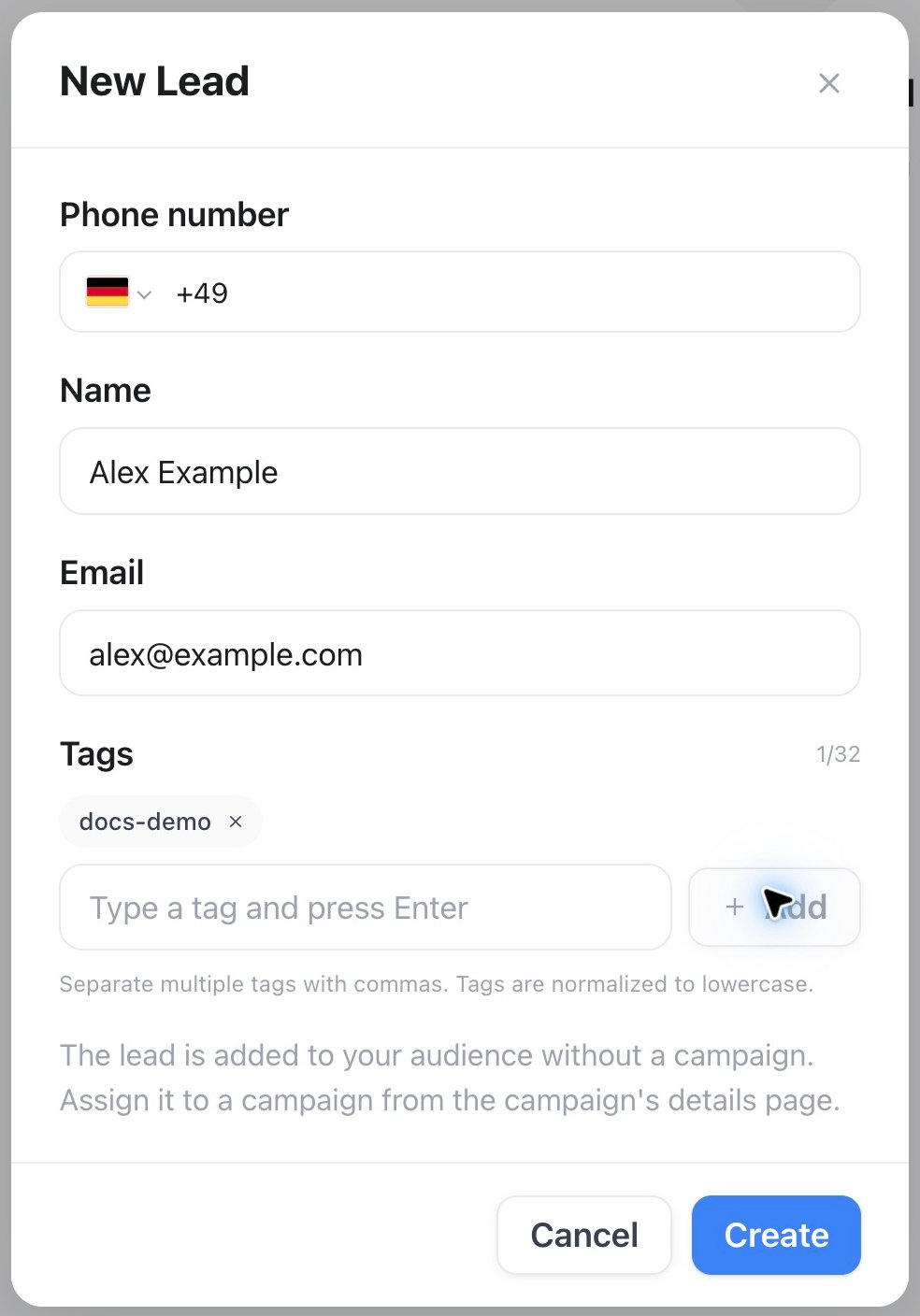 Contacts also arrive without anyone filling in that form: from a [CSV import](/audience/importing-contacts), the first time someone calls or messages in on one of your numbers, when a lead is added to a campaign, and through the REST API or MCP.
## Editing a contact
Open a contact to see three tabs:
* **Overview** — segments, last contacted, Call QA average (where [AI QA scorecards](/assistants/analysis#ai-qa-scorecards) are enabled), personal details, custom attributes, and any linked channel profiles.
* **Memory** — consent-aware [customer memory](/assistants/memory) and verified identities gathered across channels.
* **Timeline** — every call, message, and email for this contact, with a link into [History](/monitoring/history) for the full record.
The action bar at the bottom of the drawer starts a call with any active assistant, opens an email to the contact, and — under **More actions** — offers **Manage** and **Delete**. **Manage Contact** edits the record across four tabs: **Info** (name, phone, email, photo), **Tags**, **Attributes**, and **Channels**.
In **Channels**, select **Add channel** to link a verified messaging identity to the existing contact. Microsoft Teams identities are tied to one active Teams connection: the only active connection is selected automatically, while workspaces with several connections must choose one. If the same channel identity is already linked to another contact on that connection, the save is rejected and the contacts remain separate until you explicitly merge them.
Tagging, filtering, and saved segments are covered in [Audience Call QA](/audience/call-qa) — this page focuses on the contact record itself.
## Custom attributes
Define workspace-wide fields under **Settings → Workspace → Custom Attributes**: a name, a type, and whether it's required. The types are **Text**, **Number**, **Boolean** (a yes/no field), **Enum** (a list of choices you define), and **Date**. The attribute's key is generated from the name — "Maiden Name" becomes `maiden_name` — and the type is fixed once the attribute exists.
Contacts also arrive without anyone filling in that form: from a [CSV import](/audience/importing-contacts), the first time someone calls or messages in on one of your numbers, when a lead is added to a campaign, and through the REST API or MCP.
## Editing a contact
Open a contact to see three tabs:
* **Overview** — segments, last contacted, Call QA average (where [AI QA scorecards](/assistants/analysis#ai-qa-scorecards) are enabled), personal details, custom attributes, and any linked channel profiles.
* **Memory** — consent-aware [customer memory](/assistants/memory) and verified identities gathered across channels.
* **Timeline** — every call, message, and email for this contact, with a link into [History](/monitoring/history) for the full record.
The action bar at the bottom of the drawer starts a call with any active assistant, opens an email to the contact, and — under **More actions** — offers **Manage** and **Delete**. **Manage Contact** edits the record across four tabs: **Info** (name, phone, email, photo), **Tags**, **Attributes**, and **Channels**.
In **Channels**, select **Add channel** to link a verified messaging identity to the existing contact. Microsoft Teams identities are tied to one active Teams connection: the only active connection is selected automatically, while workspaces with several connections must choose one. If the same channel identity is already linked to another contact on that connection, the save is rejected and the contacts remain separate until you explicitly merge them.
Tagging, filtering, and saved segments are covered in [Audience Call QA](/audience/call-qa) — this page focuses on the contact record itself.
## Custom attributes
Define workspace-wide fields under **Settings → Workspace → Custom Attributes**: a name, a type, and whether it's required. The types are **Text**, **Number**, **Boolean** (a yes/no field), **Enum** (a list of choices you define), and **Date**. The attribute's key is generated from the name — "Maiden Name" becomes `maiden_name` — and the type is fixed once the attribute exists.
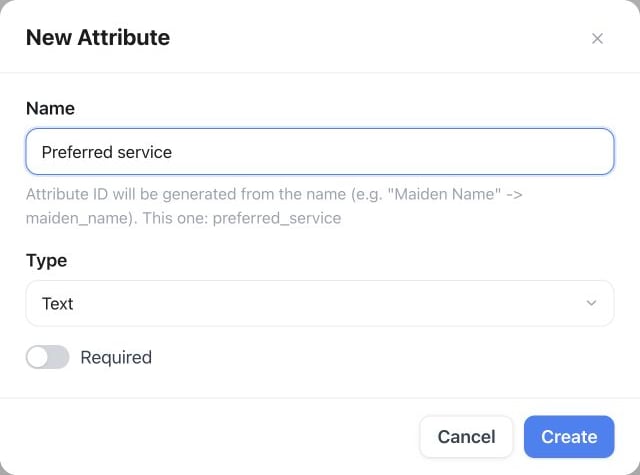 A workspace can define up to 50 attributes, and an Enum attribute can offer up to 50 choices. Values live in the **Attributes** tab of a contact, or are filled in automatically during CSV import.
An assistant opts in to the attributes it needs: in the assistant's **Variables** panel, tick the attribute under **Lead attributes** and its value is available as `{{key}}` on every call with that contact. See [Custom variables](/assistants/variables).
## Contact status
Every contact carries one status, driven by its most recent campaign activity:
| Status | Meaning |
| - | - |
| Created | Not yet called |
| Processing | A call is in progress right now |
| Rescheduled | Waiting for its next retry |
| Max retries | Retry budget used up without a result |
| Completed | Reached, or the campaign's goal was achieved |
| DNC (Blacklisted) | On the [do-not-call list](/campaigns/dialer-and-compliance#do-not-call-dnc) — never dialed |
Filter Audience by status to find contacts in any of these states. The same six states drive the drag-and-drop board inside a campaign, where the columns carry campaign-facing names — see [Monitoring a running campaign](/campaigns/overview#monitoring-a-running-campaign).
## Merging duplicate contacts
Phone numbers and email addresses are unique per workspace, so Famulor never lets a second record claim an identity that already exists:
* **On create** — adding a single contact whose phone or email already belongs to someone else merges the new tags and fills in any missing identity fields on that contact, instead of creating a second record. This applies to the **New contact** form, `POST /api/v1/leads`, and MCP `create_audience_contact`.
* **On edit** — if you change a contact's phone or email to a value already used elsewhere, the Info tab flags the collision and offers **Merge into this contact**. Merging moves phone, email, channel identities, calls, and conversations onto the contact you keep and removes the other record.
* **On import** — bulk imports never merge. A CSV row or campaign lead whose phone or email is already taken is rejected rather than folded into the existing contact, so deduplicate against Audience before a large import. See [Importing contacts](/audience/importing-contacts).
Merging two existing contacts is always explicit. A colliding phone or email on a plain update is rejected, not silently merged — you have to confirm the merge yourself.
The same operation is available as `POST /api/v1/leads/{id}/merge` or the MCP tool `merge_audience_contacts`.
## Deleting a contact
Delete a contact from **More actions** in its drawer. This removes the contact record permanently and cannot be undone.
Taking a lead out of a [campaign](/campaigns/overview) is a different, non-destructive action: the lead leaves that campaign's queue, and the contact — with its calls, conversations, and history — stays in Audience.
## API & MCP
```bash theme={null}
GET /api/v1/leads # list contacts, with status/channel/tag/date filters
POST /api/v1/leads # create a contact (or merge into a matching one)
GET /api/v1/leads/{id}/channels
PUT /api/v1/leads/{id}/channels # replace channel profiles; Teams uses connection_name
POST /api/v1/leads/{id}/merge
```
Active Microsoft Teams connections must have unique names within the workspace, because `connection_name` is the public selector used by the API and MCP. Reconnected copies of the same Microsoft identity are normalized to one current connection name.
MCP clients can use `list_audience_contacts`, `create_audience_contact`, `list_audience_contact_channels`, `replace_audience_contact_channels`, and `merge_audience_contacts` for the workspace-wide contact list. `get_lead`, `update_lead`, and `delete_lead` work on a **campaign** lead rather than the Audience record — and `delete_lead` only takes the lead out of its campaign; the contact stays in Audience.
This documentation is built and hosted on [Mintlify](https://mintlify.com), a developer documentation platform.
A workspace can define up to 50 attributes, and an Enum attribute can offer up to 50 choices. Values live in the **Attributes** tab of a contact, or are filled in automatically during CSV import.
An assistant opts in to the attributes it needs: in the assistant's **Variables** panel, tick the attribute under **Lead attributes** and its value is available as `{{key}}` on every call with that contact. See [Custom variables](/assistants/variables).
## Contact status
Every contact carries one status, driven by its most recent campaign activity:
| Status | Meaning |
| - | - |
| Created | Not yet called |
| Processing | A call is in progress right now |
| Rescheduled | Waiting for its next retry |
| Max retries | Retry budget used up without a result |
| Completed | Reached, or the campaign's goal was achieved |
| DNC (Blacklisted) | On the [do-not-call list](/campaigns/dialer-and-compliance#do-not-call-dnc) — never dialed |
Filter Audience by status to find contacts in any of these states. The same six states drive the drag-and-drop board inside a campaign, where the columns carry campaign-facing names — see [Monitoring a running campaign](/campaigns/overview#monitoring-a-running-campaign).
## Merging duplicate contacts
Phone numbers and email addresses are unique per workspace, so Famulor never lets a second record claim an identity that already exists:
* **On create** — adding a single contact whose phone or email already belongs to someone else merges the new tags and fills in any missing identity fields on that contact, instead of creating a second record. This applies to the **New contact** form, `POST /api/v1/leads`, and MCP `create_audience_contact`.
* **On edit** — if you change a contact's phone or email to a value already used elsewhere, the Info tab flags the collision and offers **Merge into this contact**. Merging moves phone, email, channel identities, calls, and conversations onto the contact you keep and removes the other record.
* **On import** — bulk imports never merge. A CSV row or campaign lead whose phone or email is already taken is rejected rather than folded into the existing contact, so deduplicate against Audience before a large import. See [Importing contacts](/audience/importing-contacts).
Merging two existing contacts is always explicit. A colliding phone or email on a plain update is rejected, not silently merged — you have to confirm the merge yourself.
The same operation is available as `POST /api/v1/leads/{id}/merge` or the MCP tool `merge_audience_contacts`.
## Deleting a contact
Delete a contact from **More actions** in its drawer. This removes the contact record permanently and cannot be undone.
Taking a lead out of a [campaign](/campaigns/overview) is a different, non-destructive action: the lead leaves that campaign's queue, and the contact — with its calls, conversations, and history — stays in Audience.
## API & MCP
```bash theme={null}
GET /api/v1/leads # list contacts, with status/channel/tag/date filters
POST /api/v1/leads # create a contact (or merge into a matching one)
GET /api/v1/leads/{id}/channels
PUT /api/v1/leads/{id}/channels # replace channel profiles; Teams uses connection_name
POST /api/v1/leads/{id}/merge
```
Active Microsoft Teams connections must have unique names within the workspace, because `connection_name` is the public selector used by the API and MCP. Reconnected copies of the same Microsoft identity are normalized to one current connection name.
MCP clients can use `list_audience_contacts`, `create_audience_contact`, `list_audience_contact_channels`, `replace_audience_contact_channels`, and `merge_audience_contacts` for the workspace-wide contact list. `get_lead`, `update_lead`, and `delete_lead` work on a **campaign** lead rather than the Audience record — and `delete_lead` only takes the lead out of its campaign; the contact stays in Audience.
This documentation is built and hosted on [Mintlify](https://mintlify.com), a developer documentation platform.