> ## Documentation Index
> Fetch the complete documentation index at: https://docs.famulor.io/llms.txt
> Use this file to discover all available pages before exploring further.
# Calendar & booking
> Check availability, book appointments, and help customers reschedule or cancel with supported calendar integrations
Appointment scheduling is the classic voice-agent use case: the assistant checks open slots during the call, offers a few options, and books the one the caller picks. The platform supports this in two ways that can be combined freely:
1. **Calendar integrations** — connect an external scheduling provider (Acuity Scheduling, Cal.com, Calendly, eTermin, HighLevel, meetergo) once, assign it to an assistant, and the assistant automatically gets booking tools for every call. Google Calendar and Outlook connect in the same place, but they feed the built-in engine's calendar sync rather than mid-call booking — see the note under the table.
2. **The built-in booking engine** — define your own event types with weekly availability and get a public, embeddable booking page at `/book/{workspace}/{slug}`, ICS invitation emails, and a `native` integration your assistants can book against. No external account required. See [Built-in calendar](/assistants/native-calendar) for the full picture.
## Providers at a glance
| Provider | Availability | Booking | Credentials |
| - | - | - | - |
| **meetergo** | ✓ bookable starts for a meeting type | ✓ direct booking (pending confirmation stays pending) | Personal token with scheduling access, or platform API key + acting user ID |
| **Cal.com** | ✓ open slots of an event type | ✓ direct booking, confirmed cancellation and rescheduling | API key (`cal_…`) + API endpoint (US, EU, or self-hosted), event type picked from a synced list |
| **Calendly** | ✓ available times of a selected event type | ✓ direct booking (paid Calendly plans), single-use scheduling link, confirmed cancellation | OAuth connect (one time) |
| **Acuity Scheduling** | ✓ live slots or class availability for a selected appointment type | ✓ direct booking, confirmed cancellation and rescheduling (series cannot be rescheduled) | OAuth connect (one time) |
| **eTermin** | ✓ live slots for a selected service + calendar/person | ✓ direct booking | Public Key + Secret Key (Account Settings → API), service and calendar/person picked from synced lists |
| **HighLevel** | ✓ live free slots of a selected calendar | ✓ direct booking | An existing HighLevel connection (from Automations → Connections) + calendar |
| **Google Calendar** | ✓ free/busy of a connected calendar, for the built-in engine | ✓ event creation with attendee invite, from the built-in engine | OAuth connect (one time) |
| **Outlook / Microsoft 365** | ✓ free/busy of a connected calendar, for the built-in engine | ✓ event creation with attendee invite, from the built-in engine | OAuth connect (one time) |
| **Native (built-in engine)** | ✓ computed from your event type's weekly availability | ✓ direct booking + ICS email | none — see [Built-in calendar](/assistants/native-calendar) |
**Google Calendar, Outlook, CalDAV, and ICS feeds are calendars for the built-in booking engine, not mid-call booking providers.** Connecting them makes their busy times — and for Google, Outlook, and CalDAV, event write-back — available to a [native event type](/assistants/native-calendar#the-built-in-booking-engine). Assistants cannot call them directly during a conversation. To book on those calendars mid-call, assign **My booking calendar** (that event type) to the assistant, or put a Cal.com, Calendly, Acuity, or HighLevel calendar in front instead.
**Calendly link mode**: Calendly's Scheduling API requires a paid Calendly plan. If your plan cannot book directly, set the integration's `booking_mode` to `link` — the assistant then agrees on a rough time with the caller and sends a **single-use scheduling link** by SMS or email (`link_channel`) instead of hard-booking. Integrations that hit the paid-plan restriction at call time are flagged with status `link_mode`.
## Connecting an integration
Go to **Booking → Integrations** and pick a provider card:
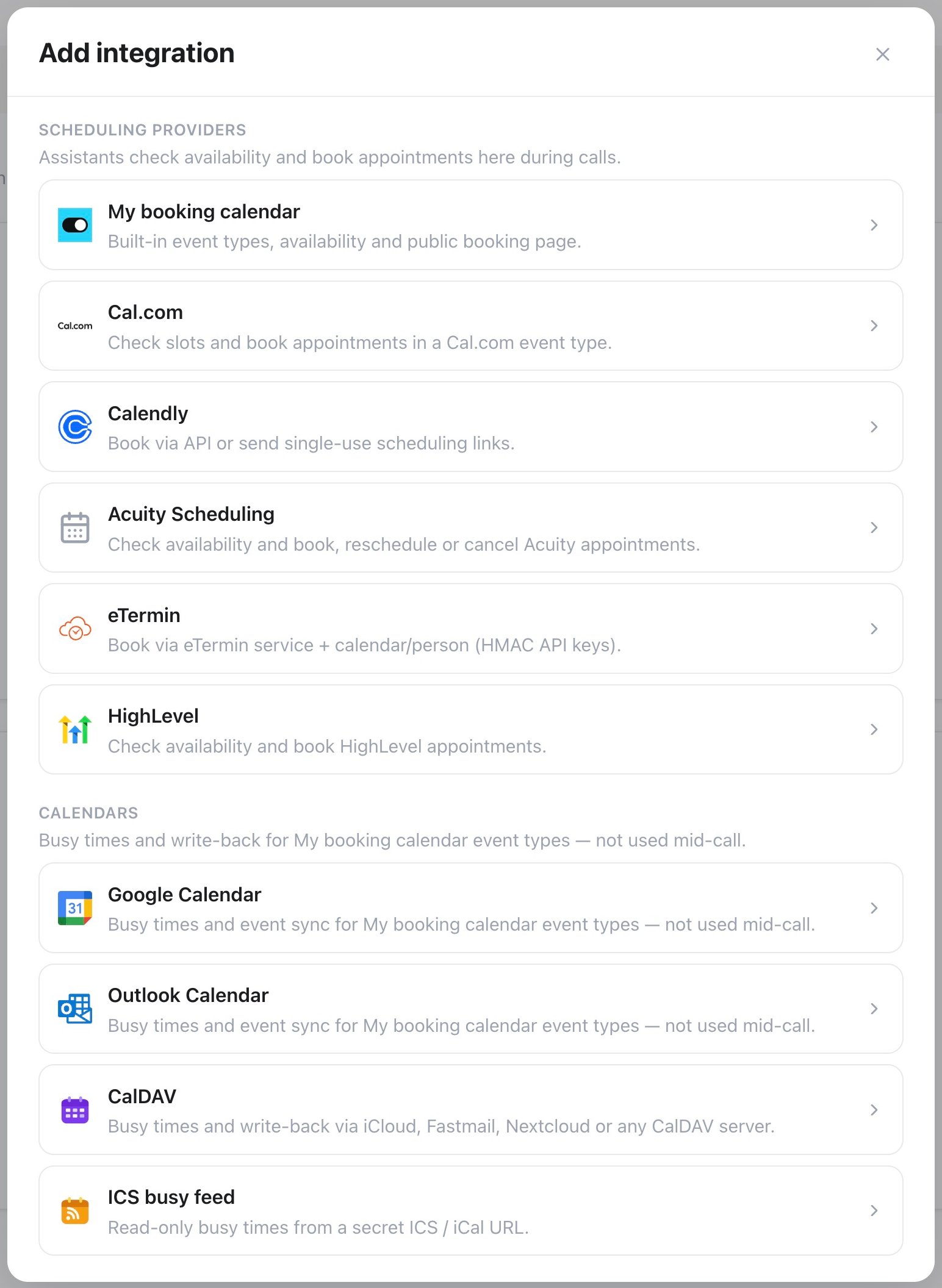 Paste your API key (Cal.com → Settings → Developer → API Keys) and pick the **API endpoint**: US (default), EU, or Custom for a self-hosted Cal.com instance. Select **Load event types** to fetch your events by name and duration — no need to copy a numeric ID from the URL. Optional timezone override — make sure it matches the Cal.com event type.
The selected event type’s booking questions and required fields load automatically. Voice and messaging assistants collect the phone number and custom answers when the event type requires them. To update an existing connection, open it for editing under **Booking → Integrations**, review **Booking questions** (or use **Refresh fields** after changing them in Cal.com), then select **Save changes**.
Enable or disable Book, Cancel, and Reschedule for each integration. With Cancel or Reschedule on, callers don't need a booking number: the assistant finds their upcoming booking by the phone number they call from, or by the email address and full name used when booking.
Click **Connect with Calendly**, approve access, then choose an active event type by **name and duration**. One account connection can be reused by multiple integrations. If the event type has more than one location configured in Calendly, pick the one the assistant should use under **Meeting location**. Choose the booking mode, link channel, and Book/Cancel permissions.
Click **Connect with Acuity**, approve access, then choose an appointment type. Optionally select a specific calendar or person, or let the service choose any available calendar. Enable or disable Book, Cancel, and Reschedule for each integration.
Paste your **Public Key** and **Secret Key** (eTermin → Account Settings → API), then select **Load services** to fetch your services by name and duration. Picking a service loads only the calendars/persons eTermin offers for it — pick one and adjust the duration if it needs to differ from the service default. After the integration is saved, a **Web Push URL** appears: paste it into eTermin's **API → API & Web Push** settings (enable **Send Web Push**, prefer JSON format) so eTermin notifies the platform whenever an appointment is created, changed, or cancelled on its side. The editor then shows when the last event arrived — the quickest way to confirm the connection is live. An optional shared secret can be set on both sides and is checked as the `X-Webhook-Secret` header.
First connect a HighLevel account under **Automations → Connections** if you haven't already. Back in **Booking → Integrations**, choose **Connect HighLevel**, select that connection, then pick one of its active calendars. You can turn booking on or off per integration. Assistants get availability and booking for HighLevel in calls as well as in chat and email conversations; cancelling or moving existing HighLevel appointments isn't available yet.
Click **Connect** and complete the OAuth consent. The connection can be reused by multiple event types in the workspace.
Pick one of your [booking event types](/assistants/native-calendar#the-built-in-booking-engine).
Every integration is **verified before it is saved**. Invalid credentials or event settings are rejected with a clear error. Secret values are never displayed again after saving.
Deleting the final integration that uses an Acuity account revokes its OAuth token through Acuity's disconnect endpoint and removes the local connection. An unused account can also be removed with **Disconnect account** in the Acuity editor; shared accounts cannot be disconnected until their remaining integrations are removed.
Existing personal-access-token integrations remain operational but appear as
**Legacy connection — reconnect with Calendly**. Reconnecting upgrades them to
OAuth and removes the PAT from the integration.
## Assigning to an assistant
Paste your API key (Cal.com → Settings → Developer → API Keys) and pick the **API endpoint**: US (default), EU, or Custom for a self-hosted Cal.com instance. Select **Load event types** to fetch your events by name and duration — no need to copy a numeric ID from the URL. Optional timezone override — make sure it matches the Cal.com event type.
The selected event type’s booking questions and required fields load automatically. Voice and messaging assistants collect the phone number and custom answers when the event type requires them. To update an existing connection, open it for editing under **Booking → Integrations**, review **Booking questions** (or use **Refresh fields** after changing them in Cal.com), then select **Save changes**.
Enable or disable Book, Cancel, and Reschedule for each integration. With Cancel or Reschedule on, callers don't need a booking number: the assistant finds their upcoming booking by the phone number they call from, or by the email address and full name used when booking.
Click **Connect with Calendly**, approve access, then choose an active event type by **name and duration**. One account connection can be reused by multiple integrations. If the event type has more than one location configured in Calendly, pick the one the assistant should use under **Meeting location**. Choose the booking mode, link channel, and Book/Cancel permissions.
Click **Connect with Acuity**, approve access, then choose an appointment type. Optionally select a specific calendar or person, or let the service choose any available calendar. Enable or disable Book, Cancel, and Reschedule for each integration.
Paste your **Public Key** and **Secret Key** (eTermin → Account Settings → API), then select **Load services** to fetch your services by name and duration. Picking a service loads only the calendars/persons eTermin offers for it — pick one and adjust the duration if it needs to differ from the service default. After the integration is saved, a **Web Push URL** appears: paste it into eTermin's **API → API & Web Push** settings (enable **Send Web Push**, prefer JSON format) so eTermin notifies the platform whenever an appointment is created, changed, or cancelled on its side. The editor then shows when the last event arrived — the quickest way to confirm the connection is live. An optional shared secret can be set on both sides and is checked as the `X-Webhook-Secret` header.
First connect a HighLevel account under **Automations → Connections** if you haven't already. Back in **Booking → Integrations**, choose **Connect HighLevel**, select that connection, then pick one of its active calendars. You can turn booking on or off per integration. Assistants get availability and booking for HighLevel in calls as well as in chat and email conversations; cancelling or moving existing HighLevel appointments isn't available yet.
Click **Connect** and complete the OAuth consent. The connection can be reused by multiple event types in the workspace.
Pick one of your [booking event types](/assistants/native-calendar#the-built-in-booking-engine).
Every integration is **verified before it is saved**. Invalid credentials or event settings are rejected with a clear error. Secret values are never displayed again after saving.
Deleting the final integration that uses an Acuity account revokes its OAuth token through Acuity's disconnect endpoint and removes the local connection. An unused account can also be removed with **Disconnect account** in the Acuity editor; shared accounts cannot be disconnected until their remaining integrations are removed.
Existing personal-access-token integrations remain operational but appear as
**Legacy connection — reconnect with Calendly**. Reconnecting upgrades them to
OAuth and removes the PAT from the integration.
## Assigning to an assistant
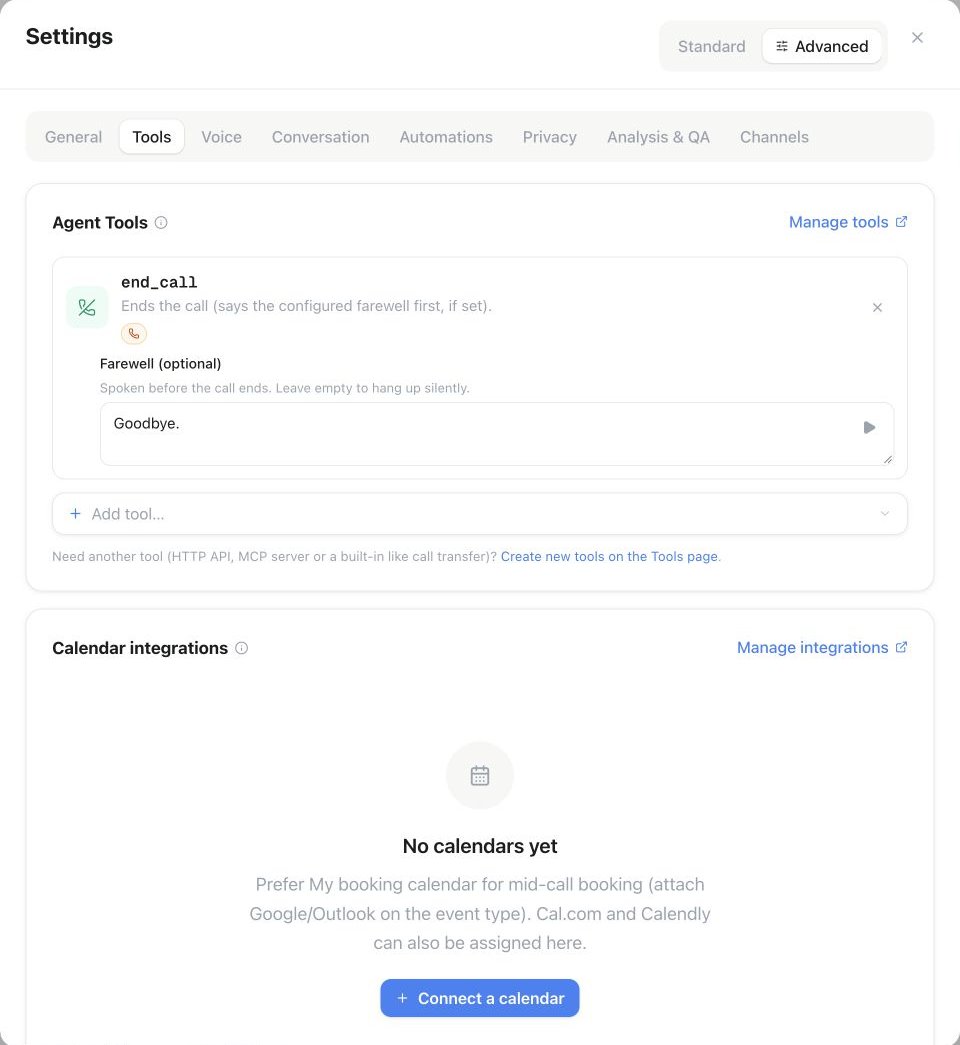 Open the assistant's settings and tick the integrations it should use (or `PUT /api/v1/assistants/{id}/integrations`). Each assigned integration adds its own booking tools to every call:
| Tool | Type | What it does |
| - | - | - |
| `check_availability(start_date, end_date?)` | read-only, interruptible | Fetches open slots for the date range and reads them out in the assistant's timezone (capped so the agent never recites 200 slots). |
| `book_appointment(name, email, start, notes?)` | write — runs with a filler phrase, not interruptible | Books the chosen slot. On success the booking start/ID are stored as call variables for flows, analysis, and webhooks. If the slot was just taken, the agent is told to offer another one. |
| `send_booking_link(email?, phone?)` | Calendly link mode only | Creates a single-use scheduling link and sends it via SMS or email. |
| `find_appointment(email, name)` | Calendly/Acuity management | Finds upcoming appointments for the selected event/appointment type. Both the exact booking email and full name are required. |
| `find_appointment(phone?, email?, name?)` | Cal.com management | Finds upcoming bookings of the selected event type. The caller's phone number is matched automatically; otherwise the booking email and full name are both required. |
| `cancel_appointment(event_id / appointment_id / booking_id, confirmed)` | write — not interruptible | Cancels only an event or appointment returned by `find_appointment` during the same call, after the assistant reads it back and receives explicit confirmation. |
| `reschedule_appointment(appointment_id / booking_id, new_start, confirmed)` | Acuity/Cal.com management | Moves only an appointment returned in the same call, after availability was checked and the caller explicitly confirmed the new time. |
Every integration gets `check_availability`; booking is exposed when enabled for that integration. The management tools are added only where the provider supports them: **Calendly** (find and cancel), **Acuity** and **Cal.com** (find, cancel, and reschedule, following the toggles you set), and the **built-in engine**, which adds a workspace-wide set. Cal.com and the built-in engine identify the caller by phone number first and fall back to email plus full name; for seated Cal.com events only the caller's own seat is cancelled or moved. **meetergo**, **eTermin**, and **HighLevel** calendars currently offer availability and booking only — the assistant can read slots and book on them, but not look up, cancel, or move an existing appointment during a call, so their editors don't offer Cancel or Reschedule.
The same tools work in chat and email conversations. There, the contact's phone number, email address, and name only count as proof of identity when the channel verifies a single sender, for example WhatsApp or an authenticated email. In email threads, tickets, and group chats the assistant asks for the booking email and full name before it looks up an appointment.
If more than one integration is assigned, tool names get the integration name as a suffix (for example `check_availability_sales`). Slots are always spoken in the **assistant [timezone](/assistants/timezone)** — set it in the assistant's settings.
Calendly bookings can't be rescheduled through its API — a caller who wants a different time gets a fresh `cancel_appointment` and `book_appointment` instead, or reschedules through the link in their Calendly confirmation email.
Tell the assistant **when** to book in its prompt, e.g.: *"Before offering any time, call check\_availability. Once the caller confirms a slot, call book\_appointment with their name and email."*
## Reschedule or cancel a Cal.com appointment
### What the workspace needs
1. Connect Cal.com under **Booking → Integrations**, select the event type and check the timezone.
2. Enable **Cancel**, **Reschedule**, or both on that connection. Booking is a separate permission.
3. Assign the connection in **Assistant settings → Tools → Calendar integrations**.
4. Set the assistant's **Primary language** and any **Secondary languages**. Questions and confirmations follow the supported conversation language; customers do not need to know tool names or booking IDs.
### What the caller needs
| Situation | How the assistant finds the appointment |
| - | - |
| An incoming phone call | The caller's number is used automatically when it matches a number saved on the booking. |
| The assistant calls the customer | The customer's dialled number is used automatically, rather than the assistant's own number. |
| Hidden, missing or different number; web chat; no phone match | The customer provides **both the email address and full name used when booking**. |
No prompt variable is needed for automatic telephone matching. For reliable matching, enable the phone question on the Cal.com event type and collect the customer's number with its country code. Make it required if your process depends on finding bookings by phone. A number known to your CRM cannot match a Cal.com booking unless it is also stored on that booking.
### What happens in the conversation
The customer can simply say “I would like to move my appointment.” The assistant finds upcoming appointments for the connected event type, reads back the matching date and time, and asks which appointment the customer means if there are several. For a move, it checks available times and confirms the selected new time with the customer. For cancellation, it asks for explicit confirmation of the appointment to cancel. The customer never has to supply a booking ID.
The assistant reports success only after Cal.com accepts the change. If no appointment matches, it asks for the booking email and full name; it does not claim that anything was changed. Cancellation cannot be undone. For a seated event, only the matched attendee's seat is changed.
Tell your assistant: “Help customers change or cancel their existing appointments. Find the appointment, repeat its date and time, and ask for confirmation. Before moving it, offer a currently available time and confirm the new time. Keep technical references out of the conversation.”
## Booking questions
Event types on the built-in engine can ask for more than a name and an email address. In the event type editor, the **Booking questions** section below the description lets you add custom questions — short text, long text, email, phone, address, URL, number, a single checkbox, checkbox group, radio group, select, multi-select, or multiple email addresses — each with its own label, an optional placeholder, and a required toggle.
**Name** is always required. Switch **Email** and **Phone** between required and optional in **Booking questions**. Email remains required for Google Meet and Microsoft Teams so the provider can deliver the meeting invitation. The booking page and phone assistant follow the same requirements.
Every question gets an identifier (derived from its label, editable) that doubles as a URL parameter for prefilling the public booking page, e.g. `?name=Jane+Doe&email=jane@example.com&company=Acme` — repeat the parameter or use a comma-separated list for a multi-value field. A question can also be marked **Disable input if the URL identifier is prefilled**, which makes it read-only whenever that parameter is present — useful when an embedding page already knows the answer.
Assistants read these requirements automatically, no extra prompt needed: on the built-in engine, `check_availability` states in plain English what to collect before booking — for example *"To book, collect: full name; email address ([user@domain.tld](mailto:user@domain.tld)); phone number in E.164 format (e.g. +4915123456789); Company (required, short text)…"* (the message continues with a reminder never to confirm a booking before the booking tool succeeds) — and `book_appointment` requires exactly those fields, one parameter per question. It never reports a successful booking unless the underlying request actually succeeded. Cal.com always requires a full name; the selected event type determines whether email, phone, and custom answers are required. Other external providers ask for a full name and an email address.
Custom answers appear on the booking record — in the dashboard, under `answers` in `GET /api/v1/bookings/{id}` and the `get_booking`/`list_bookings` MCP tools, in the guest and host confirmation emails, in the ICS invite, and in every booking webhook payload (creation, cancellation, and reschedule).
## Booking email templates
Header, footer, logo and colors come from your workspace or whitelabel email branding. The preview shows only the editable subject and message.
Open **Booking → Event types**, create or edit an event type, then select **Booking emails**. A compact editor separates **Guest emails** (confirmation, cancellation, rescheduled, reminder) from **Host notifications** (new booking, cancellation, rescheduled).
The editor displays the actual standard subject and message. Select English, German, French or Spanish to inspect the standard text, edit it directly, insert booking variables at the cursor, or open **Preview** with example booking details. **Reset to standard** restores automatic defaults for the selected message. Standard emails follow the recipient’s language; custom text is sent as written. Empty subjects or messages use the corresponding standard text.
Choose a verified **From address**, or keep **Automatic sender**. **Apply changes** returns to the event type; **Create event type** or **Save changes** saves the configuration. **Cancel** in the email editor discards its draft. Reminders are sent only when a reminder time is configured on the event type. Calendar invitations and their attachments remain separate from the editable message text.
The public API (`GET /api/v1/booking-email-templates`) returns all standard templates and supported variables. Use the event-type create/update API or MCP tools to save custom messages; the MCP tool `get_booking_email_templates` reads the defaults without sending mail.
## Time format
Choose **12h** or **24h** beside **Weekly availability**. The saved choice also controls time variables in host emails and the email preview. Guests keep the format they selected on the public or embedded booking page for confirmation, cancellation, rescheduling and reminder emails. Older bookings without a saved guest choice use the event type’s format. Switching formats does not change availability, timezones or booked instants.
## Plan gating
Your plan must include **Calendar integrations**. If it is not included, you cannot create integrations.
## Reconnecting an expired connection
Google Calendar, Outlook Calendar, Calendly, Acuity Scheduling, and HighLevel connections can expire — the account's password changed, access was revoked, or the stored refresh token lapsed. Famulor detects this the moment a refresh fails and flags the connection immediately, instead of waiting for a booking to fail.
* The affected row in **Booking → Integrations** shows an amber **Reconnect required** badge with a short reason, and a banner at the top of the tab counts how many connections need attention.
* Click **Reconnect** (↻) on the row to sign in again. Google, Outlook, Calendly, and Acuity return you to the same **Booking → Integrations** tab; for HighLevel the sign-in flow returns you to **Automations → Connections** instead — pick the same sub-account you originally connected, or reconnecting creates a separate connection.
* CalDAV/ICS calendars have no OAuth reconnect: click **Edit** on the row to update the app password or feed URL.
Workspace owners and admins receive an email the moment a connection breaks, and a reminder every 7 days while it stays broken. Via the API or MCP, the integration object exposes `connection_status` and `needs_reauth` so you can monitor connection health programmatically.
## Troubleshooting
Confirm the key is still active in Cal.com and that you pasted a live key (Cal.com's live keys begin with `cal_live_`), then select **Load event types** again. If you get an authentication error instead of an empty list, you likely picked the wrong API endpoint — an EU Cal.com account needs the EU endpoint (or Custom for a self-hosted instance), not the US default.
`book_appointment` requires a valid email address when the selected Cal.com event type makes email mandatory. Spoken addresses ("anna at example dot com") and German umlauts are converted automatically before the request goes out, so most dictated addresses work; if what the assistant heard still isn't usable, it is told to ask again rather than booking. When email is required, tell it in the prompt to collect and confirm the address before booking, and to reuse an address you already hold as a [call variable](/assistants/variables) instead of asking twice.
The event type's only location in Calendly is a video-conferencing link (Google Meet, Zoom, Teams), and the voice agent can't generate meeting links. In Calendly, edit the event type and add **Custom** or **Phone Call → Inbound call** as a location — Custom is the safest choice and works in every case. If the event type ends up with more than one location, pick the right one under **Meeting location** in the integration.
In a Calendly organization, admin and owner accounts see every member's event types, including Round Robin and Collective events; a regular member account only sees its own.
A **Web Call** test runs without a phone number, so anything the booking flow derives from the caller's number (sending a scheduling link by SMS, looking an appointment up by phone) can't work the same way. Use **Test → Call** in the assistant header for a realistic run: the assistant dials a number you enter, or you dial its inbound number yourself.
Still stuck? Contact support with the integration's name, the error shown in the assistant editor, and a transcript of the call that failed to book.
## API & MCP
Everything above is available in the [public REST API](/api-reference/introduction) and as MCP tools at `https:///mcp`:
| REST | MCP tool | Scope |
| - | - | - |
| `GET/POST /api/v1/integrations`, `GET/PATCH/DELETE /api/v1/integrations/{id}` | `list_integrations`, `get_integration`, `create_integration`, `update_integration`, `delete_integration` | `integrations:read/write` |
| `POST /api/v1/integrations/calendly/oauth-url` | `create_calendly_oauth_url` | `integrations:write` |
| `GET /api/v1/integrations/calendly/connections` | `list_calendly_connections` | `integrations:read` |
| `GET /api/v1/integrations/calendly/event-types?connection_id=…` | `list_calendly_event_types` | `integrations:read` |
| `POST /api/v1/integrations/acuity/oauth-url` | `create_acuity_oauth_url` | `integrations:write` |
| `GET /api/v1/integrations/acuity/connections` | `list_acuity_connections` | `integrations:read` |
| `GET /api/v1/integrations/acuity/appointment-types?connection_id=…` | `list_acuity_appointment_types` | `integrations:read` |
| `GET /api/v1/integrations/acuity/calendars?connection_id=…` | `list_acuity_calendars` | `integrations:read` |
| `GET/PUT /api/v1/assistants/{id}/integrations` | `get_assistant_integrations`, `set_assistant_integrations` | `integrations:*` or `assistants:*` |
Integration objects include `connection_status` / `needs_reauth`.
Listing Calendly and Acuity accounts, event types, appointment types and calendars, loading meetergo meeting types and checking meetergo availability read connected accounts: a workspace API key only needs `integrations:read`, while a user-authorised credential also needs the workspace owner or admin role.
Creating, changing, deleting or assigning calendar integrations, connecting Calendly or Acuity, and booking with meetergo need a user-authorised credential with the workspace owner or admin role; a workspace API key gets `403` for these actions.
Event types, connections, and booking records for the built-in engine are covered in [Built-in calendar](/assistants/native-calendar).
## meetergo
In the App Store, choose **Add connection** on the **meetergo** card to create another connection, or **Manage connections** to edit a saved one.
In **Booking → Integrations**, choose **meetergo**. Enter a personal access token with scheduling access from meetergo's **Integrations → API**, select **Load meeting types**, then choose the meeting type and timezone. Platform API keys additionally need an **Acting user ID**; leave it empty for a personal token. Save and assign the calendar to an assistant. **Allow booking** controls whether the assistant may book or only check availability.
The native connection works in voice calls and text conversations. It offers exact bookable starts for the selected meeting type, including its duration and buffers. The assistant collects a full name and email and checks the selected time again before booking. A booking awaiting attendee or host confirmation is reported as pending. If a request has an unknown outcome, check the calendar before trying again.
For additional operations such as rescheduling and cancellation, connect **meetergo MCP** under **Apps**, enter your personal token, and select the tools your assistant needs. You can use it alongside the native connection. The scheduling endpoint is `https://mcp.meetergo.com/mcp`; the separate documentation MCP only searches meetergo's documentation. See the [official MCP guide](https://developer.meetergo.com/mcp-server).
Public API discovery: `POST /api/v1/integrations/meetergo/meeting-types`. Availability and booking: `POST /api/v1/integrations/meetergo/action`. The corresponding MCP tools are `list_meetergo_meeting_types`, `get_meetergo_availability`, and `book_meetergo_appointment`. Use the regular integration create/update and assistant-assignment endpoints to save and assign the connection.
This documentation is built and hosted on [Mintlify](https://mintlify.com), a developer documentation platform.
Open the assistant's settings and tick the integrations it should use (or `PUT /api/v1/assistants/{id}/integrations`). Each assigned integration adds its own booking tools to every call:
| Tool | Type | What it does |
| - | - | - |
| `check_availability(start_date, end_date?)` | read-only, interruptible | Fetches open slots for the date range and reads them out in the assistant's timezone (capped so the agent never recites 200 slots). |
| `book_appointment(name, email, start, notes?)` | write — runs with a filler phrase, not interruptible | Books the chosen slot. On success the booking start/ID are stored as call variables for flows, analysis, and webhooks. If the slot was just taken, the agent is told to offer another one. |
| `send_booking_link(email?, phone?)` | Calendly link mode only | Creates a single-use scheduling link and sends it via SMS or email. |
| `find_appointment(email, name)` | Calendly/Acuity management | Finds upcoming appointments for the selected event/appointment type. Both the exact booking email and full name are required. |
| `find_appointment(phone?, email?, name?)` | Cal.com management | Finds upcoming bookings of the selected event type. The caller's phone number is matched automatically; otherwise the booking email and full name are both required. |
| `cancel_appointment(event_id / appointment_id / booking_id, confirmed)` | write — not interruptible | Cancels only an event or appointment returned by `find_appointment` during the same call, after the assistant reads it back and receives explicit confirmation. |
| `reschedule_appointment(appointment_id / booking_id, new_start, confirmed)` | Acuity/Cal.com management | Moves only an appointment returned in the same call, after availability was checked and the caller explicitly confirmed the new time. |
Every integration gets `check_availability`; booking is exposed when enabled for that integration. The management tools are added only where the provider supports them: **Calendly** (find and cancel), **Acuity** and **Cal.com** (find, cancel, and reschedule, following the toggles you set), and the **built-in engine**, which adds a workspace-wide set. Cal.com and the built-in engine identify the caller by phone number first and fall back to email plus full name; for seated Cal.com events only the caller's own seat is cancelled or moved. **meetergo**, **eTermin**, and **HighLevel** calendars currently offer availability and booking only — the assistant can read slots and book on them, but not look up, cancel, or move an existing appointment during a call, so their editors don't offer Cancel or Reschedule.
The same tools work in chat and email conversations. There, the contact's phone number, email address, and name only count as proof of identity when the channel verifies a single sender, for example WhatsApp or an authenticated email. In email threads, tickets, and group chats the assistant asks for the booking email and full name before it looks up an appointment.
If more than one integration is assigned, tool names get the integration name as a suffix (for example `check_availability_sales`). Slots are always spoken in the **assistant [timezone](/assistants/timezone)** — set it in the assistant's settings.
Calendly bookings can't be rescheduled through its API — a caller who wants a different time gets a fresh `cancel_appointment` and `book_appointment` instead, or reschedules through the link in their Calendly confirmation email.
Tell the assistant **when** to book in its prompt, e.g.: *"Before offering any time, call check\_availability. Once the caller confirms a slot, call book\_appointment with their name and email."*
## Reschedule or cancel a Cal.com appointment
### What the workspace needs
1. Connect Cal.com under **Booking → Integrations**, select the event type and check the timezone.
2. Enable **Cancel**, **Reschedule**, or both on that connection. Booking is a separate permission.
3. Assign the connection in **Assistant settings → Tools → Calendar integrations**.
4. Set the assistant's **Primary language** and any **Secondary languages**. Questions and confirmations follow the supported conversation language; customers do not need to know tool names or booking IDs.
### What the caller needs
| Situation | How the assistant finds the appointment |
| - | - |
| An incoming phone call | The caller's number is used automatically when it matches a number saved on the booking. |
| The assistant calls the customer | The customer's dialled number is used automatically, rather than the assistant's own number. |
| Hidden, missing or different number; web chat; no phone match | The customer provides **both the email address and full name used when booking**. |
No prompt variable is needed for automatic telephone matching. For reliable matching, enable the phone question on the Cal.com event type and collect the customer's number with its country code. Make it required if your process depends on finding bookings by phone. A number known to your CRM cannot match a Cal.com booking unless it is also stored on that booking.
### What happens in the conversation
The customer can simply say “I would like to move my appointment.” The assistant finds upcoming appointments for the connected event type, reads back the matching date and time, and asks which appointment the customer means if there are several. For a move, it checks available times and confirms the selected new time with the customer. For cancellation, it asks for explicit confirmation of the appointment to cancel. The customer never has to supply a booking ID.
The assistant reports success only after Cal.com accepts the change. If no appointment matches, it asks for the booking email and full name; it does not claim that anything was changed. Cancellation cannot be undone. For a seated event, only the matched attendee's seat is changed.
Tell your assistant: “Help customers change or cancel their existing appointments. Find the appointment, repeat its date and time, and ask for confirmation. Before moving it, offer a currently available time and confirm the new time. Keep technical references out of the conversation.”
## Booking questions
Event types on the built-in engine can ask for more than a name and an email address. In the event type editor, the **Booking questions** section below the description lets you add custom questions — short text, long text, email, phone, address, URL, number, a single checkbox, checkbox group, radio group, select, multi-select, or multiple email addresses — each with its own label, an optional placeholder, and a required toggle.
**Name** is always required. Switch **Email** and **Phone** between required and optional in **Booking questions**. Email remains required for Google Meet and Microsoft Teams so the provider can deliver the meeting invitation. The booking page and phone assistant follow the same requirements.
Every question gets an identifier (derived from its label, editable) that doubles as a URL parameter for prefilling the public booking page, e.g. `?name=Jane+Doe&email=jane@example.com&company=Acme` — repeat the parameter or use a comma-separated list for a multi-value field. A question can also be marked **Disable input if the URL identifier is prefilled**, which makes it read-only whenever that parameter is present — useful when an embedding page already knows the answer.
Assistants read these requirements automatically, no extra prompt needed: on the built-in engine, `check_availability` states in plain English what to collect before booking — for example *"To book, collect: full name; email address ([user@domain.tld](mailto:user@domain.tld)); phone number in E.164 format (e.g. +4915123456789); Company (required, short text)…"* (the message continues with a reminder never to confirm a booking before the booking tool succeeds) — and `book_appointment` requires exactly those fields, one parameter per question. It never reports a successful booking unless the underlying request actually succeeded. Cal.com always requires a full name; the selected event type determines whether email, phone, and custom answers are required. Other external providers ask for a full name and an email address.
Custom answers appear on the booking record — in the dashboard, under `answers` in `GET /api/v1/bookings/{id}` and the `get_booking`/`list_bookings` MCP tools, in the guest and host confirmation emails, in the ICS invite, and in every booking webhook payload (creation, cancellation, and reschedule).
## Booking email templates
Header, footer, logo and colors come from your workspace or whitelabel email branding. The preview shows only the editable subject and message.
Open **Booking → Event types**, create or edit an event type, then select **Booking emails**. A compact editor separates **Guest emails** (confirmation, cancellation, rescheduled, reminder) from **Host notifications** (new booking, cancellation, rescheduled).
The editor displays the actual standard subject and message. Select English, German, French or Spanish to inspect the standard text, edit it directly, insert booking variables at the cursor, or open **Preview** with example booking details. **Reset to standard** restores automatic defaults for the selected message. Standard emails follow the recipient’s language; custom text is sent as written. Empty subjects or messages use the corresponding standard text.
Choose a verified **From address**, or keep **Automatic sender**. **Apply changes** returns to the event type; **Create event type** or **Save changes** saves the configuration. **Cancel** in the email editor discards its draft. Reminders are sent only when a reminder time is configured on the event type. Calendar invitations and their attachments remain separate from the editable message text.
The public API (`GET /api/v1/booking-email-templates`) returns all standard templates and supported variables. Use the event-type create/update API or MCP tools to save custom messages; the MCP tool `get_booking_email_templates` reads the defaults without sending mail.
## Time format
Choose **12h** or **24h** beside **Weekly availability**. The saved choice also controls time variables in host emails and the email preview. Guests keep the format they selected on the public or embedded booking page for confirmation, cancellation, rescheduling and reminder emails. Older bookings without a saved guest choice use the event type’s format. Switching formats does not change availability, timezones or booked instants.
## Plan gating
Your plan must include **Calendar integrations**. If it is not included, you cannot create integrations.
## Reconnecting an expired connection
Google Calendar, Outlook Calendar, Calendly, Acuity Scheduling, and HighLevel connections can expire — the account's password changed, access was revoked, or the stored refresh token lapsed. Famulor detects this the moment a refresh fails and flags the connection immediately, instead of waiting for a booking to fail.
* The affected row in **Booking → Integrations** shows an amber **Reconnect required** badge with a short reason, and a banner at the top of the tab counts how many connections need attention.
* Click **Reconnect** (↻) on the row to sign in again. Google, Outlook, Calendly, and Acuity return you to the same **Booking → Integrations** tab; for HighLevel the sign-in flow returns you to **Automations → Connections** instead — pick the same sub-account you originally connected, or reconnecting creates a separate connection.
* CalDAV/ICS calendars have no OAuth reconnect: click **Edit** on the row to update the app password or feed URL.
Workspace owners and admins receive an email the moment a connection breaks, and a reminder every 7 days while it stays broken. Via the API or MCP, the integration object exposes `connection_status` and `needs_reauth` so you can monitor connection health programmatically.
## Troubleshooting
Confirm the key is still active in Cal.com and that you pasted a live key (Cal.com's live keys begin with `cal_live_`), then select **Load event types** again. If you get an authentication error instead of an empty list, you likely picked the wrong API endpoint — an EU Cal.com account needs the EU endpoint (or Custom for a self-hosted instance), not the US default.
`book_appointment` requires a valid email address when the selected Cal.com event type makes email mandatory. Spoken addresses ("anna at example dot com") and German umlauts are converted automatically before the request goes out, so most dictated addresses work; if what the assistant heard still isn't usable, it is told to ask again rather than booking. When email is required, tell it in the prompt to collect and confirm the address before booking, and to reuse an address you already hold as a [call variable](/assistants/variables) instead of asking twice.
The event type's only location in Calendly is a video-conferencing link (Google Meet, Zoom, Teams), and the voice agent can't generate meeting links. In Calendly, edit the event type and add **Custom** or **Phone Call → Inbound call** as a location — Custom is the safest choice and works in every case. If the event type ends up with more than one location, pick the right one under **Meeting location** in the integration.
In a Calendly organization, admin and owner accounts see every member's event types, including Round Robin and Collective events; a regular member account only sees its own.
A **Web Call** test runs without a phone number, so anything the booking flow derives from the caller's number (sending a scheduling link by SMS, looking an appointment up by phone) can't work the same way. Use **Test → Call** in the assistant header for a realistic run: the assistant dials a number you enter, or you dial its inbound number yourself.
Still stuck? Contact support with the integration's name, the error shown in the assistant editor, and a transcript of the call that failed to book.
## API & MCP
Everything above is available in the [public REST API](/api-reference/introduction) and as MCP tools at `https:///mcp`:
| REST | MCP tool | Scope |
| - | - | - |
| `GET/POST /api/v1/integrations`, `GET/PATCH/DELETE /api/v1/integrations/{id}` | `list_integrations`, `get_integration`, `create_integration`, `update_integration`, `delete_integration` | `integrations:read/write` |
| `POST /api/v1/integrations/calendly/oauth-url` | `create_calendly_oauth_url` | `integrations:write` |
| `GET /api/v1/integrations/calendly/connections` | `list_calendly_connections` | `integrations:read` |
| `GET /api/v1/integrations/calendly/event-types?connection_id=…` | `list_calendly_event_types` | `integrations:read` |
| `POST /api/v1/integrations/acuity/oauth-url` | `create_acuity_oauth_url` | `integrations:write` |
| `GET /api/v1/integrations/acuity/connections` | `list_acuity_connections` | `integrations:read` |
| `GET /api/v1/integrations/acuity/appointment-types?connection_id=…` | `list_acuity_appointment_types` | `integrations:read` |
| `GET /api/v1/integrations/acuity/calendars?connection_id=…` | `list_acuity_calendars` | `integrations:read` |
| `GET/PUT /api/v1/assistants/{id}/integrations` | `get_assistant_integrations`, `set_assistant_integrations` | `integrations:*` or `assistants:*` |
Integration objects include `connection_status` / `needs_reauth`.
Listing Calendly and Acuity accounts, event types, appointment types and calendars, loading meetergo meeting types and checking meetergo availability read connected accounts: a workspace API key only needs `integrations:read`, while a user-authorised credential also needs the workspace owner or admin role.
Creating, changing, deleting or assigning calendar integrations, connecting Calendly or Acuity, and booking with meetergo need a user-authorised credential with the workspace owner or admin role; a workspace API key gets `403` for these actions.
Event types, connections, and booking records for the built-in engine are covered in [Built-in calendar](/assistants/native-calendar).
## meetergo
In the App Store, choose **Add connection** on the **meetergo** card to create another connection, or **Manage connections** to edit a saved one.
In **Booking → Integrations**, choose **meetergo**. Enter a personal access token with scheduling access from meetergo's **Integrations → API**, select **Load meeting types**, then choose the meeting type and timezone. Platform API keys additionally need an **Acting user ID**; leave it empty for a personal token. Save and assign the calendar to an assistant. **Allow booking** controls whether the assistant may book or only check availability.
The native connection works in voice calls and text conversations. It offers exact bookable starts for the selected meeting type, including its duration and buffers. The assistant collects a full name and email and checks the selected time again before booking. A booking awaiting attendee or host confirmation is reported as pending. If a request has an unknown outcome, check the calendar before trying again.
For additional operations such as rescheduling and cancellation, connect **meetergo MCP** under **Apps**, enter your personal token, and select the tools your assistant needs. You can use it alongside the native connection. The scheduling endpoint is `https://mcp.meetergo.com/mcp`; the separate documentation MCP only searches meetergo's documentation. See the [official MCP guide](https://developer.meetergo.com/mcp-server).
Public API discovery: `POST /api/v1/integrations/meetergo/meeting-types`. Availability and booking: `POST /api/v1/integrations/meetergo/action`. The corresponding MCP tools are `list_meetergo_meeting_types`, `get_meetergo_availability`, and `book_meetergo_appointment`. Use the regular integration create/update and assistant-assignment endpoints to save and assign the connection.
This documentation is built and hosted on [Mintlify](https://mintlify.com), a developer documentation platform.