> ## Documentation Index
> Fetch the complete documentation index at: https://docs.famulor.io/llms.txt
> Use this file to discover all available pages before exploring further.
# Post-call analysis
> Automatically score sentiment, success, and extract structured data from every call
After a call ends, **AI analysis** can evaluate the transcript. It can rate caller sentiment, decide whether the call met a success criterion, and extract structured fields such as a callback number, order ID, or yes/no answer. The result is available in [History](/monitoring/history), the public API, and MCP.
## What analysis produces
For each analyzed call the result can include:
* **Sentiment** — `positive`, `neutral`, or `negative` (overall caller sentiment).
* **Success** — `true` / `false` (or `null` when success evaluation is off), plus a short **reason** explaining the verdict.
* **Data** — a map of the structured fields you defined, keyed by field name.
* **Analysis time** — when the result was produced.
Use sentiment and success filters in History or `GET /api/v1/calls?sentiment=&success=` to find matching calls quickly.
Analysis runs **after** the call and never affects the live conversation. If analysis is unavailable, the call and its transcript remain unchanged and no result is shown.
## Configuring analysis
Open **Assistant Settings → Advanced → Analysis & QA** and turn on the parts you need. Sentiment is enabled by default. To disable extraction, remove its fields; disable Sentiment and Success as well to turn off analysis.
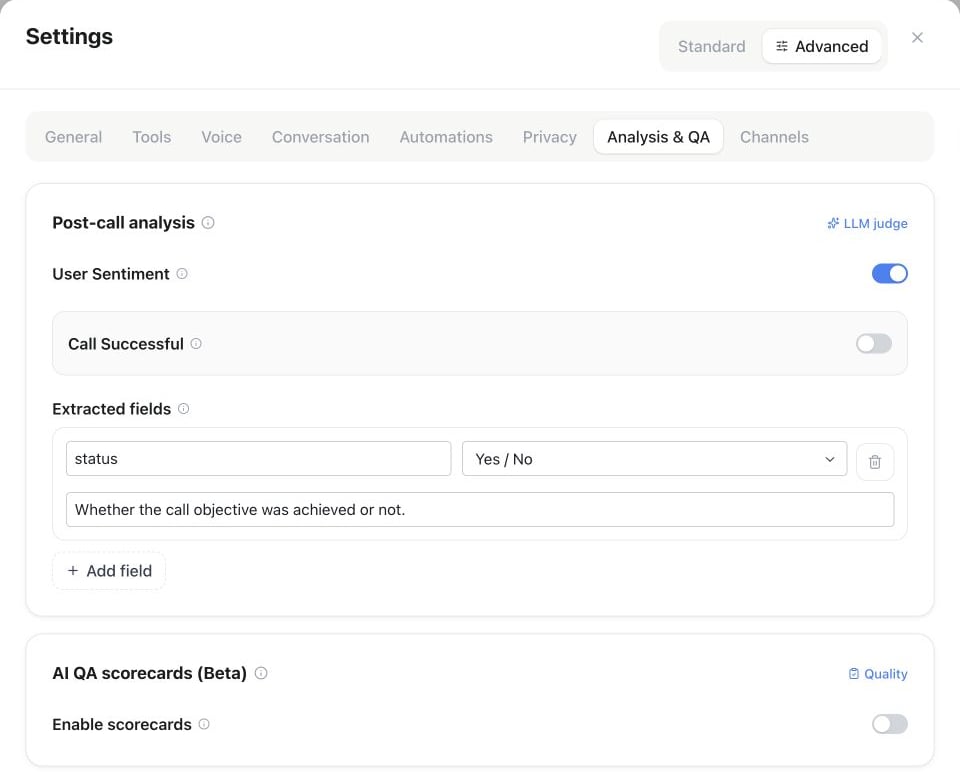 Enabled by default. Turn it off if you don't need per-call sentiment.
Enable **Success** and describe, in plain language, what a successful call looks like — e.g. *"The caller booked an appointment"* or *"The caller confirmed their delivery address."* The result contains a boolean plus a reason.
Add up to 30 fields with a unique name, a type and a description (up to 500 characters). Every field is attempted; missing scalar values remain empty rather than being invented.
### Structured extraction types
* **Text, Number, Yes / No** return a string, a number or a boolean.
* **Choice (enum)** uses your allowed values. **Allow multiple values** returns all matches as an array; off returns one value. Under **When nothing matches**, choose an allowed value to save as the fallback. Without a fallback, an unmatched single choice is empty and multiple choice is an empty array.
* **Object** defines fixed fields (up to 20). Every key is present; unavailable values are empty. Child fields support Text, Number, Yes / No and Choice, including optional allowed values for Text.
* **List** defines the same fixed fields for each item. The AI returns one object per entry it finds, up to 100 items, or an empty array when none are found.
* **JSON** lets the AI choose the structure. Use Object or List when your webhook needs fixed keys. Free-form JSON is limited to 16,000 characters and 8 nesting levels.
The same settings apply to voice, chat, messaging and email analysis. In History, objects and arrays appear as formatted JSON. Webhooks, API responses and MCP retain their native JSON types.
This API configuration illustrates all new options:
```json theme={null}
{
"fields": [
{
"name": "topics",
"type": "enum",
"choices": [
"pricing",
"delivery",
"other"
],
"allow_multiple": true,
"fallback_value": "other"
},
{
"name": "contact",
"type": "object",
"fields": [
{
"name": "name",
"type": "string"
},
{
"name": "callback",
"type": "boolean"
}
]
},
{
"name": "items",
"type": "list",
"fields": [
{
"name": "product",
"type": "string"
},
{
"name": "quantity",
"type": "number"
}
]
},
{
"name": "details",
"type": "json",
"description": "Additional preferences mentioned in the conversation"
}
]
}
```
### Example configuration
```json theme={null}
{
"sentiment": true,
"success": {
"enabled": true,
"criteria": "The caller booked an appointment"
},
"fields": [
{ "name": "callback_number", "type": "string", "description": "Phone number the caller wants a callback on" },
{ "name": "appointment_day", "type": "enum", "description": "Requested weekday", "choices": ["mon", "tue", "wed", "thu", "fri"] },
{ "name": "is_existing_customer", "type": "boolean", "description": "Whether the caller is already a customer" }
]
}
```
A resulting `calls.analysis` looks like:
```json theme={null}
{
"sentiment": "positive",
"success": true,
"success_reason": "Caller agreed to a Tuesday appointment and gave a callback number.",
"data": {
"callback_number": "+493012345678",
"appointment_day": "tue",
"is_existing_customer": false
},
"analyzed_at": "2026-07-05T09:12:44Z"
}
```
## Using analysis results
* **History filters** — filter the call list by sentiment and success to find, say, all negative calls that did *not* succeed.
* **Public API** — every call in `GET /api/v1/calls` and `GET /api/v1/calls/{id}` carries `analysis`, `sentiment`, and `success`. Filter the list with `?sentiment=negative` and `?success=false`.
* **MCP** — the same call fields are exposed through the MCP `list_calls` / `get_call` tools.
Re-running analysis on a past call — **History → Re-evaluate** — overwrites the stored sentiment, success, and extracted fields with a fresh result. It costs extra credits at the workspace's **History re-evaluate** rate; current rates are on the [Usage page](https://app.famulor.io/usage).
## AI QA scorecards
**AI QA scorecards** (Beta) score every finished call against your own quality checklist — a separate, complementary result from the sentiment/success/fields analysis above. Configure it in the same **Analysis & QA** tab as post-call analysis.
Off by default. The card is only shown once **Beta features** are switched on for the workspace under [Settings → Workspace](/settings/workspaces), and enabling it needs a plan that includes AI QA scorecards.
An overall score from 0–100; a call passes once it meets or exceeds this value.
Each criterion has a name, a weight (how much it counts toward the overall score), and a source:
* **LLM judge** — the AI reviewer reads the transcript and scores the criterion from a free-text description you write. Costs an extra evaluation per criterion.
* **Reuse success** — reuses this call's Analysis success flag (yes = 1, no = 0), at no extra cost.
* **Reuse sentiment** — reuses this call's Analysis sentiment (positive = 1, neutral = 0.5, negative = 0), at no extra cost.
Results appear in **History**, on the call's detail view. Configure scorecards the same way as analysis — through the assistant editor, `PATCH /api/v1/assistants/{id}`, or the MCP `update_assistant` tool.
This is different from the cohort-level [AI Quality Assurance](/assistants/ai-quality-assurance) tool, which runs a QA pack you choose against a batch of past calls on demand. Scorecards run automatically, per call, as it finishes.
## Configuring via the API
Use `PATCH /api/v1/assistants/{id}` or the MCP `update_assistant` tool to update the same analysis options programmatically. An empty configuration keeps default sentiment analysis enabled. See the [API reference](/api-reference/introduction) for the request schema.
## Turn a real call into a simulation test
On a finished call in **History**, use **Create Simulation Test**. Famulor prepares a persona, script, and success criteria from the transcript and analysis, then opens the assistant's [Simulations](/assistants/simulations) panel for review.
The same action is available as:
* `POST /api/v1/assistants/{id}/tests/from-call` with `{ "call_id": "…" }` (`assistants:write`; Simulations must be included in the plan)
* MCP tool `create_assistant_test_from_call`
Clicking a transcript line in History jumps the recording to that moment.
This documentation is built and hosted on [Mintlify](https://mintlify.com), a developer documentation platform.
Enabled by default. Turn it off if you don't need per-call sentiment.
Enable **Success** and describe, in plain language, what a successful call looks like — e.g. *"The caller booked an appointment"* or *"The caller confirmed their delivery address."* The result contains a boolean plus a reason.
Add up to 30 fields with a unique name, a type and a description (up to 500 characters). Every field is attempted; missing scalar values remain empty rather than being invented.
### Structured extraction types
* **Text, Number, Yes / No** return a string, a number or a boolean.
* **Choice (enum)** uses your allowed values. **Allow multiple values** returns all matches as an array; off returns one value. Under **When nothing matches**, choose an allowed value to save as the fallback. Without a fallback, an unmatched single choice is empty and multiple choice is an empty array.
* **Object** defines fixed fields (up to 20). Every key is present; unavailable values are empty. Child fields support Text, Number, Yes / No and Choice, including optional allowed values for Text.
* **List** defines the same fixed fields for each item. The AI returns one object per entry it finds, up to 100 items, or an empty array when none are found.
* **JSON** lets the AI choose the structure. Use Object or List when your webhook needs fixed keys. Free-form JSON is limited to 16,000 characters and 8 nesting levels.
The same settings apply to voice, chat, messaging and email analysis. In History, objects and arrays appear as formatted JSON. Webhooks, API responses and MCP retain their native JSON types.
This API configuration illustrates all new options:
```json theme={null}
{
"fields": [
{
"name": "topics",
"type": "enum",
"choices": [
"pricing",
"delivery",
"other"
],
"allow_multiple": true,
"fallback_value": "other"
},
{
"name": "contact",
"type": "object",
"fields": [
{
"name": "name",
"type": "string"
},
{
"name": "callback",
"type": "boolean"
}
]
},
{
"name": "items",
"type": "list",
"fields": [
{
"name": "product",
"type": "string"
},
{
"name": "quantity",
"type": "number"
}
]
},
{
"name": "details",
"type": "json",
"description": "Additional preferences mentioned in the conversation"
}
]
}
```
### Example configuration
```json theme={null}
{
"sentiment": true,
"success": {
"enabled": true,
"criteria": "The caller booked an appointment"
},
"fields": [
{ "name": "callback_number", "type": "string", "description": "Phone number the caller wants a callback on" },
{ "name": "appointment_day", "type": "enum", "description": "Requested weekday", "choices": ["mon", "tue", "wed", "thu", "fri"] },
{ "name": "is_existing_customer", "type": "boolean", "description": "Whether the caller is already a customer" }
]
}
```
A resulting `calls.analysis` looks like:
```json theme={null}
{
"sentiment": "positive",
"success": true,
"success_reason": "Caller agreed to a Tuesday appointment and gave a callback number.",
"data": {
"callback_number": "+493012345678",
"appointment_day": "tue",
"is_existing_customer": false
},
"analyzed_at": "2026-07-05T09:12:44Z"
}
```
## Using analysis results
* **History filters** — filter the call list by sentiment and success to find, say, all negative calls that did *not* succeed.
* **Public API** — every call in `GET /api/v1/calls` and `GET /api/v1/calls/{id}` carries `analysis`, `sentiment`, and `success`. Filter the list with `?sentiment=negative` and `?success=false`.
* **MCP** — the same call fields are exposed through the MCP `list_calls` / `get_call` tools.
Re-running analysis on a past call — **History → Re-evaluate** — overwrites the stored sentiment, success, and extracted fields with a fresh result. It costs extra credits at the workspace's **History re-evaluate** rate; current rates are on the [Usage page](https://app.famulor.io/usage).
## AI QA scorecards
**AI QA scorecards** (Beta) score every finished call against your own quality checklist — a separate, complementary result from the sentiment/success/fields analysis above. Configure it in the same **Analysis & QA** tab as post-call analysis.
Off by default. The card is only shown once **Beta features** are switched on for the workspace under [Settings → Workspace](/settings/workspaces), and enabling it needs a plan that includes AI QA scorecards.
An overall score from 0–100; a call passes once it meets or exceeds this value.
Each criterion has a name, a weight (how much it counts toward the overall score), and a source:
* **LLM judge** — the AI reviewer reads the transcript and scores the criterion from a free-text description you write. Costs an extra evaluation per criterion.
* **Reuse success** — reuses this call's Analysis success flag (yes = 1, no = 0), at no extra cost.
* **Reuse sentiment** — reuses this call's Analysis sentiment (positive = 1, neutral = 0.5, negative = 0), at no extra cost.
Results appear in **History**, on the call's detail view. Configure scorecards the same way as analysis — through the assistant editor, `PATCH /api/v1/assistants/{id}`, or the MCP `update_assistant` tool.
This is different from the cohort-level [AI Quality Assurance](/assistants/ai-quality-assurance) tool, which runs a QA pack you choose against a batch of past calls on demand. Scorecards run automatically, per call, as it finishes.
## Configuring via the API
Use `PATCH /api/v1/assistants/{id}` or the MCP `update_assistant` tool to update the same analysis options programmatically. An empty configuration keeps default sentiment analysis enabled. See the [API reference](/api-reference/introduction) for the request schema.
## Turn a real call into a simulation test
On a finished call in **History**, use **Create Simulation Test**. Famulor prepares a persona, script, and success criteria from the transcript and analysis, then opens the assistant's [Simulations](/assistants/simulations) panel for review.
The same action is available as:
* `POST /api/v1/assistants/{id}/tests/from-call` with `{ "call_id": "…" }` (`assistants:write`; Simulations must be included in the plan)
* MCP tool `create_assistant_test_from_call`
Clicking a transcript line in History jumps the recording to that moment.
This documentation is built and hosted on [Mintlify](https://mintlify.com), a developer documentation platform.