> ## Documentation Index
> Fetch the complete documentation index at: https://docs.famulor.io/llms.txt
> Use this file to discover all available pages before exploring further.
# White Label Setup
> Configure branding, domain, currency, legal pages, email, retention, and bot protection for your white-label platform
**Whitelabel Admin → Settings** is where you configure your customer-facing brand and service. Choose a panel from the settings sidebar, edit its fields, and select **Save**. Branding fields can inherit platform defaults; domain verification and email delivery have their own setup requirements.
Settings is organized into five groups in the sidebar: **General**, **Workspace**, **Legal**, **Communications**, and **Advanced**. This page walks through each one.
## General
### Branding
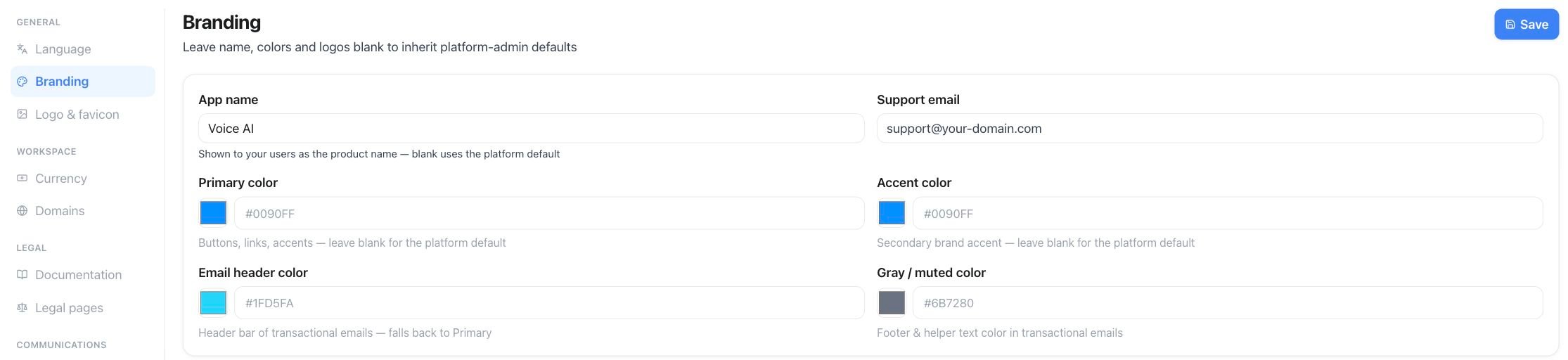
Set the **app name** shown to your customers throughout the product (blank uses the platform default), a **support email**, and your brand colors — primary, accent, a neutral gray, and the header color used in transactional emails. These colors drive the accent used across your white-label admin console and the customer-facing app.
Open **Whitelabel Admin → Settings → Branding**. Enter **App name** and **Support email**, choose the brand colors, then select **Save**.
 ### Logo & favicon
Open **Settings → Logo & favicon**. Use **Upload logo**, **Upload dark logo**, and **Upload favicon** to add the assets for each display context. Uploads and removals apply immediately. Remove an asset to fall back to the platform default logo.
### Logo & favicon
Open **Settings → Logo & favicon**. Use **Upload logo**, **Upload dark logo**, and **Upload favicon** to add the assets for each display context. Uploads and removals apply immediately. Remove an asset to fall back to the platform default logo.
 ## Workspace
### Currency
Choose the **display currency** your customers see at checkout and throughout the product. Stored prices always remain in EUR internally — Famulor converts to your chosen currency at a platform-managed exchange rate for display only.
### Domains
Connect the custom domain your customers use for the app, login, the public API (`/api/v1`), and [MCP](/mcp/overview).
Open **Whitelabel Admin → Settings → Domains**, enter your hostname in **Custom domain**, then select **Add domain**. The screenshot shows the form before a domain has been added; the DNS records appear in the next step.
## Workspace
### Currency
Choose the **display currency** your customers see at checkout and throughout the product. Stored prices always remain in EUR internally — Famulor converts to your chosen currency at a platform-managed exchange rate for display only.
### Domains
Connect the custom domain your customers use for the app, login, the public API (`/api/v1`), and [MCP](/mcp/overview).
Open **Whitelabel Admin → Settings → Domains**, enter your hostname in **Custom domain**, then select **Add domain**. The screenshot shows the form before a domain has been added; the DNS records appear in the next step.
 Enter the full hostname you want to use (e.g. `app.your-brand.com`).
Publish the ownership TXT record shown in the setup, then the recommended A or CNAME record for routing.
Wait for DNS propagation, then choose **Check DNS**. The domain activates once ownership, routing, and certificate checks all succeed.
Removing the domain disables sign-in and branding on that hostname. The same workflow is available through `GET`, `POST`, and `DELETE /api/v1/custom-domain`, `POST /api/v1/custom-domain/verify`, and the matching MCP tools. See [White Label Program](/admin/tenants-and-whitelabel) for what becomes available once your domain is verified — bot protection, for example, requires a verified custom domain.
## Legal
### Documentation link
An optional **Docs URL**. When set, it appears as an info icon next to **Create key** in **Settings → API & MCP**, pointing your customers at your own API documentation instead of Famulor's.
### Legal pages
**Privacy Policy URL** and **Terms of Service URL** — shown as links on your login and registration pages. Leave either blank to use the platform default.
## Communications
### Custom SMTP server
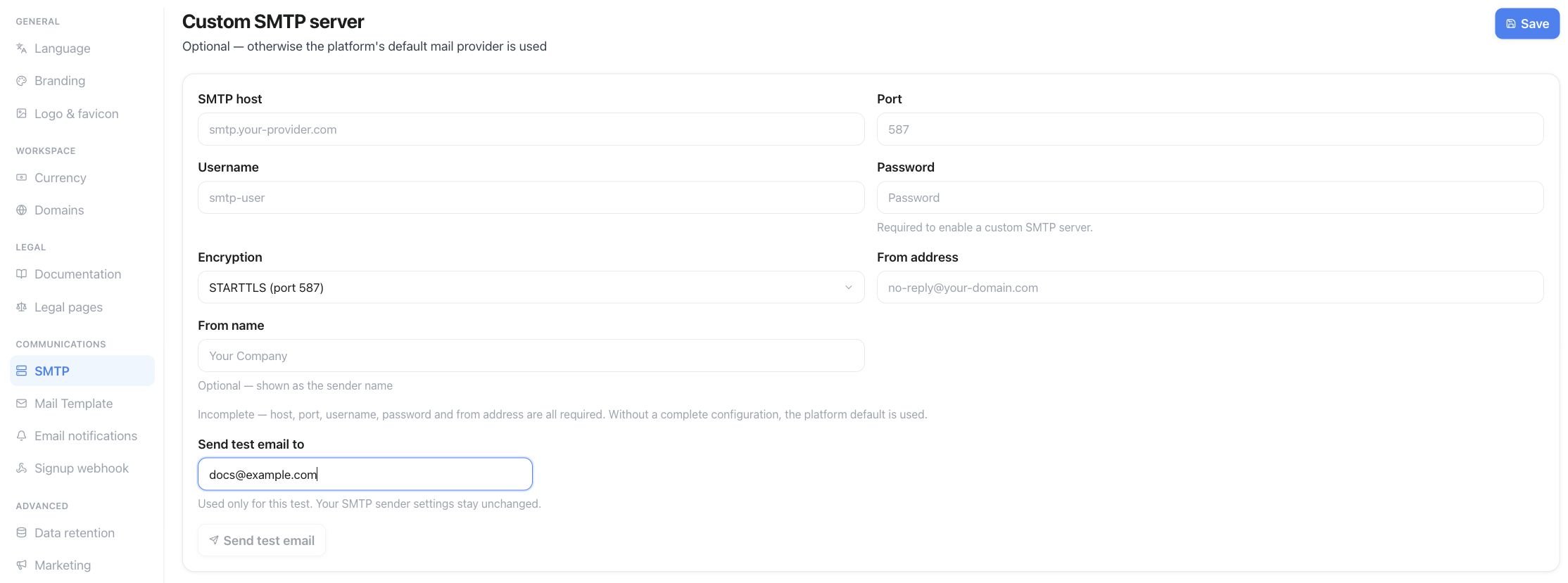
Send transactional email to your customers through your own mail provider instead of the platform default. Configure host, port, username, password, encryption (e.g. TLS), and the **From name** and **From address**. Use **Send test email** to confirm the connection before relying on it — the saved password is never shown again after saving, only whether one is set.
Open **Whitelabel Admin → Settings → SMTP** to enter your mail-server and sender details. Save the configuration, then use **Send test email** to check delivery.
Enter the full hostname you want to use (e.g. `app.your-brand.com`).
Publish the ownership TXT record shown in the setup, then the recommended A or CNAME record for routing.
Wait for DNS propagation, then choose **Check DNS**. The domain activates once ownership, routing, and certificate checks all succeed.
Removing the domain disables sign-in and branding on that hostname. The same workflow is available through `GET`, `POST`, and `DELETE /api/v1/custom-domain`, `POST /api/v1/custom-domain/verify`, and the matching MCP tools. See [White Label Program](/admin/tenants-and-whitelabel) for what becomes available once your domain is verified — bot protection, for example, requires a verified custom domain.
## Legal
### Documentation link
An optional **Docs URL**. When set, it appears as an info icon next to **Create key** in **Settings → API & MCP**, pointing your customers at your own API documentation instead of Famulor's.
### Legal pages
**Privacy Policy URL** and **Terms of Service URL** — shown as links on your login and registration pages. Leave either blank to use the platform default.
## Communications
### Custom SMTP server
Send transactional email to your customers through your own mail provider instead of the platform default. Configure host, port, username, password, encryption (e.g. TLS), and the **From name** and **From address**. Use **Send test email** to confirm the connection before relying on it — the saved password is never shown again after saving, only whether one is set.
Open **Whitelabel Admin → Settings → SMTP** to enter your mail-server and sender details. Save the configuration, then use **Send test email** to check delivery.
 ### Mail template
The welcome email sent right after a customer creates an account. Leave fields blank to use the default text; the default contact address falls back to your support email from **Branding**.
### Email notifications
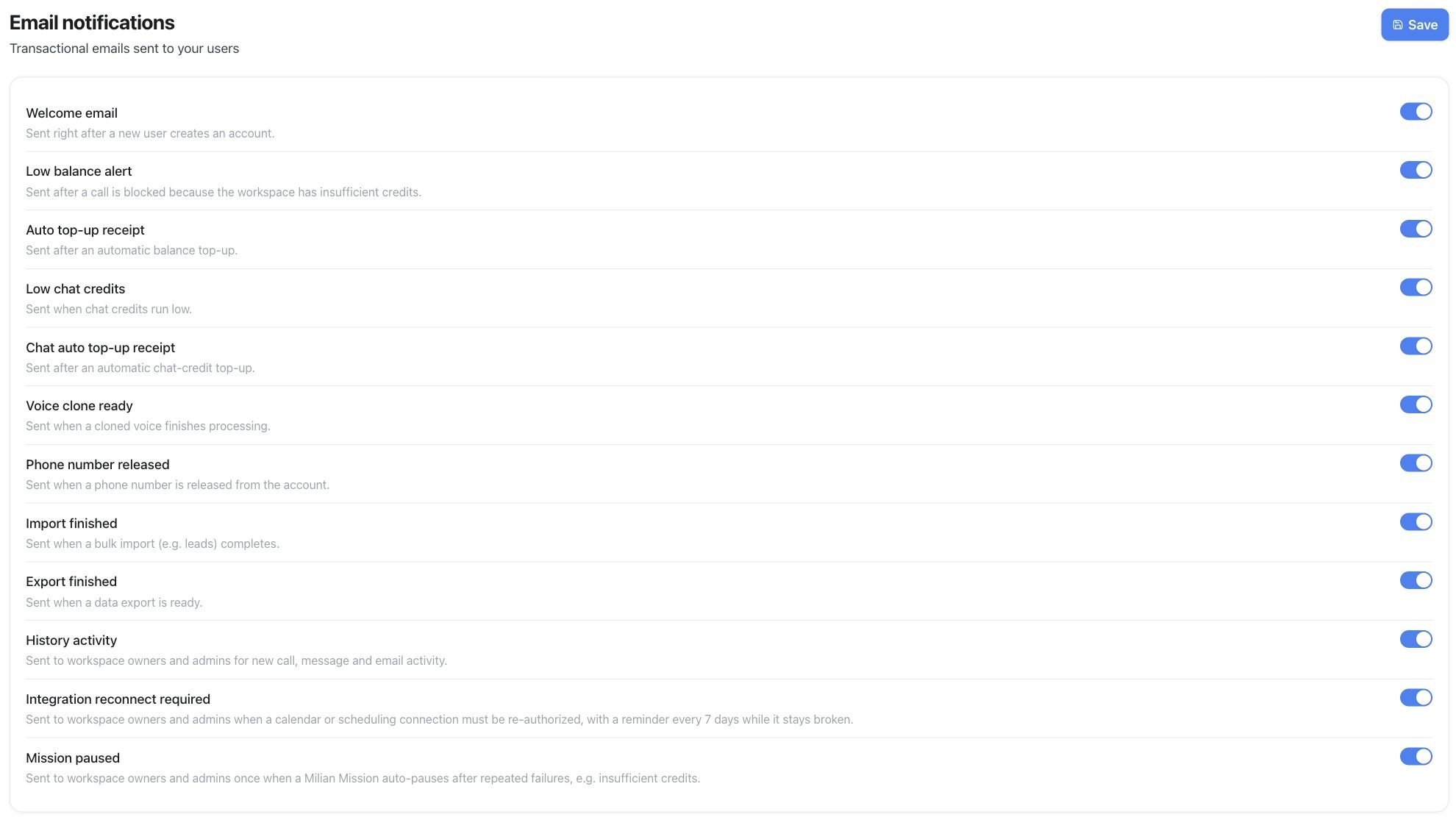
Open **Settings → Email notifications**. Turn each notification on or off, then select **Save**. Notifications are enabled by default. The labels match the switches in the product:
### Mail template
The welcome email sent right after a customer creates an account. Leave fields blank to use the default text; the default contact address falls back to your support email from **Branding**.
### Email notifications
Open **Settings → Email notifications**. Turn each notification on or off, then select **Save**. Notifications are enabled by default. The labels match the switches in the product:
 | Notification | Sent when |
| - | - |
| **Welcome email** | A new customer creates an account |
| **Low balance alert** | A call is blocked because the workspace has insufficient credits |
| **Auto top-up receipt** | An automatic top-up is charged |
| **Low chat credits** | Chat/messaging credits run low |
| **Chat auto top-up receipt** | An automatic chat-credit top-up is charged |
| **Voice clone ready** | A voice cloning job finishes |
| **Phone number released** | A phone number is released |
| **Import finished** | A data import finishes |
| **Export finished** | A data export finishes |
| **History activity** | New call, message, or email activity; this switch controls the workspace-wide notification setting |
| **Integration reconnect required** | A calendar or scheduling connection needs re-authorization |
| **Mission paused** | A Milian Mission auto-pauses after repeated failures |
| **Booking alerts** | A booking comes in, 15 minutes before it starts, and when it starts (push to the workspace team in the mobile app) |
Dunning emails ("Account suspended — payment required") always send regardless of these toggles — they are a billing safeguard, not a marketing notification.
### Signup webhook
An HTTP callback fired whenever someone signs up on your domain — use it to sync new customers into your own CRM or onboarding system.
## Advanced
### Data retention limits
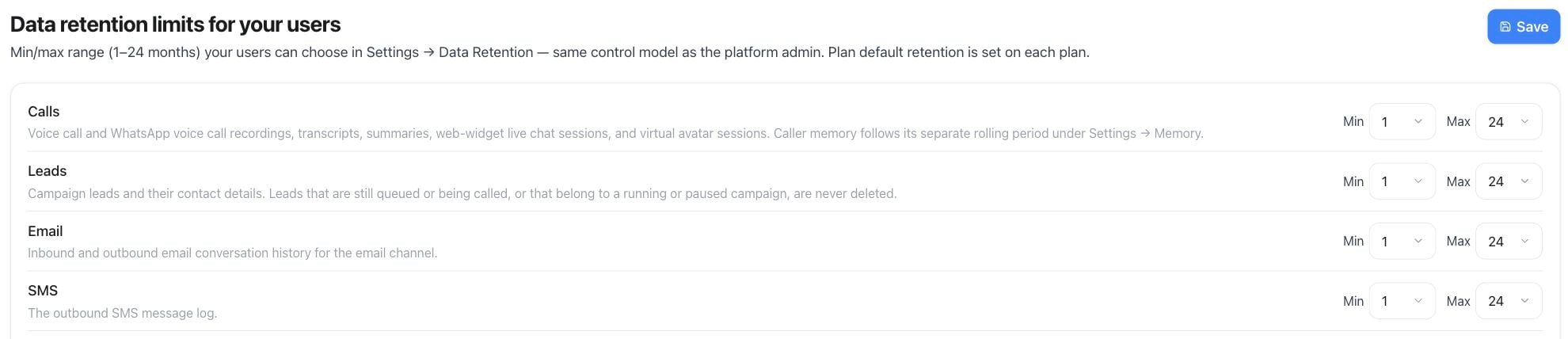
Set the **min/max range** (1–24 months, or immediate deletion) your customers can choose for their own data retention in **Settings → Data Retention**. This is separate from the **default retention period** you set on each plan; the range here only bounds what a customer is allowed to pick for themselves. Limits can be set per data channel (calls, leads, email, SMS, WhatsApp, and each connected messaging channel).
Open **Whitelabel Admin → Settings → Data retention**. Set the permitted minimum and maximum for each channel, then select **Save**.
| Notification | Sent when |
| - | - |
| **Welcome email** | A new customer creates an account |
| **Low balance alert** | A call is blocked because the workspace has insufficient credits |
| **Auto top-up receipt** | An automatic top-up is charged |
| **Low chat credits** | Chat/messaging credits run low |
| **Chat auto top-up receipt** | An automatic chat-credit top-up is charged |
| **Voice clone ready** | A voice cloning job finishes |
| **Phone number released** | A phone number is released |
| **Import finished** | A data import finishes |
| **Export finished** | A data export finishes |
| **History activity** | New call, message, or email activity; this switch controls the workspace-wide notification setting |
| **Integration reconnect required** | A calendar or scheduling connection needs re-authorization |
| **Mission paused** | A Milian Mission auto-pauses after repeated failures |
| **Booking alerts** | A booking comes in, 15 minutes before it starts, and when it starts (push to the workspace team in the mobile app) |
Dunning emails ("Account suspended — payment required") always send regardless of these toggles — they are a billing safeguard, not a marketing notification.
### Signup webhook
An HTTP callback fired whenever someone signs up on your domain — use it to sync new customers into your own CRM or onboarding system.
## Advanced
### Data retention limits
Set the **min/max range** (1–24 months, or immediate deletion) your customers can choose for their own data retention in **Settings → Data Retention**. This is separate from the **default retention period** you set on each plan; the range here only bounds what a customer is allowed to pick for themselves. Limits can be set per data channel (calls, leads, email, SMS, WhatsApp, and each connected messaging channel).
Open **Whitelabel Admin → Settings → Data retention**. Set the permitted minimum and maximum for each channel, then select **Save**.
 ### Marketing integrations
Configure GA4, Meta Pixel, Google Ads, and Microsoft UET tags for your verified custom domain — see [Marketing integrations](/settings/marketing) for the full event list and setup.
### Custom scripts
Raw HTML/`
### Marketing integrations
Configure GA4, Meta Pixel, Google Ads, and Microsoft UET tags for your verified custom domain — see [Marketing integrations](/settings/marketing) for the full event list and setup.
### Custom scripts
Raw HTML/`