> ## Documentation Index
> Fetch the complete documentation index at: https://docs.famulor.io/llms.txt
> Use this file to discover all available pages before exploring further.
# Data Migration
> Selectively move assistants, numbers, tools and more between your customer workspaces, with a reviewable history and rollback
**Whitelabel Admin → Data Migration** moves resources between two of your workspaces — for example when handing an agency-built setup to the final customer, consolidating two customer accounts, or correcting a resource that was created in the wrong workspace.
## What you can move
Migration works at the workspace level: pick a **source workspace** and a **target workspace** (either can be your own reseller workspace), then select which resources to bring along:
* Assistants
* Phone numbers
* Tools
* Web widgets
* Custom dashboards
* Automations
* Campaigns
* Prompt templates
Enable **Include tools linked to selected assistants** to transfer the tools assigned to those assistants. Each widget must be selected together with its assistant.
Knowledge bases stay in the source workspace. Recreate them in the destination and reconnect your assistants after the migration. Saved announcements are prepared again for the destination workspace.
## Destination access and tool names
The preview checks destination capacity, enabled assistant modes, MCP access and tool names. Each reseller customer workspace has five included tools while it has plan or prepaid access. Additional tools use paid add-on capacity. **Connect AI (MCP)** can be enabled in customer plans, including zero-price plans, or in prepaid defaults. This permission is separate from the tool count and REST API access. Reusable tools and assistant MCP connections share the workspace tool allowance. A reusable tool assigned to several assistants counts once.
When a tool name already exists in the destination, the preview shows its new name. Both tool behaviors are preserved. Wait for active calls to finish before transferring an assistant.
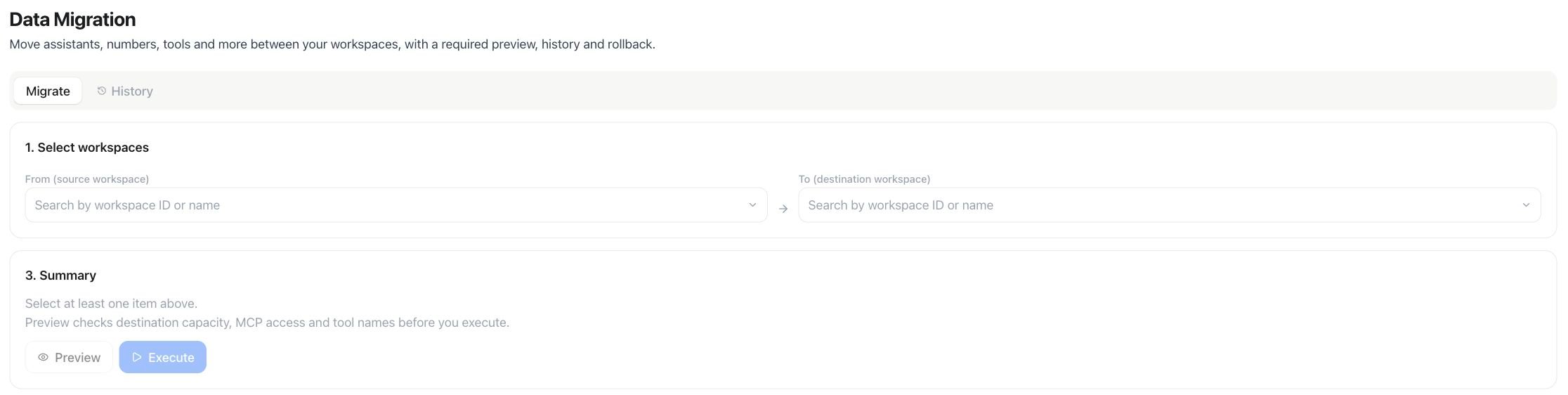
Open **Whitelabel Admin → Data Migration → Migrate**. Begin with **From (source workspace)** and **To (destination workspace)**. This screenshot shows the initial state before either workspace is selected; no migration has run.
 ## Run a migration
Under **1. Select workspaces**, use **From (source workspace)** and **To (destination workspace)** to search by workspace name. Both must belong to your reseller platform.
Once a source is chosen, its candidates load — every eligible resource in that workspace, not filtered by owner. Check the ones to move.
Use **New owner in destination workspace** to pick which member should own the moved resources.
Run **Preview**, review any renamed tools, and resolve all reported blockers. Then choose **Execute**. Changing the workspaces, owner, selection or dependency options requires a fresh preview.
## History and rollback
Every migration is recorded as a **run**, listed with who moved what, from which workspace, to which workspace, and when. Open a run to review exactly what it moved. Use **Rollback** from the same list to reverse completed transfers, including successful items in a partially failed run. A tool renamed after migration is protected from automatic rollback. If some items cannot be restored, the run remains available for another attempt.
## API
Data Migration is a Whitelabel Admin dashboard action — there is no public REST or MCP equivalent. Automate onboarding or account handovers instead through the [White Label API](/admin/whitelabel-api), or perform the move manually from the dashboard.
See also [White Label Program](/admin/tenants-and-whitelabel) for how customer workspaces are separated from each other, and [User Limits Management](/admin/user-limits) to configure destination capacity before migrating.
This documentation is built and hosted on [Mintlify](https://mintlify.com), a developer documentation platform.
## Run a migration
Under **1. Select workspaces**, use **From (source workspace)** and **To (destination workspace)** to search by workspace name. Both must belong to your reseller platform.
Once a source is chosen, its candidates load — every eligible resource in that workspace, not filtered by owner. Check the ones to move.
Use **New owner in destination workspace** to pick which member should own the moved resources.
Run **Preview**, review any renamed tools, and resolve all reported blockers. Then choose **Execute**. Changing the workspaces, owner, selection or dependency options requires a fresh preview.
## History and rollback
Every migration is recorded as a **run**, listed with who moved what, from which workspace, to which workspace, and when. Open a run to review exactly what it moved. Use **Rollback** from the same list to reverse completed transfers, including successful items in a partially failed run. A tool renamed after migration is protected from automatic rollback. If some items cannot be restored, the run remains available for another attempt.
## API
Data Migration is a Whitelabel Admin dashboard action — there is no public REST or MCP equivalent. Automate onboarding or account handovers instead through the [White Label API](/admin/whitelabel-api), or perform the move manually from the dashboard.
See also [White Label Program](/admin/tenants-and-whitelabel) for how customer workspaces are separated from each other, and [User Limits Management](/admin/user-limits) to configure destination capacity before migrating.
This documentation is built and hosted on [Mintlify](https://mintlify.com), a developer documentation platform.